In iManage Work at cloudimanage.com, browse to iManage Work sidebar and select Ask iManage.
Figure: Accessing Ask iManage in sidebar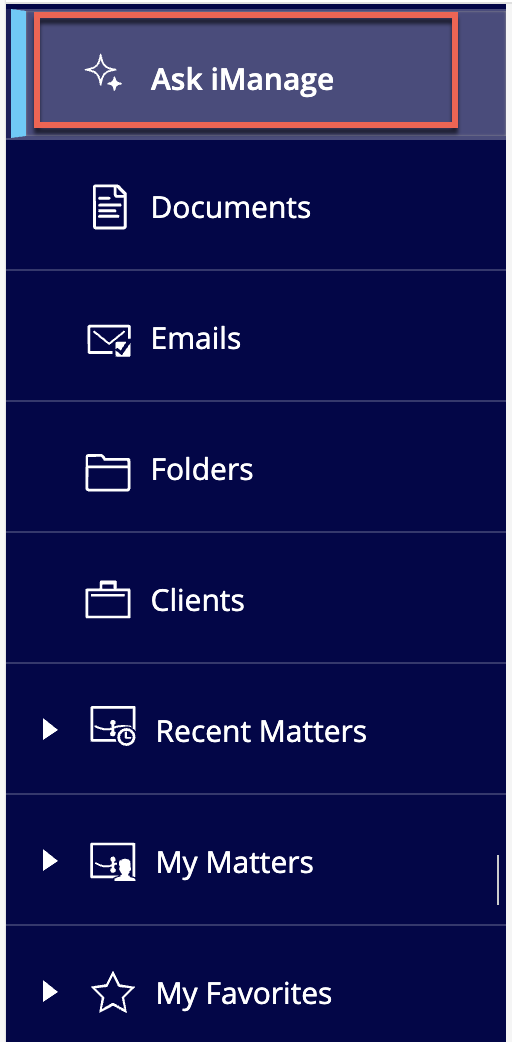
Select Compare documents,
Figure: Starting a new comparison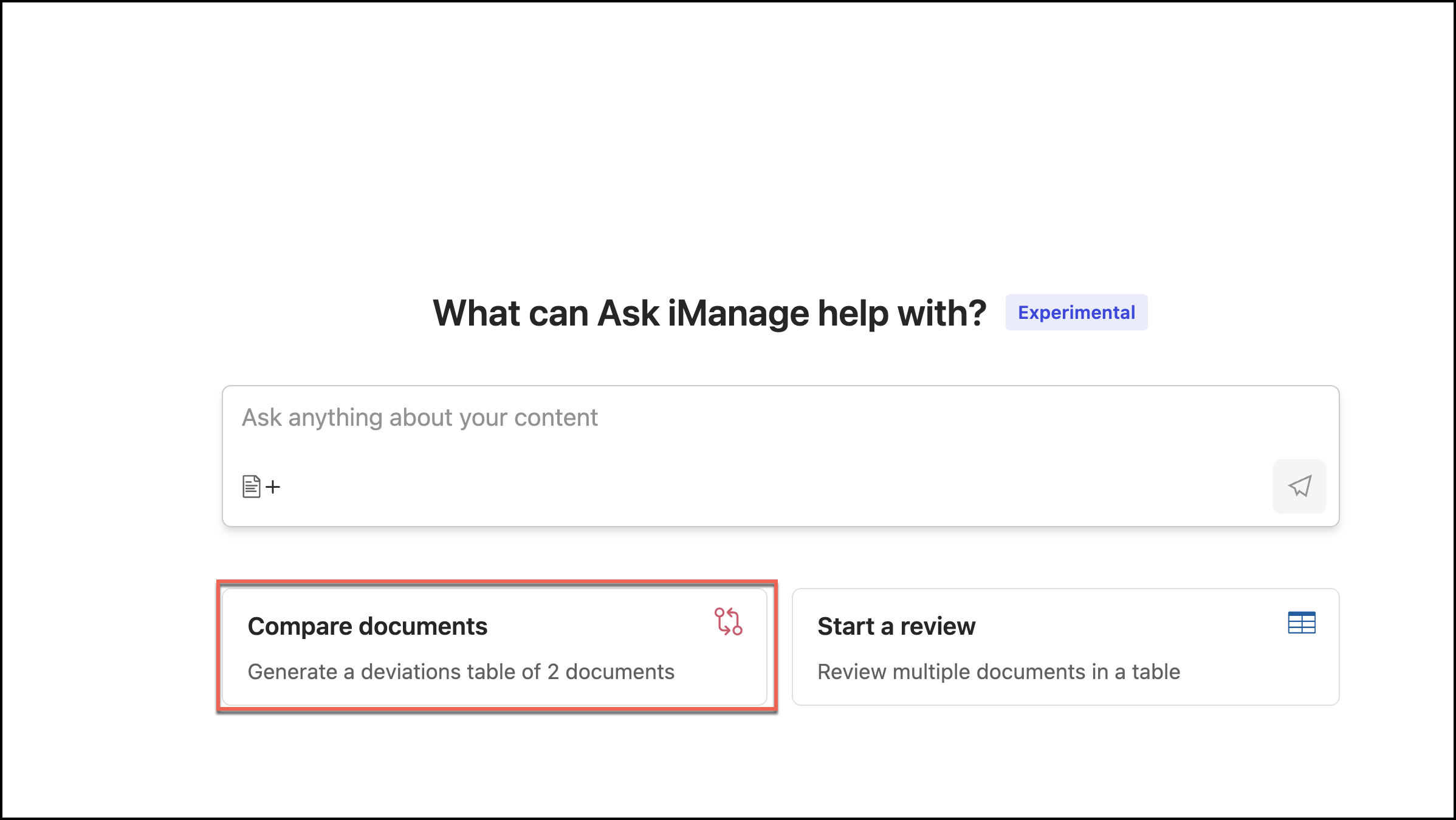
In the Select documents dialog that appears, select the documents you want to compare and click Select.
Figure: Select documents for comparison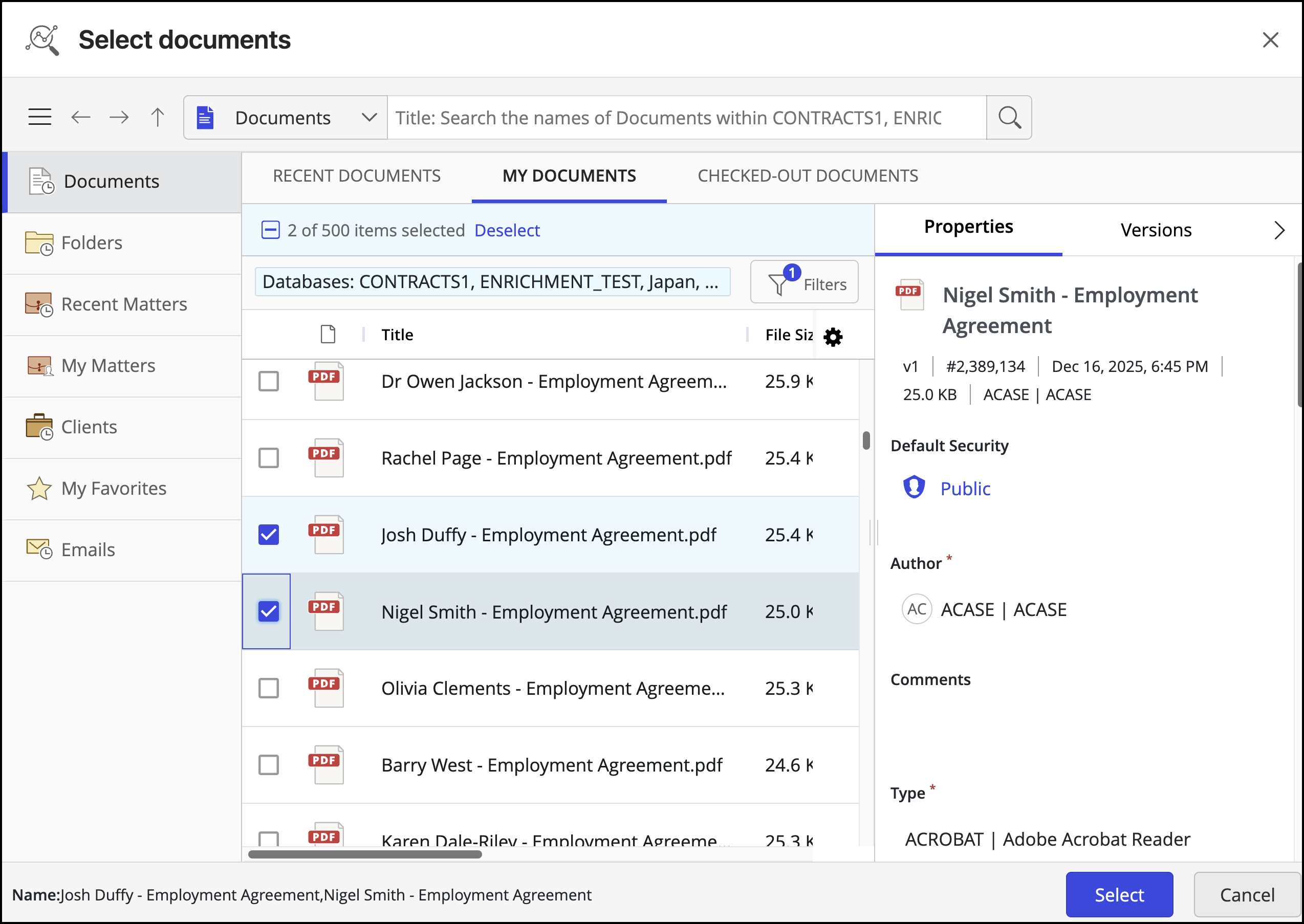
In the Confirm document comparison dialog that appears, select Compare. (Optional) Select Swap Documents if you want to swap the documents for comparison.
Figure: Confirm document comparison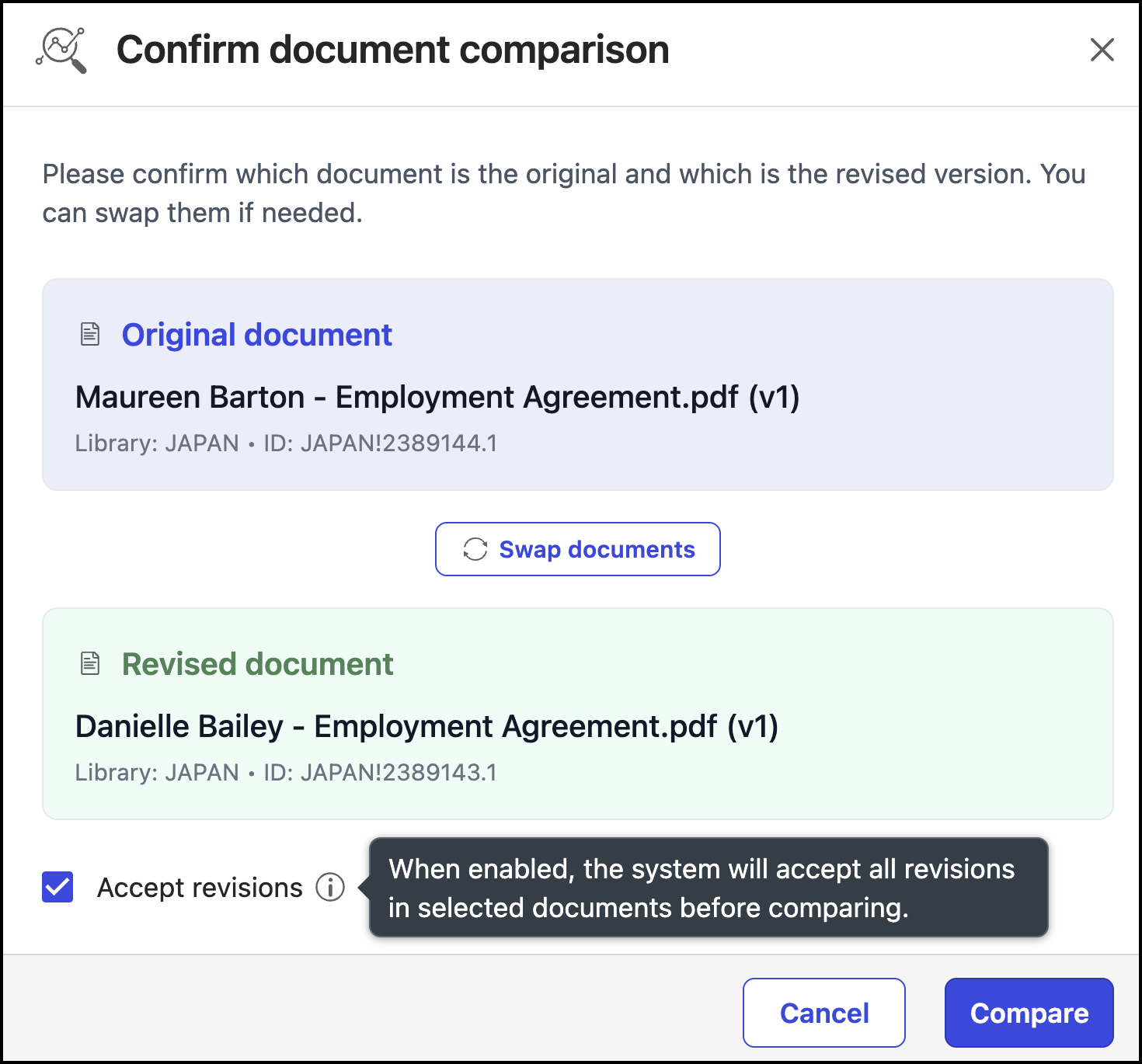
The comparison results are displayed. Select Compare Table to view the comparison results or Redline Document to view the Redline analysis of the compared document.
Figure: Document comparison results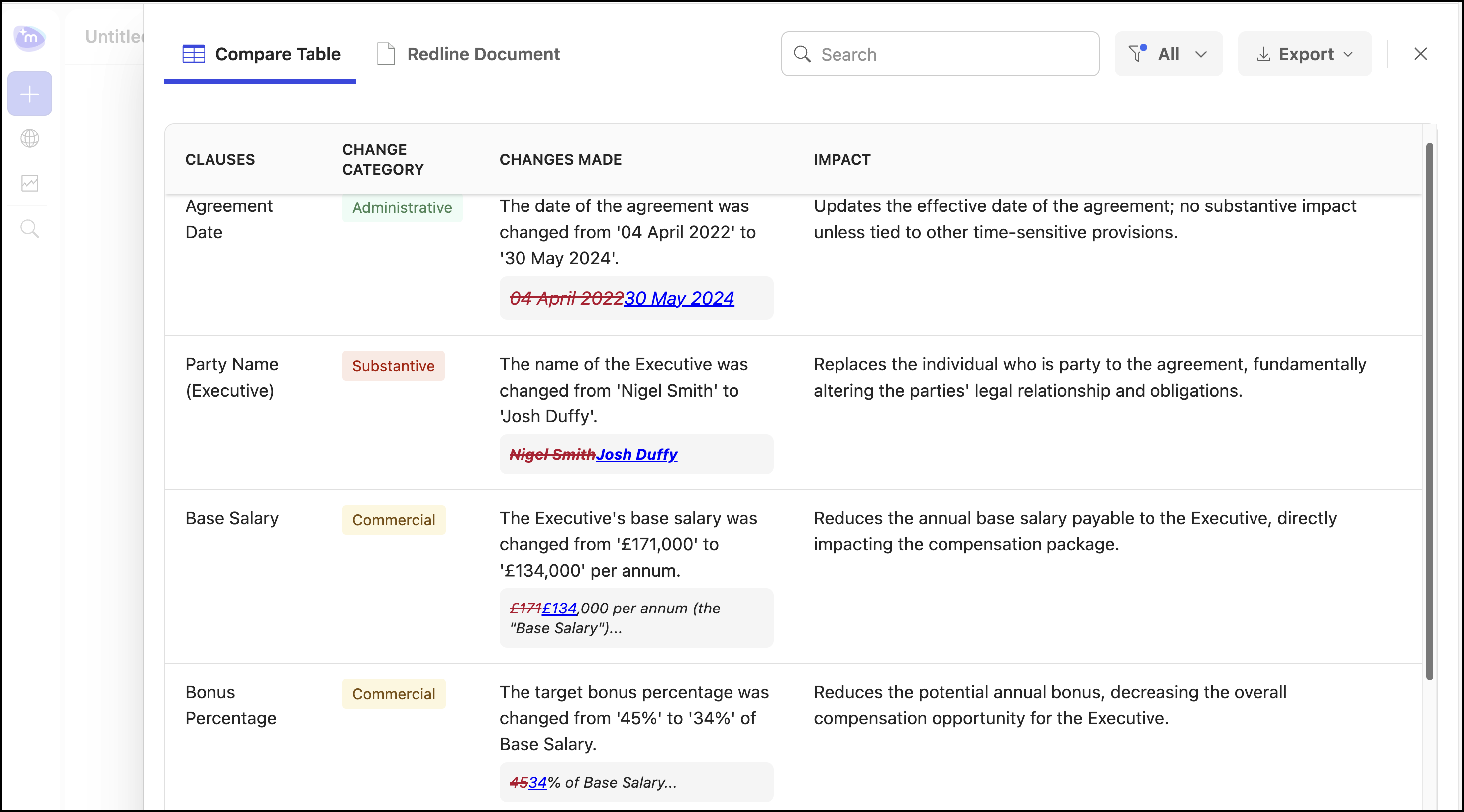 Figure: Redline analysis of the document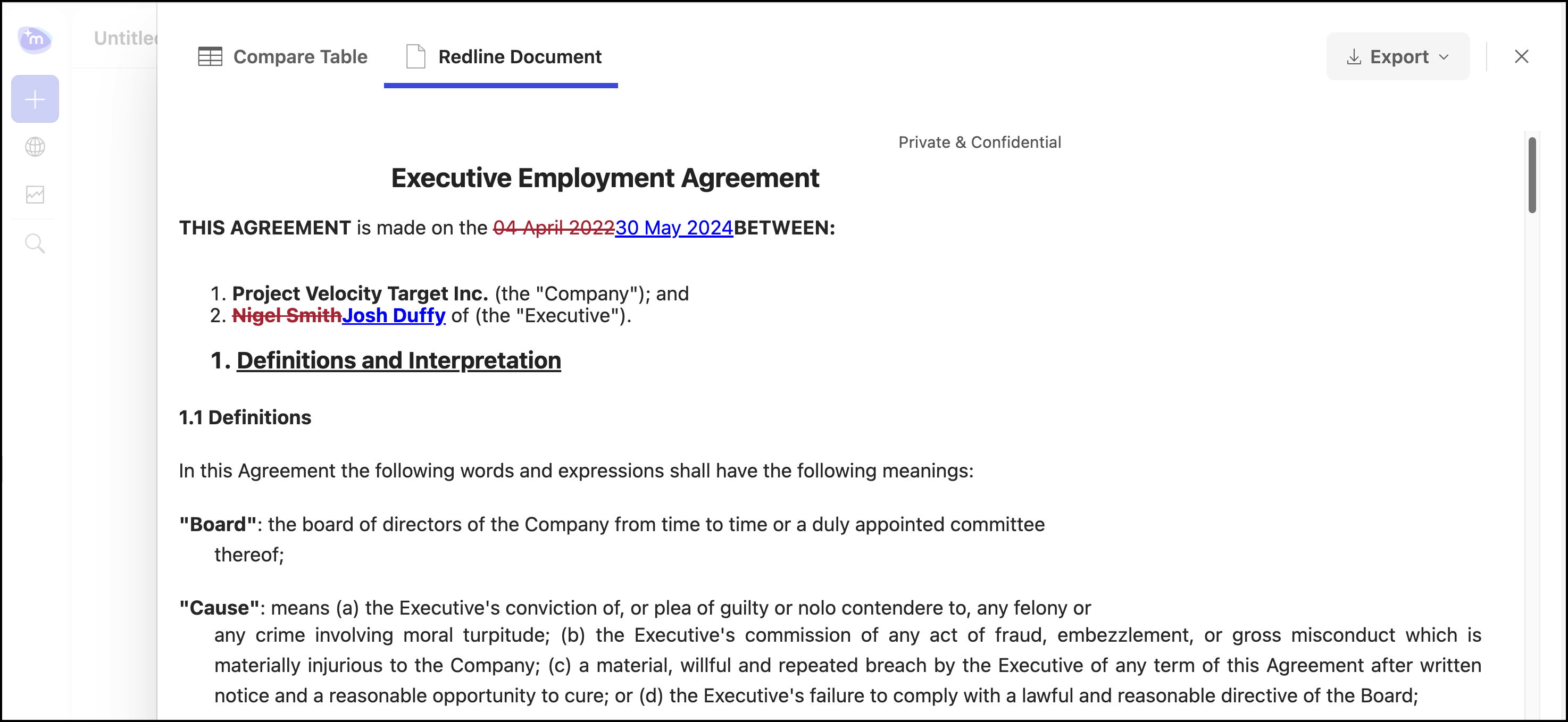
Alternatively, you can also hover over Changes made column in the Compare Table and select the change made to view the changes in the document.
Figure: Selecting the change to be viewed in the document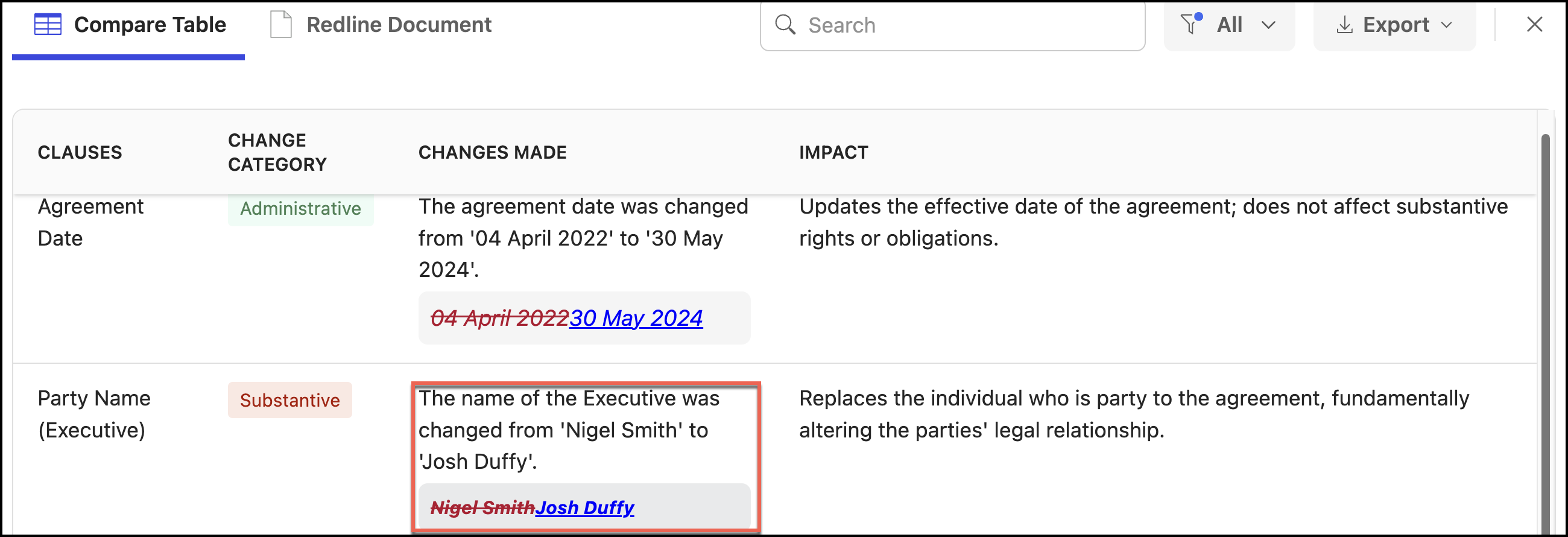 Figure: Viewing the change in the document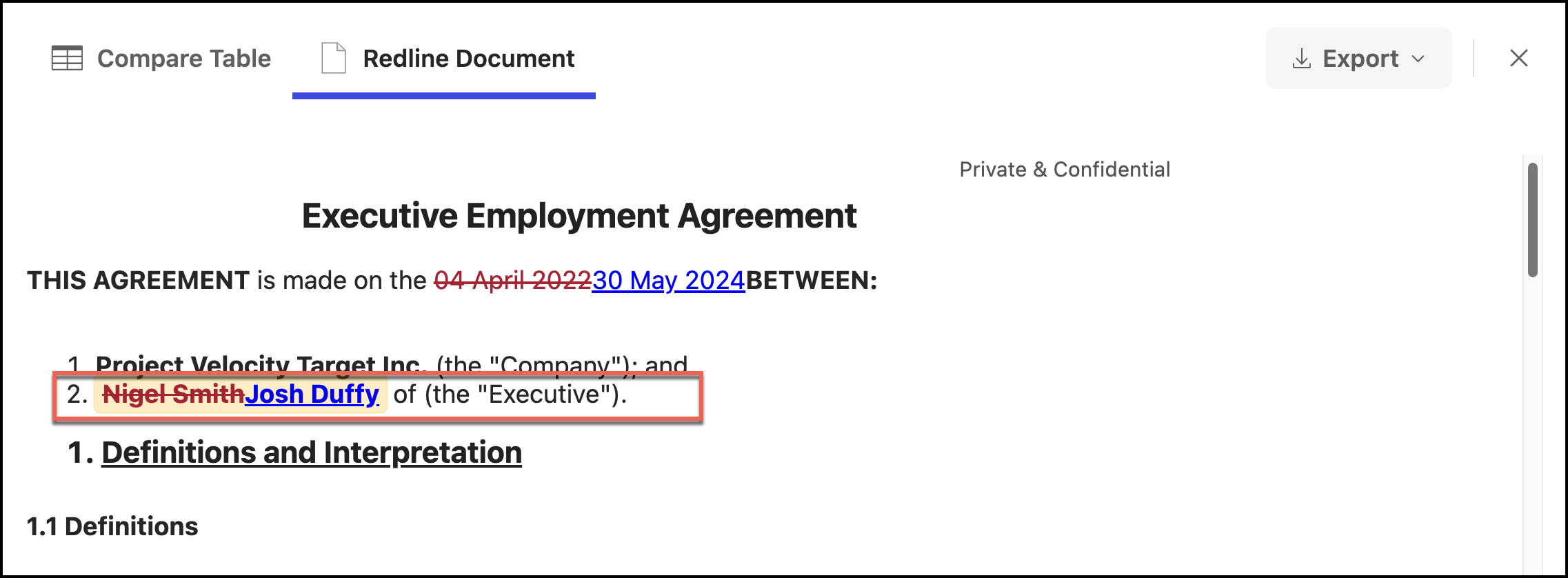
(Optional) If you want to start a new comparison. Select
 New chat and then select Compare documents, Figure: Starting a new comparison
Ask iManage automatically saves your comparison for future use. You can search for these results or rename them. For more information, refer Searching for previous comparison results and Renaming your comparison results.