Browse to the Ask iManage side pane. For instructions about how to access the side pane, refer to Ask iManage side panel.
Select one of the following guided actions:
Overview
Ask
Extract
Chronology
Playbook
Figure: Selecting a option in Ask iManage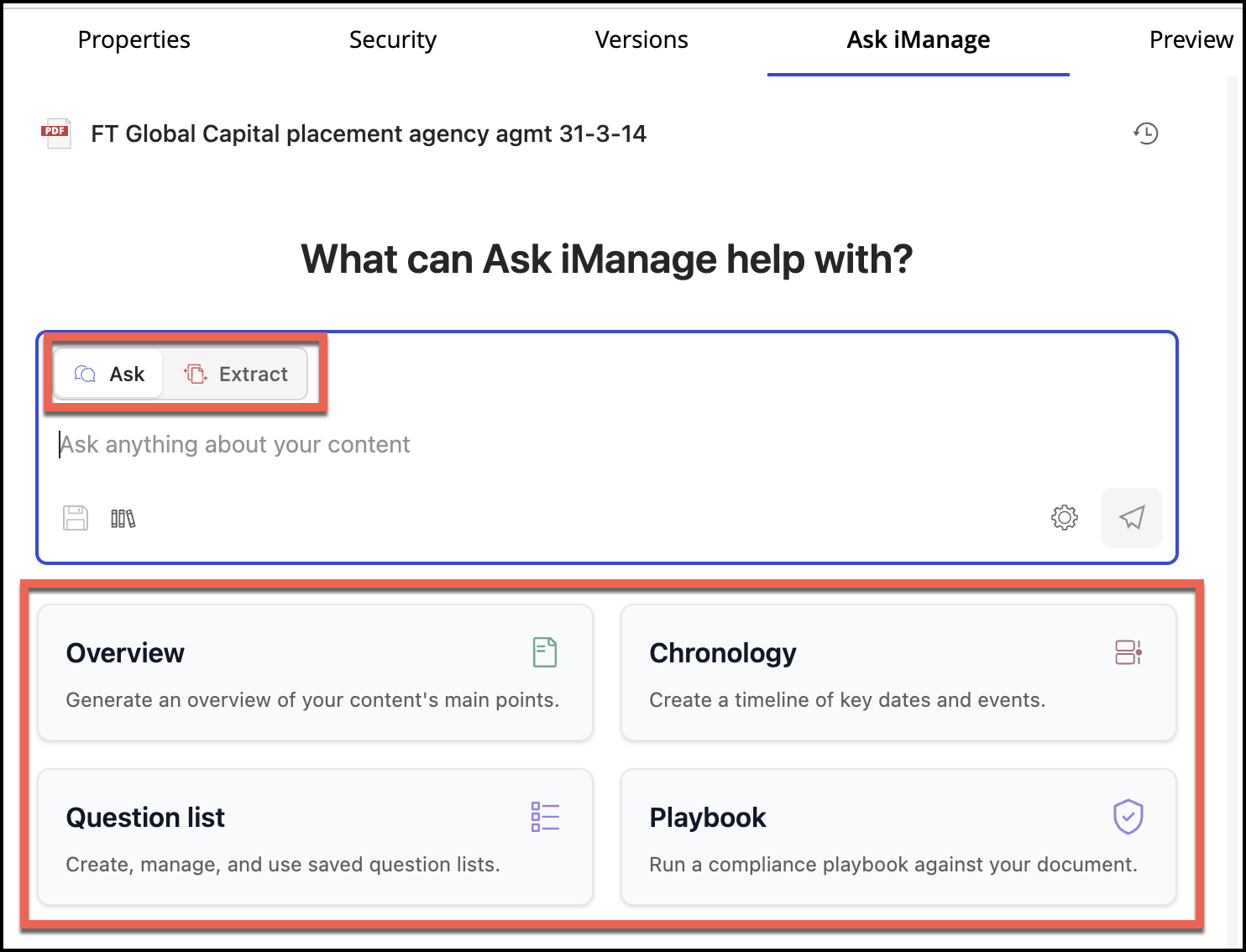
For more information about when to select a specified option, refer to Ways of asking a question in Ask iManage.
Question list is covered separately under Reviewing a selected document per a question list and Reviewing multiple documents simultaneously per a question list.
Playbook is also covered separately under Working with Playbook.
In the Ask anything about your content… field, ask a question related to the document. The field moves to the bottom of the side pane.
Figure: Ask your question here…field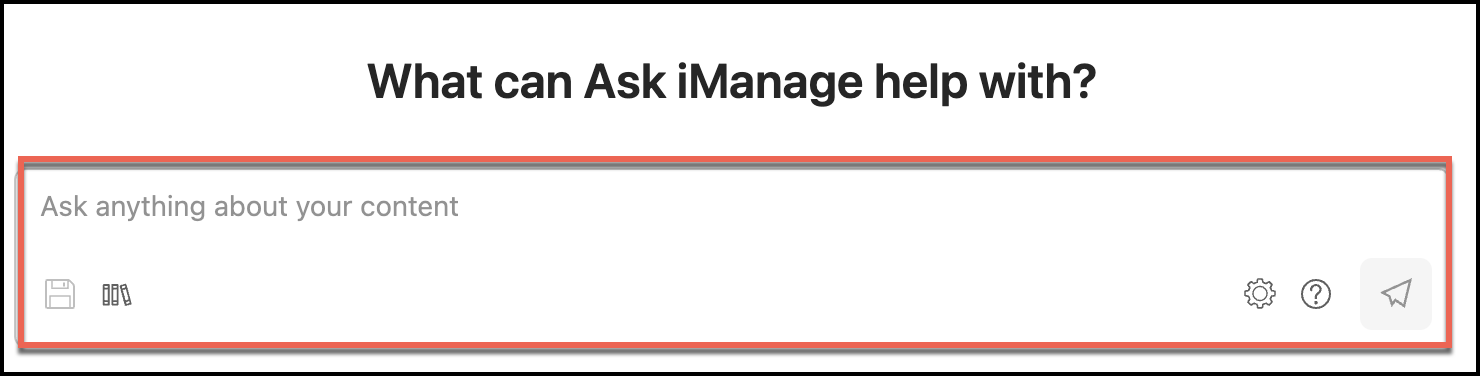
If you select Extract or Ask, you may have to frame your question accordingly. A few examples of which are provided in Ways of asking a question in Ask iManage. Questions or instructions have a character limit of 4000 characters, including white spaces.
When you want to ask a question using Extract or Ask and want Ask iManage to improve the question, select the Improve my question option that is displayed when you enter the question. Ask iManage then automatically improves the question which you have entered.
For example, if you enter, What is the asset purchase agreement? and then select Improve my question, Ask iManage improves the question to Provide a summary of the asset purchase agreement, including its key terms, parties involved, and main obligations.Figure: Improve the question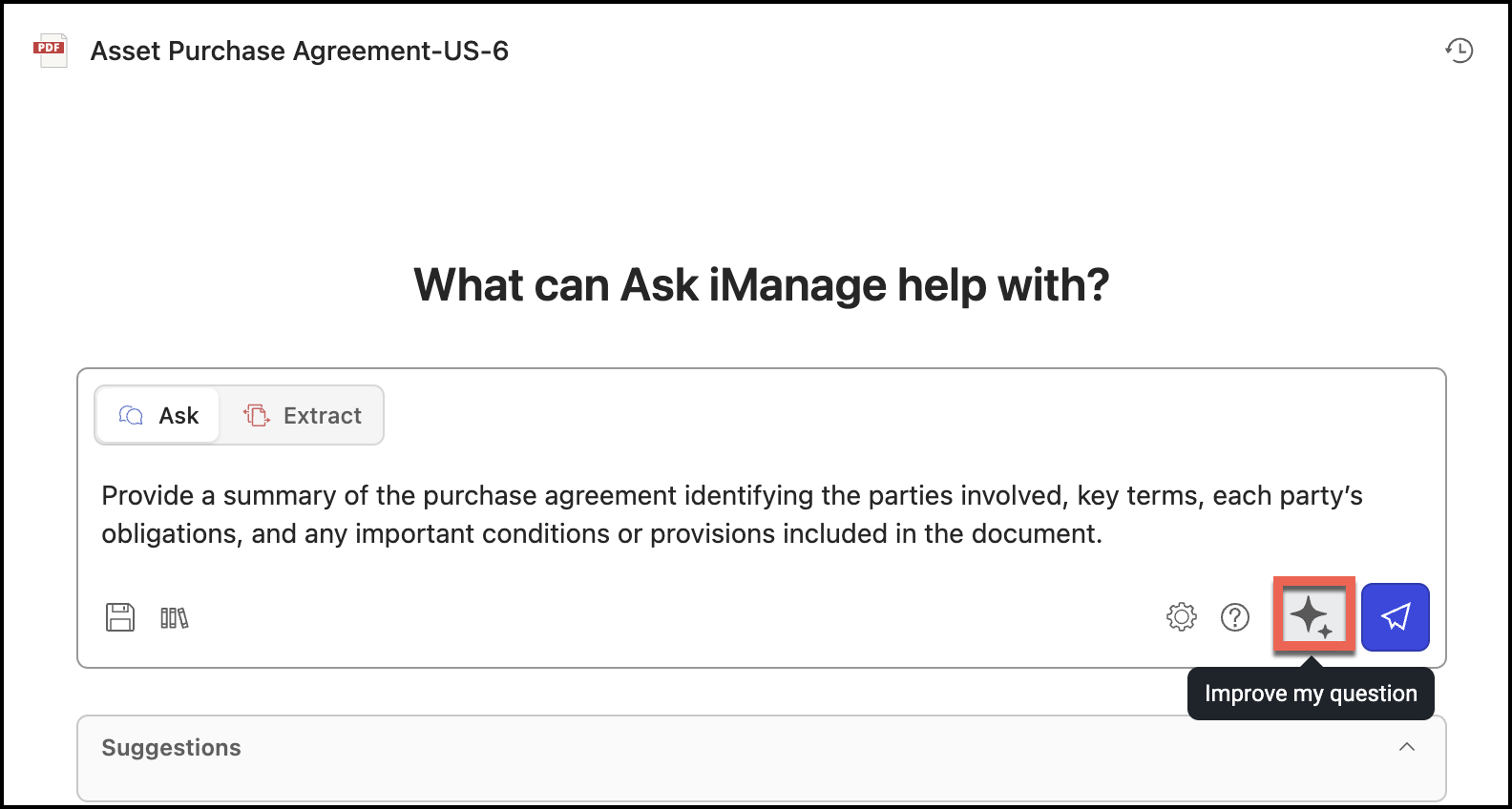
The Overview and Chronology actions don’t require you to add any questions. This is because Overview provides you with an overall summary of the document and Chronology provides a timeline of the key dates of the events for the document.
Ask iManage searches only in the document you selected. Ensure you frame the question effectively with enough detail, so that when processed, you get the desired answer.
A question or instruction with sufficient detail will help you get the answer you're seeking. Ask iManage also lets you build over your question or instruction based on the answer you get, to drill down further for more specific information or understand any related information.If you select Ask or Extract, a few questions specific to the document selected, are suggested to you as examples. You can use these question suggestions, as is, or use them and frame your questions in a similar manner. You can expand or collapse the suggestions that are displayed.
Figure: Prompt questions that are displayed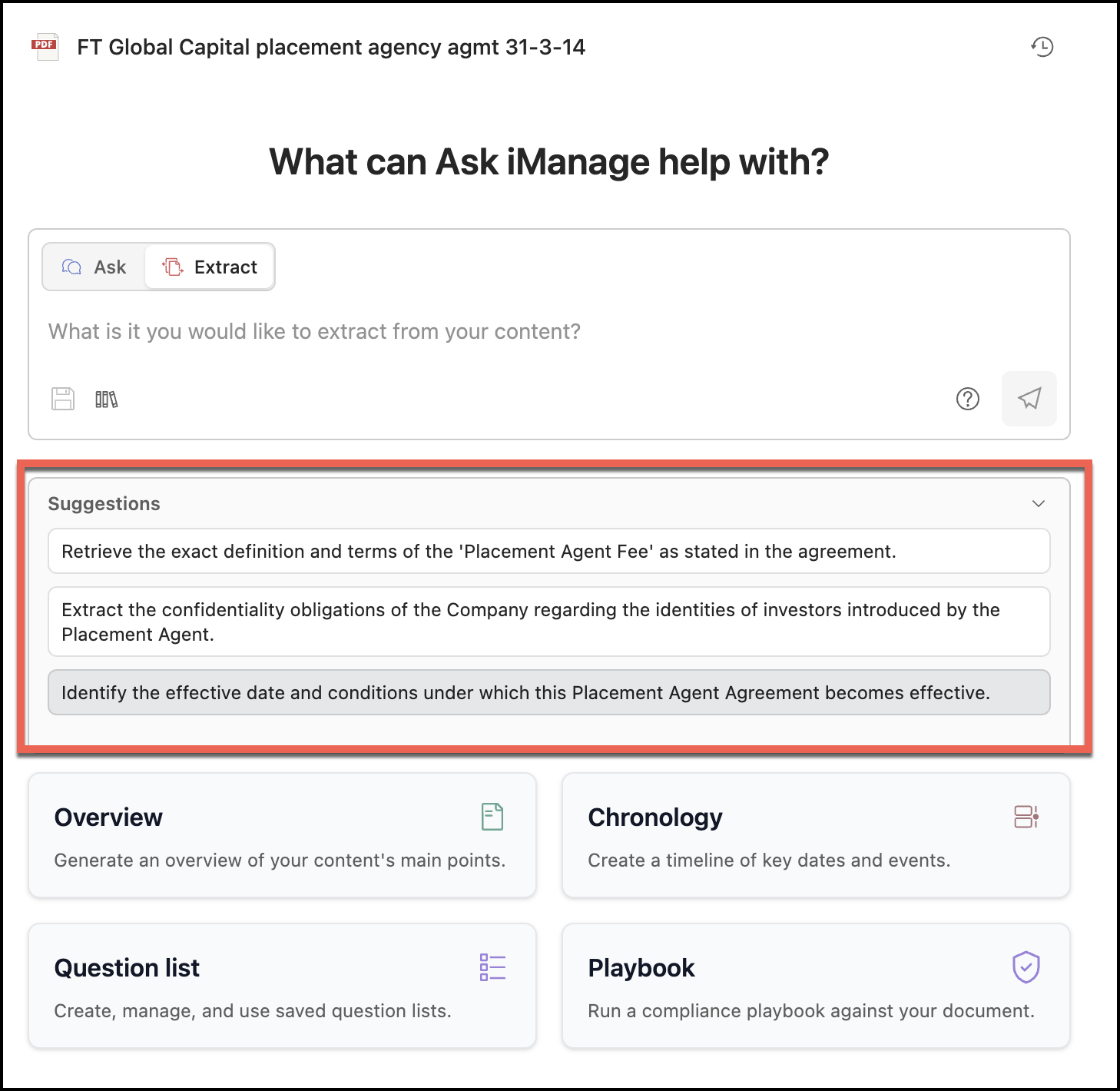
Ask iManage displays the answers as shown in the following figure:Figure: Answers displayed for Ask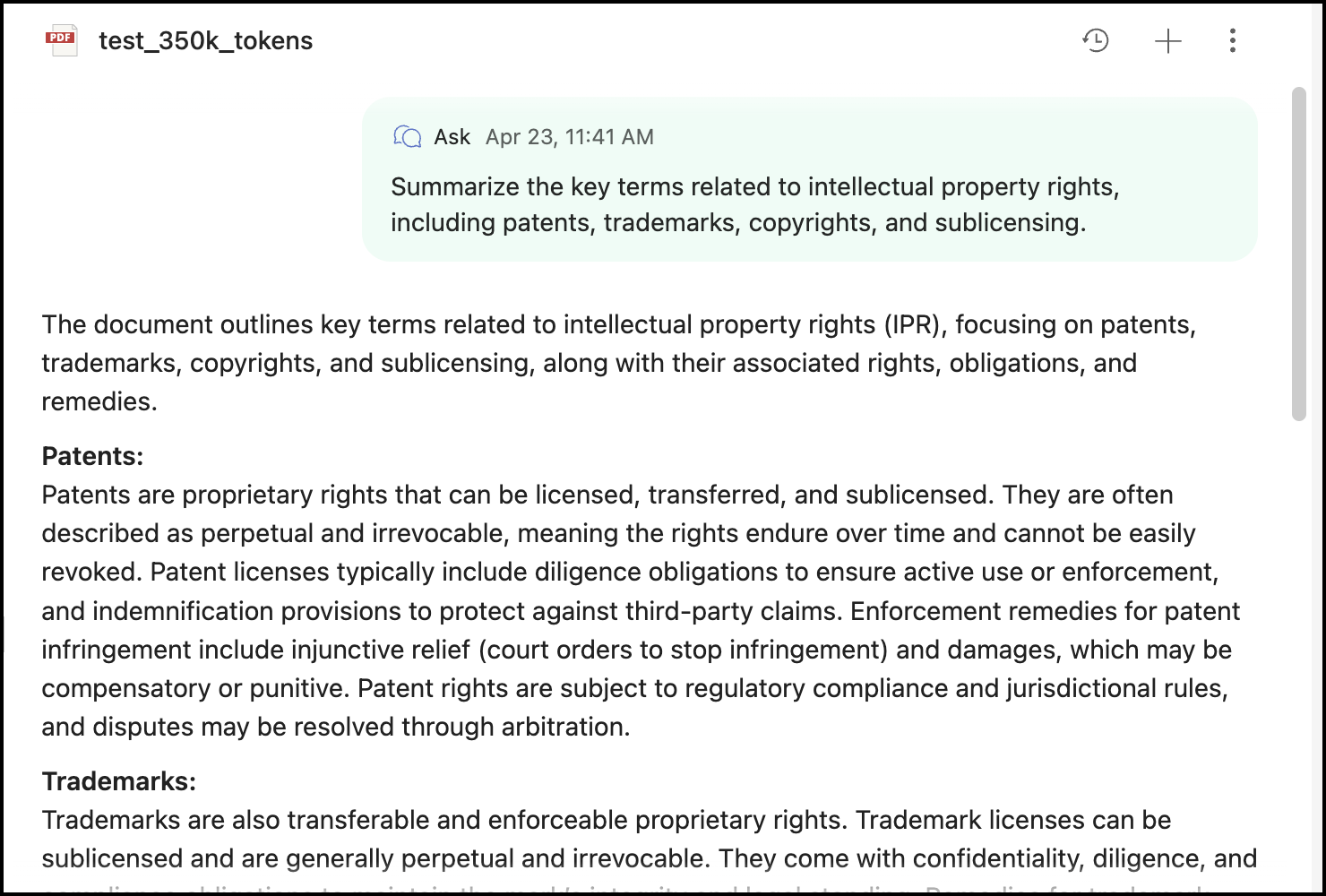
NOTE: The Summarize, Analyze, and Q&A options are replaced with Ask. If you access a previous conversation that included a summarize, analyze, or Q&A questions, it will be redirected to Ask.
Select Cancel if you want to stop Ask iManage from searching for answers. Ask iManage stops searching for the answer. You can then select Retry to continue with the search.
NOTES:
Ask iManage reads through your document to fetch the most appropriate answer, and it may take a while.
If Ask iManage fails to find the relevant information in the document or relevant information doesn't exist for the question being asked, a “Answer not found” response is displayed.