In iManage Work at cloudimanage.com, open the Ask iManage home page. For instructions on how to access Ask iManage home page, refer to Accessing Ask iManage home page.
On the Ask iManage home page
If there are no documents selected,
Select Start a review,
Figure: Select Start a review to select documents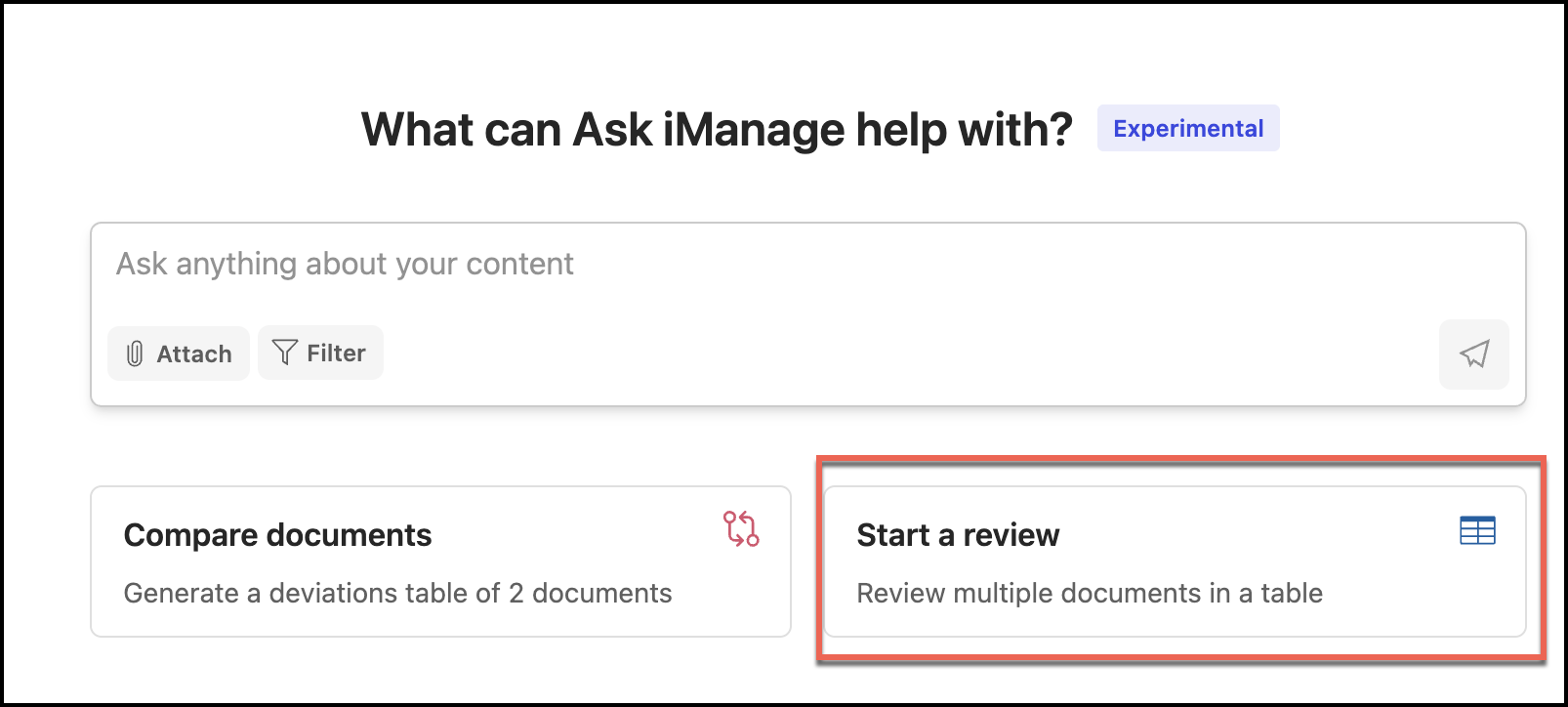
Alternatively, you can also select Attach in the Ask everything about your content.. field
In the Select documents dialog that opens, select one or more documents for which you want to ask questions.
Figure: Select documents in Select documents dialog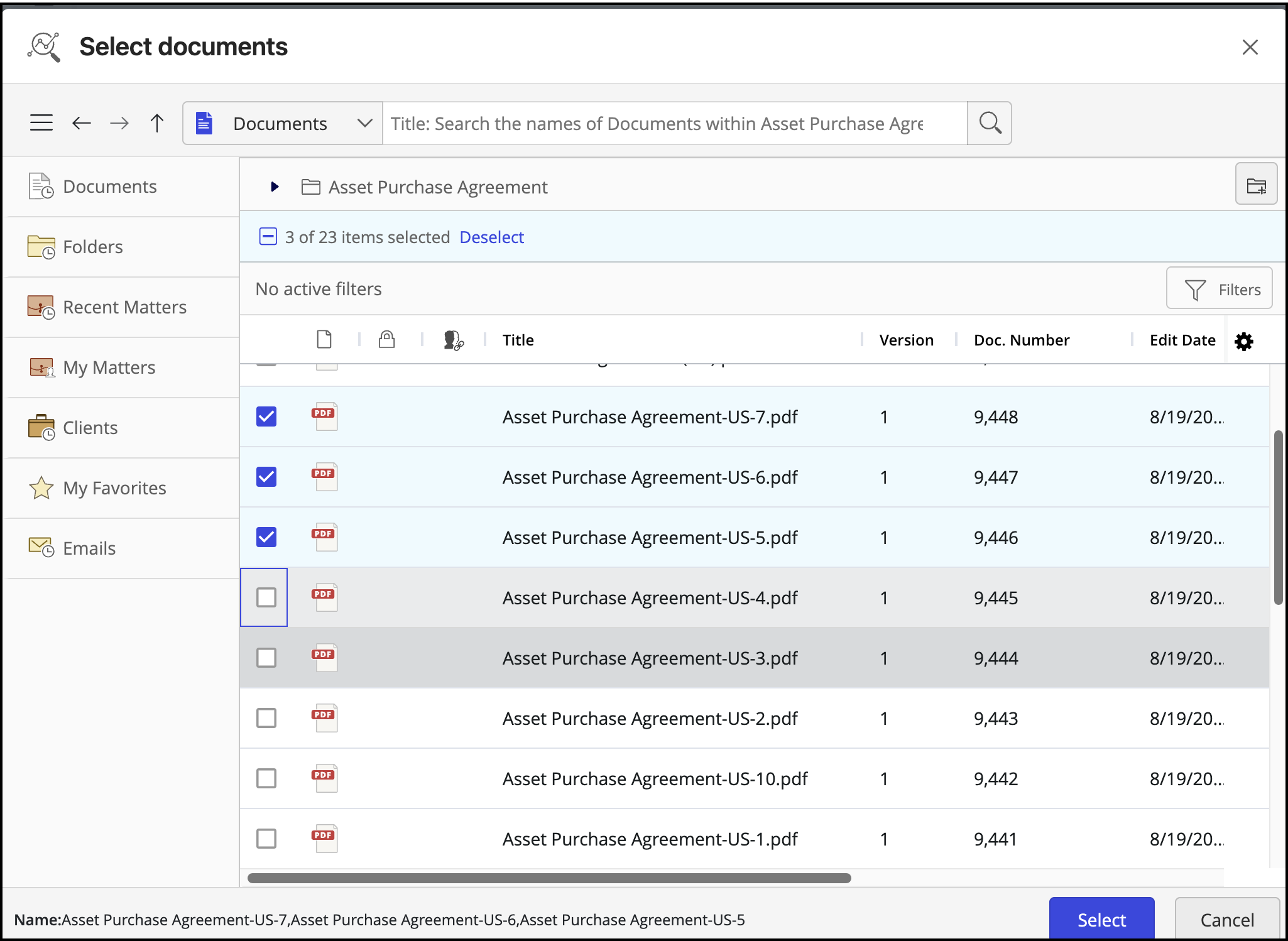
The selected documents appear on the Ask iManage home page as shown in the following figure:
Figure: Documents appearing in Ask iManage home page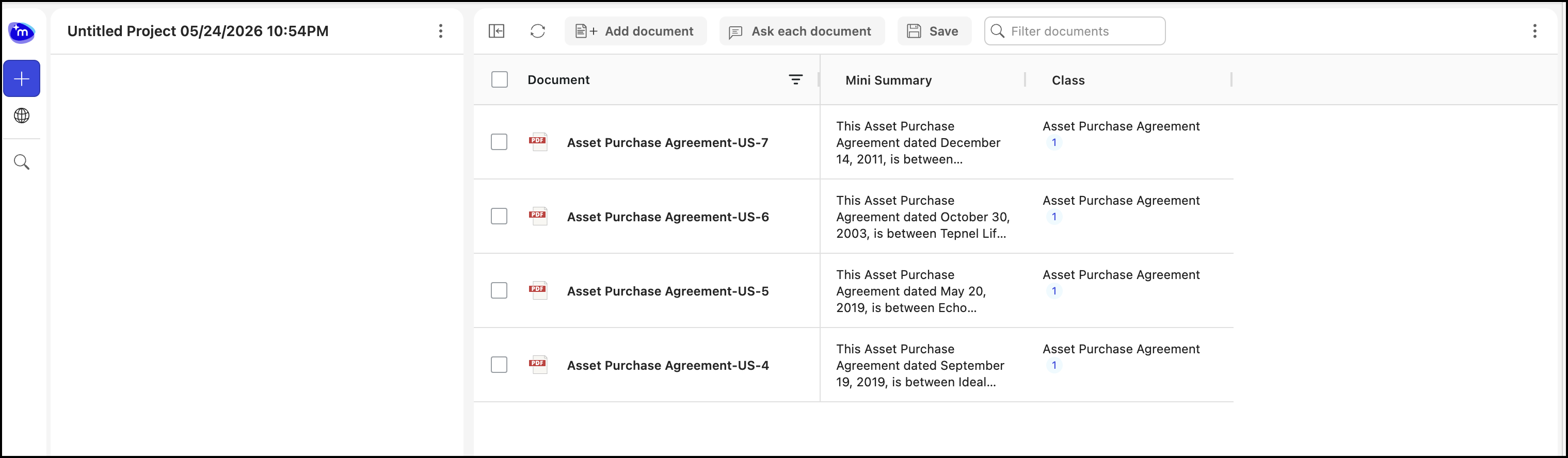
If there are documents already selected, proceed with next step.
From now on, when you select documents, the table displays the document summary, and document class of the selected documents as shown in the following image:
In the left pane, in the Ask anything about your content field, ask a question related to the selected documents.
Figure: Asking questions using Ask Across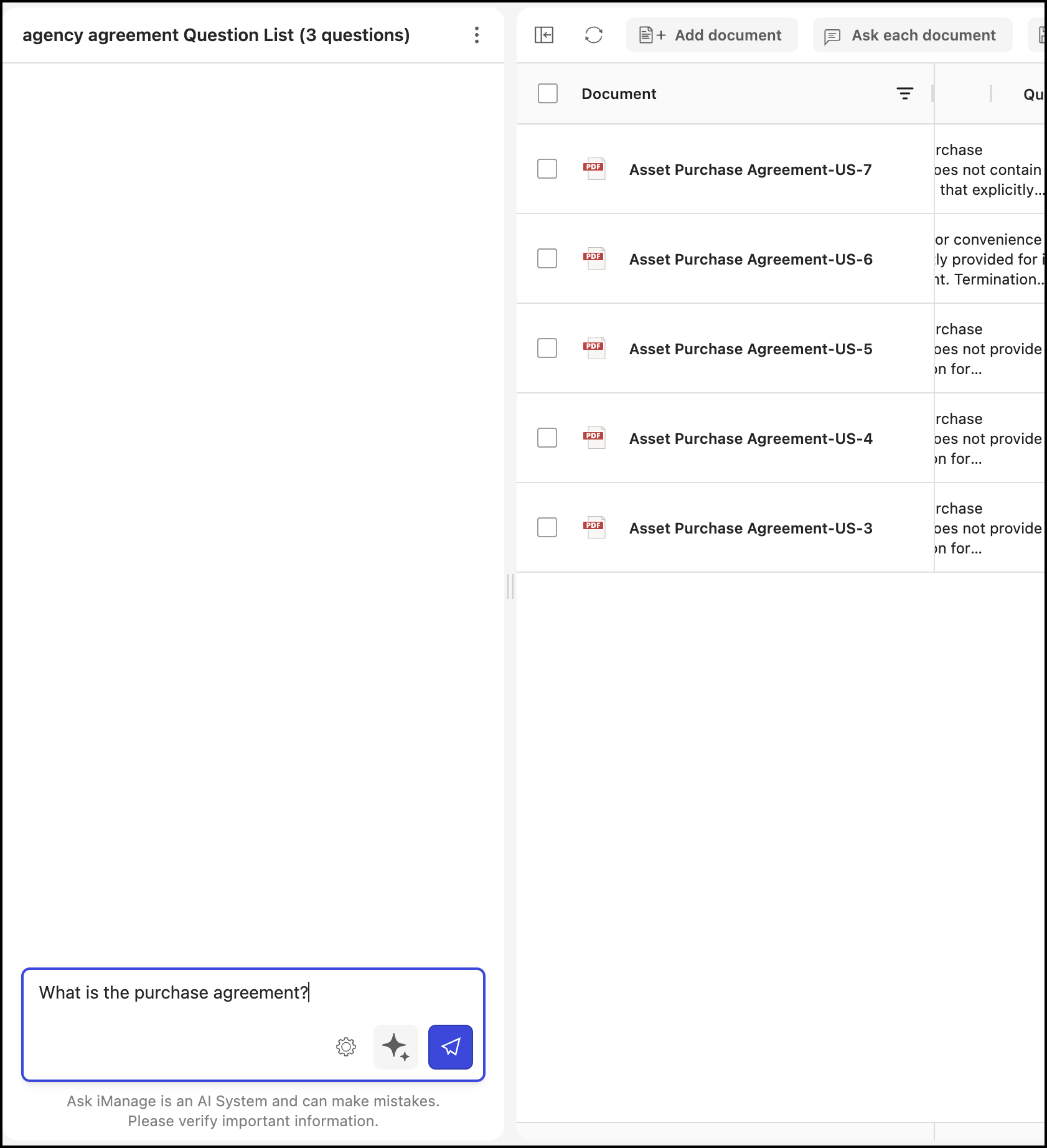
When you want to ask a question and want Ask iManage to improve the question, select the Improve my question option that is displayed when you enter the question. Ask iManage then automatically improves the question which you have entered.
For example, if you enter, What is the asset purchase agreement? and then select Improve my question, Ask iManage improves the question to Provide a summary of the asset purchase agreement, including its key terms, parties involved, and main obligations.Figure: Improve my question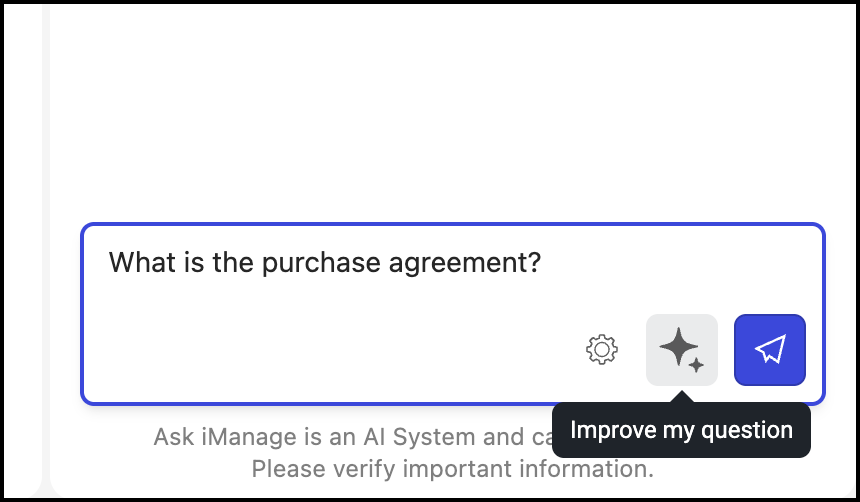
When using Ask Across to ask a question, Ask iManage mentions what steps it has taken to complete the question you have asked.
Figure: Asking questions using Ask Across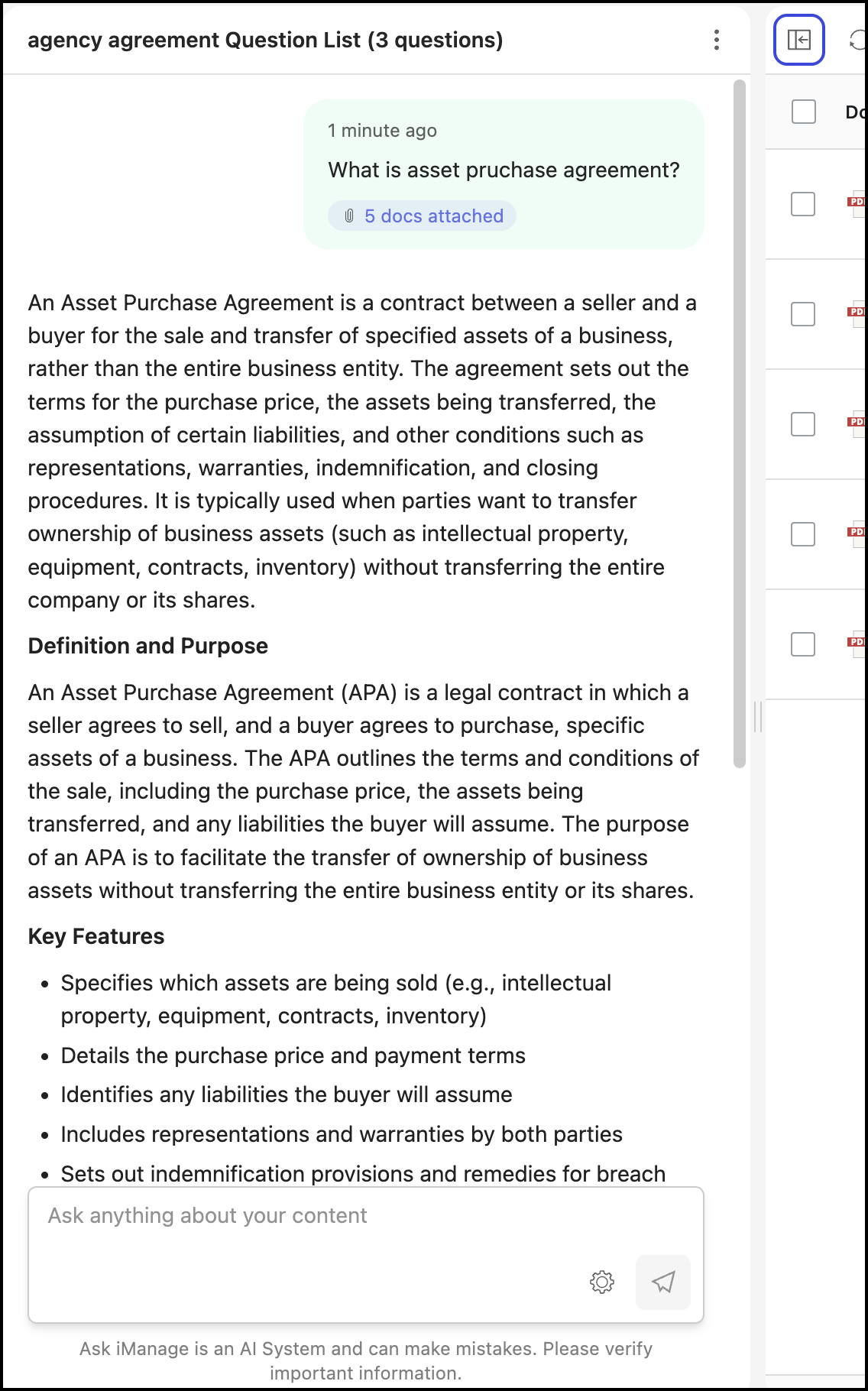
It also adds a summary of the question asked in the table as shown in the following figure:
Figure: The summary of the question added to the table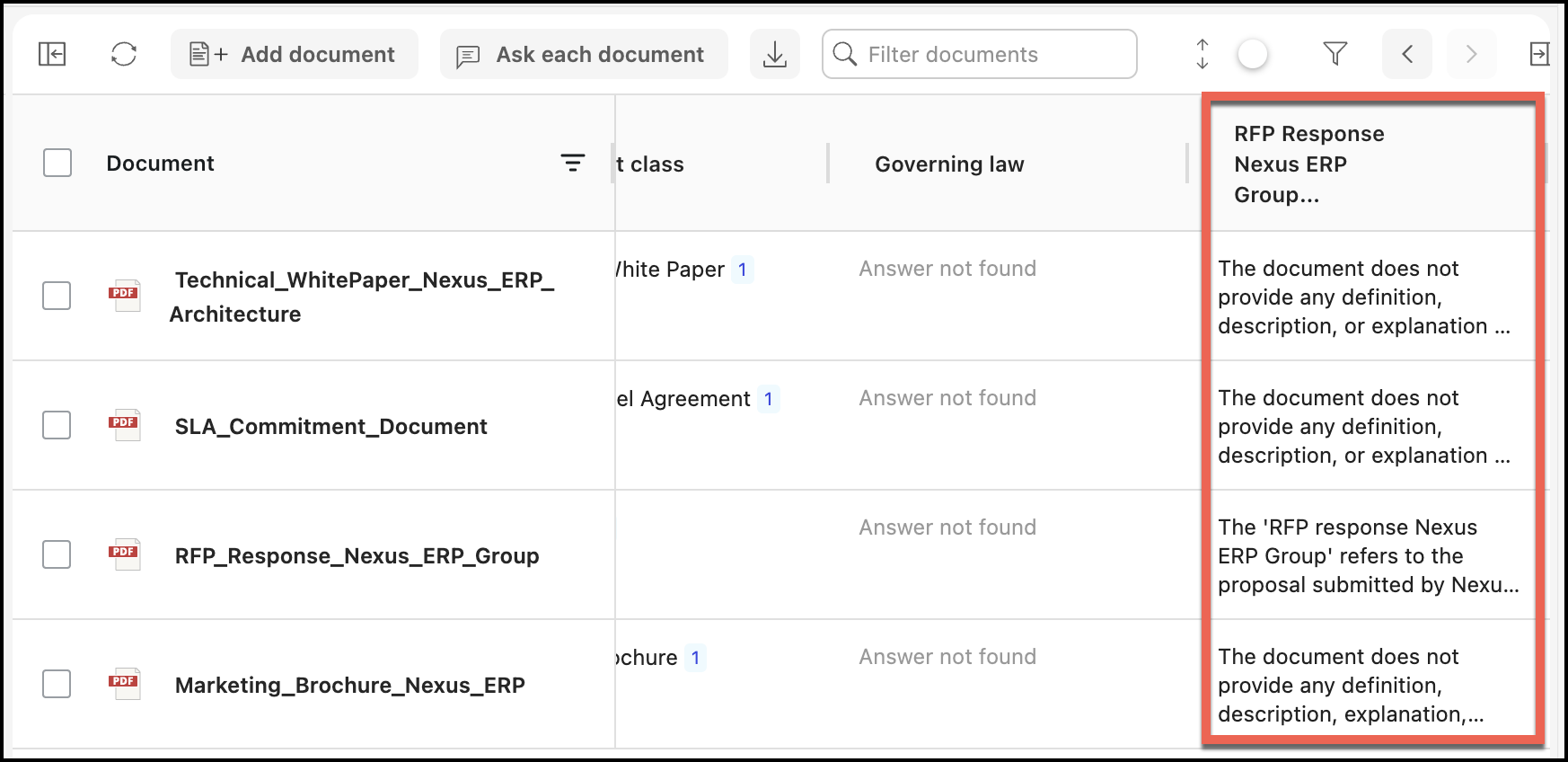
In addition, you can view the number of documents you have selected as shown. You can also hover each document and ask questions specific to that document.
Figure: Selecting document and asking question for each document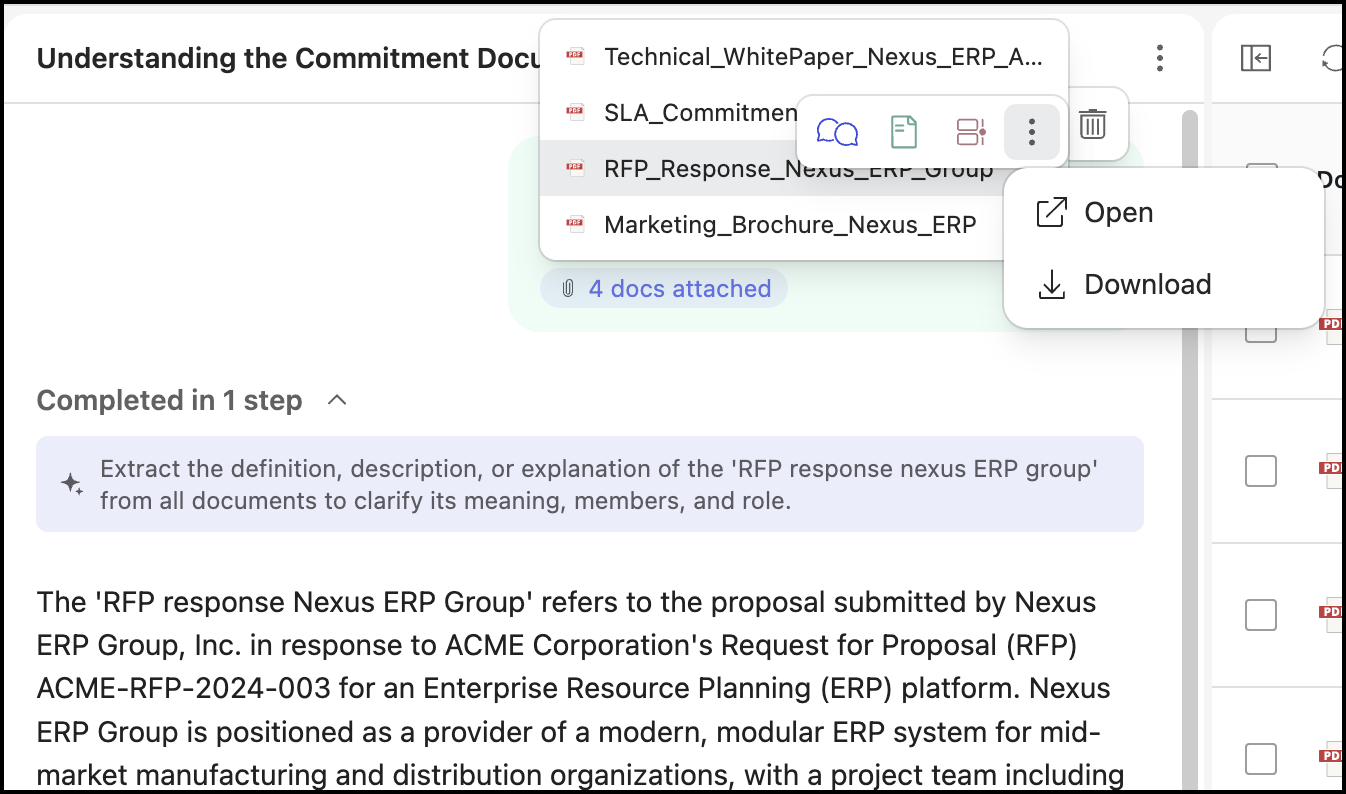
You can do the following with individual documents:
Ask a question
View overview
View chronology
Open the document
Download the document
NOTE: Because Ask iManage reads through your document to fetch the most appropriate answer, it may take a while.
If Ask iManage fails to find the relevant information in the document or relevant information doesn't exist for the question being asked, a “Answer not found” response is displayed.