The number icons beneath the answer enumerate the evidence related to the question. Hover over a number icon to view preview of the responses.
If the number icon is displayed in blue, select a number icon to view the location in the document where the evidence is found.
Figure: Hover over a number to view the evidence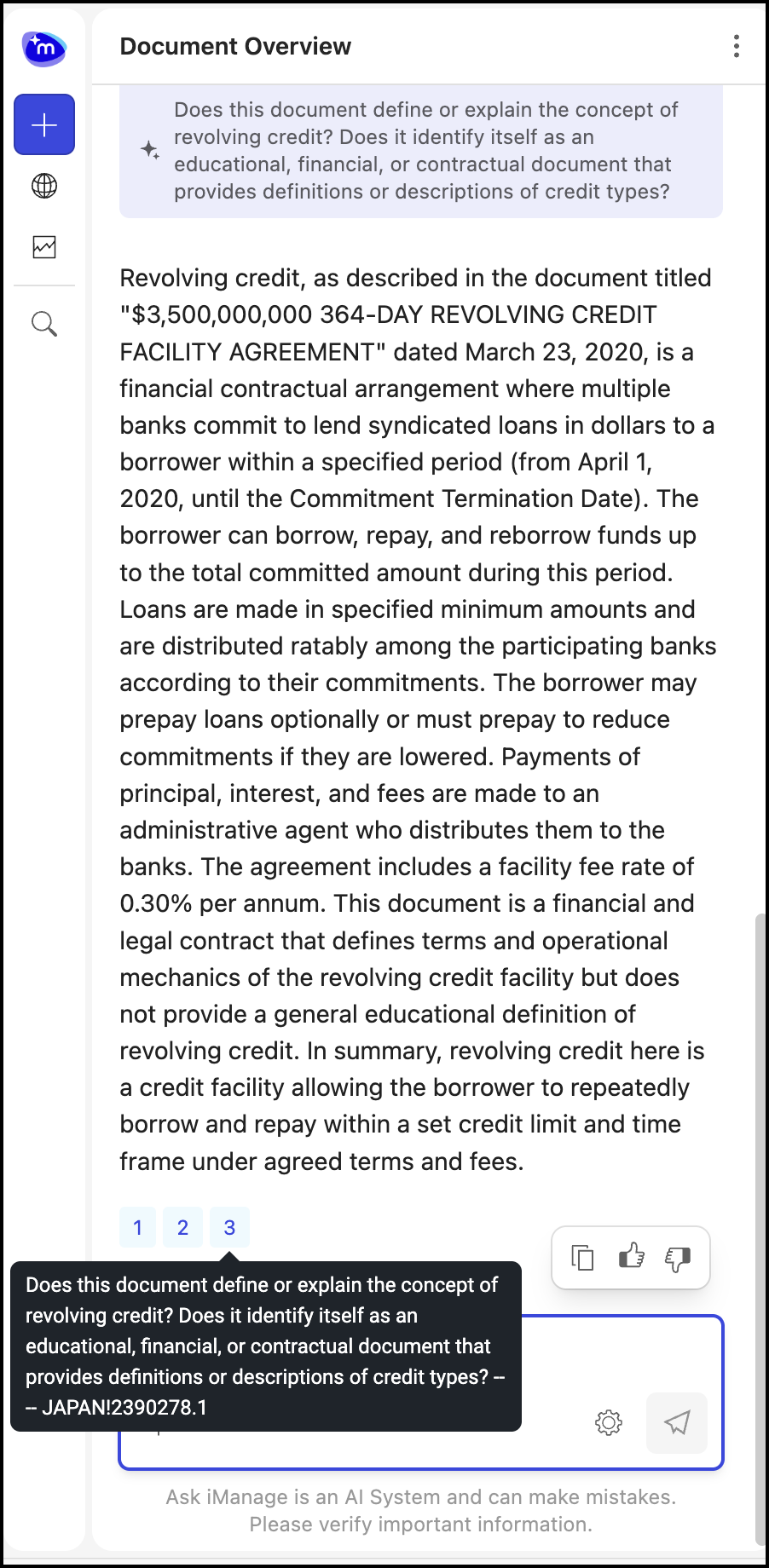
If the evidence is displayed in green as in the image shown below, when you select the number, the evidence points to the cell in the table in which the evidence is found.
Figure: Evidence in green colors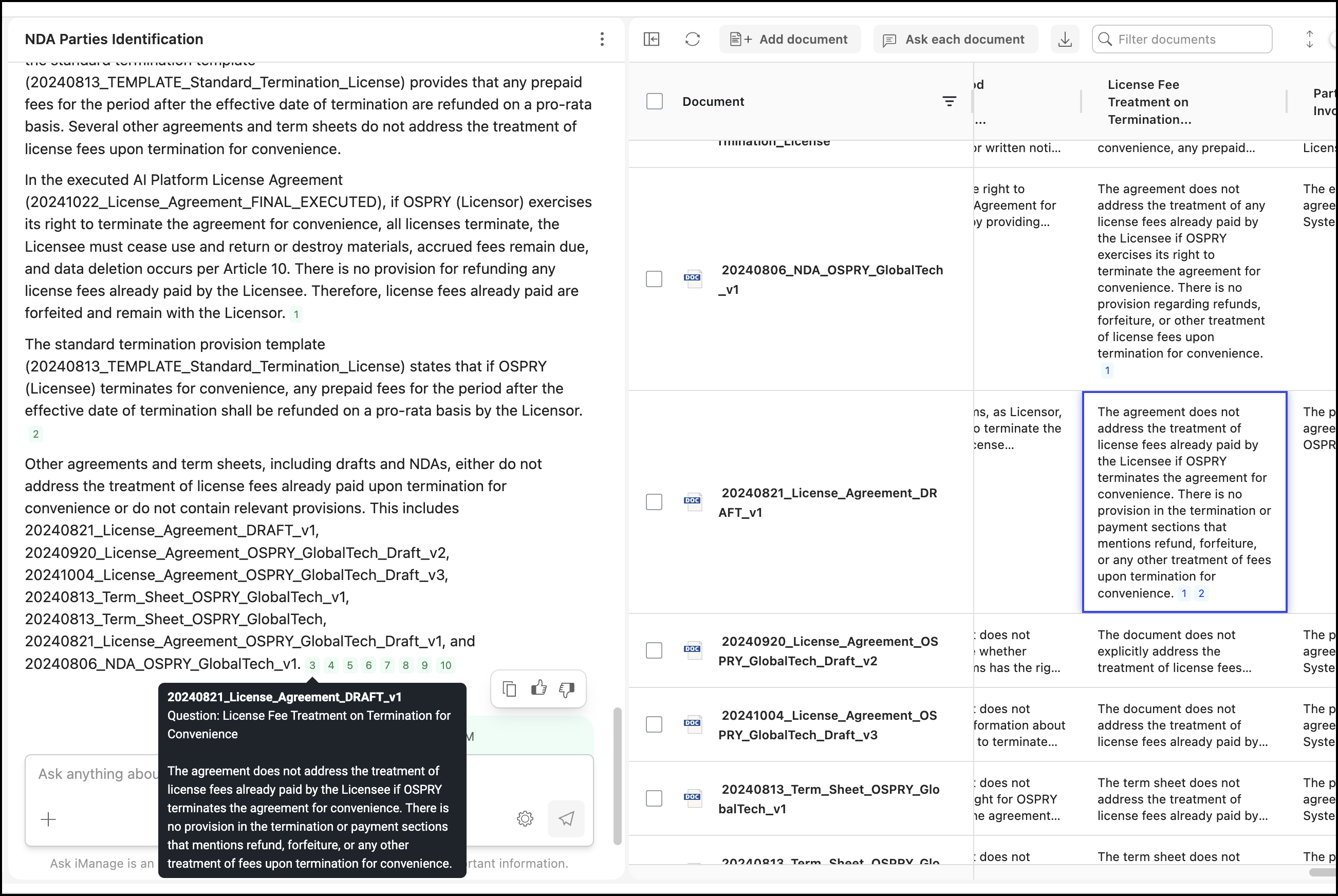
Select the blue color number icon in the table cell to view the location in the document where the evidence is found.
In the table view, hover over the blue color number icon in the table to preview the response. Select a number icon to view the location in the document at which the evidence is found.
Figure: Selecting evidence in a table cell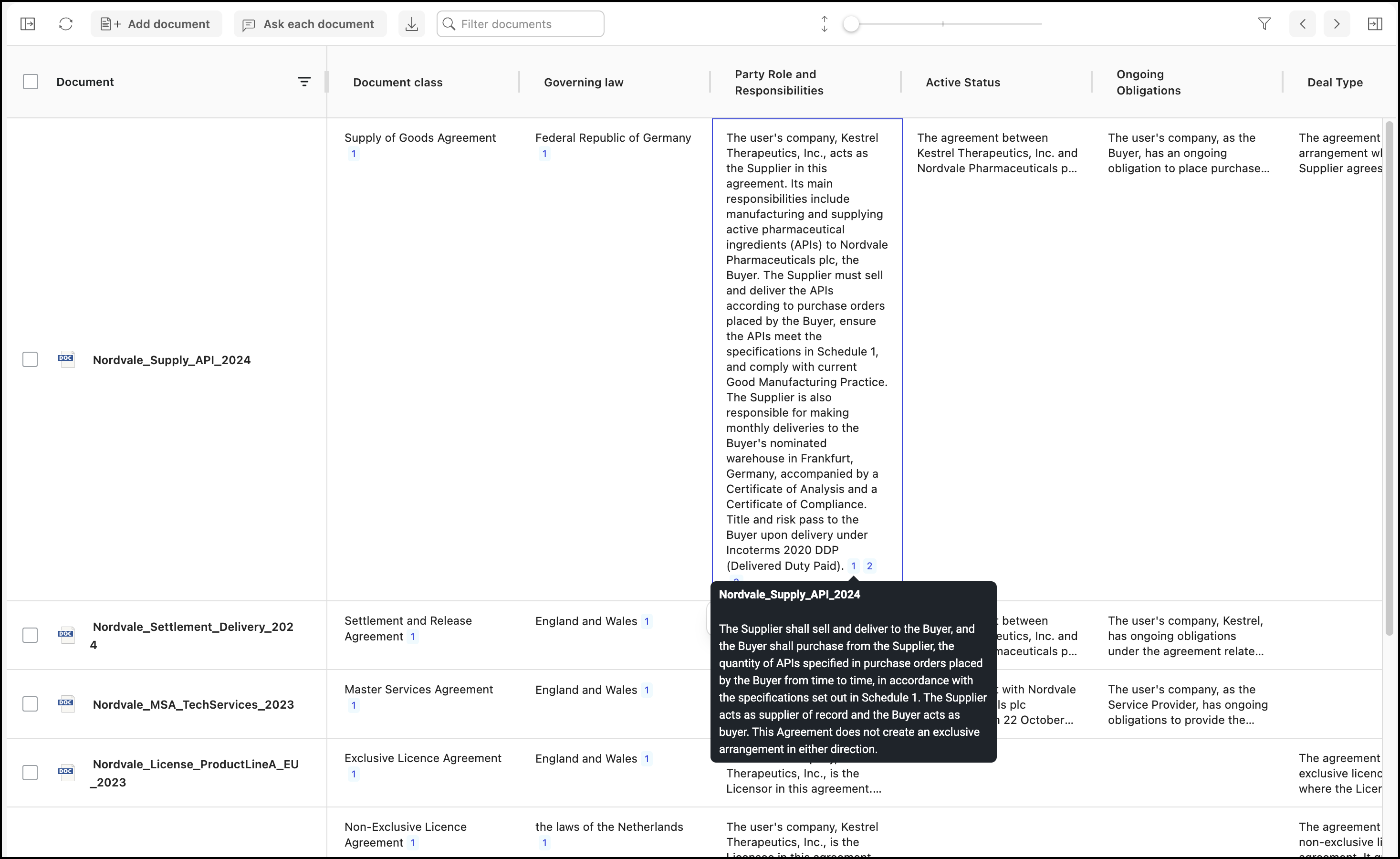
If the evidence is displayed in grey, select the icon to view the document metadata.
Select a number icon to view the location in the document where the evidence was found. Expand the side panel to view the document preview. Hover the pointer along the vertical left edge of the panel—it changes to  . Hold down the pointer and drag the edge to the left to increase the panel width, or drag the edge to the right to reduce the panel width.
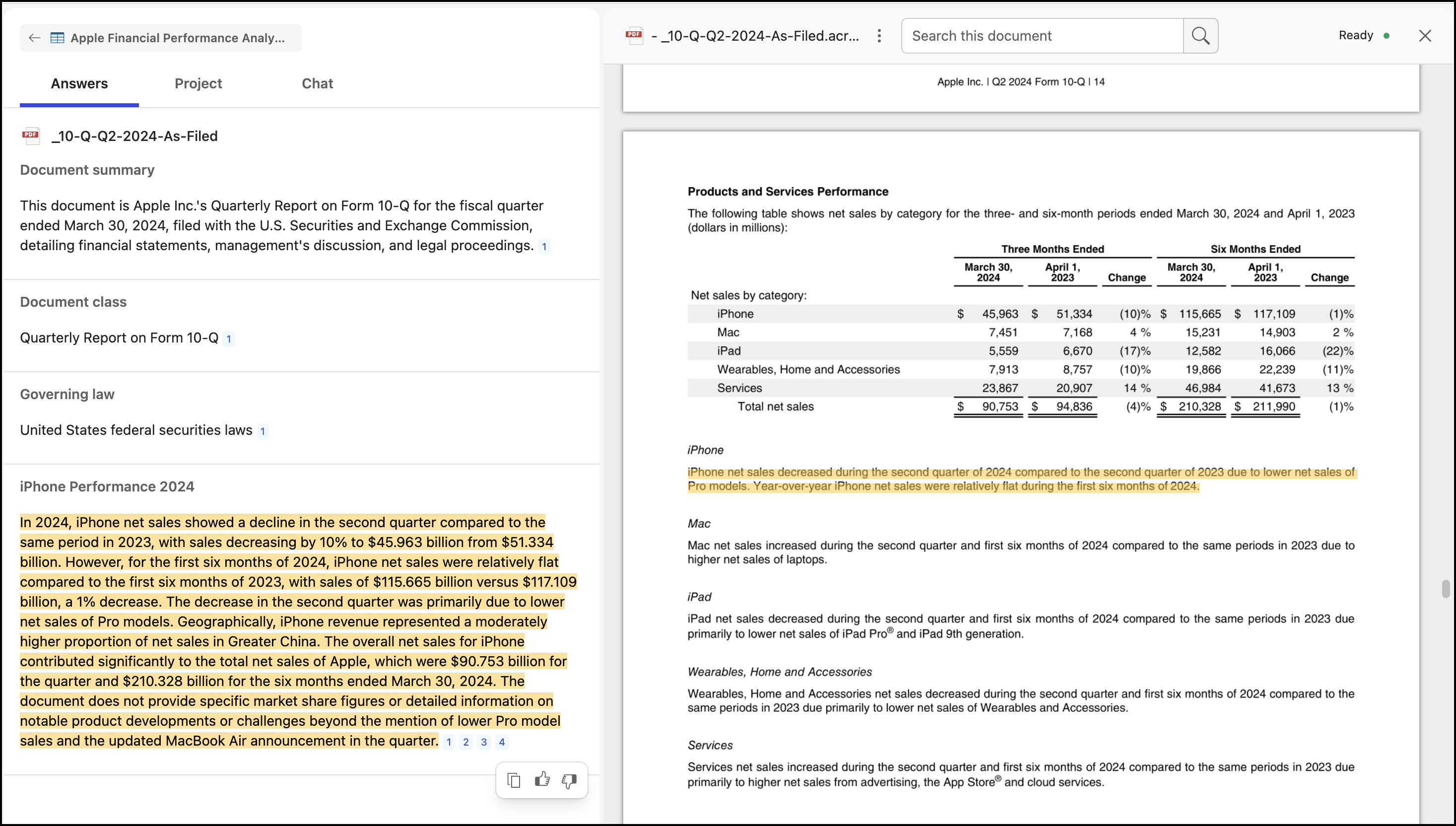
You can also select Project to view the review project or select Chat to start a new conversation.