Overview
Microsoft 365 Copilot Cowork is an AI assistant that carries out multi-step tasks on your behalf—sending emails, preparing for meetings, searching for documents, and more—across Microsoft Outlook, Teams, SharePoint, and OneDrive. It was previously available only through Microsoft's Copilot Frontier early access program, but is now generally available to any customer with a Microsoft 365 Copilot license.
The iManage plugin extends Cowork to include your iManage content. After you add the plugin, Cowork can search and retrieve iManage documents and workspaces alongside your Microsoft 365 content—all from a single prompt, without switching systems.
Prerequisites
Before you can add the iManage plugin, ensure the following are in place:
An active iManage Cloud subscription.
A Microsoft 365 Copilot license with Copilot Cowork access.
Usage-based billing enabled in the Microsoft 365 admin center. Cowork doesn't work without this.
For setup instructions, go to https://learn.microsoft.com/en-us/microsoft-365/copilot/cowork/cowork-admin-governance.
The teams.microsoft.com client app is enabled in the Microsoft 365 allowed clients list for your organization.
This may be blocked by default in some tenants—a Microsoft 365 admin must enable it for the agent to function.
Your iManage administrator needs to include Microsoft Copilot Cowork in the list of Allowed MCP clients in iManage Control Center. For more information, refer to the Selecting or adding MCP clients section in iManage MCP Server Administration Help.
Adding the plugin as a user
Open Microsoft 365 Copilot by accessing m365.cloud.microsoft in a browser or in the Microsoft 365 Copilot desktop app.
Select the Cowork tab next to Chat (tab that opens/is selected by default).
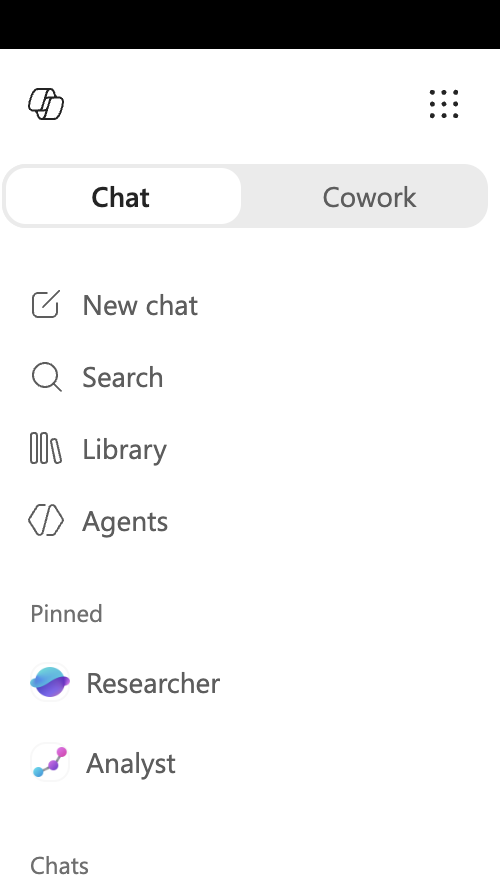
Select Customize.
Browse or search for iManage.
Select the iManage plugin, and then select Install.
The plugin is now installed, but is disconnected by default.
To connect the plugin, select Connect.
When prompted, sign in to your iManage account and authorize access.
The plugin is now connected.
(Optional) After connecting, you can enable or disable the plugin at any time by sliding the toggle next to the plugin name in the Customize > Plugins tab.
Using the plugin
After the plugin is connected, enter a natural language prompt in the Cowork chat input. Cowork searches your iManage content alongside Outlook, Teams, and SharePoint—and brings results together in a single response.
Sample prompt: Prep me for the discussion about the Ajubalaw case.
Cowork searches within the following, and it returns what it finds in one response:
iManage Work for documents and files related to the case.
Microsoft Outlook for related emails and calendar events.
Microsoft Teams channels for related messages and attachments.
Cowork is also available within Microsoft Word and remembers your prompts across access points.
NOTE: Cowork always asks for your approval before taking actions such as sending emails or scheduling meetings. You can pause or cancel a task at any point.
Microsoft reference documentation
For Microsoft-side setup and administration, go to the following Microsoft Learn articles.
Topic | Link |
|---|---|
Copilot Cowork overview | https://learn.microsoft.com/en-us/microsoft-365/copilot/cowork/ |
Get started with Cowork | https://learn.microsoft.com/en-us/microsoft-365/copilot/cowork/get-started |
Manage Cowork for your organization | https://learn.microsoft.com/en-us/microsoft-365/copilot/cowork/cowork-admin-governance |
Use plugins with Cowork | https://learn.microsoft.com/en-us/microsoft-365/copilot/cowork/cowork-plugins |
Manage plugins for Cowork | https://learn.microsoft.com/en-us/microsoft-365/copilot/cowork/cowork-manage-plugins |
Available plugins for Cowork | https://learn.microsoft.com/en-us/microsoft-365/copilot/cowork/cowork-available-plugins |
Common questions | https://learn.microsoft.com/en-us/microsoft-365/copilot/cowork/cowork-faq |