The General tab on the Web Client page is used to configure general iManage Work settings.
NOTE: To perform operations on the Web Client page, the user must be a member of the NRTADMIN group, or be assigned to a role with Tier 2 access to Control Center. For more information about the specific operations allowed, refer to Understanding tiers.
The following figure shows the top portion of the General tab.
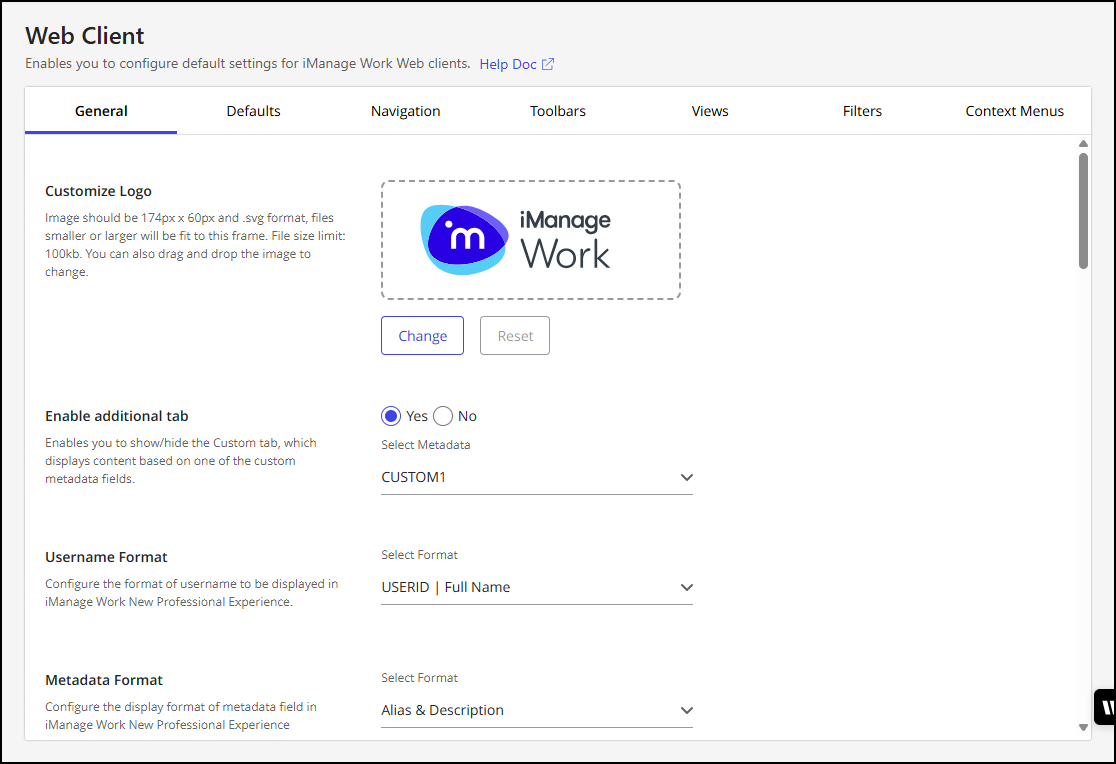
To configure these settings in iManage Control Center, browse to Work Clients > Web Client, and then select the General tab. Use the guidance in the following table to modify settings, and then select Save.
Table: General settings
Option | Steps/description |
|---|---|
Customize Logo | This option lets you customize or change the logo displayed in iManage Work. For details about customizing or changing the logo, refer to Customizing the logo. |
Enable additional tab | Enables and configures an additional tab on the iManage Work home page. By default, this setting is disabled. When enabled, the additional tab displays a list of clients based on the user's recent activity. It is populated using the Custom1 metadata field. You can also choose a different metadata field between Custom1-12 and Custom29-30. This setting is enforced over the legacy registry setting "Custom View Metadata Field". Select Yes to add an additional tab, then select the metadata from the drop-down list. Optionally, select METADATA > Captions, and update the captions for |
Username Format | Select the format of username to be displayed in iManage Work. |
Metadata Format | Select Alias & Description or Description Only or both as the format for custom metadata fields to be displayed in iManage Work. |
Lookup field dropdown limit | Configures the number of suggestions displayed in the drop-down list of iManage Work Web lookup fields. This option can be set to:
|
Use Control Center forms property order | In iManage Control Center 10.5 and later, the Forms page lets administrators customize the properties displayed in iManage Work Web. By adding or removing specific properties for workspaces, folders, searches, and documents and emails in iManage Work, users can view and update this information to make it more relevant. This setting controls if the order in which you configure these properties on the Forms page is honored within iManage Work Web.
This setting lets you choose whether you want the order to be honored in iManage Work Web, giving your organization some time to train your users before turning this feature on. |
Allow users to perform bulk security updates | Allows iManage Work users to perform bulk security updates for documents, emails, workspaces, and folders. For additional information, refer to Enabling bulk security actions. |
New Folder in iManage File/Location Selection dialog | Allows you to show or hide the option to create a New Folder or choose a custom command to create a New Folder in the iManage File/Location Selection dialog. The default command for creating New Folder is iManage "New Folder" command. |
Enable Work 10 Desktop for Windows Auto Updates App Banner | Select the Windows check box if you want your end-users to see the Enable Work 10 Desktop for Windows Auto Updates App Banner in the iManage Work application (Work Web client). By default, this check box isn't selected. Only those users who don't have iManage Work Desktop for Windows will see the banner. |
Enable Search Language Selection | Configures whether the language search selection option is visible for simple and advanced searches in iManage Work.
|
Enable web-based email sending | Disables the ability for users to send documents and links directly through the web client's email service for users who do not have iManage Work Desktop for Windows or iManage Work Desktop for Mac clients installed on their computer. This helps administrators safeguard their users from using a non-secure SMTP protocol to share documents and links externally.
|
Main Content Security Policy Header | Enhances security by applying Content Security Policy (CSP) to the entire Work Web application, protecting it against common scripting attacks, and preventing the application from being framed by malicious sites. This setting is supported by the following fields:
Figure: Main Content Security Policy Header 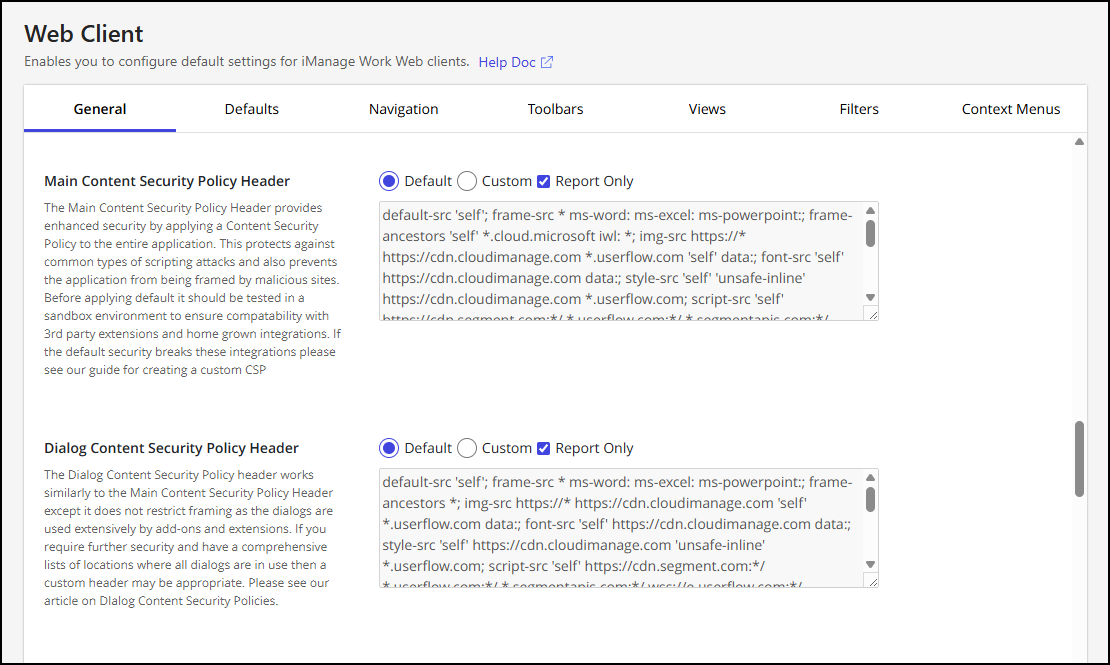 NOTE: For more information about configuring CSP headers, refer to Content Security Policy implementations in iManage Work Web. |
Dialog Content Security Policy Header | Offers enhanced security that’s similar to the Main Content Security Policy Header but doesn’t restrict framing, as dialogs are frequently used by add-ons and extensions. This setting is supported by the following fields:
Figure: Dialog Content Security Policy Header NOTE: For more information about configuring CSP headers, refer to Content Security Policy implementations in iManage Work Web. |
Enable open in Gmail | Enables the option to open Gmail emails, filed using the iManage Gmail extension, in the native Gmail application. When enabled (Yes), Gmail emails filed using the iManage Gmail extension are opened in the native Gmail application from the Open context menu in iManage Work. By default, this option is set to No (disabled). |
Save dialog security alert | Specifies if iManage Work users receive a warning when saving a file to a folder, if the folder’s security differs from the file’s security settings:
|
Customizing the logo
This section describes how to customize or change the logo displayed in iManage Work. The logo appears in iManage Work at the following places:
Page headers (desktop view)
Left sidebar (mobile view)
Custom logo file requirements
The image must be in SVG format. You can't upload an image in any other format such as JPG, PNG, GIF and so on.
The image size should be 174px x 60px. If the size of your image doesn't match, it'll be scaled to 174px x 60 px automatically. However, the logo may appear distorted.
The SVG files exported from tools such as Adobe Illustrator or Sketch work properly without any additional effort. However, if the logo doesn't appear in the UI, open the image file in a text editor to view its
XMLformat. Verify that the <svg> element has bothxmlnsandxmlns:xlinkattributes set. If these attributes are missing, the logo may not render.
For example,<svg xmlns="http://www.w3.org/2000/svg" xmlns:xlink="http://www.w3.org/1999/xlink" … > …. </svg>
To change the logo:
In iManage Control Center, browse to Work Clients > Web Client., and then select the General tab.
On the General tab, locate the Customize Logo option and select Change.
Figure: Web Client General tabIn the file selection dialog, locate and select the new logo, and then select Open.
Select Save to apply the new logo.
NOTE: If you want to restore the default iManage Work logo, select Reset.
Enabling bulk security actions
The Allow users to perform bulk security updates setting allows iManage Work users to perform bulk security updates for documents, emails, workspaces, and folders. For more information about these capabilities, refer to:
Selecting multiple documents in a folder and aligning security to that of the folder
Updating folder security and applying changes to its children
NOTE: Bulk security updates applied by your users can be overwritten by the Refile Service. If you're using Refile Service to perform background security updates, we recommend you review the information in Considerations when using the Refile Service for security updates before activating this feature.
By default, these capabilities are turned off. To turn on these new capabilities for users:
Sign in to iManage Control Center and browse to Work Clients > Web Client > General.
Set Allow users to perform bulk security updates to Yes.
Select Save.
NOTE: In on-premises environments, Asynchronous Task Framework must be enabled in iManage Work Server to use this feature. If Asynchronous Task Framework isn't enabled, this setting won't appear in iManage Control Center. For information about enabling Asynchronous Task Framework, refer to the Asynchronous Task Framework section in iManage Work Server Administration Guide.
After turning on Allow users to perform bulk security updates, the following actions are available in the Context Menus tab within iManage Control Center.
NOTE: You must add these actions to the appropriate context menus in iManage Control Center. For instructions on adding these actions to the respective menus, refer to Context menus.
Table: Context Menus
Tab | Action | Description |
|---|---|---|
Documents | Edit user/group permissions | Allows user/group permissions to be updated for one or more documents. |
Match security to parent folder | Allows for the security of one or more documents to be aligned with its parent folder. | |
Emails | Edit user/group permissions | Allows user/group permissions to be updated for one or more emails. |
Match security to parent folder | Allows for the security of one or more emails to be aligned with its parent folder. | |
Matters | Apply security to contents | Allows for workspace security settings to be propagated to its children. |
Folders | Apply security to contents | Allows for folder security settings to be propagated to its children. |
In addition to the new Context Menus actions, the following workflows are enabled in iManage Work when the Allow users to perform bulk security updates option is set to Yes:
The option to “Apply security changes to children” when workspace security is changed.
The option to “Apply security changes to children” when folder security is changed.
The option to “Match security to destination” when a folder(s) is moved.
The option to “Match security to destination” when a document(s) is moved.