The Defaults tab on the Web Client page is used to configure iManage Work feature settings.
NOTE: To perform operations on the Web Client page, the user must be a member of the NRTADMIN group, or be assigned to a role with Tier 2 access to Control Center. For more information about the specific operations allowed, refer to Understanding tiers.
The following figure shows the top portion of the Defaults tab.
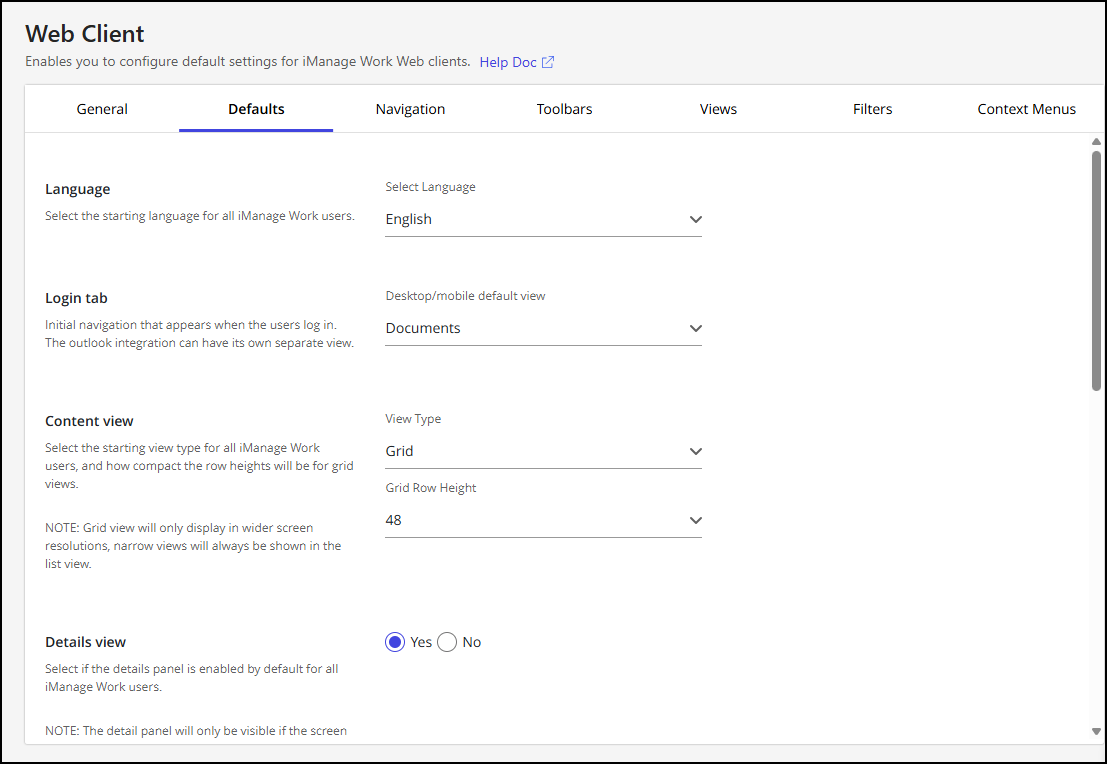
To configure these settings in iManage Control Center, browse to Work Clients > Web Client, and then select the Defaults tab. Use the guidance in the following table to modify settings, and then select Save.
NOTE: Based on your iManage Work environment, changes to these settings will become visible to users after approximately five minutes and upon their next sign-in session.
Table: Defaults options
Option | Steps/description |
|---|---|
Language | Specifies the default language to be displayed when users open iManage Work or iManage Control Center in their browser. To set the default language, select the desired language from the Language drop-down list, and then select Save. Refresh the page in your browser to display the selected language in iManage Control Center. Individual users may also change their default language in iManage Work Web in the User Settings dialog by setting the Language option. This change applies only to their account and applies wherever they sign in to iManage Work. To hide languages, refer to Hiding a specific language from browsers. |
Login tab | Select which tab is loaded when users sign in to iManage Work. If not set, the Documents tab is displayed by default. Users can overwrite this preference and set their Web Default Tab in their User Settings. |
Content view | Specifies the default starting view type in iManage Work Web for all users. This setting includes selections for:
|
Details view | Indicates whether the Details panel is visible by default for all iManage Work users.
|
File open options - Title click | Defines the default behavior when the title of a non-Microsoft 365 file or a file with a legacy Microsoft Office extension is selected.
|
File open options - Double click | Defines the default behavior when the row of a non-Microsoft 365 file or a file with a legacy Microsoft Office extension is double-clicked.
|
Microsoft 365 file open options - Title click | Defines the default behavior when the title of a Microsoft 365 file is selected.
|
Microsoft 365 file open options - Double click | Defines the default behavior when the row of a Microsoft 365 file is double-clicked.
|
Advanced search: form defaults | Specifies whether system or administrator-defined field sets are displayed if a user has never added or removed fields from their Advanced Search form, or when the user selects Reset form in Advanced Search forms across iManage Work Web and File Open / Save As dialogs.
Figure: Advanced search: form defaults setting 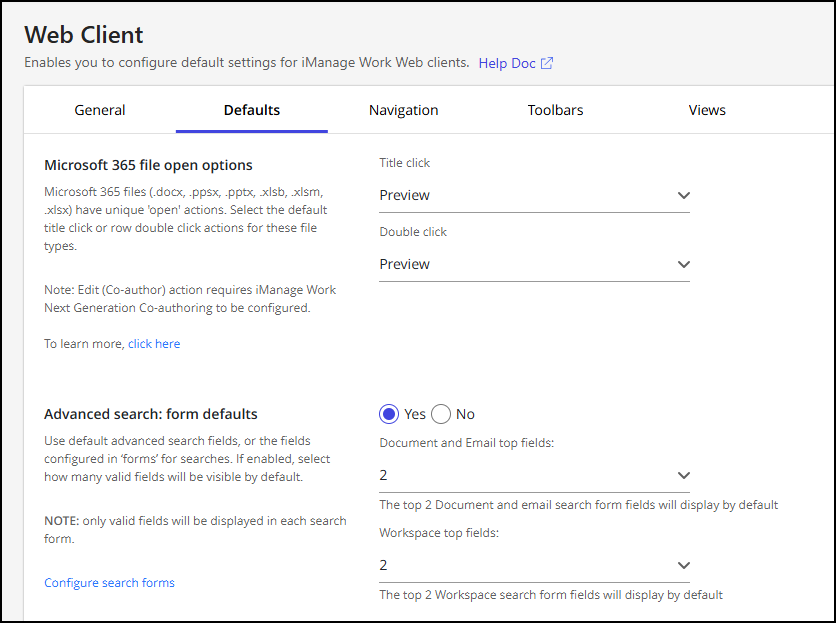 |
Document and Email top fields | This setting lets you specify the number of top valid fields from the Document and Email Search Properties forms configuration that will display by default in the Documents, Emails, or Docs & Emails advanced search forms. The top n fields displayed (where n is the number of top valid fields that'll be shown in the advanced search form) are defined in the Document and Email Search Properties section in the Search tab of the Forms page. The fields are displayed to users in the order configured in this section. Administrator-defined field sets are shown on the advanced search form in the following scenarios:
NOTE: This option is available when the Advanced search: form defaults option is set to Yes. |
Workspace top fields | This setting lets you specify the number of top valid fields from the Workspace Search Properties forms configuration that will display by default in the Workspaces advanced search forms. The top n fields displayed (where n is the number of top valid fields that'll be shown in the advanced search form) are defined in the Workspace Search Properties section in the Search tab of the Forms page. The fields are displayed to users in the order configured in this section. Administrator-defined field sets are shown on the advanced search form in the following scenarios:
NOTE: This option is available when the Advanced search: form defaults option is set to Yes. |
NOTES:
The default settings apply to users who have never changed them in iManage Work Web (such as a new user). If a user changes their settings, the user settings take precedence, even if the default settings in Control Center are changed later.
These settings don’t apply to the File Open and File Save As dialogs.
The default behavior for Microsoft 365 files applies to files with Office 365 extensions such as .docx, .ppsx, .pptx, .xlsb, .xslm, and .xlsx.
The default behavior for non-Microsoft 365 files applies to files with older Microsoft Office extensions such as .doc, .ppt, .xls, as well as other file extensions like .pdf, .txt, .zip, .png, .jpeg, and emails.
For File open options, all options other than Preview require iManage Agent to be installed and configured on the user desktop.
Hiding a specific language from browsers
Create a new file:
C:\Program Files\Autonomy\WorkSite\WorkWebServer\settings.pyAdd the following contents to the file, excluding any languages you don’t want:
|