Forms
NOTE:
To view or perform operations on the Forms page, the user signed in to iManage Control Center must be:
- a member of the NRTADMIN group in at least one library, or be assigned to a library role with Tier 2 Control Center privileges.
AND - be assigned to a Global role with the Setting Management privilege.
This feature enables you to customize the search forms and property forms for workspace, folder, document, and email, that appear in iManage Work client applications. You can define the properties and their order to be visible on the property forms, and hence control the order in which these properties are displayed in iManage Work client applications. For example, if you remove custom4 property in the documents properties, then custom4 property does not appear when users are editing document properties in iManage Work client applications.
For more information about properties and metadata, see Key Concepts: Metadata.
These properties appear in iManage Work client applications while performing the following actions:
- Creating new workspaces, or uploading new documents and emails.
- Editing existing workspaces, documents and emails.
- Searching for workspaces, documents and emails in iManage libraries.
This section provides you information about the following:
- Workspace, Folder, and Document and Email properties and search forms available for customization.
- Customization tasks that can be performed on document/email and workspace properties.
- Default and optional properties, and customization restrictions
- Frequently Asked Questions
Property Forms
To customize the property forms for workspace, folder, document, and email:
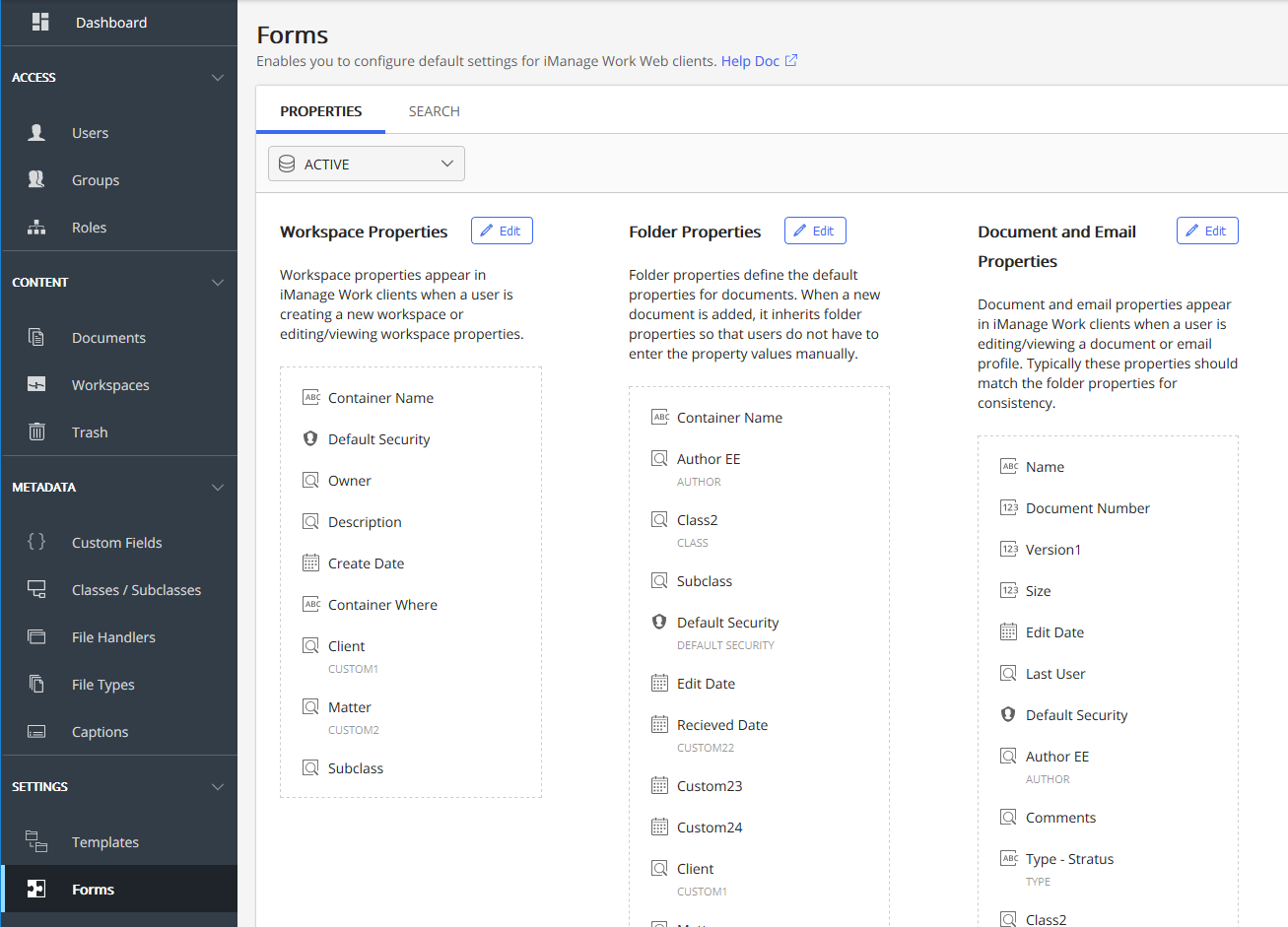
Select Settings > Forms > Properties tab to display the following page:
Figure: Properties
Types of Property Forms
On the Properties tab, you see the following property types:
Table: Types of properties and their objectives
Sub section | Objective |
|---|---|
Workspace properties | Enables you to define the properties of the form that appears while creating a new workspace or editing/viewing a workspace in iManage Work client applications. |
Folder properties | Enables you to define the folder properties, and in turn define the default properties for documents. When a new document is added to a folder in iManage Work client applications, it inherits folder properties so that users do not have to enter the property values manually. |
Document and Email properties | Enables you to define the document and email properties that appear in iManage Work clients when a user is editing/viewing a document or email profile. Typically these properties should match the folder properties for consistency. |
Search Forms
In this section, you will learn to customize the search forms for workspace, document, and email.
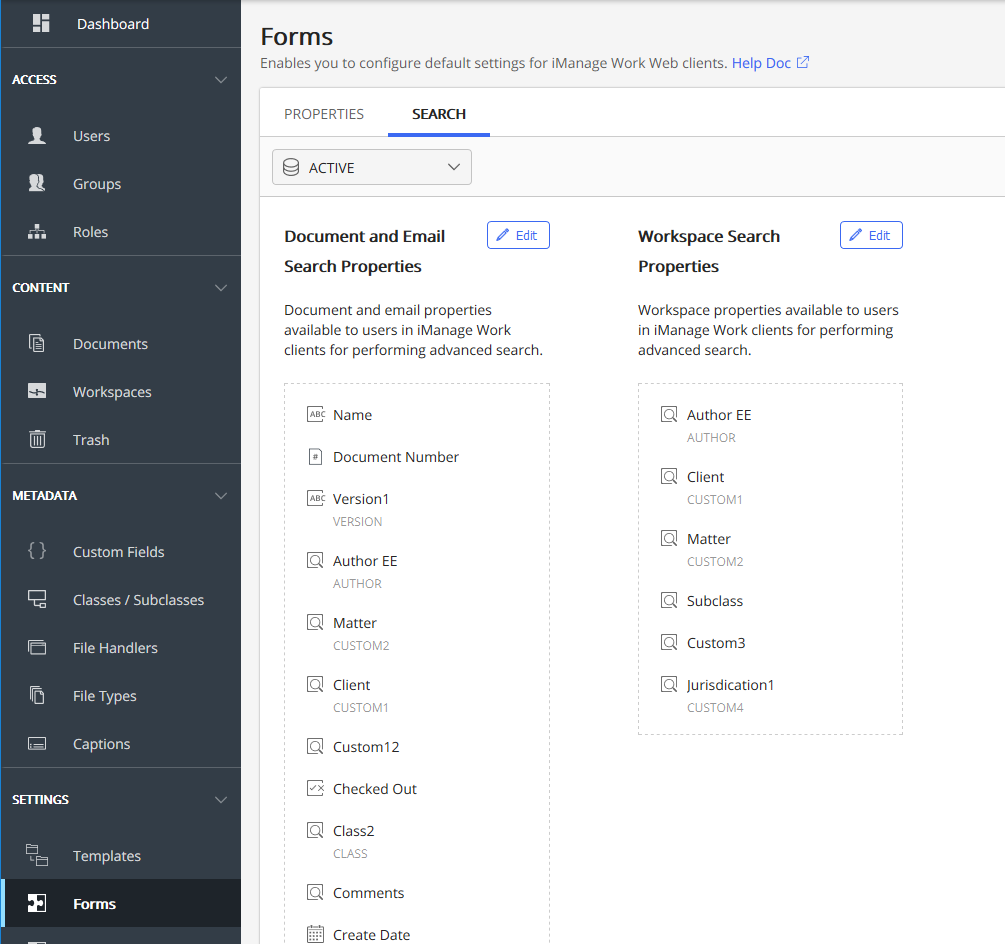
Select Settings > Forms > Search tab to display the following page:
Figure: Search
Types of Search Forms
On the Search tab, you see the following search forms:
Sub section | Objective |
|---|---|
Document and Email Search properties | Enables you to define the document/email properties in iManage Work clients for performing advanced search. You can remove Custom13-Custom16 and Custom21-22, if you do not store emails or capture any other data in them. |
Workspace Search Properties | Enables you to define the default workspace properties available to users in iManage Work clients for performing advanced search. |
Customizing property and search forms
To customize property and search forms, select the Properties or Search tab, then select  Edit on the section you wish to customize
See the following table for the options available to customize these forms:
Table: Tasks
Task | Instructions |
|---|---|
Delete | Select |
Reorder | Drag the property to the required location to reorder the list. |
+Add new | Select the properties from the drop-down list to add. |
Save | Select to save the customization. |

Default and optional properties, and customization restrictions
Table: Properties and their constraints
Section | Available properties | Cannot remove or reorder |
|---|---|---|
Workspace Properties |
|
|
Folder Properties |
| Container Name |
Document and Email Properties |
|
|
Document and Email Search Properties |
| NA |
Workspace Search Properties |
| NA |
Frequently Asked Questions
Can the existing forms from Dialog Editor be migrated to iManage Control Center?
- Existing forms are converted to the new format supported by REST.
- All the REST calls use the new format.
- Dialog Editor forms are used only by the iManage Work classic clients. See the Classic page for more information about uploading these to iManage Control Center.
My environment is running in compatibility mode. What should I do to update the forms correctly?
If your application is running in compatibility mode, that is, iManage DeskSite plus iManage Work Office integration, whenever you have to update a form, you should update it in both the following:
- Dialog Editor tool for iManage DeskSite
- Form in iManage Control Center for iManage Work.
Are all the forms that were used in iManage Work classic clients available in iManage Work?
In Dialog Editor, seven different forms were available for customization. However, Form Editor has only five forms to reduce the complexity.
Which of the forms are deprecated in Control Center that were previously used in Dialog Editor?
In the iManage Work client applications, additional forms were being used. However, with the new Forms editor (Settings > Forms), we have realigned all the dialogs and deprecated the following forms:
- new_version - The mobility application used this form when saving a new version of a document, whereas iManage Work Desktop for Windows was using edit_document. Now, iManage Work Mobility also uses edit_document form.
- new_workspace - iManage Control Center used this form in Ad Hoc Workspace dialog, whereas iManage Work Web was using edit_workspace. iManage Control Center now uses edit_workspace form.
- quick_search - This form in Dialog Editor was never used in any of the iManage Work clients.
How is the new Forms editor different than the legacy Dialog Editor?
iManage Control Center was earlier using "
new_workspace"form for the New Workspace command, whereas iManage Work Web and iManage Work Mobility were using "edit_workspace". In Forms, iManage Control Center will now use "edit_workspace" to align with the other apps.- iManage Work Mobility was using
"new_document"form when saving a new document, whereas iManage Work Desktop for Windows was using"edit_document". In Form Editor, iManage Work Mobility also uses"edit_document"to align with other iManage Work applications. - iManage Work Mobility was using
"new_version"form when saving a new version, whereas iManage Work Desktop for Windows was using"edit_document". In Form Editor, iManage Work Mobility also uses"edit_document"to align with other iManage Work applications.
Where is each form used in iManage Work client applications?
The following table represents the new forms available in Forms in Control Center and the context in which they appear in various iManage Work clients. In this table, N/A means that the form is not used in this context.
Form | Work Web | Work for Windows Desktop | Outlook panel | Control Center | Work Mobility for iOS | Work for Mac | iManage Drive | DeskSite/FileSite |
|---|---|---|---|---|---|---|---|---|
Workspace |
| Open dialog |
| N/A | Workspace properties | Open dialog | N/A | New workspace command using Work 10 add-ons |
Folder | Folder properties | Open dialog | Folder properties | Create/edit folder templates | Folder properties | Open dialog | N/A | N/A |
Document |
|
|
| N/A |
|
| N/A | N/A |
Document Search |
| N/A | Advanced search | N/A | Advanced search | N/A | N/A | N/A |
Workspace Search | Advanced workspace search | N/A | Advanced search | N/A | N/A | N/A | N/A |