Users
NOTE:
To administer global users, the user signed in to iManage Control Center must be assigned to a Global Role that has the User Management privilege. For more information, see Global privilege descriptions.
To administer iManage Work library-level users, the user signed in to Control Center must be a member of the NRTADMIN group, or be assigned to a role with Tier 1 or Tier 2 Control Center access. For more information about the specific operations allowed, see Understanding tiers.
Modifications to these settings may require up to eight hours to take effect.
A user is the basic entity for accessing iManage. For more information, see User Management.
Understanding global and library-level user management
On the Users page, iManage Control Center enables you to manage users across all libraries (Global) or per library (Library-level):
Figure: Users menu
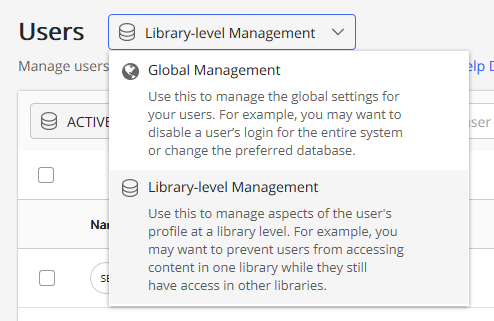
Global Management: Select this option to view, manage, and create global users. Global users are created and managed independently of any iManage Work library. Changes made to a user's profile or settings are updated at a global level, and not individually within each library.
A user account must exist at the Global Management level before the user can be assigned (granted access) to any iManage Work library.
- Library-level Management: Select this option to specify the iManage Work libraries a global user may access.
Selecting this option displays a secondary menu where you can select an individual Work library.Figure: Library menu
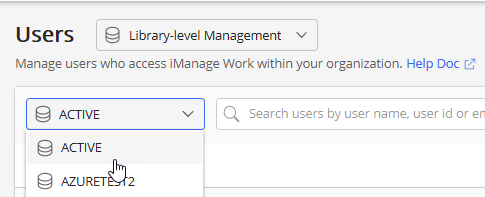
The list of users displayed changes based on your selection.
Creating users
Users for an iManage Work system are created in one of the following ways: Migration, directory service, and manually. For more information about these options, see User Management.
The following steps describe how to create a user manually using iManage Control Center.
- Browse to Access > Users.
Select Global Management, then select +Create User.
The Create User dialog box appears.
Figure: Create User dialog box
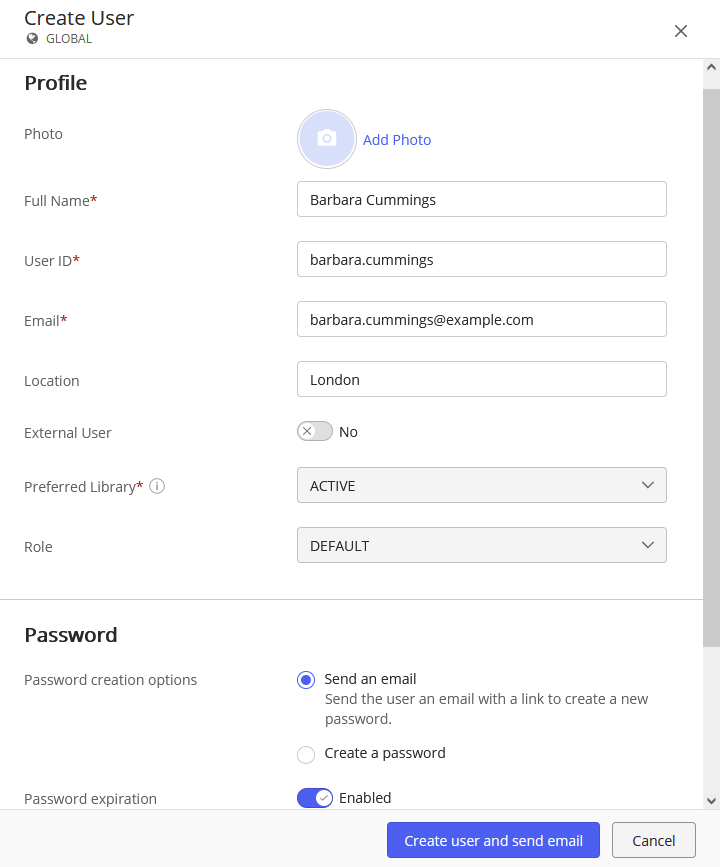
- Enter information for this user as described in the following table, then select Create or Create user and send email. The user account is created.
Continue with Assigning users to a library.
Table: User account information
Field | Description |
|---|---|
Photo | Upload a photo for this user. Select Add Photo to browse to and select a photo. |
Full Name (Mandatory) | Enter the user's full name, such as Andrew Case, or Marcie J. Davenport-Williams. Maximum length: 254 characters |
User ID (Mandatory) | Enter a unique identifier for this user. This User ID is the user's personal identification within the iManage Work system. When entering the user Id, follow company guidelines such as the first name and last name order, abbreviations, separation characters, and so on. For example: ACASE or MARCIE-DAVENPORT . Maximum length: 64 |
Email (Mandatory) | Enter the user's email address, typically the company email address for the user. It must be unique across all users connecting to the cloudimanage.com endpoint. Maximum length: 254. The individual parts of the email (user name, domain name, and domain extension) can each be no longer than 64 characters. |
Location | Enter the user's location, for example, Chicago. Minimum length: 0 |
External User | Select Yes to define this user as an external user. An external user has no default security access and must later be assigned explicit access for their tasks. An external user is a virtual user without any privileges over content, unless explicitly granted on the content ACL. For example, an external user may be a customer who requires temporary access, a part-time contractor, vendor, or partner. Default: No (disabled). |
Preferred Library | Select the default library for this user. Each user is required to have one preferred library. It stores the user's preferred settings such as language preference and default search form for iManage Work advanced searches. When you set the value in this field, the Role field appears. |
Role | Select a library role to define the privileges assigned to this user. NOTE: This field is dependent on the Preferred Library field. |
Password | |
Password creation options | Select one of the following options to create a password for this user:
|
Password expiration | Set to No to exempt this user's password from expiring. Use this option only for system service accounts that should not expire. Passwords for virtual users expire after 90 days. This time period cannot be changed. Default: Yes. NOTE: As best practice, this should be discouraged and should only be used for automation or similar use cases where an expired password may disrupt a workflow. In these instances, password changes should be automated through the iManage Work Universal API. |
Access | |
Sign In Status | If enabled, the user can sign in to iManage. Set to Disabled to prevent the user from signing in to iManage. Default: Enabled. |
Assigning users to a library
Assigning a user to a library provides them access to the iManage Work library. If a user is not assigned to a library, they cannot see any workspaces, folders, documents or email within the library, or perform any actions within the library.
NOTE:
Library assignments are cached for up to 8 hours. When a user has already signed in to iManage Work, and is then assigned to another library, it may take several hours before the user can access the library.
- From the Users drop-down list, select Library-level management.
- From the drop-down list, select the appropriate library where this user is to be assigned.
Select Assign User to Library. The Assign User to Library dialog box appears.
Figure: Assign User to Library
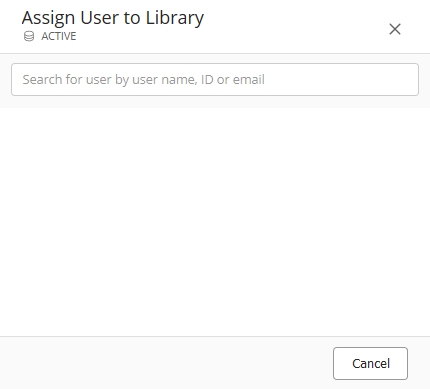
In the search field, begin typing the user's name. A list of users matching the characters you entered is returned.
Figure: Assign User to Library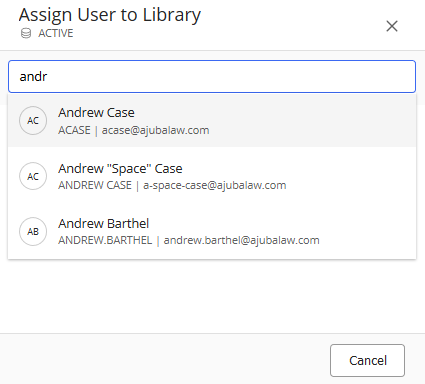
Select the appropriate user.
Figure: Assign User to Library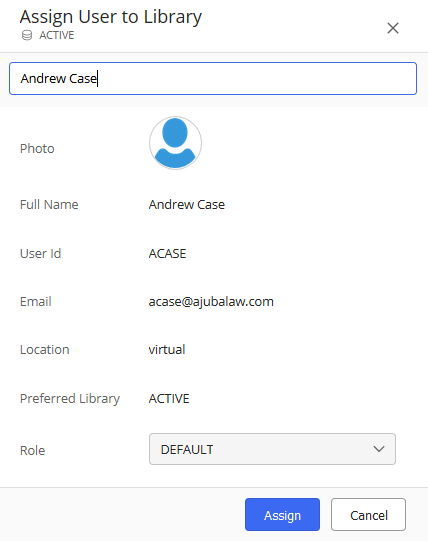
- In the Role drop-down list, select a library role for this user. This role defines the privileges assigned to the user within this library.
Select Assign. The user is assigned to the selected library.
To remove this assignment, you must Disable Sign in for the user for the specific library. The user's content and activity within the library is preserved; however the user will no longer be able to access the library after they are disabled.
For more information, see Enabling or disabling users.
Searching for users
Use the search field to search for a user by the user's name, ID, or email.
Select the Filter option to filter users shown in the list based on information about the users, such as Sign in Status, Location, Preferred Library, and so on.
Figure: Search and Filter options

Deleting users
Users imported or created from a directory service, such as Windows Active Directory, are managed by the company's network system administrators. Changes are automatically synchronized, or saved, to iManage Work.
iManage Work system administrators cannot delete virtual users. The preferred method is to set the user's account Sign in Status to Disabled. For more information, see Enabling or disabling users.
Unlocking a user account
iManage Work limits the number of times a virtual user can enter an incorrect user name or password when signing in.
- After five failed attempts, the user account is temporarily locked. During this time, the user is prevented from attempting to sign in again for 15 minutes.
- After 10 total failed attempts, the user account is locked again.
When a user attempts to sign in while their account is locked, they receive the following messages.
Figure: Account locked notification and list of possible restrictions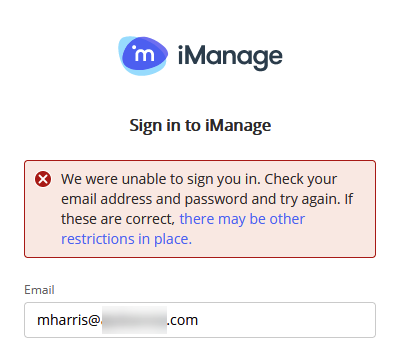
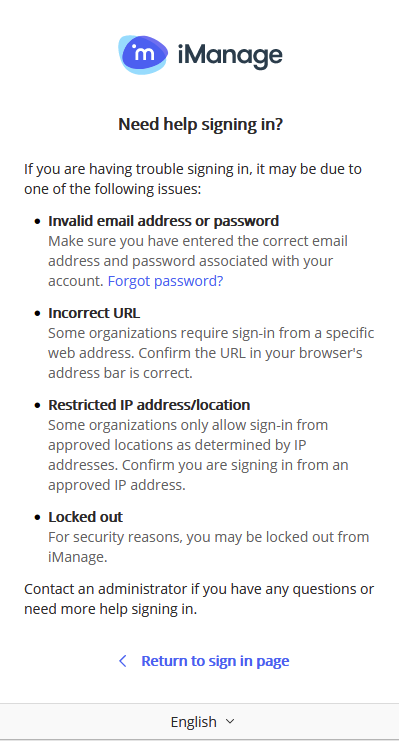
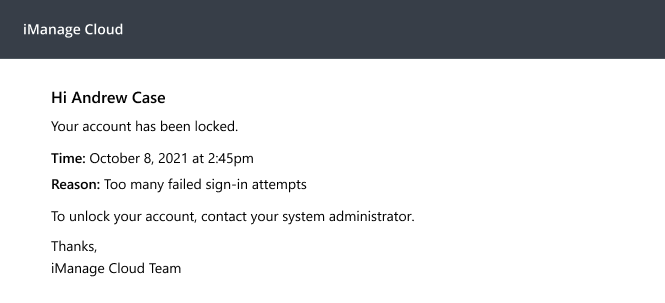
When their account is locked, the user is also notified by email. For more information about the email notification provided, see Email notifications.
The user must contact an iManage Work administrator to unlock the account within iManage Control Center.
To unlock a user:
- In iManage Control Center, browse to Access > Users.
- At the top of the page, select Global Management.
Users cannot be unlocked at the Library-level view.
Figure: Global Management view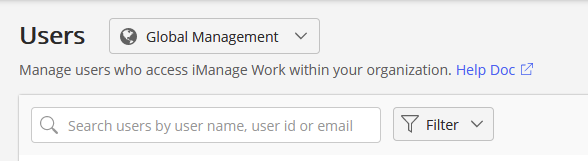
Locate the user that is locked.
TIP:
Use the Filter options to see a list of user accounts which are locked.
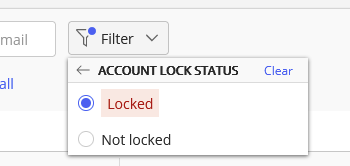
The Sign in Status column displays the accounts that are locked.
Figure: Sign in Status showing locked user account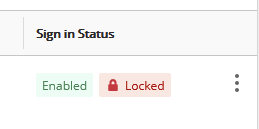
- Right-click the locked user account and select Unlock. The Unlock dialog box appears.
- Select Unlock to confirm the operation.
Changing user passwords
NOTE:
Passwords can be changed only from the Global Management view at the top of the Users page.
- In iManage Control Center, browse to Access > Users.
- At the top of the page, select Global Management.
- Select one of the following options:
- Select one or more users in the list, then select Change Password on the ribbon bar.
- Select
 next to a user, then select Change Password.
 Right-click on a user, then select Change Password.
The Change Password dialog box appears.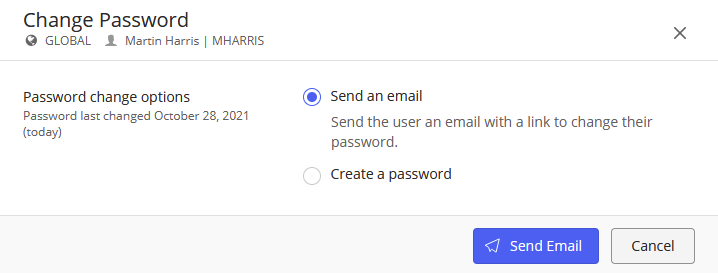
Select one of the following options:
Send an email: iManage sends an email to the user to change their password. The email includes a link to the iManage sign-in page where the user must enter their new password.
For more information about the email notification provided, see Email notifications.NOTE:
For security reasons, the link provided in the email remains valid for three hours. If the user does not take action within three hours, the link is deactivated, and the iManage Work administrator must resend the email to the user from iManage Control Center.
Create a password: Manually enter a valid password in iManage Control Center.
After selecting this option, the New password field appears.
Figure: New password field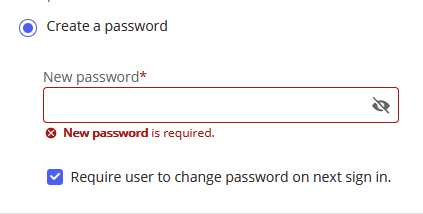
Enter the user's password. No default password is available for new users and they cannot be added with a blank Password field.TIP:
You must provide this password to the user.
Password requirements:
- minimum 12 characters
- one uppercase letter,
- one lowercase letter, and
- one number or one special character from the following list:
! # $ % & ‘ ( ) * + , - . / : ; < = > ? @ [ ] ^ _ ` { | } ~ " / (including the space character)
- Require user to change their password on next sign in: Select this option to force the user to change their password the next time they sign in.
- Select Save.
Enabling or disabling users
Enable or disable sign-in at the global level
Before changing the Sign in status
If using a directory synchronization solution, ensure the user is appropriately enabled or disabled in Active Directory. If the Sign in status is updated in iManage and not in Active Directory the directory synchronization solution will update the Sign in status based on the Account options in Active Directory.
Enabling or disabling sign-in for a user at the global management level allows or restricts, respectively, access to iManage Work. A user cannot sign in to iManage Work when their account status is set to Disable Sign in.
When disabling a user, the user's content and activity within the iManage Work is preserved.
If a user has been disabled, they can be enabled to regain access at any time.
User accounts can also be locked because of too many failed sign-in attempts. This lock occurs automatically by the system without any action by an administrator. Unlocking and disabling sign in are two independent states. For more information, see Unlocking a user account.
NOTE:
When you disable sign-in for users at the global management level, their access is terminated immediately.
- Browse to Access > Users.
At the top of the Users page, select Global Management.
- Select one of the following options:
- Select a user in the list, then select Disable Sign in or Enable Sign in on the ribbon bar.
- Select next to a user, then select Disable Sign in or Enable Sign in.
- Right-click on a user, then select Disable Sign in or Enable Sign in.
- If you are disabling sign in, select Disable Sign In again to confirm the operation.
Enable or disable sign-in at the library level
Enabling or disabling sign-in for a user at the library level allows or restricts, respectively, access to a specific iManage Work library. The user's content and activity within the library is preserved; however the user will no longer be able to access the library once disabled.
If you disable a user in all libraries, they will be restricted from signing in to iManage Work entirely.
If you enable sign-in for a user at the global level, you must also separately enable their sign-in status for any iManage Work libraries for them to regain access to those libraries.
- Browse to Access > Users.
At the top of the Users page, select Library-level Management.
- From the drop-down list at the top of the screen, select the appropriate library where this user is to be enabled or disabled.
- Select one of the following options:
- Select a user in the list, then select Disable Sign in or Enable Sign in on the ribbon bar.
- Select next to a user, then select Disable Sign in or Enable Sign in.
- Right-click on a user, then select Disable Sign in or Enable Sign in.
- If you are disabling sign-in, select Disable Sign In again to confirm the operation.
Adding users to a group
You can also add users to a group from the Groups page. For more information, see Groups.
- Browse to Access > Users.
- From the drop-down menu at the top of the screen, select the appropriate library where this user is to be enabled or disabled.
- Select one of the following options:
- Select one or more users in the list, then select Add To Groups on the ribbon bar.
- Select next to a user, then select Add To Groups.
- Right-click on a user, then select Add To Groups.
- Select groups from the groups list or look for groups using the search field and select Add.
Editing user profiles
NOTE:
If using a directory synchronization solution, user profile changes should be made made in Active Directory. If changes are made in iManage Control Center and not in Active Directory, the directory synchronization solution will update the user profile to match the values in Active Directory after the next synchronization.
All user profile fields are available to be edited including Full Name, User ID, Email, Location, External User, Preferred Library, & Role.
- Browse to Access > Users.
- From the drop-down list at the top of the screen, select Global Management.
- Select one of the following options:
- Select a user in the list, then select Edit on the ribbon bar.
- Select next to a user, then select Edit Profile.
- Right-click on a user, then select Edit Profile.
- Modify any of the available fields, then select Save. The updates are saved.
Important
- Each User ID must be unique.
- User IDs cannot be merged following this procedure.
- Users cannot be deleted.
- There is no ability to remove users from iManage Cloud. The preferred method is to set the user's account Sign in Status to Disabled. For more information, see Enabling or disabling users.
- Disabled users do not count as billable users.
Editing user platform details
Browse to Access > Users.
At the top of the Users page, select Global Management.
- Select one of the following options:
- Select a user in the list, then select Edit Platform Details on the ribbon bar.
- Select next to a user, then select Edit Platform Details.
- Right-click on a user, then select Edit Platform Details.
Modify any of the following fields, then select Save.
Fields | Description |
|---|---|
Account Type |
|
NOTE:
No email notification is sent to the user when their account type is changed.
If you change the account type for a user from Enterprise to Virtual, and the system has no password for this user, the user cannot sign in. As a best practice, change this users password in iManage Control Center to manually set their password or generate an email to the user to set their password. For more information, see Changing user passwords.
- Select Save.
Viewing user details
- Browse to Access > Users.
- From the drop-down list at the top of the screen, select the appropriate library where this user is to be enabled or disabled.
- Select one of the following options:
- Select a user in the list, then select View on the ribbon bar.
- Select next to a user, then select View.
- Right-click on a user, then select View.
The <Username> page appears and displays the following tabs:
Details: Lists the details about a user.
NOTE:
Select Edit to modify details in each section on the dialog box.
- Groups: Lists the groups associated with a user.
Creating an NRTADMIN User
NRTADMIN access is granted by adding the user to the NRTADMIN group within an iManage Work library. An NRTADMIN user automatically has full privileges within the library, and supersedes all other privileges.
Only an NRTADMIN user can add other users to the NRTADMIN group. NRTADMIN applies only to users at the library level. An NRTADMIN cannot be applied to users at the global level. An NRTADMIN is assigned to one library. The user must be defined and assigned to each library individually. To create an NRTADMIN user (add a user to the NRTADMIN group):- Browse to Access > Users.
- From the drop-down list at the top of the screen, select the appropriate library where this user is to be enabled or disabled.
- Select one of the following options:
- Select a user in the list, then select Add to Group on the ribbon bar.
- Select next to a user, then select Add to Group.
- Right-click on a user, then select Add to Group.
- Select NRTADMIN, then select Add. The user is added to the NRTADMIN group.
Assigning users and groups
Users and groups must be assigned to iManage Work items. Items include workspaces, containers, and documents. To assign a user or group, use an iManage Work client, and not the iManage Control Center. Any user with sufficient access privileges for the item can make this assignment.
To assign a user or group:
- Within an iManage Work client, browse to the item, and select Properties. The properties tab appears.
- Select View Security Details . The Security Details tab appears.
- Select Add Users/Groups.
- Select the users and groups from among the available choices. Multiple selections can be made.
- For each user or group, assign an access privilege level from the security drop-down list next to the user or group name.
- Select Confirm to save the changes to the users and groups.
To remove a user or group:
- Within an iManage Work client, browse to the item, and select Properties. The properties tab appears.
- Select View Security Details . The Security Details tab appears.
- Select Add Users/Groups.
- Select the users and groups from among the available choices. Multiple selections can be made.
- For each user or group, select Remove from their access privilege level of the security drop-down list next to the user or group name.
- Select Confirm to save the changes to the users and groups.
Email notifications
iManage sends emails to the signed-in user to notify them of specific actions they need to take.
NOTE:
Email notifications cannot be customized. Information and instructions in the notifications are provided in English only.
Forgot password
When a user enters their email address, but cannot remember their password, they can select the Forgot password? link on the sign-in page. No action is required by an administrator.
Figure: Forgot password
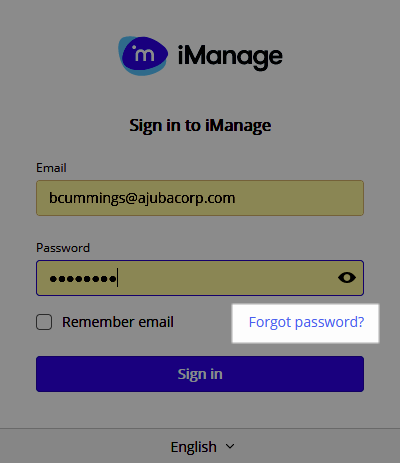
The user receives the following email, which includes a link to change their password. The link remains active for 3 hours.
Figure: Forgot password — Change your password
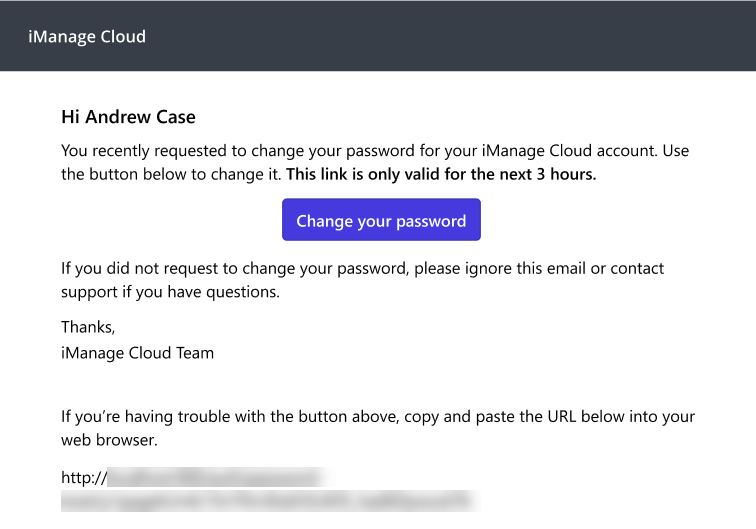
Users receive an email notification for each time they select Forgot password?.
Only the link in the most recent email notification is active, and the user receives a message if they attempt to access a deactivated link:
Your password change link has expired or has already been used.
New account
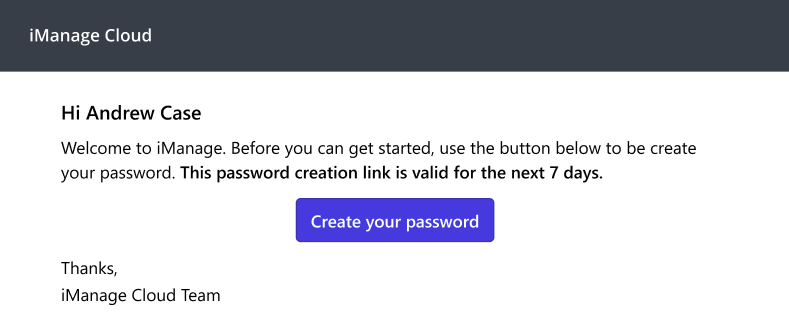
When an administrator creates a new user in iManage Control Center, the administrator can choose to send an email. This welcome email includes instructions to the user to access the link provided in the email to create their password. The link remains active for 7 days.
For more information, see Creating users.
Figure: New account – Create your password
NOTE:
For security reasons, the link provided in the email remains valid for 7 days. If the user does not take action within 7 days, the link is deactivated, and the iManage Work administrator must resend the email to the user from iManage Control Center. For more information, see Changing user passwords.
Password changes
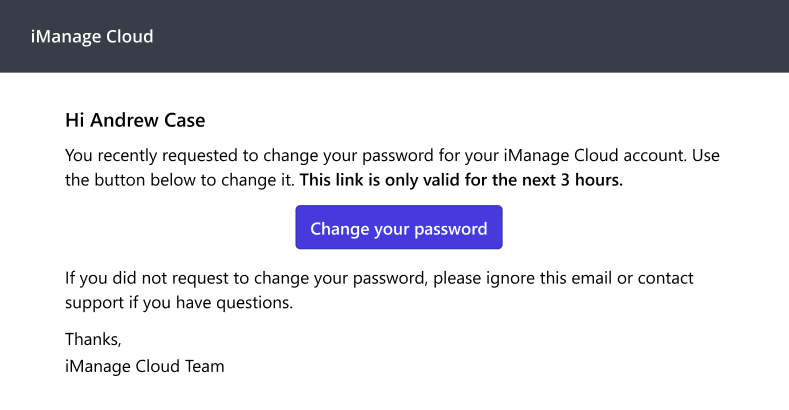
An administrator can trigger an email to be sent to the user requiring them to change their password. For more information, see Changing user passwords.
The user receives the following email, which includes a link to change their password. The link remains active for 3 hours.
Figure: Administrator initiated — Change your password
Account locked
When a user attempts to sign in but is unsuccessful, their account becomes locked and they are prevented from further attempts to sign in.
- After five failed attempts, the system locks the account temporarily for 15 minutes. The user may attempt to sign in again after 15 minutes.
- After 10 total failed attempts, the user account is again locked.
When a user's account becomes locked, the system sends the following email notifications to the user.
Figure: Temporarily locked for 15 minutes
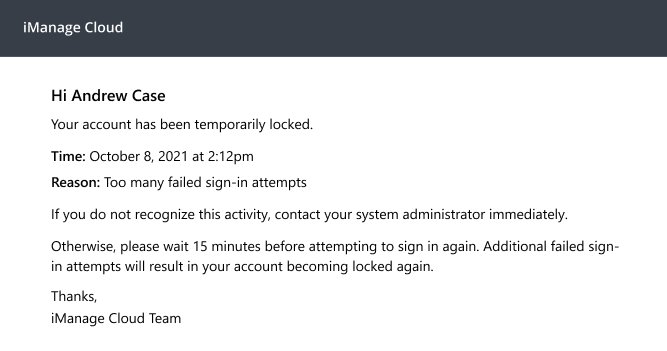
Figure: Locked after 10 total failed attempts