What's New in iManage Control Center
- Q2 2023 (June) update
- Q2 2023 (May) update
- Q2 2023 (April) update
- Q1 2023 (February) update
- Q4 2022 (November) update
- Q4 2022 (October) update
- Q4 2022 (September) update
- Q3 2022 (August) update
- Q3 2022 (July) update
- Q2 2022 (June) update
- Q2 2022 (May) update
- Q1 2022 (April) update
- Q1 2022 (February) update
- Q4 2021 (November) update
- Q4 2021 (October) update
- Q3 2021 (August) update
- Q2 2021 (June) update
- Q2 2021 (May) update
- Q1 2021 update
- Q4 2020 update
- Q3 2020 update
- Q2 2020 update
Q2 2023 (June) update
Ability to enable opening emails filed from Gmail in Gmail
A new configuration has been introduced for administrators to enable the option to open Gmail emails, filed using the iManage Gmail extension, in the native Gmail application.
The new Enable open in Gmail configuration option allows you to specify that Gmail emails are opened in the native Gmail application. This setting is available in iManage Control Center in Work Clients > Web Client > Settings > Features.
Figure: Web Client Feature Settings
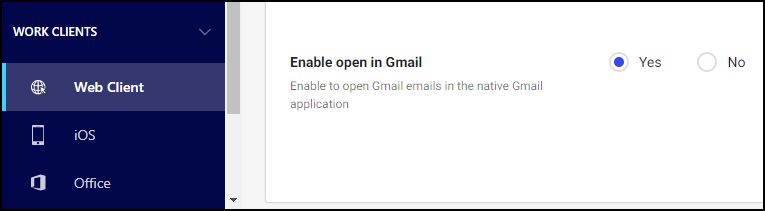
When set to Yes, Gmail emails filed using the iManage Gmail extension are opened in the native Gmail application from the Open context menu in iManage Work. By default, this option is set to No (disabled).
Ability to globally enable new search experience
Administrators can now globally activate the new search experience. Doing so enables search enhancements for all users and removes the Coming Soon option (which allows users to enable and disable the new search experience at their discretion).
This capability is controlled through the New search experience configuration option, which is available in iManage Control Center in Settings > Upcoming Features.
Figure: Upcoming Features Settings
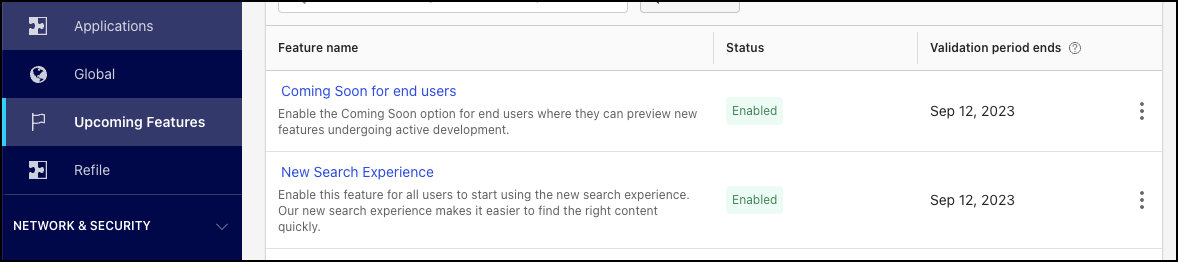
When Enabled, the new search experience is applied to all users. By default, this option is set to Disabled. For more information related to the activation of upcoming features, refer to Upcoming Features in iManage Control Center help.
Q2 2023 (May) update
Improvements for Download as CSV
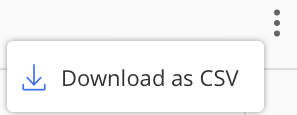
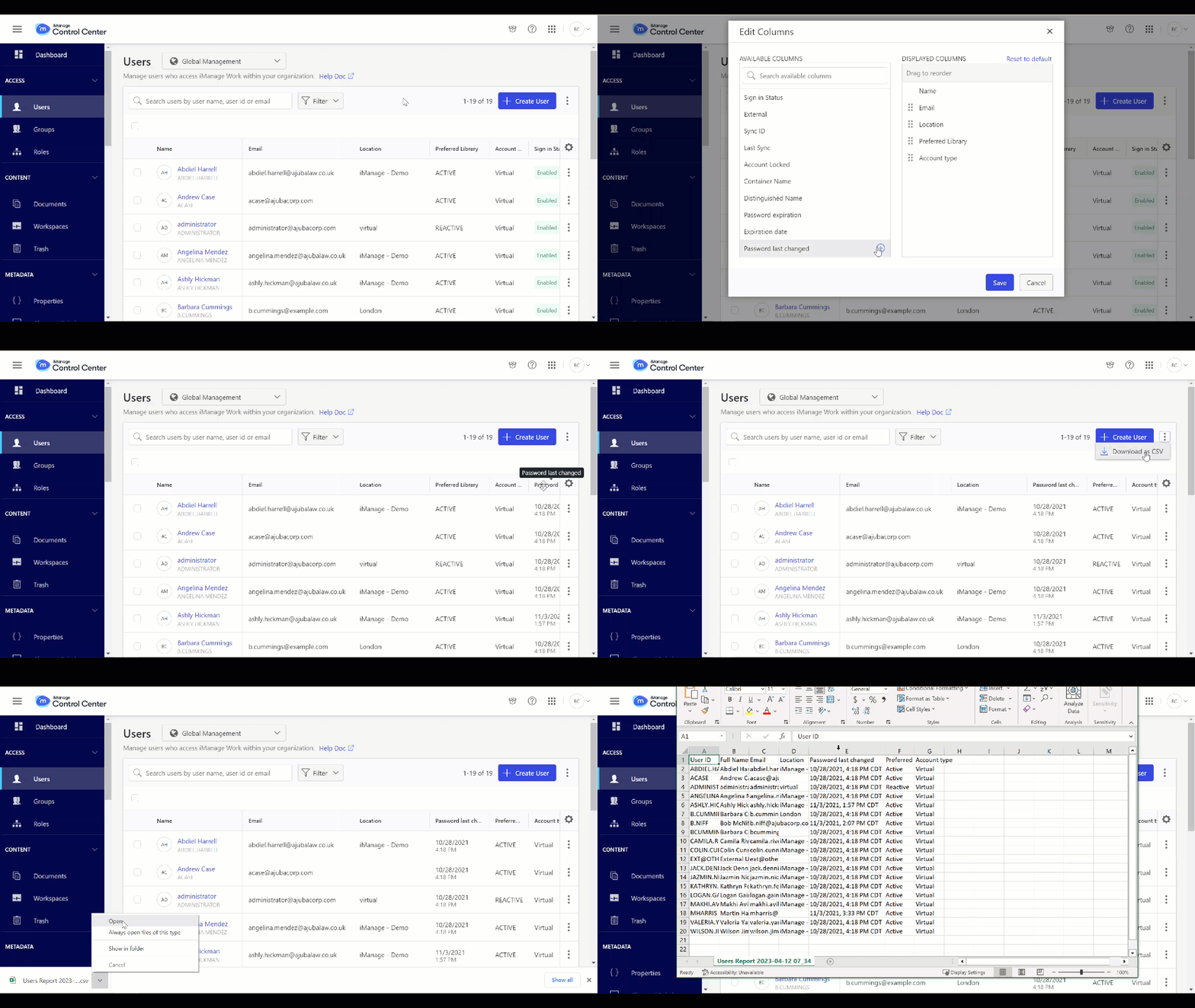
Your column selection and order preferences are now respected when table results are downloaded as a CSV file.
Figure: Download as CSV
Q2 2023 (April) update
Customizing your table views
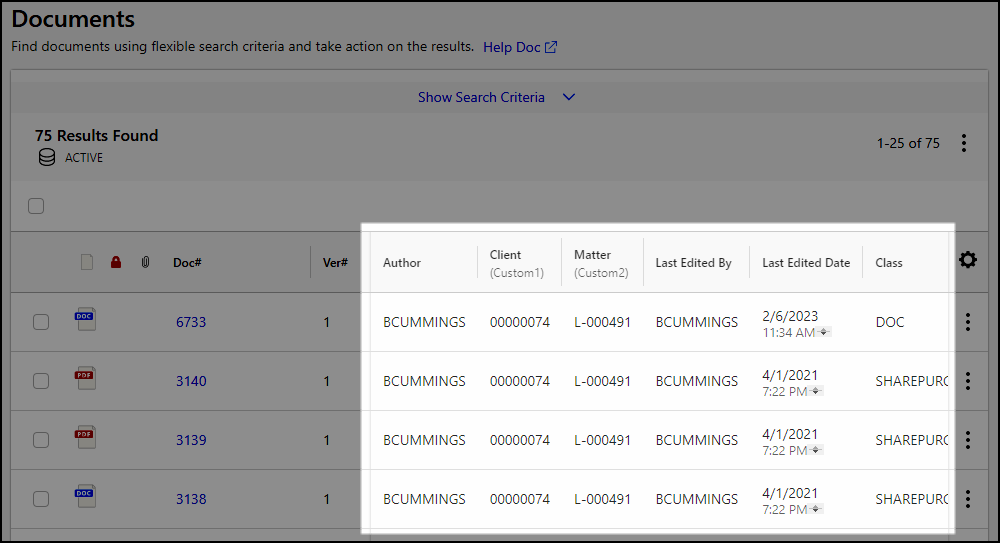
This enhancement allows you to modify the columns shown in iManage Control Center tables. The following figure shows a sample table, with a section of the table highlighted to show columns that can be customized:
Figure: Documents table
NOTE:
When many columns are present in the customizable section of a table, some columns may be hidden from view. You can view these columns by using your browser’s horizontal scrolling capability.
Whereas columns in the fixed sections of a table can't be altered, you can do the following in the customizable section:
Your browser automatically remembers the customizations you made to each table.
Adding and removing columns
Each table has a default table view that consists of a pre-defined set of columns, displayed in a preset order. To change which columns are displayed, select the gear icon  . The Edit Columns dialog box appears.
Figure: Edit Columns dialog box
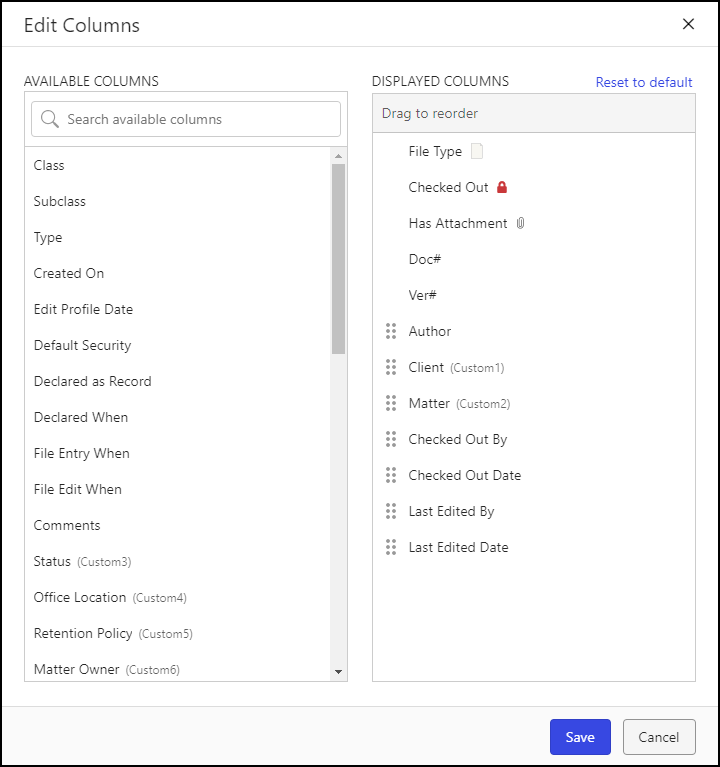
You can perform the following actions to select which columns are displayed in a table and to reorder them:
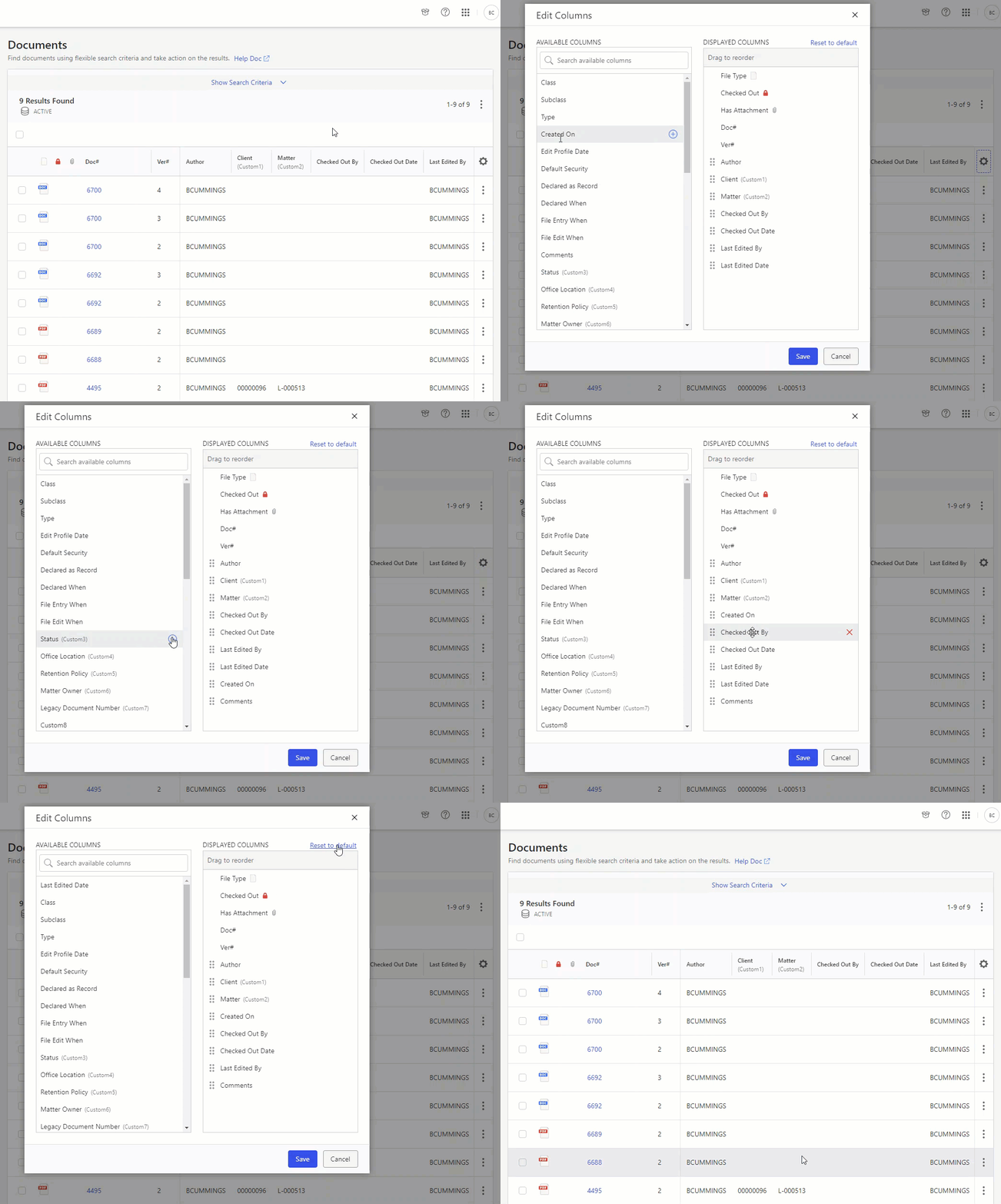
To display a column in a table, hover over the column name in Available Columns, then select the add icon
 .
.To remove a column from a table, hover over the column name in Displayed Columns, then select the remove icon
 .
.To change the column order, select the column in Displayed Columns and drag it to the desired location in the list.
To restore the table view’s default column list and order, select Reset to default.
NOTES:
Columns are displayed in a table in the order in which they appear in the Displayed Columns list.
Columns that can be reordered and removed from the Displayed Columns list are denoted by the edit icon
 . Columns without this icon are fixed in place and can’t be reordered or removed.
Figure: Edit Columns demonstration
NOTES:
To search for a column in the Available Columns list, begin typing the column caption name or ID in the Search available columns search box.
When you add a column to the Displayed Columns list, it's automatically added at the bottom of the list.
Changing column order
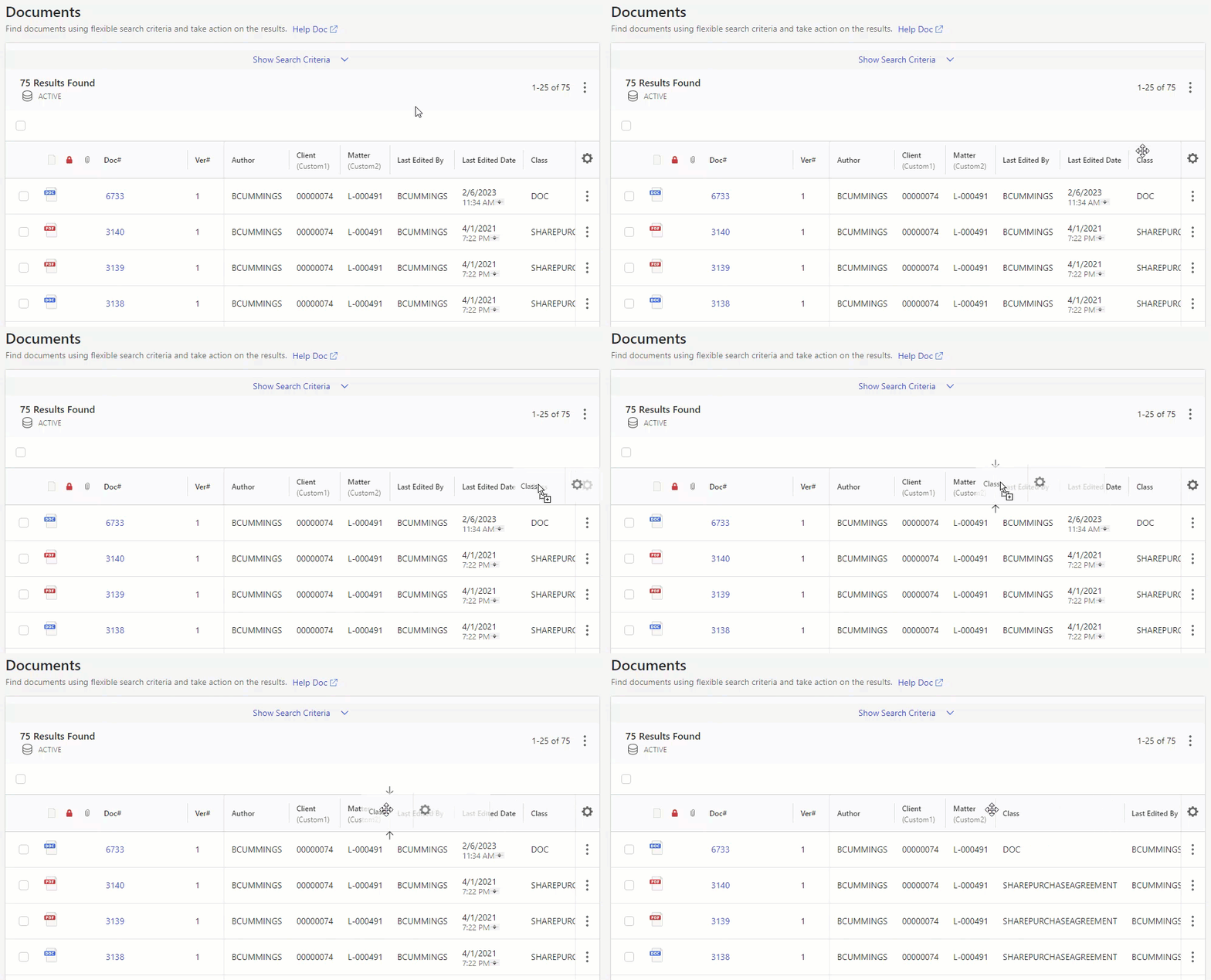
Column order can be changed either through the Edit Columns dialog box (refer to Adding and removing columns) or by dragging and dropping the column heading to the desired location.
Figure: Changing column order
NOTE:
Only columns in the customizable section of a table can be reordered.
Updated user menu in iManage Control Center
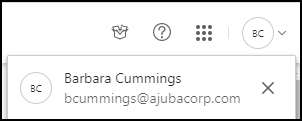
The Control Center user menu now displays your email address.
Figure: User Menu
Q1 2023 (February) update
Restore Trash items to another location
Using a new menu option in iManage Control Center titled Restore to new location, administrators can now selectively restore items from Trash to a specific folder in iManage Work.
Figure: Restore to new location option in iManage Control Center > Trash
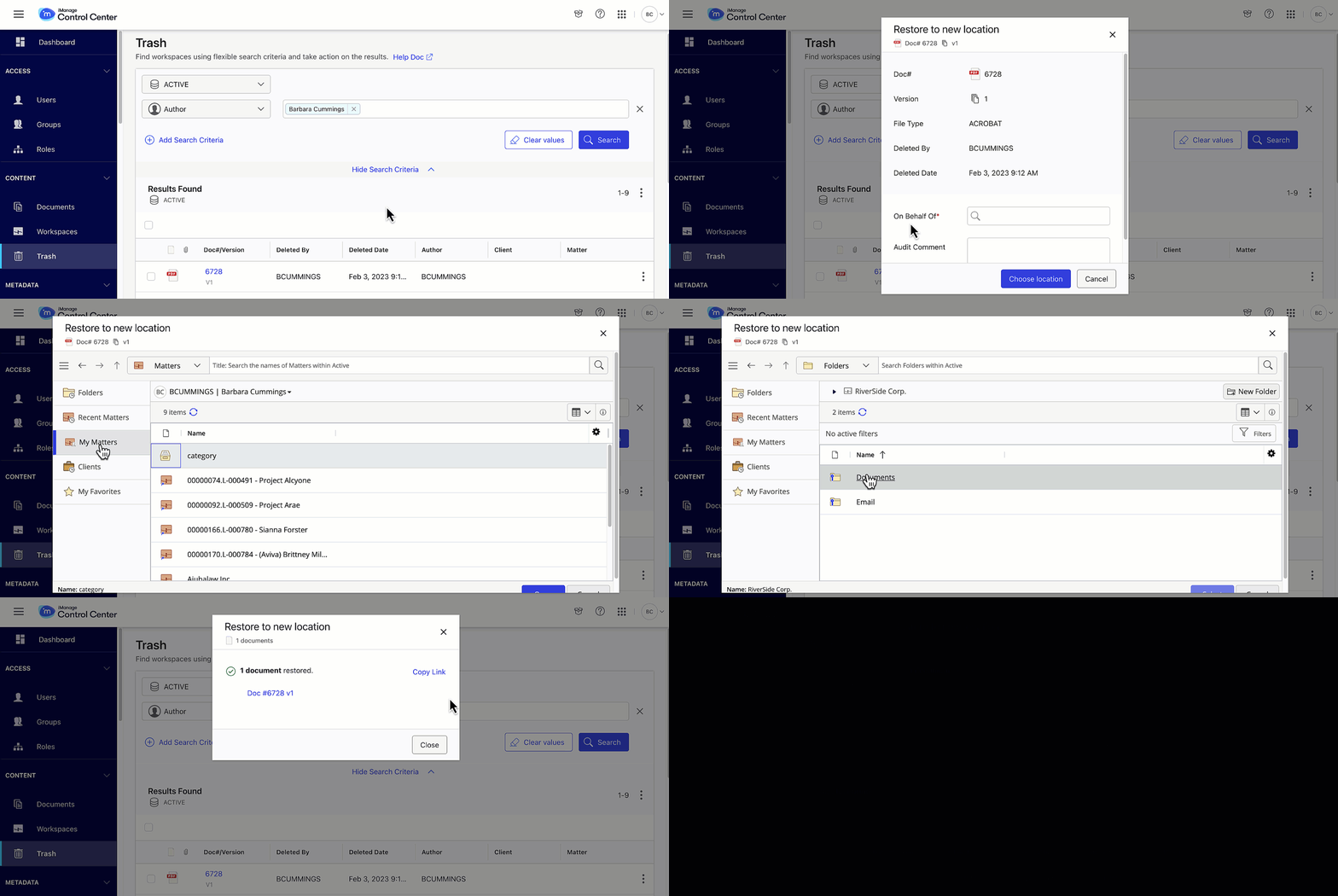
This restoration workflow is especially useful when the original folder no longer exists. If it is known that the target folder no longer exists, the administrator can select Restore to new location. However, if they do not know in advance, and they select Restore, then the feature still applies.
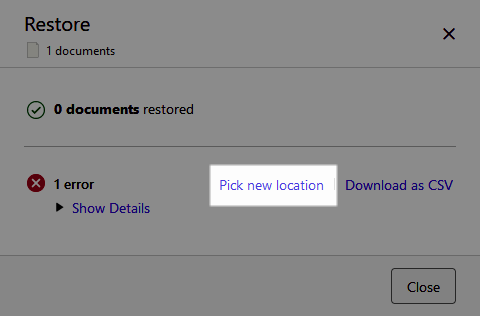
Selecting the Restore option will always attempt to restore to the folder where it resided at the time of deletion. However, if while restoring the document or email, iManage Work returns an error, you can now select Pick new location directly from the Restore dialog box.
Figure: Option to pick new location on Restore
For more information about this capability, refer to Trash.
Removal of Enable Analytics setting
With this update the Settings > Global page in iManage Control Center no longer displays the Enable analytics setting used to control user analytics collection.
After this update anonymized analytics collection will be enabled by default, consistent with our commitment to the privacy of your data.
For information about the usage analytics collected, see the following pages:
- Analytics
- Analytics collected for iManage Work (login required)
Q4 2022 (November) update
New in-app What's New notifications
Information about new features and other general notifications are now provided in the What's New collapsible side panel within iManage Control Center.
Access What's New by selecting the  icon in the header pane, to the left of the user name drop-down menu.
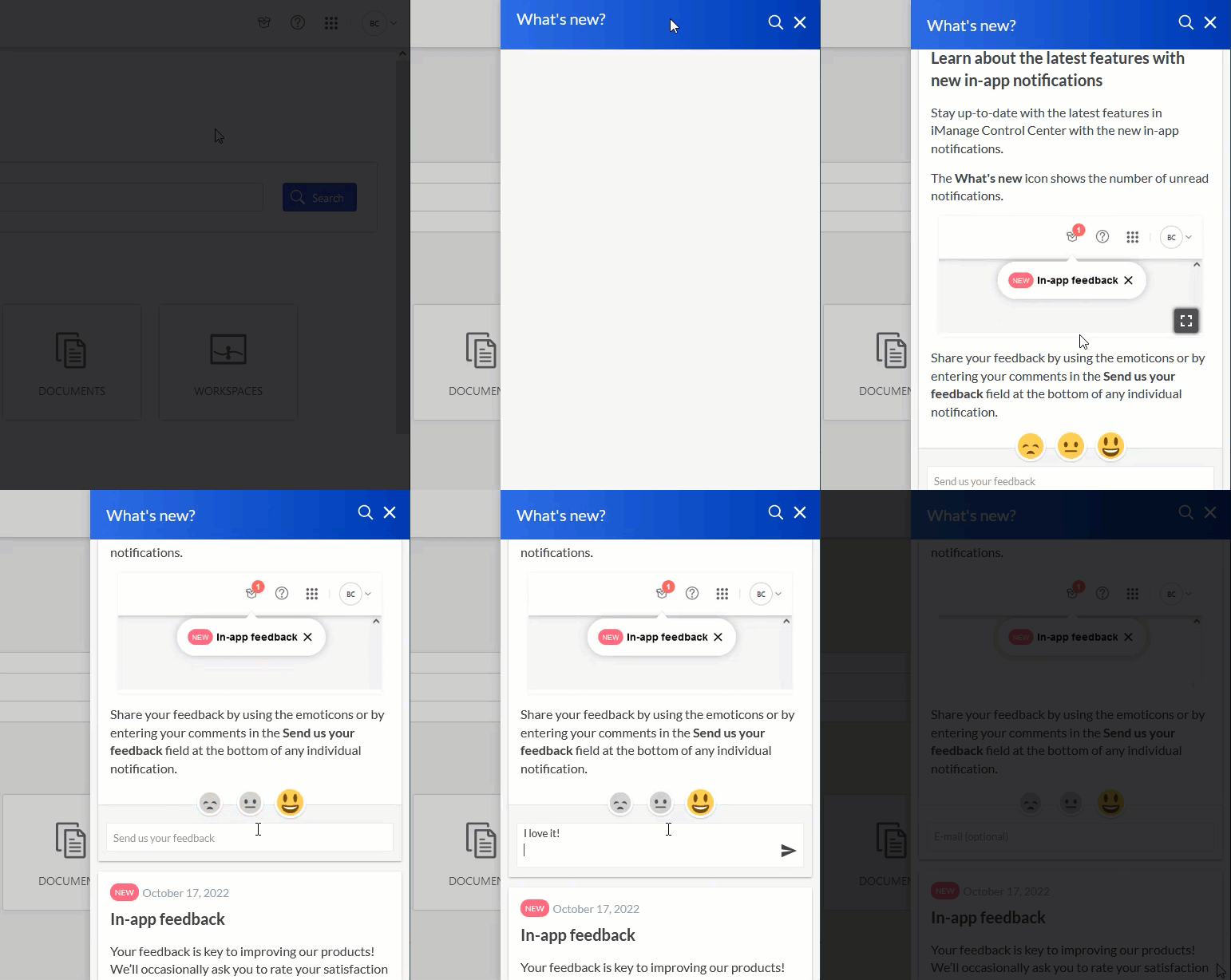
Share your feedback by selecting the appropriate emoji or by entering your comments in the Send us your feedback field at the bottom of any individual notification.
NOTE: To receive in-app notifications, your network must allow access to the domain: app.getbeamer.com.
Submit your feedback
Feedback plays a key role in improving the experience of iManage Work. With this release of iManage Control Center, you can now submit feedback directly from the app at the bottom of your screen.

Q: How many users will see it?
A: Only a small percentage (5-7%) of our entire user population (all customers combined) will see this survey.
Q: How often will users see it?
A: After users see this survey, they have an option to dismiss it, and they won't be asked again for the next 30 days. If they answer it (1-click action), they will not be asked again for the next 120 days.
Q: Can I get a summary of the feedback provided by my organization?
A: Yes, it can be provided upon request. Please send an email to ux@imanage.com.
Q: Can we opt out as an organization from providing feedback?
A: Each user individually has a choice to dismiss the survey or provide feedback.
Q4 2022 (October) update
Updated theme for iManage Control Center
This update introduces a new look and feel for iManage Control Center. While the functionality remains the same, the user interface is now updated with new fonts and color themes to align with iManage branding.
Q4 2022 (September) update
This update includes all enhancements provided in previous updates.
Control the collection of search information analytics
This update introduces additional control over the type of user analytics collected. When you opt in to allow iManage to gather user analytics, you can now separately choose whether to share search query parameters with iManage. By default, search information is not collected or shared with iManage.
To enable this option:
- Browse to Settings > Global, then select Edit at the top of the page.
- Under Enable analytics, set Search information to Yes to allow collection of search information analytics.
This setting is visible only when Enable analytics is set to Yes.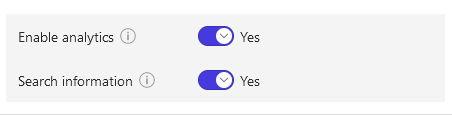
For more information, see Analytics.
Q3 2022 (August) update
There are no new features in iManage Control Center in this update.
Q3 2022 (July) update
Update CMEK Azure credentials
You can now update the application (client) ID and client secret used to grant access to your customer-managed encryption keys (CMEK) stored in Azure. This capability enables you to quickly update these credentials in iManage Control Center, such as when the client secret is nearing its expiration date, without necessitating a full key rotation.
For more information, see Updating the Azure App client id or secret.
Q2 2022 (June) update
This update includes all enhancements provided in previous updates.
Configure iManage Share settings per iManage Work library
The iManage Share application in iManage Control Center can now be configured independently for each iManage Work library. Previously, iManage Work could be configured to connect to only one of the following iManage Share domains:
- US: www.imanageshare.com
- UK: www.imanageshare.co.uk
- Asia: www.imanageshare-au.com
- EU: www.imanageshare-eu.com
- Canada: www.imanageshare-ca.com
This enhancement provides customers with greater control over how users share content with external parties using iManage Share. For example, if an iManage Work library is used primarily by users in a specific region such as Asia, that iManage Work library can be now configured to connect to the iManage Share domain closest to that region: www.imanageshare-au.com. This capability also enables greater flexibility to adhere to regional data residency requirements.
NOTE:
This new capability is available for use with new iManage Work libraries, or environments where iManage Work libraries have not already been integrated with iManage Share. If an iManage Work library has already been integrated with iManage Share, updating the configuration to connect to a different iManage Share domain would not migrate the content from one iManage Share domain to another, and would result in inaccessible Share links (Blue Folders). Each Share domain that you wish to integrate with must also have a Company created in Share in order to complete the configuration.
To enable this new functionality:
- In iManage Control Center, browse to Settings > Applications and select the iManage Share application.
- In the upper right corner, select Update Package.
The iManage Share application is now updated, and you can configure library-specific settings for the iManage Share application.
For more information, see Integrating iManage Work with iManage Share.
NOTE:
iManage Work users can use the Copy to Share Folder option in iManage Work only when they have selected documents from a single iManage Work library. If they select documents that are in different iManage Work libraries (such as in Recent documents or from a list of search results), the Copy to Share Folder option is disabled. In this scenario, users must copy each document to Share individually.
Q2 2022 (May) update
No new iManage Control Center features are included in this update.
Q1 2022 (April) update
This update includes all enhancements provided in previous updates.
Ability to disable web-based email sending
This update of iManage Work introduces a new configuration where administrators can disable the option to send documents and links directly through the web client's email service for users who have not installed the iManage Work Desktop for Windows or iManage Work for Mac clients on their machines.
When users without iManage Desktop clients installed use the Share menu options (Send Document, Send Link, Send Both) in iManage Work Web, the resulting email is sent using an web-based email service provided by iManage. This basic email service lacks enhanced security capabilities like encryption and authentication.
The new Enable web-based email sending configuration option enables you to prevent users from sending potentially sensitive content using an email server that is not customer-owned and managed. This setting is available in iManage Control Center in Work Clients > Web client > Features.
NOTE:
Q1 2022 (February) update
This update includes all enhancements provided in previous updates.
New platform for usage analytics
This update introduces a new platform for collecting usage analytics in iManage Cloud on Azure. iManage has partnered with Twilio Segment for our analytics implementation. Segment is an industry leader in product analytics and counts companies like Google, IBM, Intuit, and Zendesk among their customers. Segment shares our commitment to security and data privacy and has obtained many of the same security attestations as iManage such as ISO 27001, ISO 27017 and 27018.
In accordance with global data privacy regulations, you must opt in to allow iManage to gather this information. Opting in will provide benefits both for your organization as well as for iManage.
To share usage analytics with iManage, set the Enable analytics option in Global settings to Yes.
In addition, Work Web usage analytics previously collected by Google Tag Manager is no longer supported, and the Google Tag Manager option to enable or disable this capability in Work Clients > Web Settings > Settings > Features is no longer available.
For more information, see Analytics, or if you have additional questions regarding the implementation of analytics at iManage, please contact ux@imanage.com.
Canadian French language support
This update introduces support for Canadian French in the following areas:
Work Web - Users can now select the Français (Canadien) language from the language option in their User Settings. All text within the Work Web interface (buttons, captions, messages and so on) is displayed in Canadian French.
Work Desktop for Windows - Administrators can now set the default system locale to French Canadian by using the Fr-Ca option within the imWorkOptions.xml file.
Control Center - Administrators can set the default language to French Canadian. All text within Control Center is displayed in Canadian French. For details, see Web Client > Settings.
Additionally, Canadian French captions can now be set for iManage Work items under Metadata > Captions.
Q4 2021 (November) update
This update includes all enhancements provided in previous updates.
Integration with Microsoft Office for the web
iManage Work is now integrated with Microsoft Office for the web. With this integration users now create, view, edit and co-author Microsoft Office files (Word, Excel, and PowerPoint) directly in iManage Work even if they do not have Microsoft Office installed.
Users must have a valid Microsoft 365 license to use Microsoft Office for the web.
To enable this functionality, see Integrating iManage Work with Microsoft Office for the web.
Q4 2021 (October) update
This update includes all enhancements provided in previous updates.
Enhanced security for virtual accounts
This update includes several improvements to increase and enhance the security of virtual user accounts in iManage Work. To authenticate, users with virtual accounts use the sign-in credentials stored and managed within iManage Work.
NOTE:
These enhancements do not apply to enterprise user accounts in iManage Work. These accounts authenticate using SAML or OIDC single sign on with an independent Identity Provider (IdP). For enterprise user accounts, all password security and password management is managed directly by the IdP.
For more information about these enhancements, see Users.
Password complexity
Passwords must now contain at least 12 characters, including:
- one uppercase letter,
- one lowercase letter,
- one number or special character from the following list:
*().&-_[]`~|@$%^?:{}!',/\#+<>;"= (including the space character)
Users see these requirements when they create their password for the first time or when they update their password.
Users are provided responsive tips to guide them when creating a new password.
Figure: Password requirements tips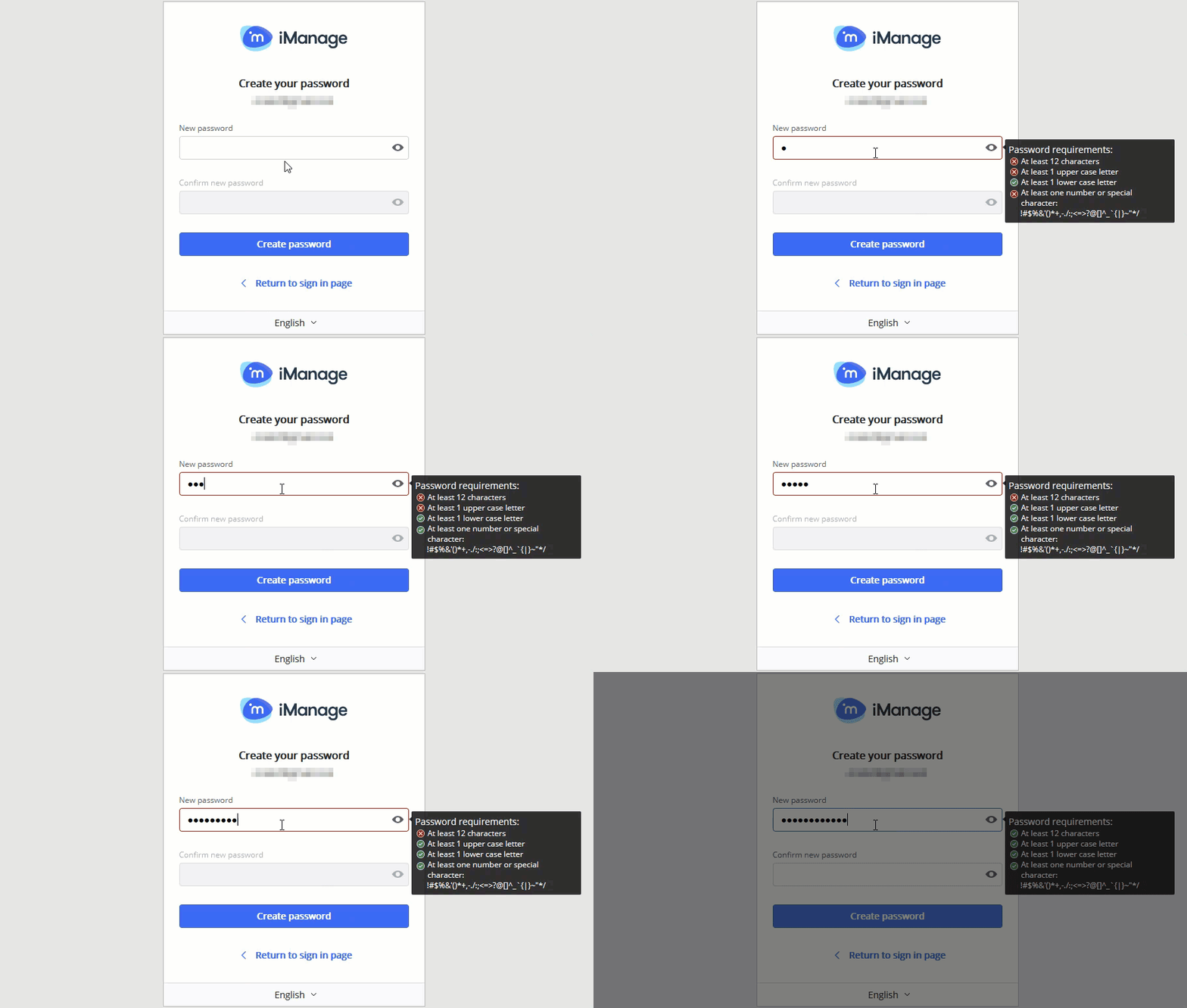
Expired passwords
A user's password now expires 90 days from the date when it was created or last changed.
If the user's password has expired, they are automatically prompted to change their password during the sign-in process.
Figure: Password expired notification after signing in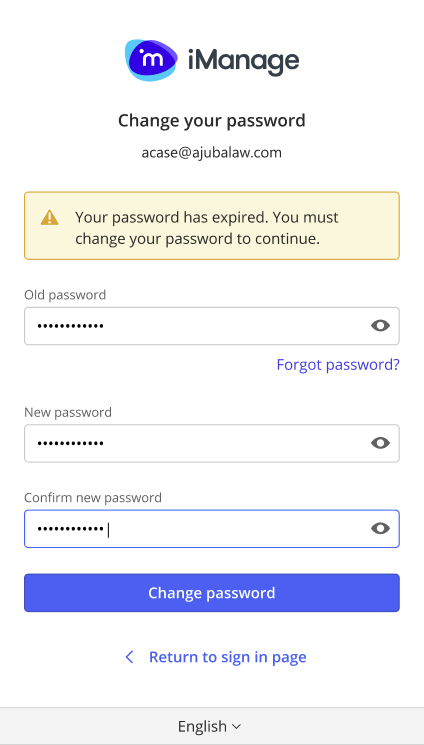
Users can also proactively update their password using the new Change Password option available in the user profile menu in iManage Work 10 Web or iManage Control Center.
NOTE:
This menu option in Work Web is scheduled to be available on Nov 30, 2021.
Figure: Change password from iManage Work 10 Web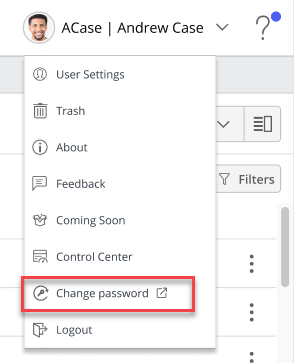
To determine the last time a user's password was changed, administrators can view the Password Settings in the user's detail page.
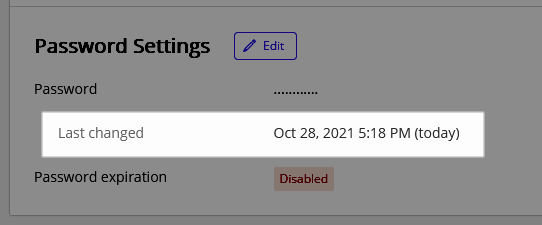
Administrators can optionally disable password expiration for a user in iManage Control Center using the Password expiration option in the Create user or Edit user dialog box.
NOTE:
As a best practice, disabling password expiration should only be used for automation or similar use cases where an expired password may disrupt a workflow. In these instances, password changes should be automated through the iManage Work Universal API.
Email notifications
iManage Work administrators can now send a welcome email directly to a user when creating the user in iManage Control Center. This email prompts the user to create a password for their new account.
Figure: New user creation - Send an email to the user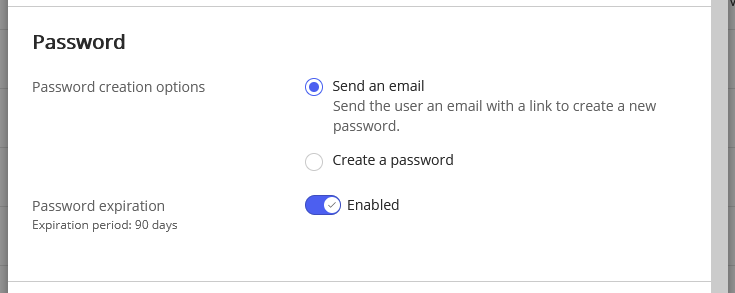
An administrator can also send an email to a user when the administrator requires the user to change their password.
Figure: Change Password - Send an email to the user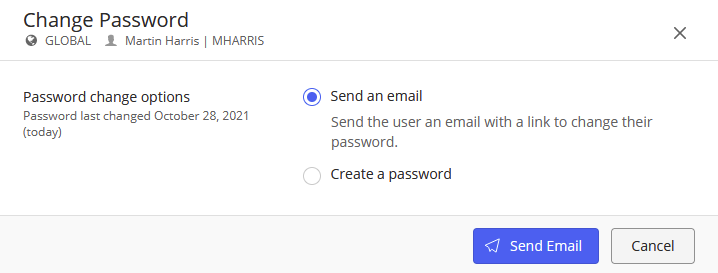
For security reasons, the link provided in the email to create or update their password remains valid for three hours. If the user does not take action within three hours, the link is deactivated, and an iManage Work administrator must resend the email to the user from iManage Control Center.
Figure: Email requesting user to change their password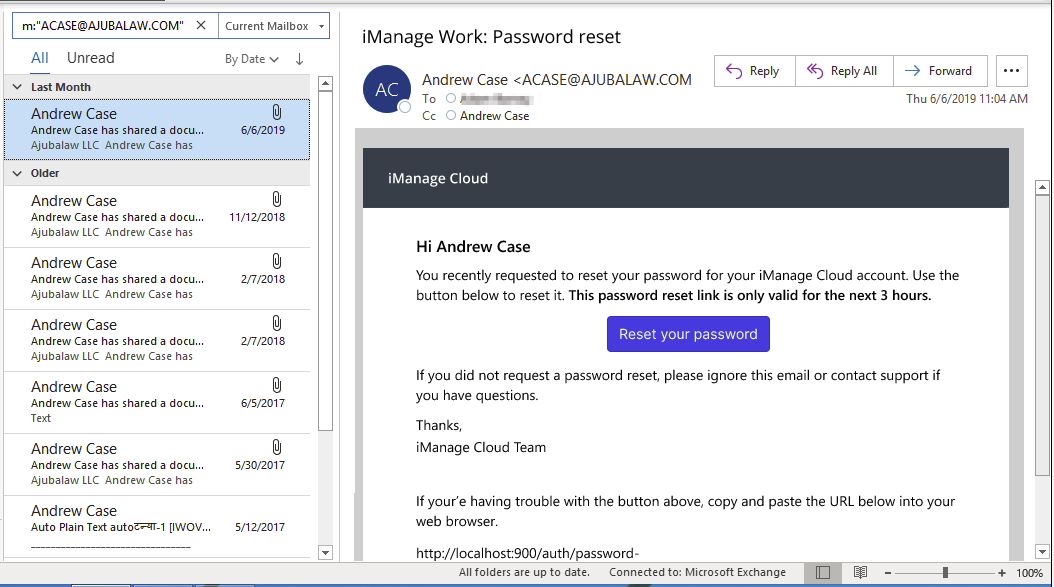
Failed sign-in attempts
iManage Work now limits the number of times a user can enter an incorrect user name or password when signing in.
- After five failed attempts, the user account is temporarily locked for 15 minutes and the user is prevented from signing in for a period of 15 minutes.The user receives an email notification of the temporary lock out.
- After 10 total failed attempts, the user account is locked again. The user receives an email notification, and directs them to contact their iManage system administrator for assistance.
In either case, the user must contact an iManage Work administrator to unlock the account within iManage Control Center.
New capabilities for administrators
iManage Work administrators can now perform the following in iManage Control Center:
- Filter the list of user accounts to see which are currently locked, and quickly unlock these user accounts.
- Send an email to one or more users to change their password. These users must enter their previous password, and create a new password in order to authenticate and resume using iManage Work.
Enhanced experience with static asset delivery
Static content used by the Work Web application, such has icons, images, HTML, JavaScript and CSS can now be loaded from from the user's nearest Microsoft Azure Content Delivery Network (CDN) point-of-presence (POP) location, providing users a richer and faster experience. This option is disabled by default.
NOTE:
Customer content stored within Work is never placed on any CDN and will only ever be hosted from the data center to which it was uploaded.
Administrators can enable this feature using the following setting in iManage Control Center by browsing to Work Clients > Web Client > Settings > Features.
TIP:
To test this setting before enabling it for all users, include the toggle_cdn=true query parameter in any Work Web URL, for example:
https://cloudimanage.com/work/web/r/recent-documents?exclude_emails=true&activity=edit&scope=ACTIVE,SECONDARY&p=1&toggle_cdn=true
Figure: Enable Static Asset delivery for iManage Work
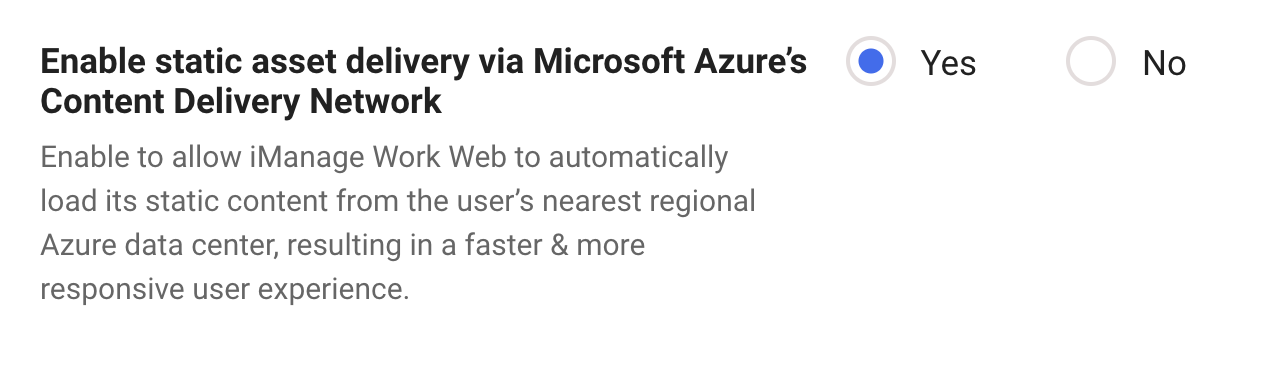
For more information about this setting, see Web Client > Settings.
Updated Navigation Pane
In this update, the Encryption Keys option is renamed to Library Encryption in the Control Center navigation panel.
Full encryption key rotation
This update provides improvements to management of content encryption in iManage Work when using customer managed encryption keys (CMEK). These improvements provide additional protection from data breach or data destruction.
Content in iManage is encrypted with a hierarchy of three separate keys:
- File encryption key: used to encrypt the file streams.
- Library encryption key: created automatically upon library creation and when a primary key is applied to a library. This key is used to wrap the file encryption key,
- Primary encryption key: stored in Microsoft Azure Key Vault. This key is used to wrap the library encryption key.
Previously, when a new primary encryption key was applied to (activated on) an iManage Work library, only the library key was rewrapped with the new primary key.
With this update, when a new primary key is applied to a library, a new library key is automatically generated, wrapped with the new primary key, and then used to rewrap all key files. This operation performs a 'full rotation' of the encryption keys: replacing the old primary key, generating a new the library key, and then unwrapping and rewrapping all file stream encryption keys.
Once a new primary key is applied to a library, the progress of the key rotation is shown in iManage Control Center.
Figure: Key rotation - Encryption Progress tab
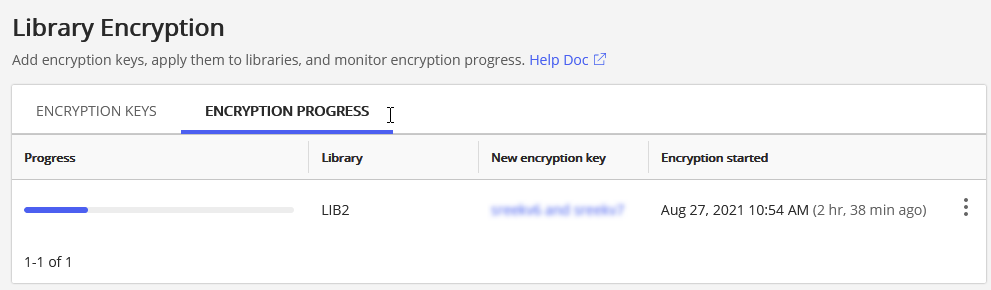
Figure: Key rotation - Key details page
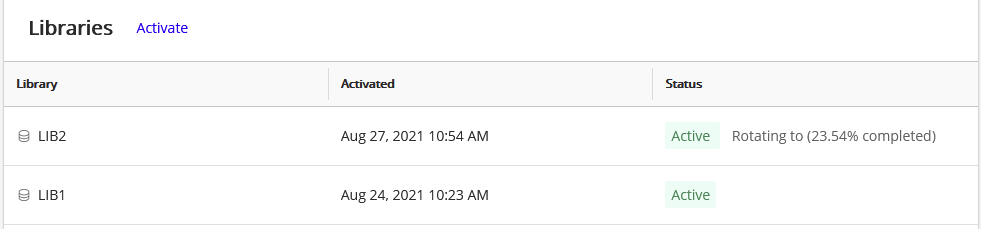
For more information, including definitions of the different key statuses, see Library Encryption.
Q3 2021 (August) update
This update includes all enhancements provided in previous updates.
Customize toolbar actions
iManage Work toolbars can now be customized in this update. Administrators can re-order, remove, group or add custom toolbar actions for containers like Recent Matters, My Matters, Workspace, Folder and so on. All available actions can either be shown as commands along the top toolbar or, be placed under the action menus. When the available space in the toolbar reduces for the added actions, they are responsively added to the action menu.
To customize toolbars in iManage Control Center, navigate to Web Client > Settings > Toolbar.
NOTE:
The toolbar kebab menu actions for Folders or Matters continue to reference their respective context menus until the toolbar actions are customized.
Toolbar customizations in iManage Control Center apply to iManage Work Web, Work Panel & mobile views.
The Upload Folder action is not supported in iManage Work Panel. To upload a folder from Work panel, drag-and-drop a folder into a workspace or another folder.
Figure: Customizing toolbar commands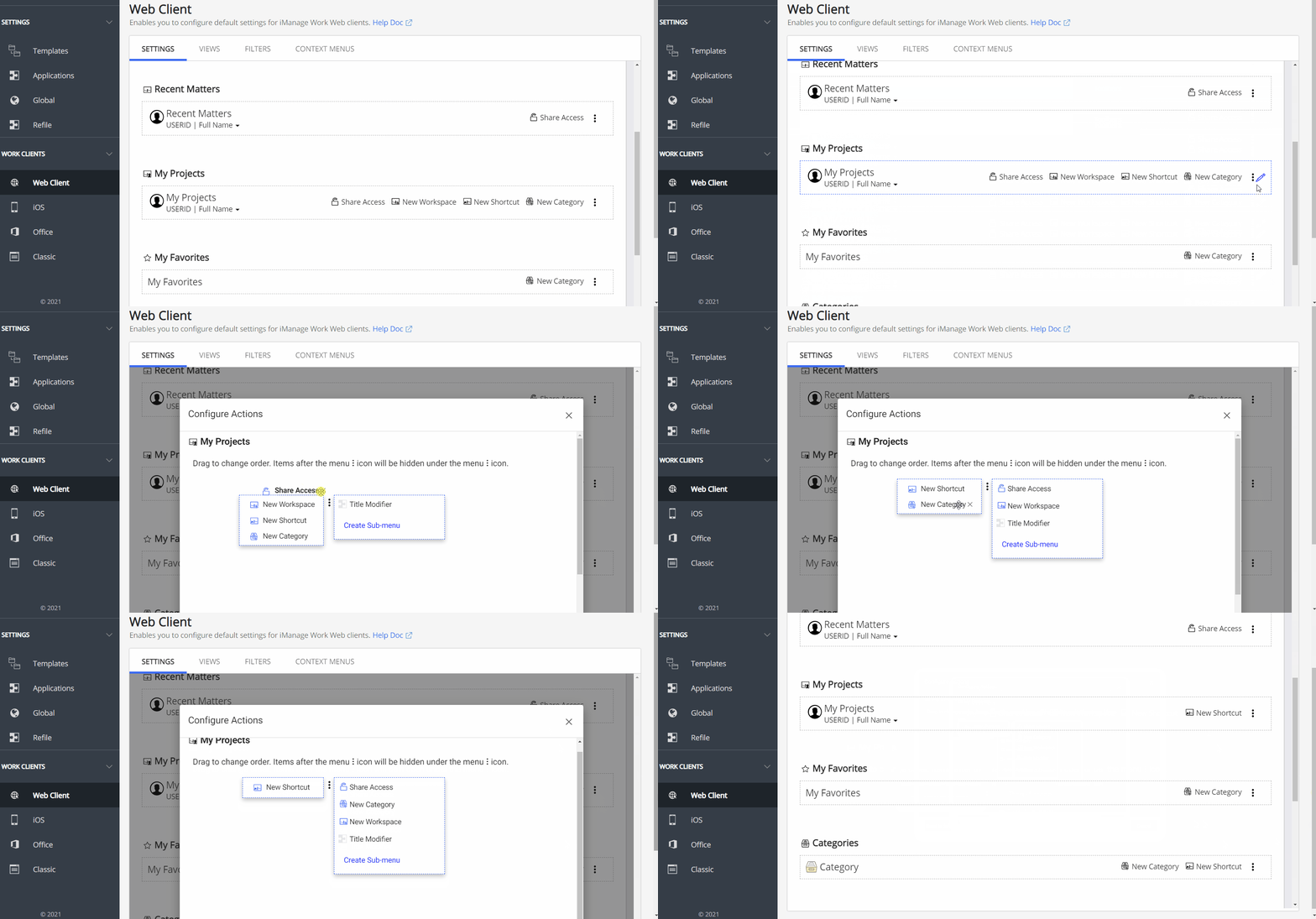
Customize workflow for New Folder creation
Administrators can now show or hide the option to users the ability to create a new folder. Administrators can also choose a custom command (provided by a third-party tool) to create a new folder in the iManage File/Location Selection dialog. This allows administrators to define a custom workflow for New Folder creation from both Work Web and File/Location Selection dialog, based on organizational requirements.
In iManage Control Center, navigate to Web Client > Settings > Features > New Folder in iManage File/Location Selection dialog.
Figure: Customized workflow for creating New Folder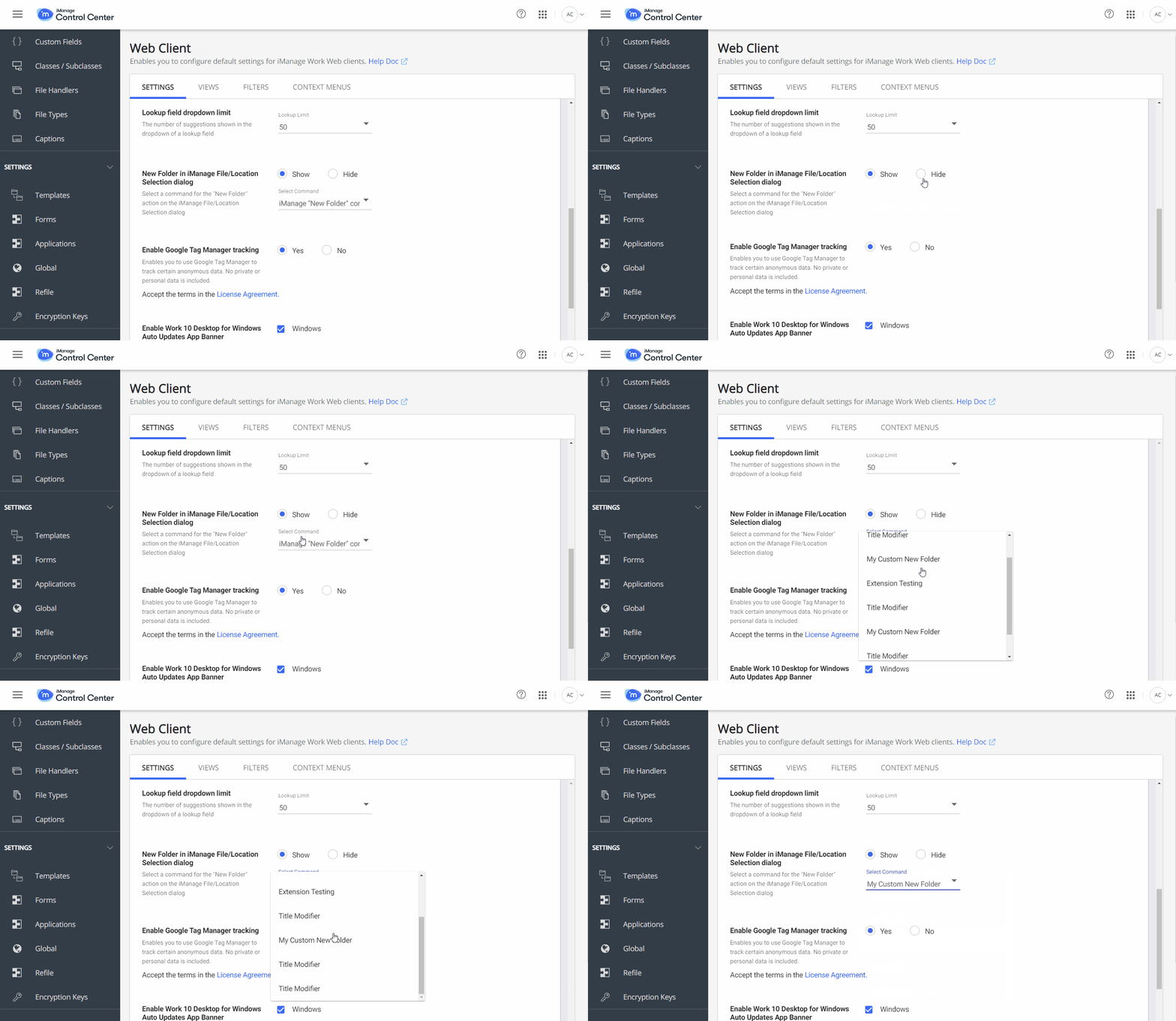
Organize nodes in the side navigation panel
Administrators can now re-order, show or hide the nodes displayed in the side navigation panel in iManage Work. To customize the navigation panel in iManage Control Center, navigate to Web Client > Settings > Navigation. These customizations are also displayed in mobile views.
Third-party extensions can also be enabled or disabled as nodes in the side navigation panel. To configure these extensions, see the iManage Work Web SDK Guide.
NOTE:
Extensions can be configured to selectively appear or be hidden in the Mobile view or Work panel navigation in Microsoft Outlook.
Figure: Organizing nodes in the side navigation panel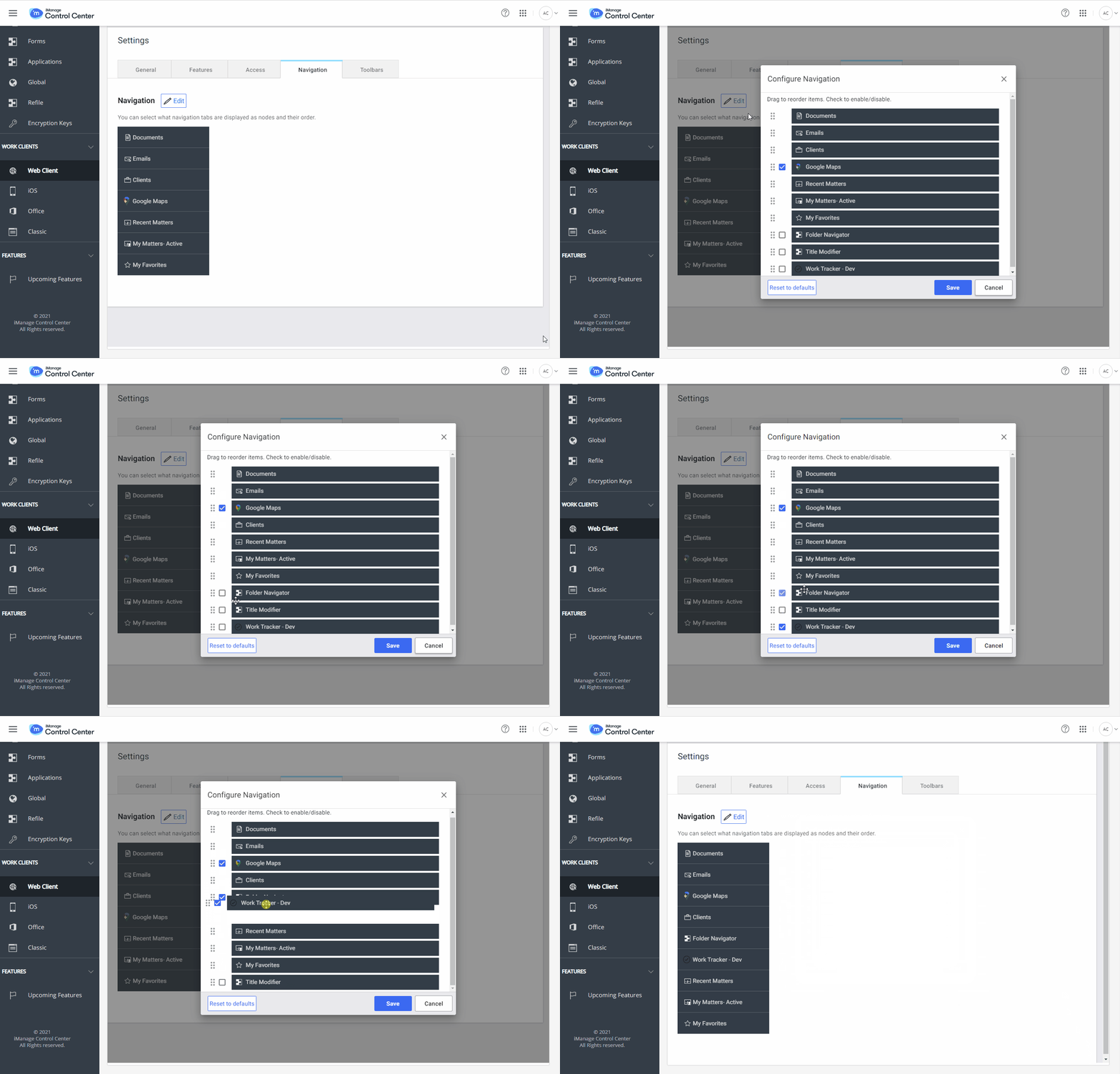
Ability to configure the Details panel
Administrators can now configure the default tab shown to users in the Details panel, and also set the order of the tabs (including custom tabs) that appear.
Figure: Example of customized Details panel
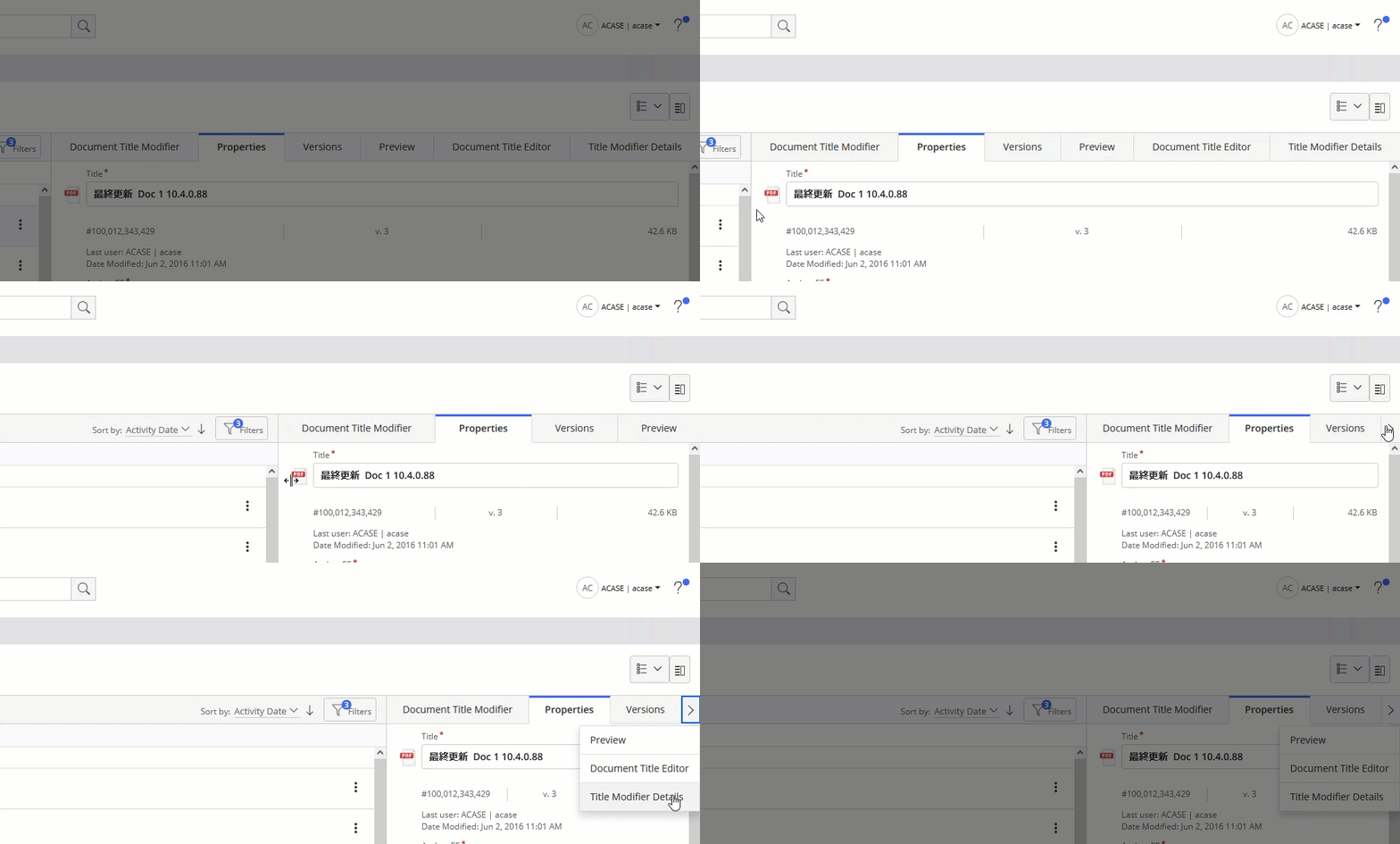
To configure the Details panel, navigate to Web Client > Settings > Navigation > Details Tabs.
Figure: Configuring the Details tabs 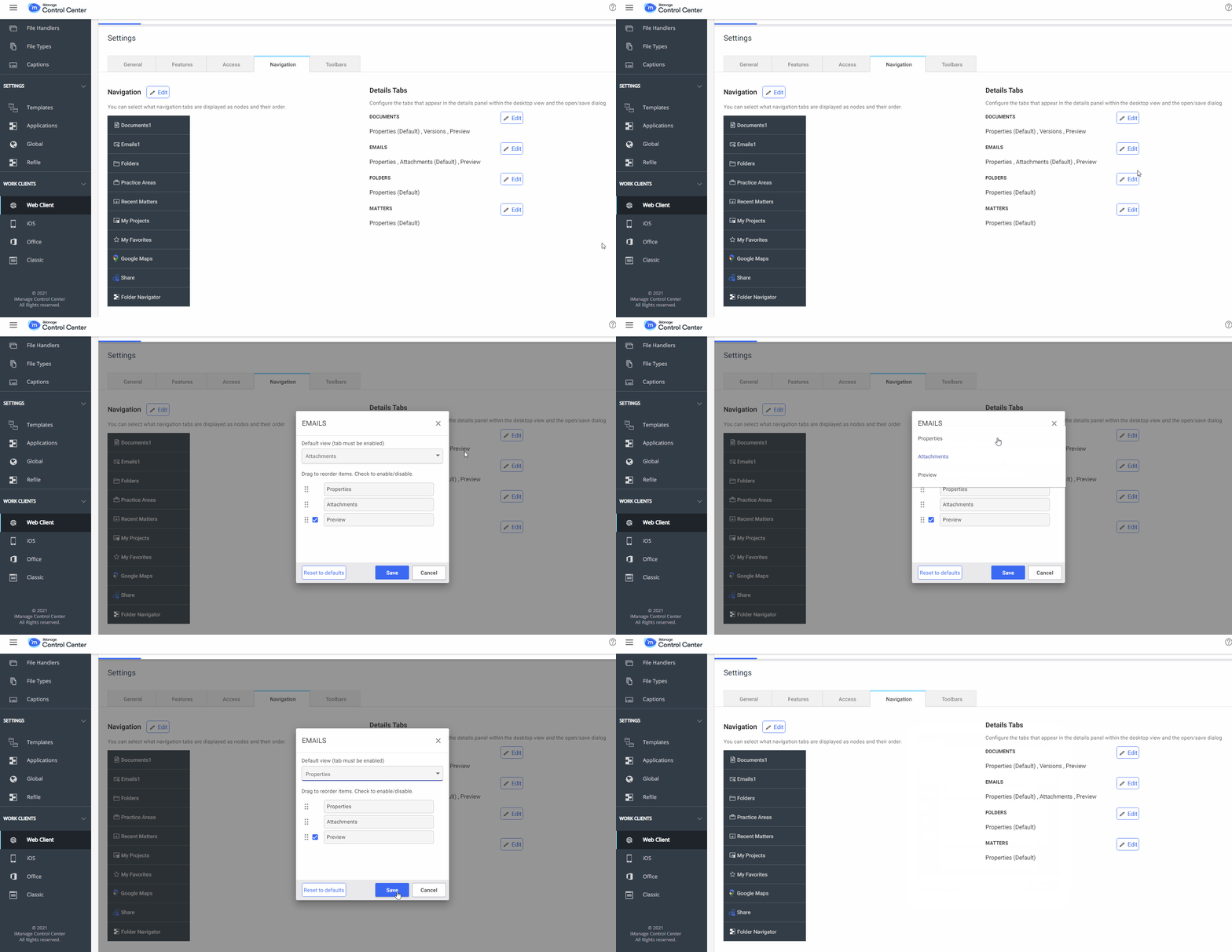
Custom tabs in the Details panel can also be invoked through a context menu, which can be configured as part of the custom tab configuration and can be managed by the administrators in the context menu configurations.
Q2 2021 (June) update
This update includes all enhancements provided in previous updates.
Control the creation of required folders from template
Administrators now have finer control over the creation of folders from a workspace template.
Users often collaborate on matters across departments. For example, a litigation matter may need some tax advice, so the tax attorney needs to create some relevant tax folders to store their documents. They can easily create these folders by selecting the appropriate workspace template, such as a tax template. When the tax attorney selects a different template, iManage Work automatically creates all of the folders that are marked as Required or Workspace Creation from the selected template, even though the tax attorney may not need or want all of the folders created.
This could result in the creation of a number of extra unused folders in the workspace.
iManage Control Center now provides an option to control which folders are created in this scenario.
All required folders must be added: When a user selects a different template in the New Folder dialog, iManage Work creates all folders and subfolders from the newly-selected workspace template. This is the default option.
Add root level required folders only when the selected template was used to create the workspace: When a user attempts to create a new folder using a template that was not used to create the workspace, the user is given the option to select which root folders are to be created. This is the case even if the root level folder are configured as Required or Workspace Creation folders in the newly-selected template.
There is no change to the behavior of subfolders. If they are marked as Required or Workspace Creation in the template, they are automatically created, regardless of this setting.
To access this setting, navigate to Settings > Global.
Figure: Global settings dialog
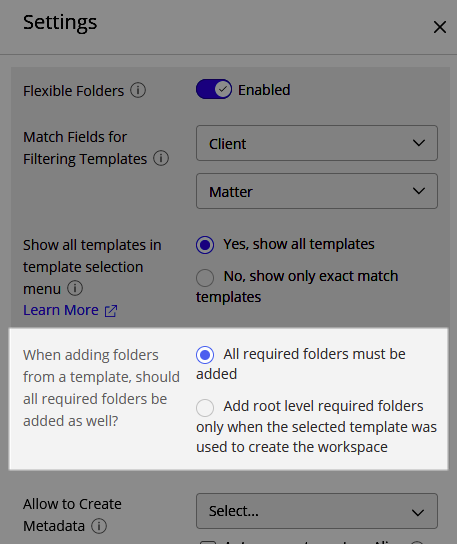
For more information about this capability, see Global settings.
Inherit empty values from parent during refile
Administrators now have the capability to configure how metadata changes are applied when the workspace has no value set for a property.
By default, the Refile Service applies metadata values to the folders and documents within it to ensure consistency. In the scenario when the workspace has no value for a given field, it updates all folders and documents within the workspace, potentially removing metadata information that is present in these items.
A new setting enables you to prevent the Refile Service from removing the metadata values from the child items in this scenario.
To access this capability, navigate to Settings > Refile. Select a library to open the Setup Refile dialog.
The Inherit empty values from parent setting is available on the Metadata section of the dialog.
Figure: Setup Refile dialog
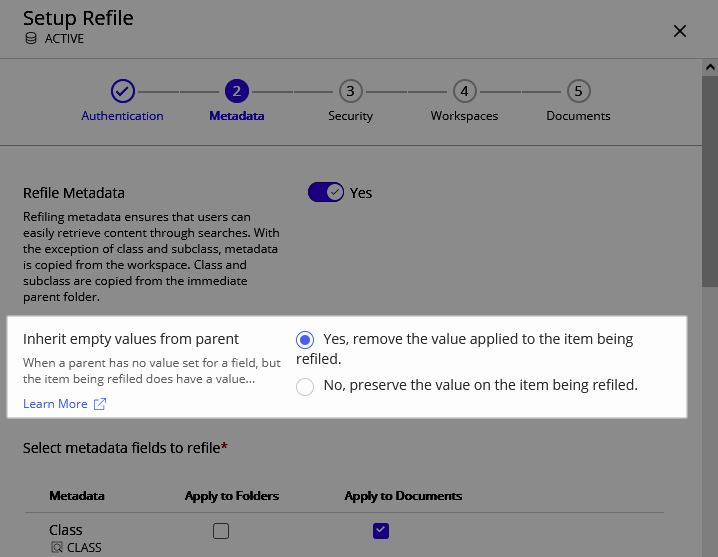
For more information about this capability, see Configuring Refile.
Q2 2021 (May) update
This update includes all enhancements provided in previous updates.
Manage upcoming features
Administrators now have the capability to enable or disable new features for evaluation and testing. When key new features are introduced in your iManage environment, they are listed in the Upcoming Features page in Control Center (Settings > Upcoming Features) for a period of time, typically 3 months. Each feature is disabled by default, and can be enabled for users for evaluation, training, or user acceptance testing purposes.
When the testing period ends for an upcoming feature, the feature is automatically enabled for all iManage users, at which point it is removed from the list features on the Upcoming Features page in Control Center and can no longer be enabled or disabled.
To access this capability, navigate to Settings > Upcoming Features.
For more information about this capability, see Upcoming Features.
Show or hide all templates in template selection menu
NOTE:
This setting is available only if it has been enabled in your environment. For more information or to request this capability, contact your Cloud Services Manager.
When it is made available in your environment, the Allow admins to hide "Other Templates" feature appears in Control Center under Settings > Upcoming Features, where you may enable or disable it during the defined testing period.
For more information, see Upcoming Features.
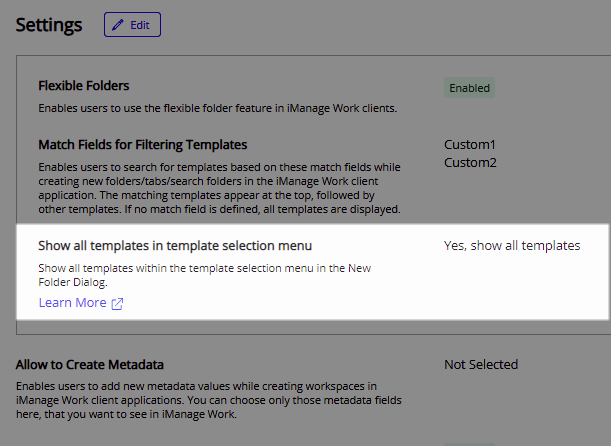
In previous releases, when users created a new folder within a workspace, they were allowed to see and select from a list of all available templates configured in iManage Work. In this update, a new setting has been added to display only those templates that match the configured Match fields for the workspace.
This prevents users from choosing a template that does not align with your company's business processes, and reduces the complexity for users as they are no longer shown a potentially long list of available templates when creating a new folder.
Figure: New Folder Dialog with only exact match templates
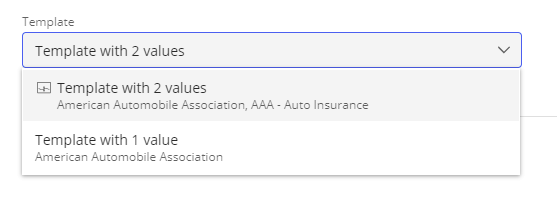
To configure the Show all templates in template selection menu setting, navigate to Settings > Global.
Figure: Control Center > Global settings > Show all templates in template selection menu
For more information about this setting, see Global settings.
Q1 2021 update
For more details about the Q1 2021 (10.3.3) update, see the Service Update: iManage Work in the Cloud - Q1 2021 article on the iManage Help Center.
Refile Service enhancements for multi-reference documents
Documents referenced in multiple locations (multi-reference documents) in iManage Work present a unique challenge when the Refile Service updates the document's properties. Previously, the metadata or security properties applied by Refile Service could come from any number of different locations where the document was referenced. When the metadata or security properties were updated in any of these locations, the Refile Service automatically applied the properties from the location that was last updated.
In this release, iManage Control Center now enables administrators to configure the behavior of Refile Service when refiling multi-reference documents. Two new options are provided based on the chronological order in which the document was referenced to a location:
Oldest location
Newest location
You can also configure the Refile Service to skip multi-reference documents entirely by disabling the Refile multi-reference documents option.
These new options give you control over how metadata and security is applied to documents that are referenced in multiple locations during a refile.
TIP:
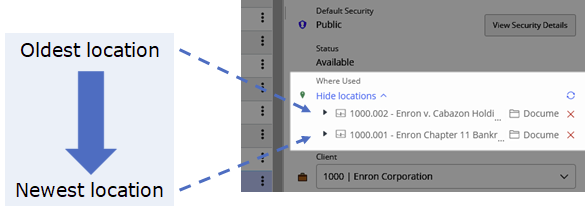
To determine the order in which a document was referenced to its locations, view Where Used or Where Filed in the Properties panel in iManage Work. The locations shown are listed from oldest to newest, based on the time at which the document was added to this location.
Figure: Using Where Used to view the order in which documents were referenced
NOTE:
This time-based ordering applies only to when the document was added to the immediate parent location. For example, if a document is added to a folder, and the folder is then moved to a different workspace at a later date, the order shown in Where Used does not change.
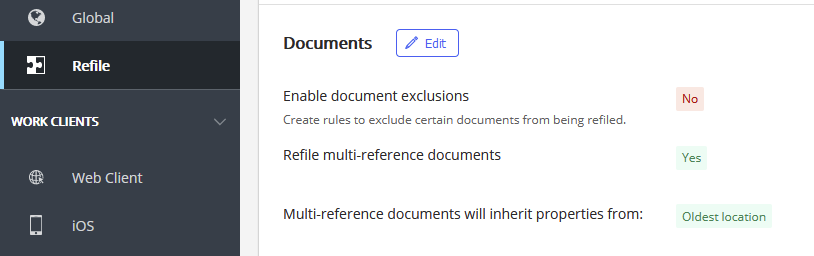
Configuring Refile Service
To configure the Refile Service settings in iManage Control Center, navigate to Settings > Refile, then select any of the available libraries to view and edit the Refile options for the selected library.
The new configuration options are displayed under the Documents section.
Figure: Setup Refile
For more information, see Multi-reference documents.
Interface updates
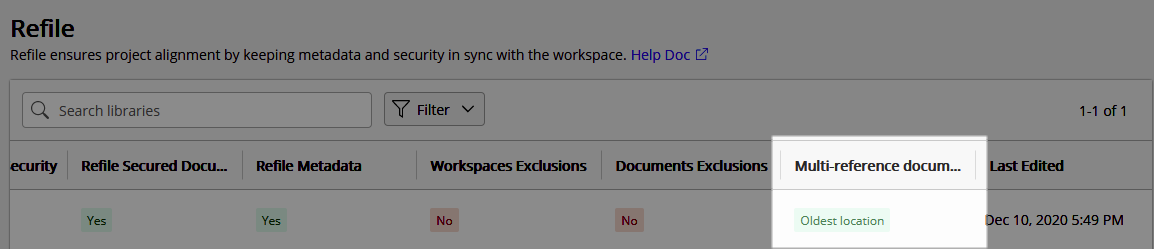
The Refile settings table now displays the Multi-reference documents setting for each library.
Figure: Refile settings
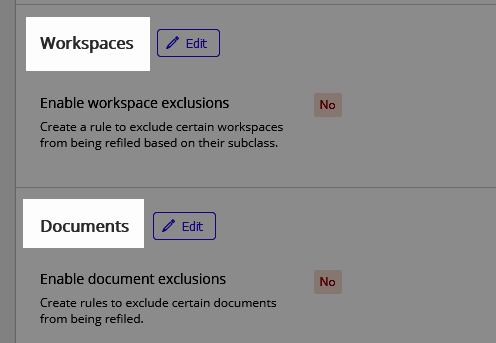
The Setup Refile wizard and the Refile details page are updated as shown:
Document Exclusions is now displayed as Documents.
Workspace Exclusions is now displayed as Workspaces.
Figure: Setup Refile wizard
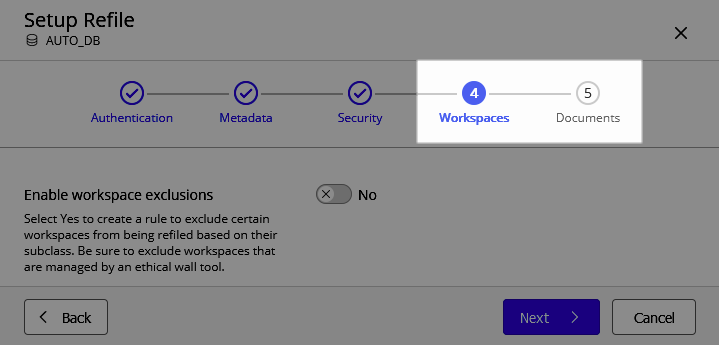
Figure: Refile details page
Update applications
iManage Control Center now supports the ability to update existing applications. This new capability updates the application and preserves any configuration settings (authentication, access, and so on) from the existing application.
In any existing application, the new Update package menu option is now available.
Figure: Update package
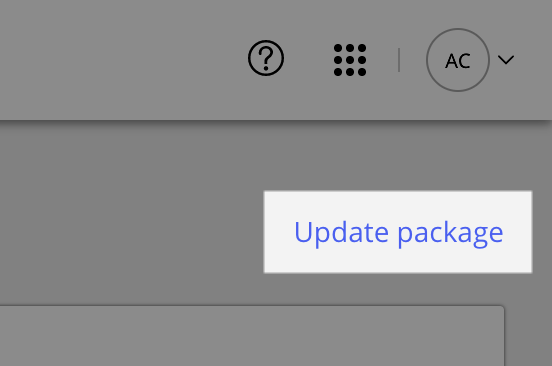
Select Update Package and proceed through the steps of the Update Package wizard to update the application.
For more information, see Updating an application.
Create sub-menus in iManage Work menus
iManage Control Center now allows you to create sub-menus within the context menus in iManage Work. This enables you to group and organize menu actions to fit your users' needs.
These menu actions are displayed in the iManage Work Web client and the iManage Work panel in Microsoft Outlook in the following locations:
- Context menus
- Document Preview toolbar
- Multi Select toolbar in the List/Grid view
- Mobile view
Figure: Example custom submenu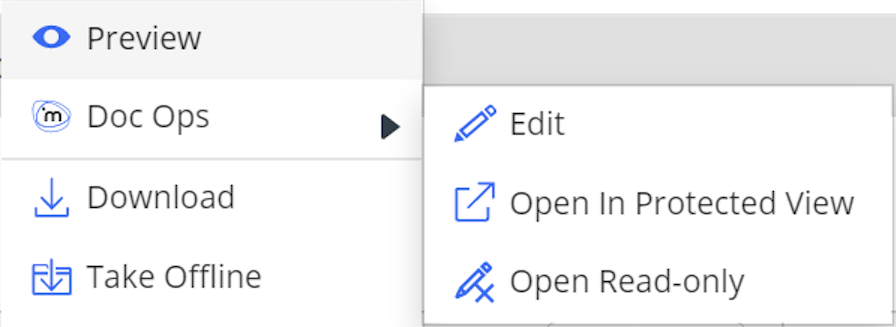
Sub-menus are configured in iManage Control Center by navigating to Work Clients > Web Client > Context Menus.
The new Create Sub-menu option is provided at the bottom of each menu.
Figure: Create Sub-menu option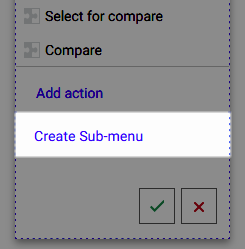
For more information, see Context Menus in the iManage Control Center online help.
Document search by checked out users
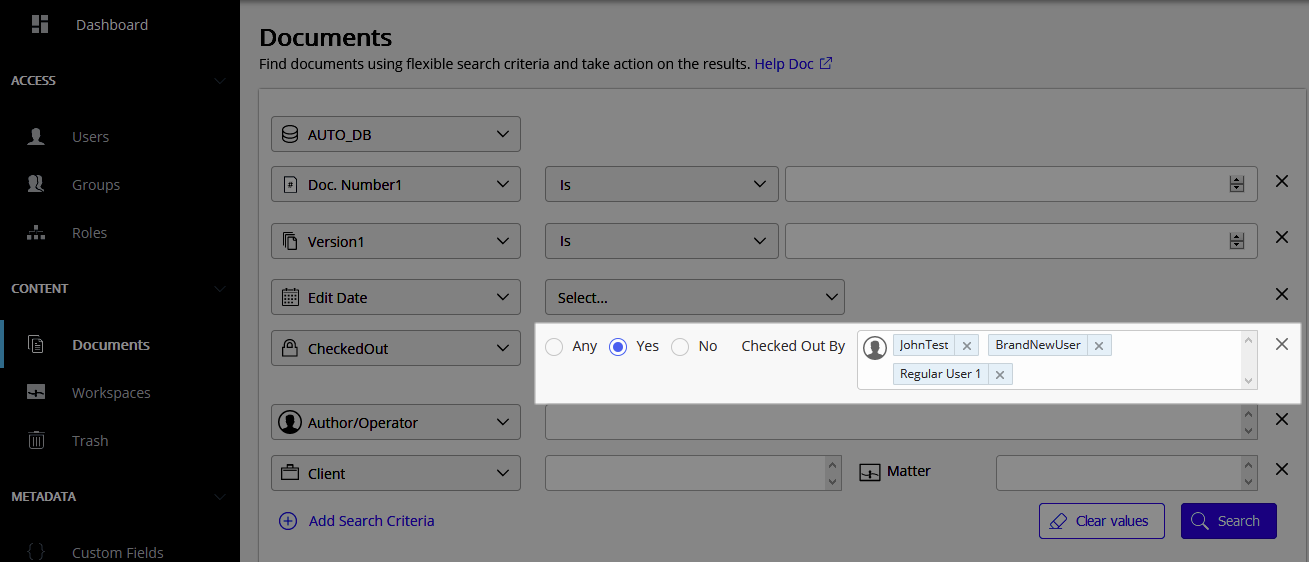
iManage Control Center now supports the ability to search for documents that are checked out by a specific user or users.
This capability enables you to quickly locate and take action on all documents that are currently checked out by the specified user(s). This is useful when locating documents for a departing user.
Figure: Document search using Checked Out By
Changes to New Workspace dialog functionality
The updated New Workspace dialog introduced in iManage Work 10.3.2 displays No results found when a user attempts to create a custom metadata value during the creation of the workspace.
To achieve the same functionality provided in the old dialog, an iManage Work administrator must perform the following steps:
Navigate to iManage Control Center > Global.
Select Edit.
Locate the Allow to Create Metadata setting, and select the drop down menu to define which custom fields allow metadata creation.
By default, no custom fields are selected.
Select Save.
See the New process to add custom metadata values in the iManage Work New Matter dialog advisory on iManage Help Center for more information.
Q4 2020 update
For more details about the Q4 2020 update, see Service Update: iManage Work in the Cloud - Q4 2020.
This update includes all enhancements provided in previous updates.
Updated navigation pane
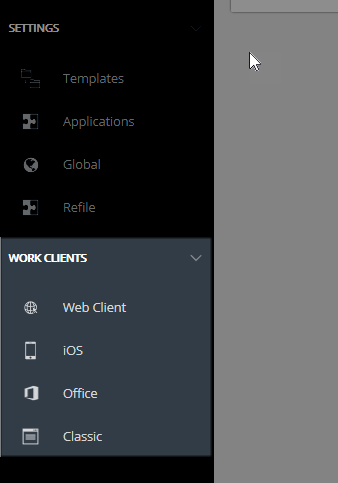
The left pane in Control Center has been reorganized for improved navigation. Settings relating to iManage Work clients are now grouped together under the new Work Clients section.
Figure: New Work Clients section in navigation pane
New Global setting: Allow to edit document versions
A new setting has been introduced to control which versions of a document users are allowed to edit, within other security limitations. Modifications include editing document content, changing default security and user's access permission for the document, and changing properties. This setting applies to all documents across all libraries.
The following options are available for Allow to edit document versions:
NRTADMINs always have Yes, all versions access regardless of the actual value.
In iManage Control Center, select SETTINGS > Global to modify this setting.
Configure classic client settings
The new Classic page enables you to manage settings for iManage classic clients:
- Dialog Files: Upload and manage Dialog Editor files for use by iManage DeskSite users.
- WorkArea: Manage preferences for iManage DeskSite users.
Access the Classic settings page by navigating in Control Center to Work Clients > Classic.
NOTE:
Enhancements to iManage Work dialogs
This update introduces a number of key enhancements to the end user experience. See the iManage Work Release Notes (10.3.2) in iManage Help Center for a complete list and explanation of these enhancements.
As part of these enhancements, users are now given an option to switch between a new interface and old interface in several dialogs:
- New workspace
- New folder
- Trash
Figure: Selecting new interface - Trash dialog

By default, the new interface is displayed for all dialogs. Users have the option to switch back and forth between the two interfaces at any time, and their preference for each dialog will be remembered across sessions. This enables users to become comfortable with the changes at their own pace.
The option to switch back and forth between the new and old interfaces is not configurable, and will be phased out in a future update to Work 10, at which point the new interfaces will be the default.
Template functionality changes
When creating or modifying a template in Control Center, the option to Retain the template Prefix/Suffix is no longer provided. This option controlled whether the prefix or suffix was preserved when a user modified the name of a folder, search folder, or tab that was created using the template. This option was removed as it could not be applied consistently across all iManage Work clients.
Q3 2020 update
This update includes all enhancements provided in previous updates.
Persistent Search Fields
iManage Control Center now preserves the search fields you enter when searching for documents, workspaces, or trash. When you add or remove search fields while performing a search in Control Center, your settings are now automatically saved and will be present the next time you sign in and access the Documents, Workspaces, or Trash pages. This provides the advantage of not having to remember or reselect your search fields for subsequent searches.
Search fields are stored locally in the browser's cache for each individual library. If you switch to a different browser or to a different device, you will see the default search fields.
Read/Write folder creation permission changes
In this release, users with Read/Write access to workspaces with any type of default security now have the ability to create containers, such as folders and template folders, search folders, Share folders or tabs, at the root level of the workspace.
In previous releases, only users with Full Access to a workspace had rights to create folders and template folders, search folders, Share folders, or tabs.
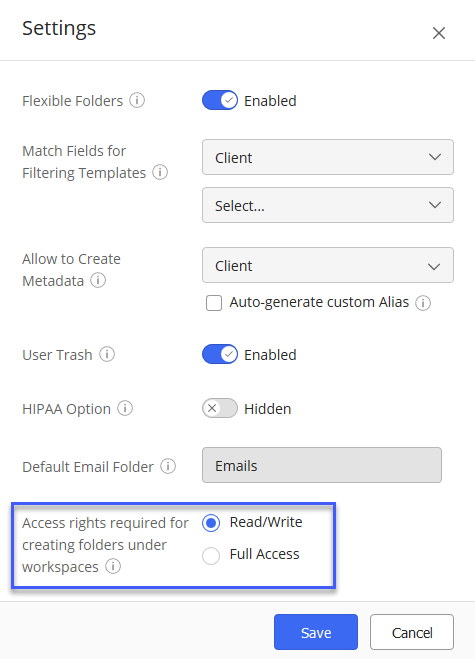
The legacy Global setting Allow folder creation in public workspaces has been replaced in this release with the new Access rights required for creating folders under workspaces setting. The new setting enables you to set the following options:
- Read/Write: Users with Read/Write access rights or higher to any workspace can create folders, search folders, Share folders, or a tab within the workspace, regardless of the default security of the workspace.
- Full Access: Users with Full Access rights to any workspace can create folders, search folders, Share folders, or a tab within the workspace, regardless of the default security of the workspace.
Figure: Global settings
NOTE:
For all Work 10 client applications (all except iManage Work classic clients such as DeskSite or FileSite):
If you want your users that have Read/Write access to workspaces to be able to create Share folders within these workspaces, you must set Access rights required for creating folders under workspaces to Read/Write.
See Folder administration tips for more information about this feature.
IMPORTANT:
Exclude document classes from index
iManage Work now offers the ability to exclude documents that are assigned to specified document classes from the full-text index. Some document classes may not provide useful information to readers. For example, documents used for OCR (optical character recognition) and COMPARE (an iManage tool for tracking changes within a document) contain system information related to those functions and tools. Therefore, this option enables you to exclude these documents from being returned in users' full-text searches. By default, the following document classes are not included in the full-text index: COMPARE and OCR.
This setting cannot be applied to document subclasses; whatever setting is applied to a document class applies also to its document subclasses.
To exclude or include a document class from being indexed:
- In iManage Control Center, navigate to METADATA > Classes / Subclasses.
- Right-click the document class and select Edit.
- Set the Indexable field to the appropriate setting:
Yes: configures the system to include the contents of documents that are assigned to this class in the full-text index.
No: configures the system not to include the contents of documents that are assigned to this class in the full-text index. - Click Save.
NOTE:
Q2 2020 update
For more details about the Q2 2020 update, see Service Update: iManage Work in the Cloud - Q2 2020.
The new iManage Control Center, which was available as a Beta release, is now generally available (GA).
This new version has an improved user interface and additional capabilities that addresses admin workflows end-to-end.
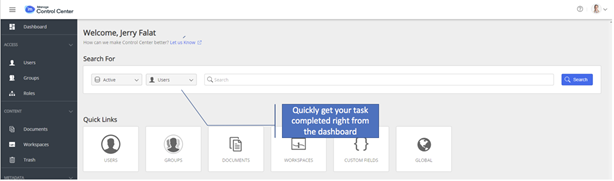
Redesigned dashboard
A redesigned dashboard with Quick Links and a quick search option reduces the number of clicks required to complete key administrative tasks.
Figure: Control Center redesigned dashboard
Search enhancements
Advanced searching allows you to narrow in on target data with the ability to customize your search and to search for child values without knowing the parent.
Figure: Control Center search enhancements
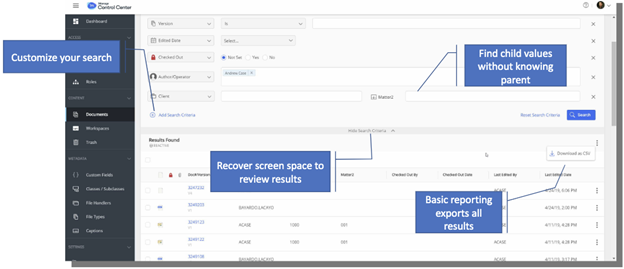
An enhanced results grid makes it easier to review search results with the ability to recover screen space to view more results, and to select and filter results.
Search results are automatically retained when navigating into the details of items to make it easier to go back and forth between details and search results when reviewing large results sets
Export search results and grid listings
A key enhancement is the ability to export search results and metadata grid lists to a CSV file.
Combined with the advanced search noted above, administrators now have the ability to perform searches on all sorts of administrative data (clients, matters, users, groups, etc.) with specific criteria, then download the search results as a CSV file for reporting or further analysis in your favorite tool.
Common use cases for this functionality would include, but are not limited to:
- Search for and download a filtered list (e.g., disabled) of user accounts.
- Search for and download a list of checked out documents.
- Search for and download a list of document classes for analysis.
Refile Service Configuration
The iManage Refile Service can now be configured through iManage Control Center (Settings > Refile).
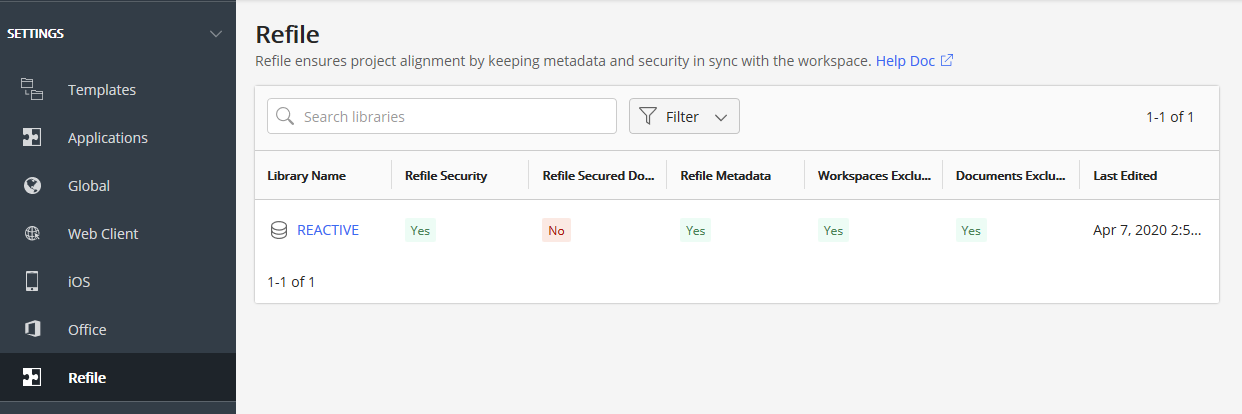
See the Refile section in the iManage Control Center online documentation for a full description of this service and for information on how to enable and configure the service.
Accessibility and Feedback
Quickly switch between iManage Work web and iManage Control Center using the App icon  in the upper right corner.
Enable high-contrast mode and underline hyperlinks accessibility options from the About menu to aid navigation for vision-impaired users or visual preference.
Use the built-in Let us Know feedback link at the top of the dashboard to send iManage your suggestions and comments.
Retirement of the Reports tab
With this enhanced version of the iManage Control Center, the Reports tab has been retired. The reports previously available on the Reports tab have been integrated into the Control Center interface with the ability to download data directly from most Control Center pages in CSV format.
This option is available on the ribbon bar (or the  (kebab) menu).