Prepare your libraries for the rollout of the Public content access privilege feature by using the Library-level public content access privilege banner in iManage Control Center. You can access this banner from the dashboard, Users page, and Roles page.
To open the banner:
Sign in to iManage Control Center using Admin credentials.
In the left pane, select either:
Dashboard
Access > Users
Access > Roles
The following figures show an example of the banner on the Dashboard. The first figure shows the banner collapsed, and the second shows it expanded.
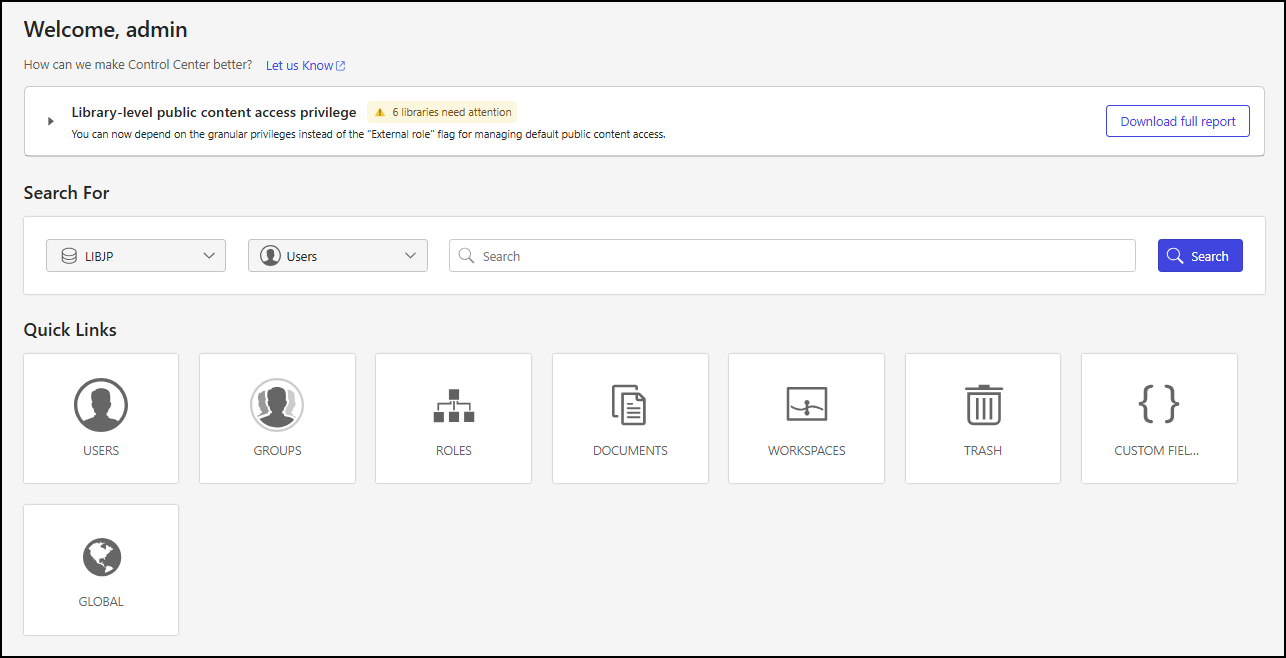
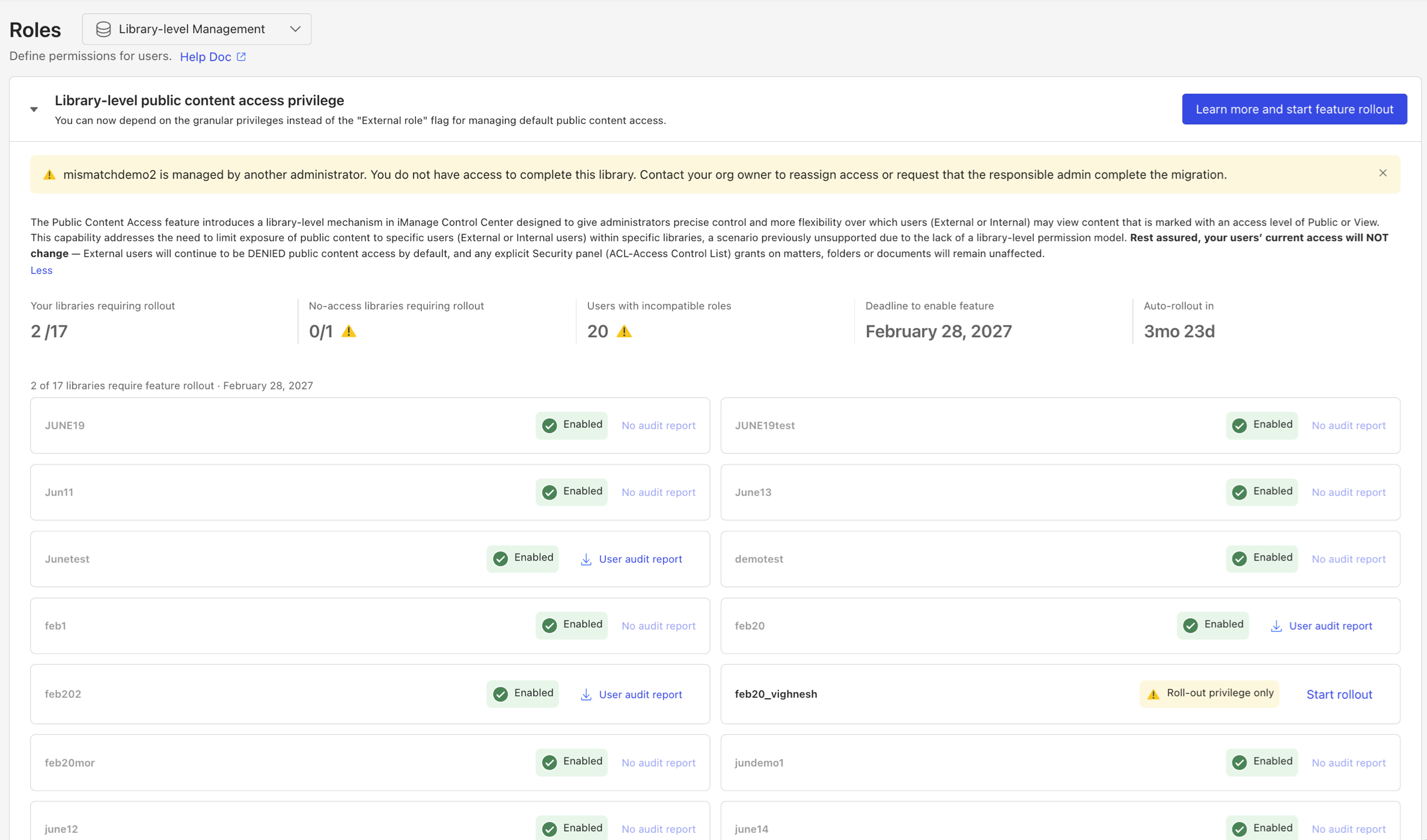
In the expanded view of the banner, a tile for each library to which you have NRTADMIN access is shown. Each tile displays one of the following labels:
X users with incompatible roles: Indicates that there are X internal and/or external users assigned incompatible roles for the library. Tiles with this label have a Start rollout link that lets you begin the process of assigning a compatible role to each incompatible user in the library.
NOTE: You might not have any libraries with users who have incompatible role assignments. In that case, there won’t be any tiles displayed with the X users with incompatible roles label.
Roll-out privilege only: Indicates that there are no internal and/or external users assigned incompatible roles for the library. Tiles with this label have a Start rollout link that lets you enable the Allow public content access privilege for the library.
Enabled: Indicates that:
There are no internal or external users assigned incompatible roles for the library. In this case, either there were no users with incompatible roles or users with incompatible roles have been assigned to compatible roles.
The Allow public content access privilege is enabled for the library.
Tiles with the Enabled label include either:
User audit report: This link displays when the library had users with incompatible roles that were resolved. Select User audit report to download a report that includes the following details about users who had an incompatible role:
User ID: The ID assigned to the user.
Full Name: The full name of the user.
Email: The email address of the user.
Sign in status: The sign-in status of the user, either TRUE or FALSE.
External: Whether the user is designated as an external user, either TRUE or FALSE.
Existing Role: The former role assigned to the user that was incompatible with their designation as an internal or external user.
New Role: The new role assigned to the user that is compatible with their designation as an internal or external user.
NOTE: The report is saved in CSV format with a file name like:
report.audit.<LibraryName>.access_public_content_privilege.csv
No audit report: This message displays when the library had no users with incompatible roles. In this case, no report is available.