The iManage Control Center Roles page lets you create and manage roles, each of which is a collection of privileges that grant permission to perform specific tasks. Users are assigned to these roles so they can carry out actions within iManage Work. Roles may be created globally (applicable across all libraries) or at the library level.
This section outlines the updates made to the Roles page to support the Public Content Access feature.
Global management
To manage roles at the global level in iManage Control Center, browse to Access > Roles, then select the Global Management option.
Roles detail page
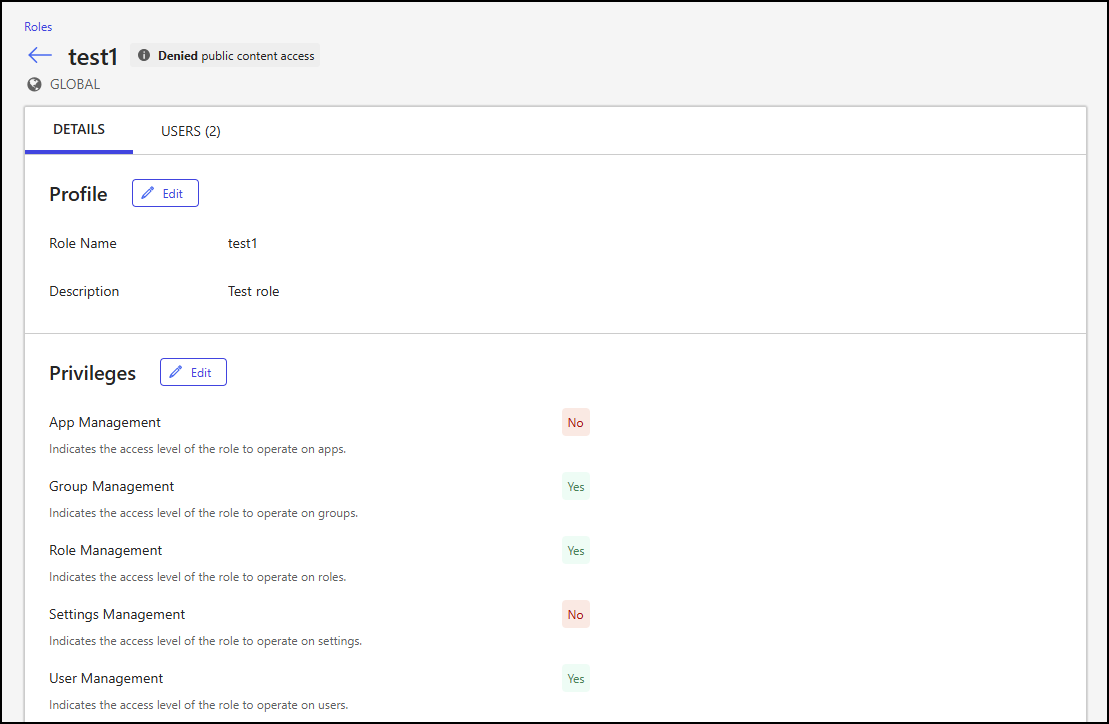
The following changes have been made to the Roles detail page when managing global role settings. To access this page, select a role from the Roles page.
The Denied public content access message is shown next to the role’s name at the top of the page.
An example of the Roles detail page is shown in the following figure.
Roles detail page - Users tab
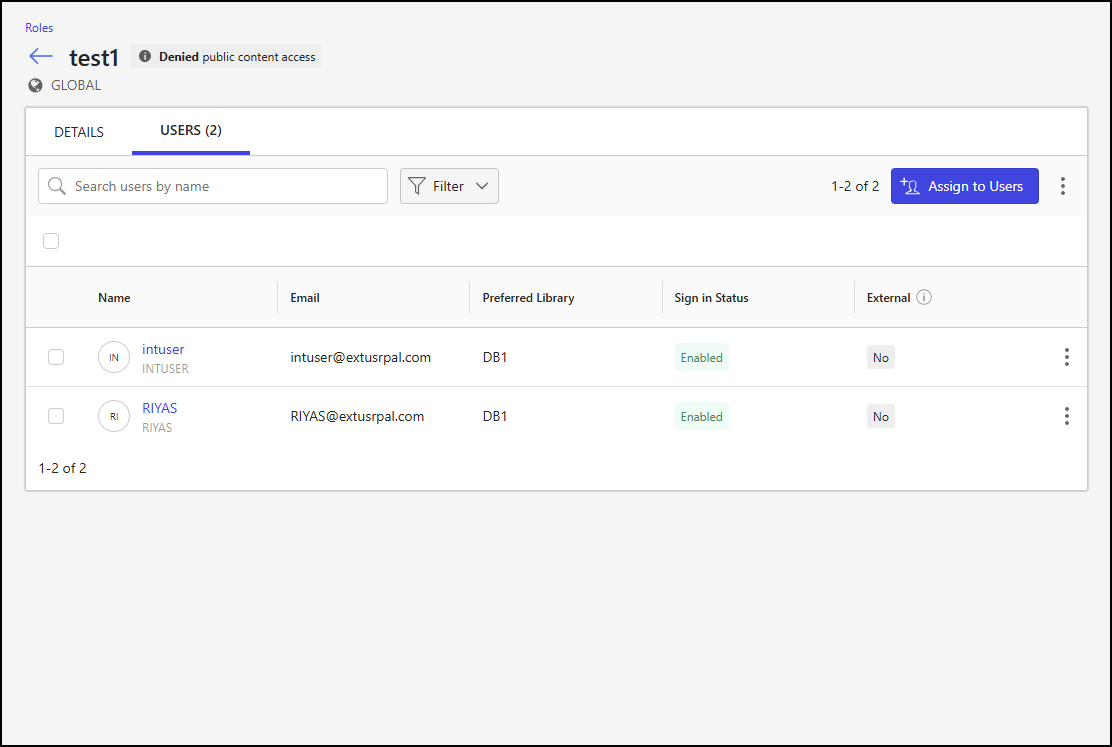
The following changes have been made to the Users tab on the Roles detail page when managing global role settings; to view this tab, open the Roles detail page and select the Users tab:
The External column has been added to the users table. This column indicates whether the user is globally designated as an external user. This designation doesn't affect permissions or user access.
An example of the Users tab on the Roles detail page is shown in the following figure.
Assign Role <RoleName> to Users dialog
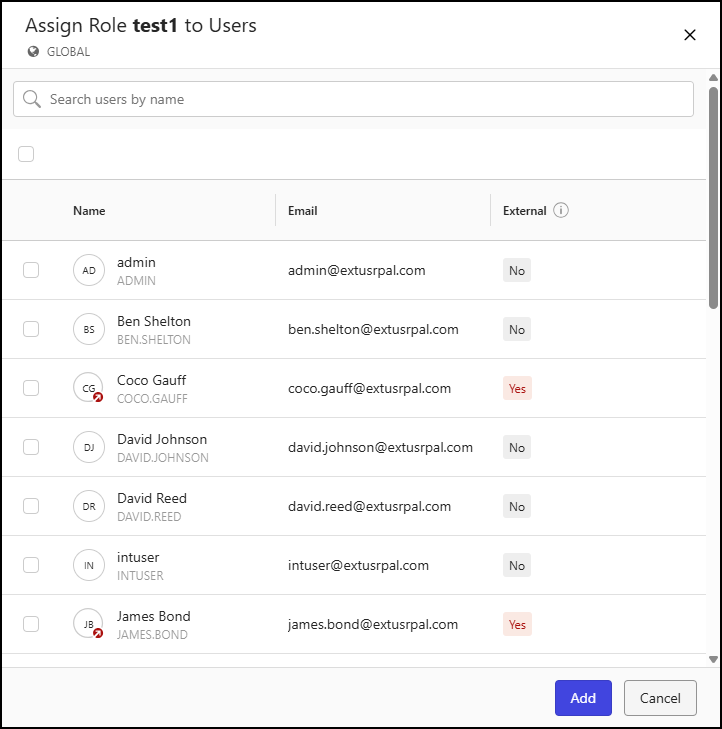
The following changes have been made to the Assign Role <RoleName> to Users dialog; to open this dialog, select Assign to Users on the Users tab of the Roles detail page when managing global role settings:
The External column has been added to the users table. This column indicates whether the user is globally designated as an external user. This designation doesn't affect permissions or user access.
An example of the Assign Role <RoleName> to Users dialog is shown in the following figure.
Library-level management
To manage roles at the library level in iManage Control Center, browse to Access > Roles, select the Library-level Management option, and then choose a library.
Roles page
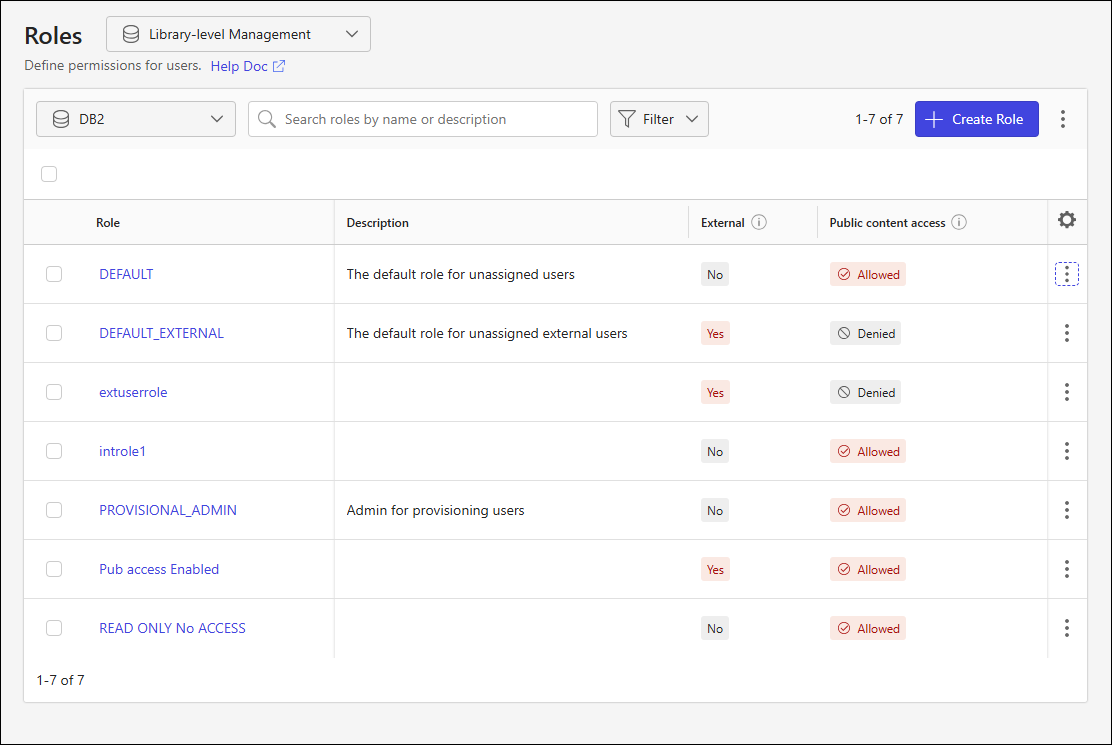
The following changes have been made to the Roles page when managing library-level user settings:
The Public content access column has been added to the roles table. This column indicates whether the role includes the privilege that allows users to view, edit, and search public content, including content marked Open by iManage Security Policy Manager.
The Public Content Access filter has been added to the page, with options to filter table output based on whether public content access is allowed and denied.
An example of the Roles page is shown in the following figure.
Create Role dialog
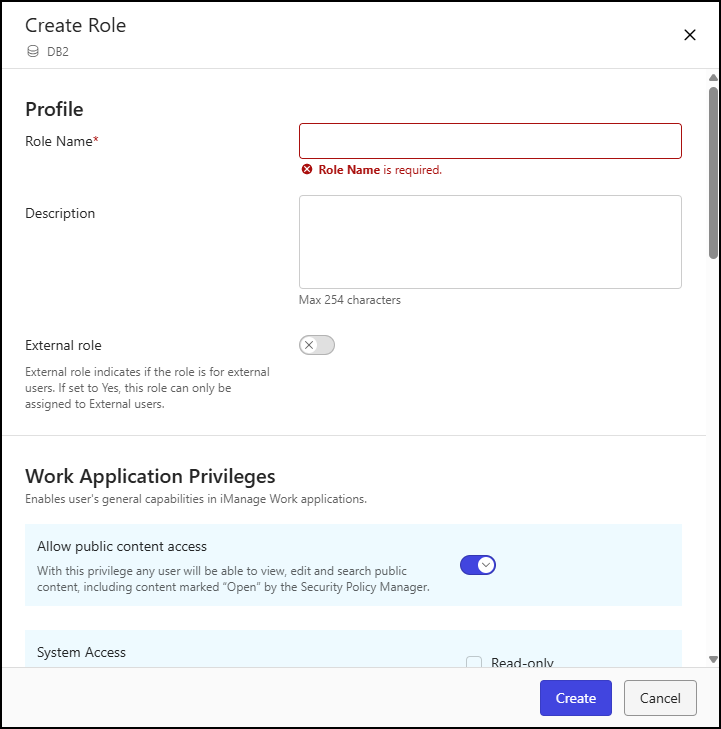
The following changes have been made to the Create Role dialog; to open this dialog, select Create Role on the Roles page when managing library-level role settings:
The Allow public content access privilege has been added to the Work Application Privileges section of the Create Role dialog.
This privilege allows users assigned to this role to view, edit, and search public content, including content marked Open by iManage Security Policy Manager.
This privilege can be set to Allowed or Denied, for both internal and external roles.
This privilege defaults to Allowed for internal roles and to Denied for external roles.
Use the toggle to enable or disable access to public content—slide it to the right to allow access, or to the left to deny it.
An example of the Create Role dialog is shown in the following figure.
Roles detail page
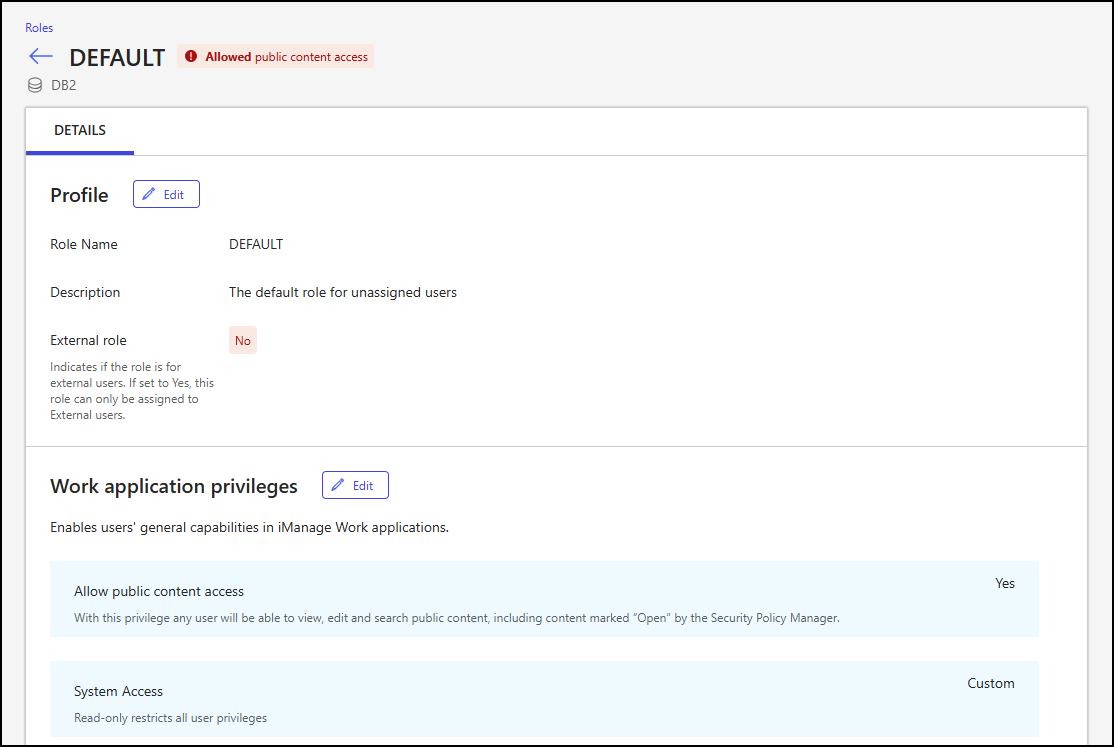
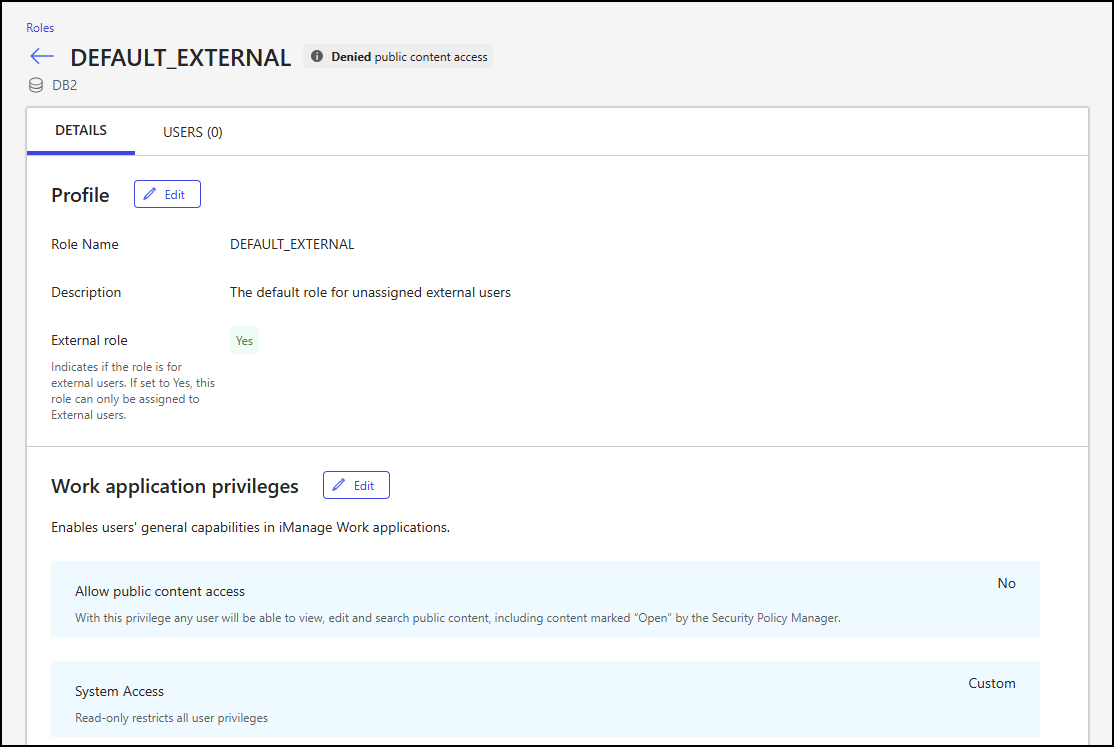
The following changes have been made to the Roles detail page when managing library-level role settings; to access this page, select a role from the Roles page:
An additional message is displayed next to the name of the role at the top of the page.
Denied public content access
Shown for both internal and external roles that have been denied access to public content
Displayed in black
Allowed public content access
Shown for both internal and external roles that have been granted access to public content
Displayed in red
An example of the Roles detail page is shown in the following figure.
Roles detail page - Details tab
The following changes have been made to the Details tab on the Roles detail page when viewing library-level role settings; to view this tab, open the Roles detail page and select the Details tab:
The Work Application Privileges section of the Details tab shows the value assigned to the Allow public content access privilege. This privilege allows users assigned to this role to view, edit, and search public content, including content marked Open by iManage Security Policy Manager.
An example of the Details tab on the Roles detail page is shown in the following figure.
Edit <RoleName> role dialog
The following changes have been made to the Edit <RoleName> role dialog; to open this dialog, select Edit in the Work Application Privileges section of the Details tab when viewing library-level role settings on the Roles detail page:
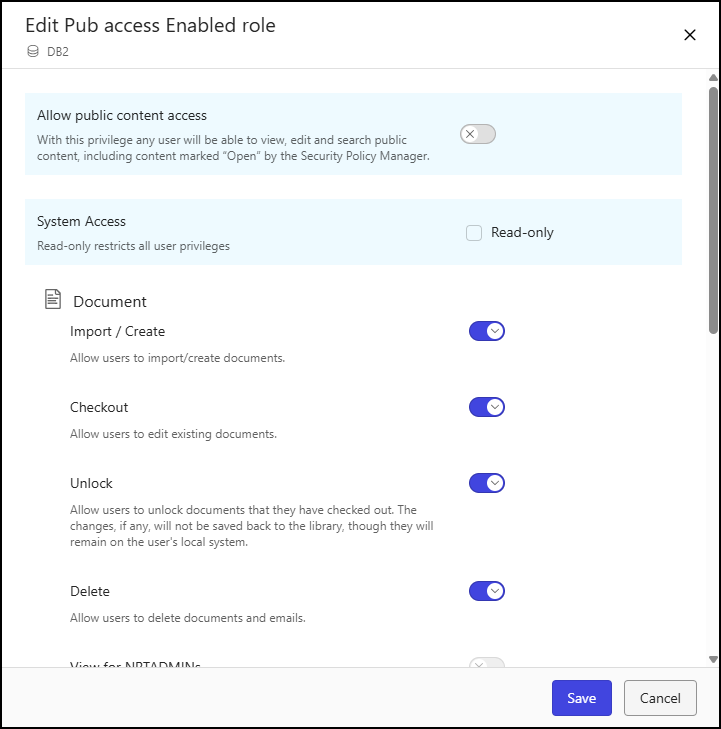
The Allow public content access privilege has been added to the Edit <RoleName> role dialog.
This privilege allows users assigned to this role to view, edit, and search public content, including content marked Open by iManage Security Policy Manager.
This privilege can be set to Allowed or Denied, for both internal and external roles.
Use the toggle to enable or disable access to public content—slide it to the right to allow access, or to the left to deny it.
An example of the Edit <RoleName> role dialog is shown in the following figure.
Roles detail page - Users tab
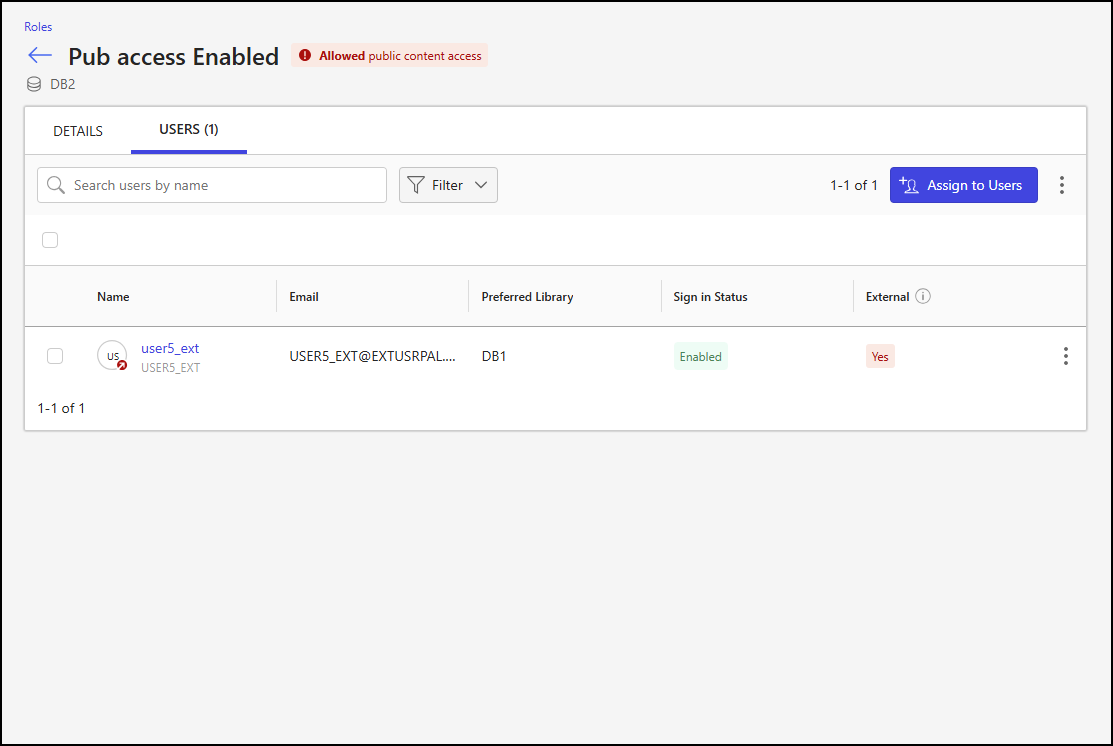
The following changes have been made to the Users tab on the Roles detail page when viewing library-level role settings; to view this tab, open the Roles detail page and select the Users tab:
The External column has been added to the Users table. This column indicates whether the user is globally designated as an external user. This designation doesn't affect permissions or user access.
An example of the Users tab on the Roles detail page is shown in the following figure.
Assign Role <RoleName> to Users dialog
The following changes have been made to the Assign Role <RoleName> to Users dialog; to open this dialog, select Assign to Users when viewing users on the Users tab of the Roles detail page:
The External column has been added to the users table. This column indicates whether the user is globally designated as an external user. This designation doesn't affect permissions or user access.
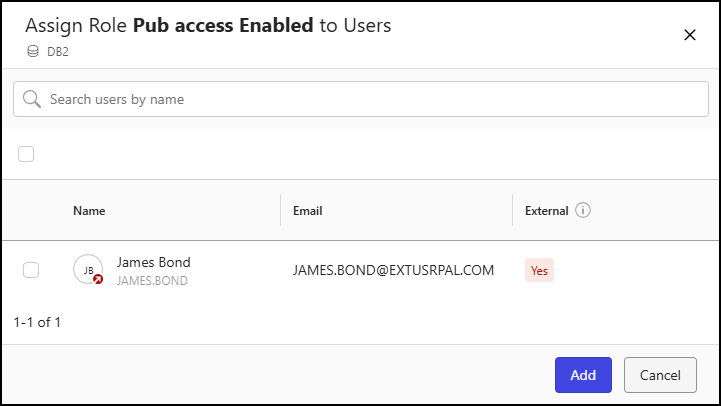
An example of the Assign Role <RoleName> to Users dialog is shown in the following figure.