Groups are collections of multiple users. They can be assigned to workspaces, folders, tabs, and documents with specific access permissions, allowing a defined set of users to share the same level of access to an item. Instead of modifying permissions for individual users, you can manage access more efficiently by updating group membership or adjusting the group’s access level. Users can belong to multiple groups. Groups may be created globally (applicable across all libraries) or at the library level.
This section outlines the updates made to the Groups page to support the Public Content Access feature.
Global management
To manage groups at the global level in iManage Control Center, browse to Access > Groups, then select the Global Management option.
Groups page
The following changes have been made to the Groups page when managing global group settings:
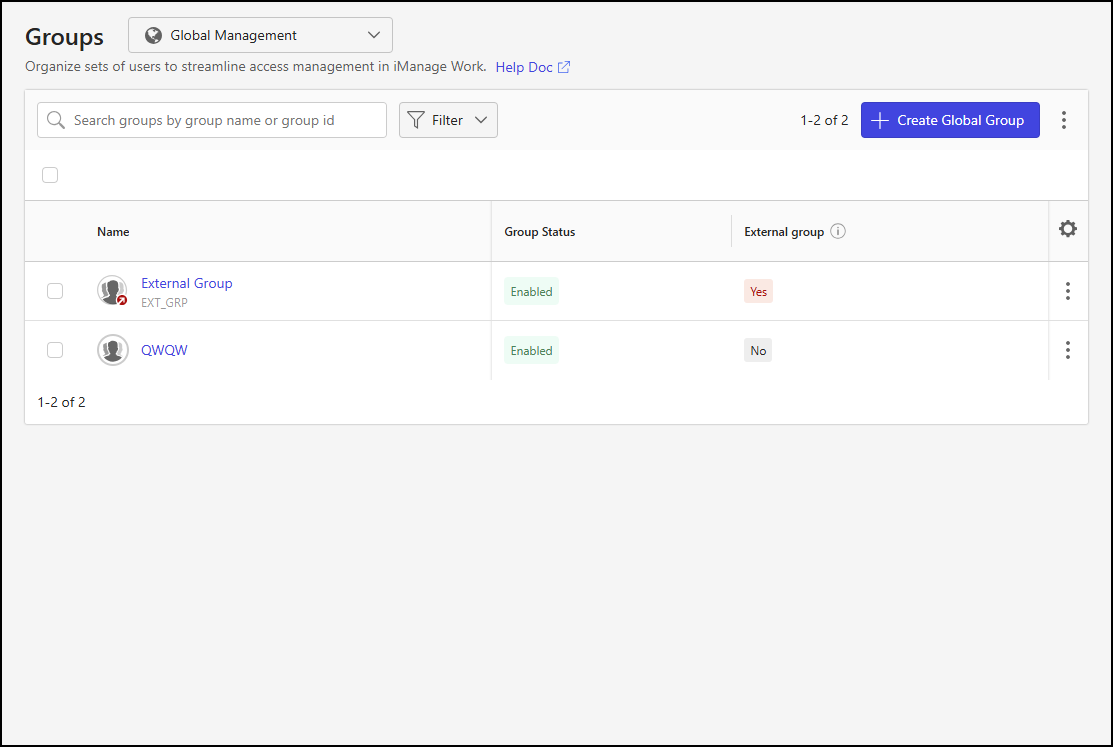
The External group column has been added to the groups table. This column shows whether the group is meant for grouping external users. This designation doesn't affect permissions.
An example of the Groups page is shown in the following figure.
Groups detail page - Members tab
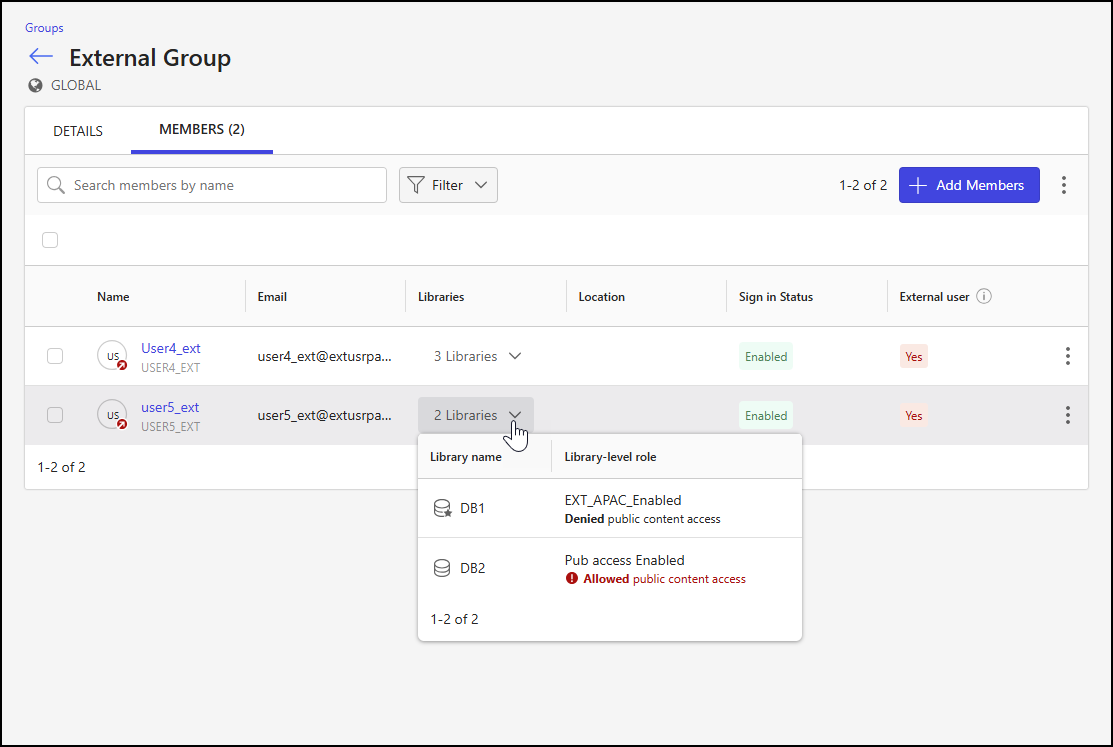
The following changes have been made to the Members tab on the Groups detail page when managing global group members; to view this tab, select a group from the Groups page and select the Members tab:
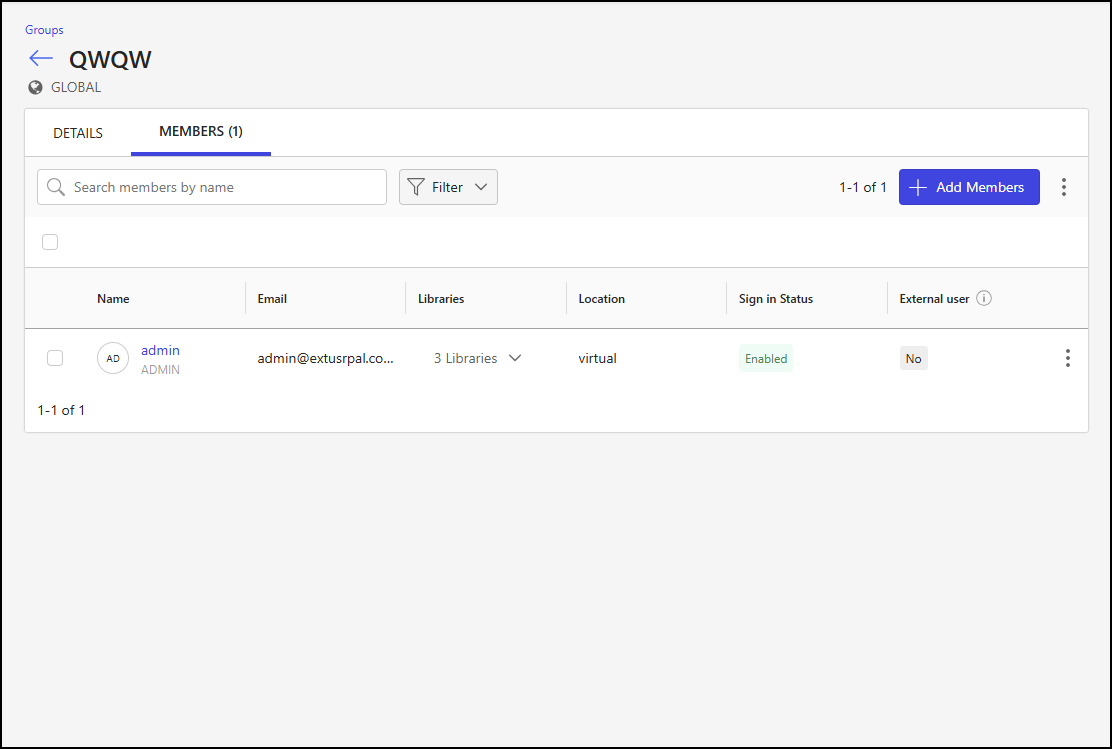
The External user column has been added to the members table. This column indicates whether the user is globally designated as an external user. This designation doesn't affect permissions or user access.
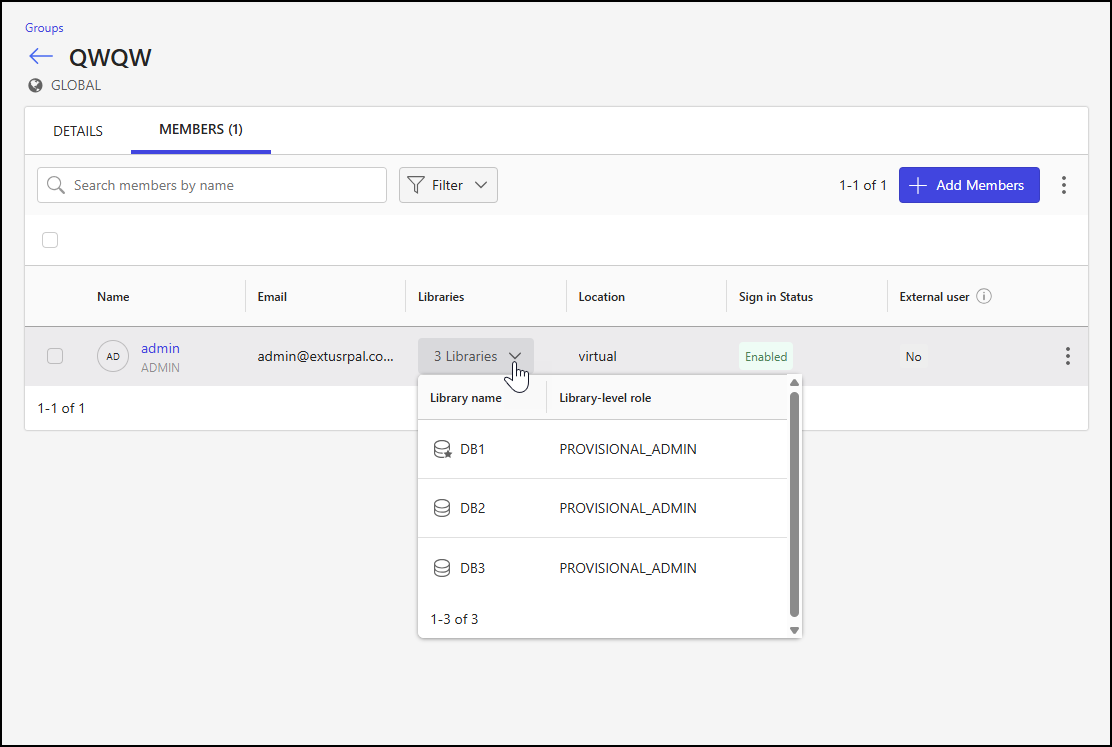
The Preferred Library column has been renamed Libraries. This column displays the number of libraries assigned to each group member.
Each entry in this column includes a drop-down list that shows:
All libraries the group member is assigned to
The member’s role for each library
A star icon on the library’s database symbol to identify the member’s preferred library
Additional messages may be shown for each library in the drop-down when applicable:
Denied public content access
Displayed only for external users who are denied access to public content
Shown in black to reflect the default behavior
Allowed public content access
Displayed only for external users who have been granted access to public content
Shown in red to indicate a deviation from the default behavior
Examples of the changes made to the Members tab on the Groups detail page are shown in the following figures.
Add Members to <GroupName> Group dialog
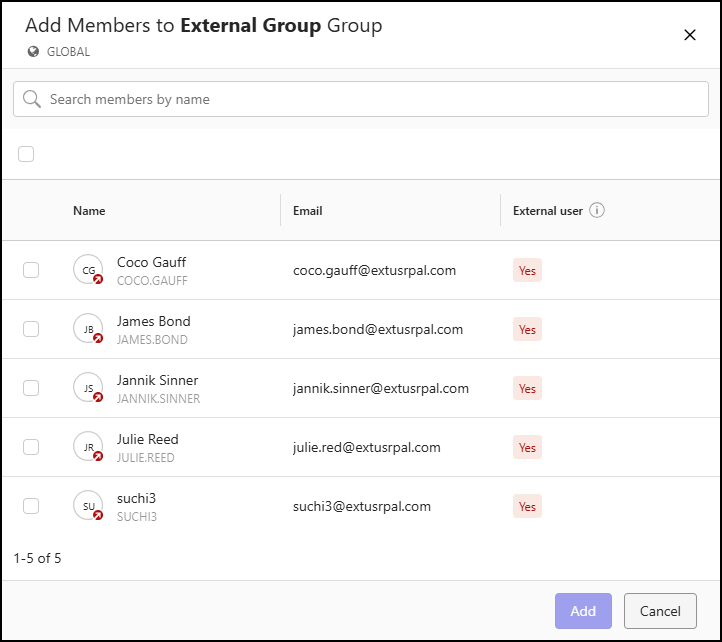
The following changes have been made to the Add Members to <GroupName> Group dialog; to open this dialog, select Add Members on the Members tab of the Groups detail page when managing global group members:
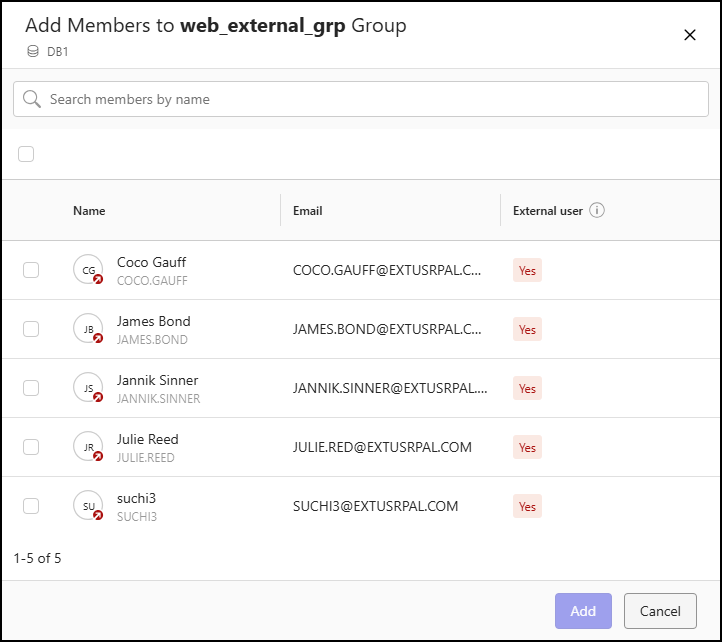
The External user column has been added to the members table. This column indicates whether the user is globally designated as an external user. This designation doesn't affect permissions or user access.
NOTE: Internal groups can only include internal members, while external groups are restricted to external members.
An example of the Add Members to <GroupName> Group dialog is shown in the following figure.
Library-level management
To manage groups at the library level in iManage Control Center, browse to Access > Groups, select the Library-level Management option, and then choose a library.
Groups page
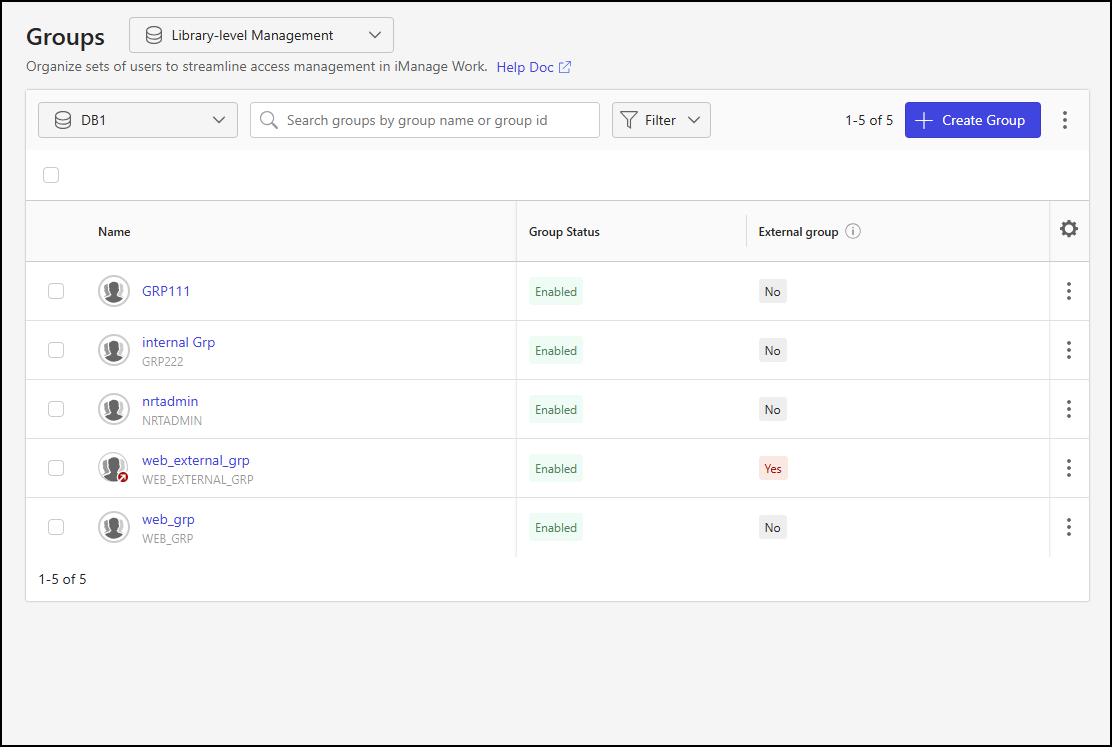
The following changes have been made to the Groups page when managing library-level group settings:
The External column has been renamed External group in the groups table. This column shows whether the group is meant for grouping external users. This designation doesn't affect permissions.
An example of the Groups page is shown in the following figure.
Groups detail page - Members tab
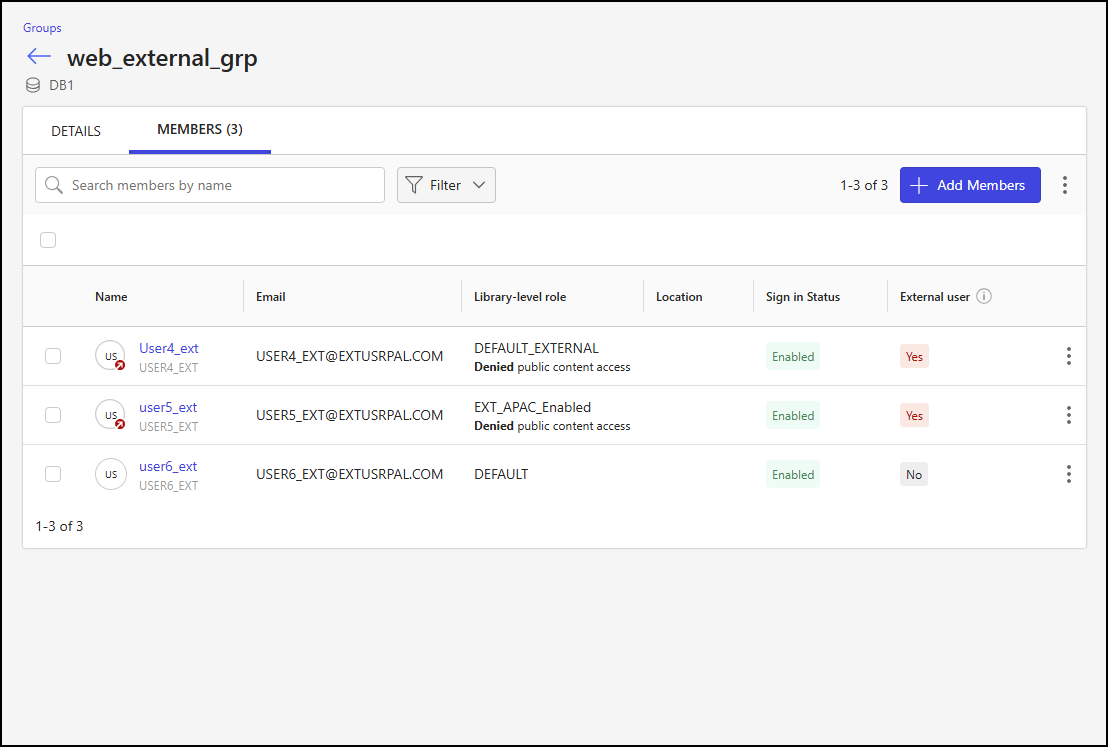
The following changes have been made to the Members tab on the Groups detail page when managing library-level group settings; to view this tab, select a group from the Groups page and select the Members tab:
The Preferred Library column has been removed from the members table.
The External user column has been added to the members table. This column indicates whether the user is globally designated as an external user. This designation doesn't affect permissions or user access.
The Library-level role column has been added to the members table.
Additional messages may be shown for each library-level role when applicable:
Denied public content access
Displayed for both internal and external users (this needs to be verified)
Shown in black for external users who are denied access to public content to reflect the default behavior
Shown in red for internal users who are denied access to public content to indicate a deviation from the default behavior (this needs to be verified)
Allowed public content access (this needs to be verified)
Displayed only for external users who have been granted access to public content (this needs to be verified)
Shown in red to indicate a deviation from the default behavior (this needs to be verified)
A red arrow is displayed on the user’s photo when the user is designated as external
An example of the Members tab on the Groups detail page is shown in the following figure.
Add Members to <GroupName> Group dialog
The following changes have been made to the Add Members to <GroupName> Group dialog; to open this dialog, select Add Members on the Members tab of the Groups detail page when managing group members at the library level:
The External user column has been added to the members table. This column indicates whether the user is globally designated as an external user. This designation doesn't affect permissions or user access.
NOTE: Internal groups may only include internal members, while external groups are restricted to external members.
An example of the Add Members to <GroupName> Group dialog is shown in the following figure.