A user is the primary entity for accessing iManage Work documents and applications. A user is typically an individual, but may also be a service account used to perform automated tasks. An iManage Work system administrator assigns roles to users, adds users to groups, and can optionally apply specific access rights to individual users when their default permissions need to be adjusted. The Users page lets you manage users globally (across all libraries) or at the library level.
This section outlines the updates made to the Users page to support the Public Content Access feature.
Global management
To manage users at the global level in iManage Control Center, browse to Access > Users, then select the Global Management option.
Users page
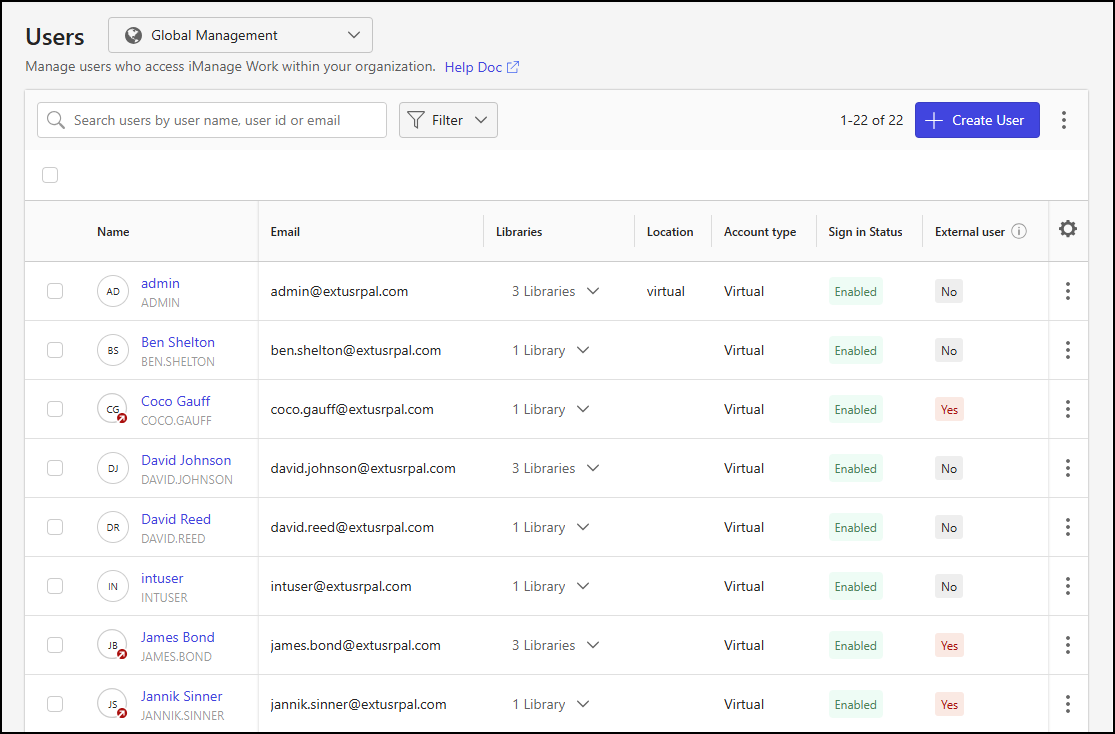
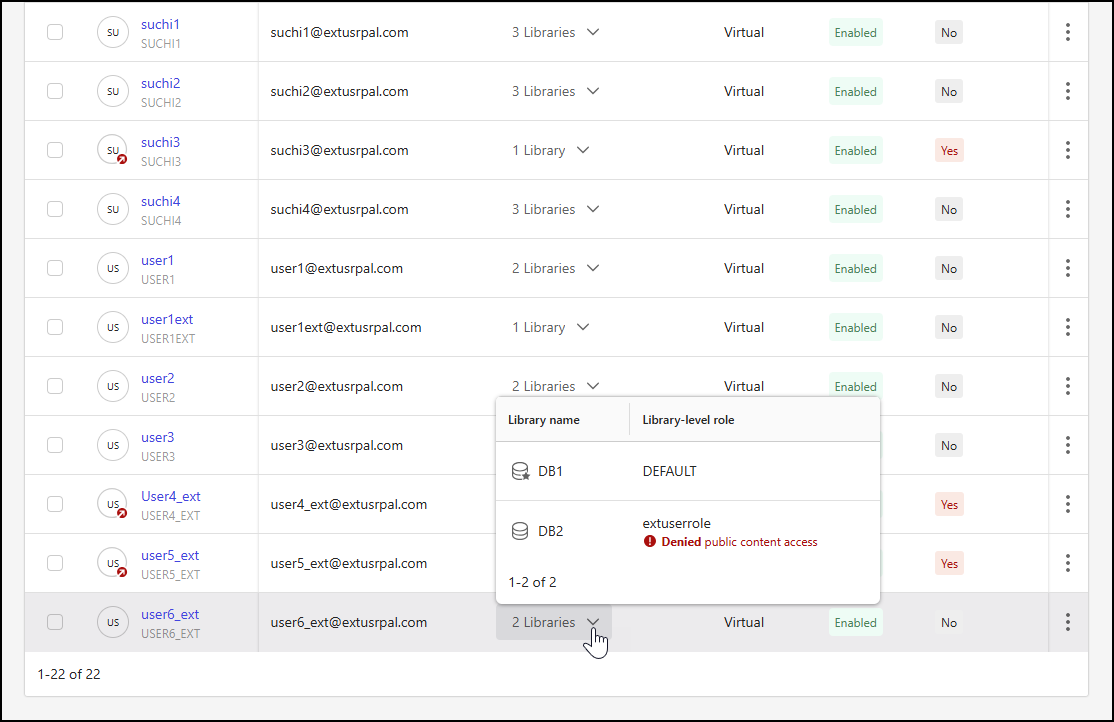
The following changes have been made to the Users page when managing global user settings:
The External column has been renamed External user in the users table. This column indicates whether the user is globally designated as an external user. This designation doesn't affect permissions or user access.
The Preferred Library column has been renamed Libraries. This column displays the number of libraries assigned to each user.
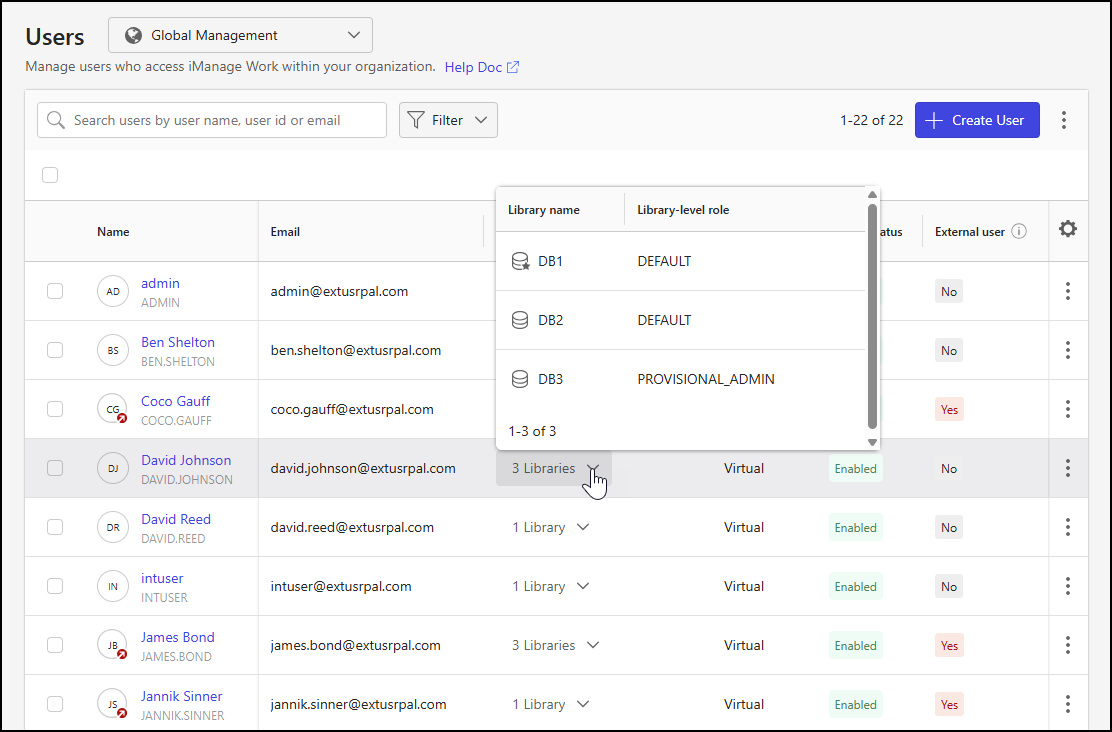
Each entry in this column includes a drop-down list that shows:
All libraries the user is assigned to
The user’s role for each library
A star icon on the library’s database symbol to identify the user’s preferred library
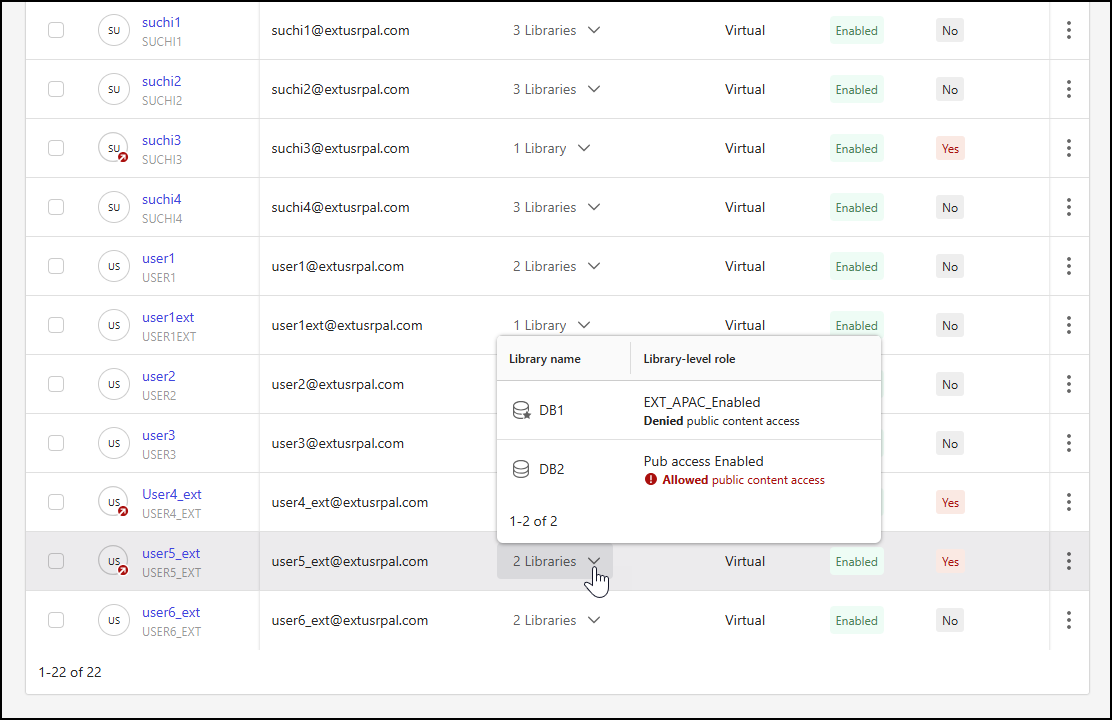
Additional messages may be shown for each library in the drop-down when applicable:
Denied public content access
Displayed for both internal and external users
Shown in black for external users who are denied access to public content to reflect the default behavior
Shown in red for internal users who are denied access to public content to indicate a deviation from the default behavior
Allowed public content access
Displayed only for external users who have been granted access to public content
Shown in red to indicate a deviation from the default behavior
Examples of the changes made to the Users page are shown in the following figures.
Create User dialog
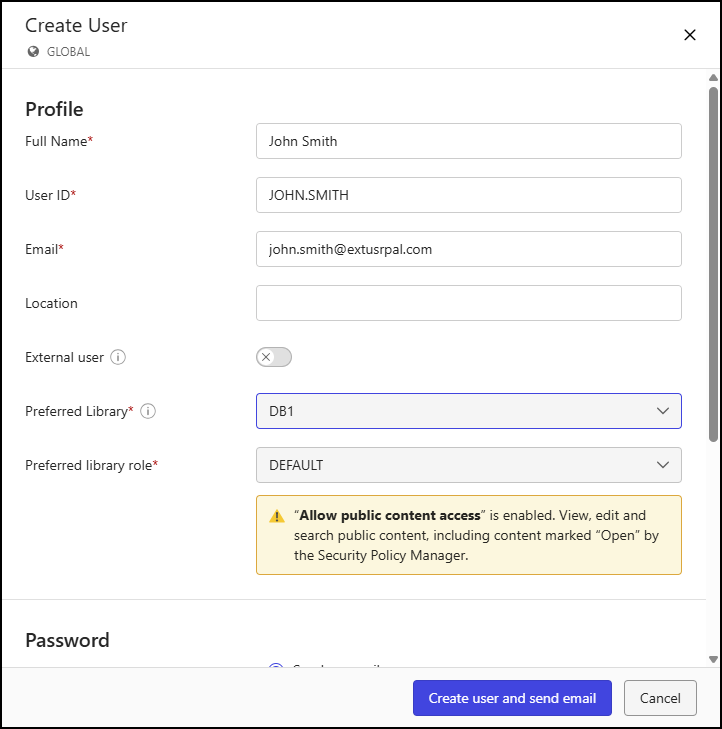
The following changes have been made to the Create User dialog; to open this dialog, select Create User on the Users page when managing global user settings:
The Role field has been renamed Preferred library role.
An alert may be displayed below the Preferred library role drop-down list:
If Allow public content access is enabled for the selected role, the alert notifies you that the user can view, edit, and search public content for the associated library.
An example of the Create User dialog is shown in the following figure.
Users detail page
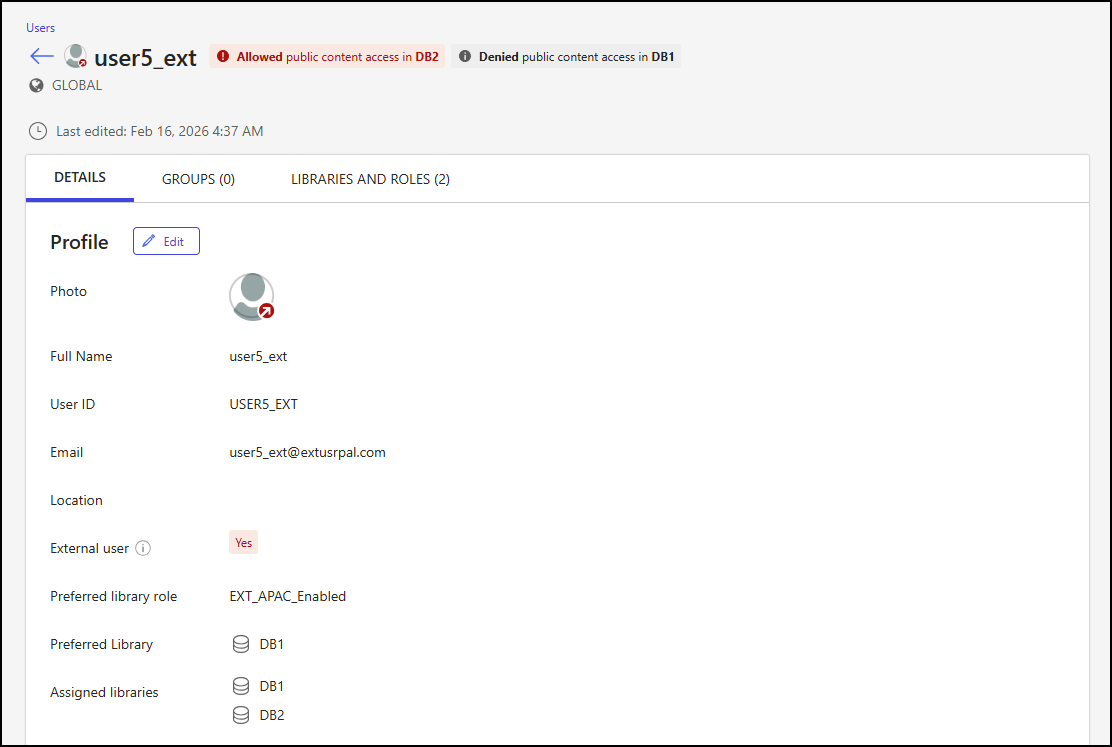
The following changes have been made to the Users detail page when managing global user settings; to access this page, select a user from the Users page:
Where the user’s name is displayed at the top of the page:
A red arrow is displayed in the user’s icon if the user is defined as external
Additional messages may be shown next to the user’s name when applicable:
Denied public content access in <LibraryList>
Displayed for both internal and external users
Shown in black for external users who are denied access to public content to reflect the default behavior
Shown in red for internal users who are denied access to public content to indicate a deviation from the default behavior
Allowed public content access in <LibraryList>
Displayed only for external users who have been granted access to public content
Shown in red to indicate a deviation from the default behavior
The Libraries and Roles tab has been added
An example of the Users detail page is shown in the following figure.
User detail page - Details tab
The following changes have been made to the Details tab on the Users detail page when managing global user settings; to view this tab, open the Users detail page and select the Details tab:
The External field has been renamed External user. This field indicates whether the user is globally designated as an external user. This designation doesn't affect permissions or user access.
The Role field has been renamed Preferred library role.
A red arrow is displayed on the user’s photo when the user is designated as external
Edit Profile dialog
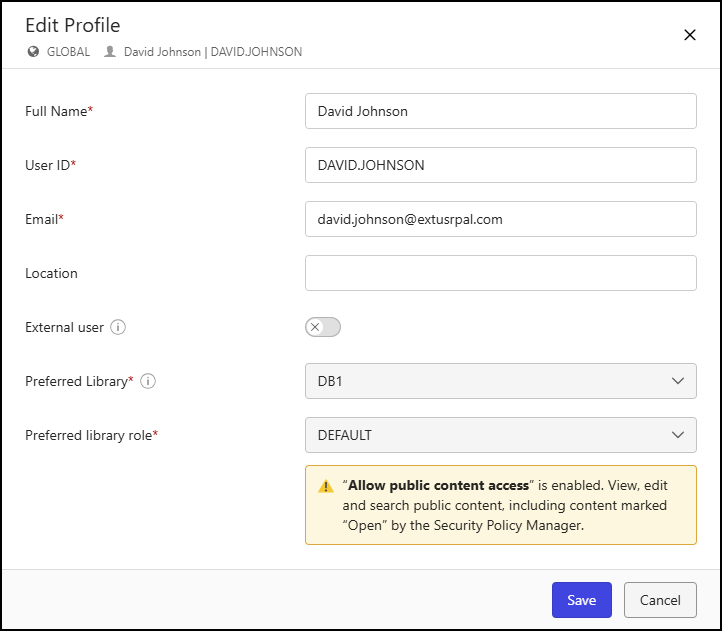
The following changes have been made to the Edit Profile dialog; to open this dialog, select Edit on the Details tab of the Users detail page when managing global user settings:
The Role field has been renamed Preferred library role.
An alert is shown below the Preferred library role drop-down list when access to public content has been granted.
An example of the Edit Profile dialog is shown in the following figure.
Users detail page - Groups tab
No changes were made to the Groups tab on the Users detail page when managing global user settings. However, updates have been made to the Add <UserName> to Groups and <GroupName> has <n> Members dialogs accessed from this tab.
Add <UserName> to Groups dialog
The following changes have been made to the Add <UserName> to Groups dialog; to open this dialog, select Add to Group on the Groups tab of the Users detail page when managing global user settings:
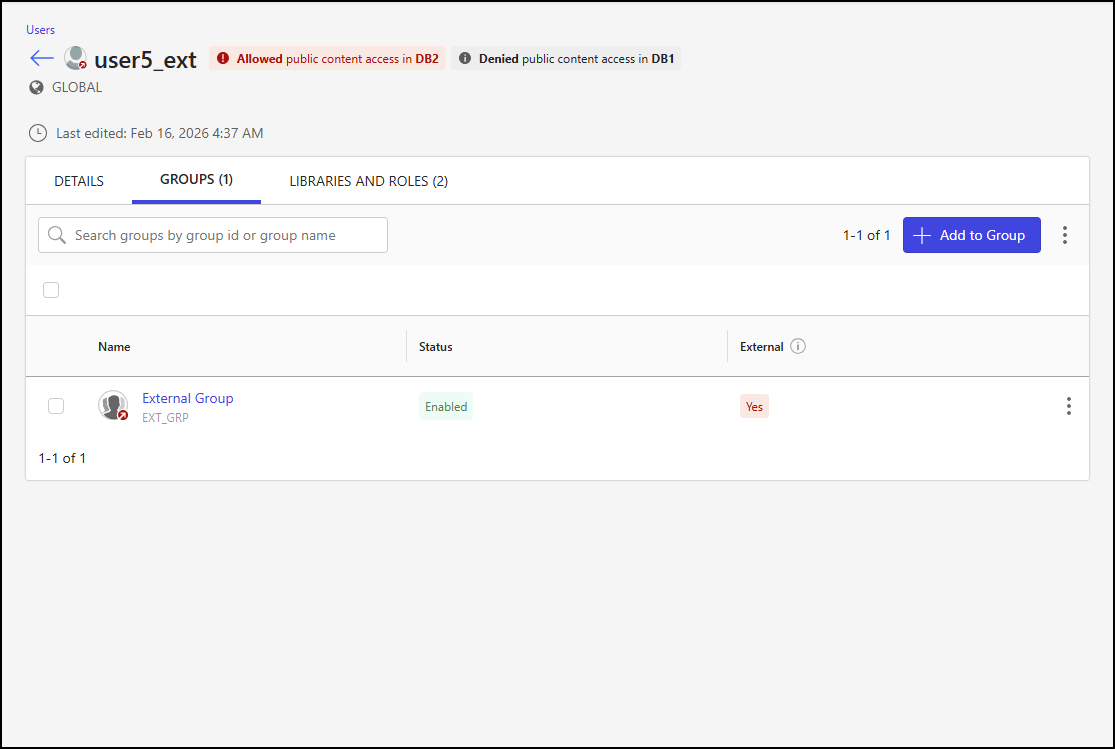
The External column has been added to the groups table. This column indicates if at least one member of the group is designated as an external user. This designation doesn't affect permissions.
An example of the Groups tab on the Users detail page is shown in the following figure.
<GroupName> has <n> Members dialog
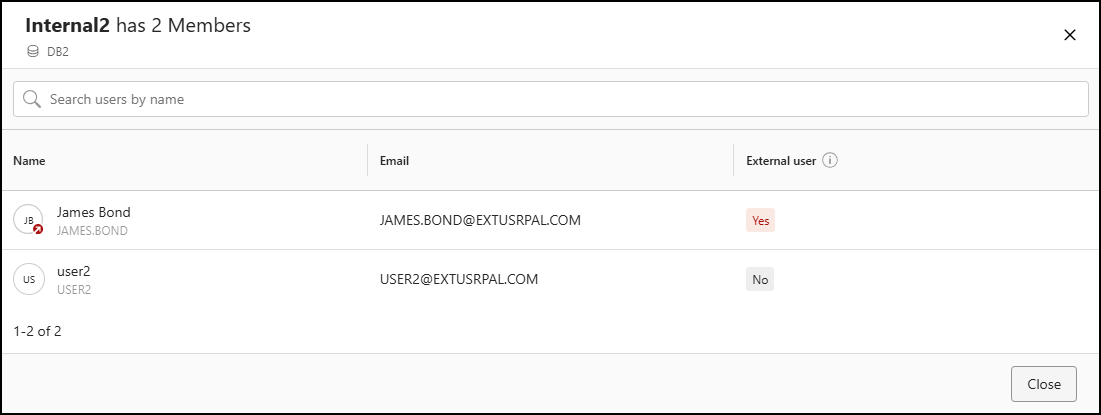
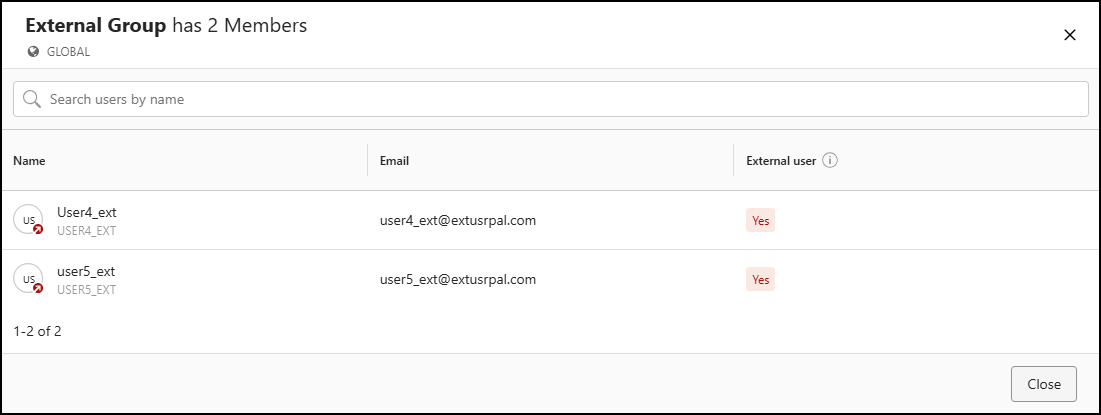
The following changes have been made to the <GroupName> has <n> Members dialog; to open this dialog, select the group name on the Groups tab of the Users detail page when managing global user settings:
The External user column has been added to the users table. This column indicates whether the user is globally designated as an external user. This designation doesn't affect permissions or user access.
An example of the <GroupName> has <n> Members dialog is shown in the following figure.
User detail page - Libraries and Roles tab
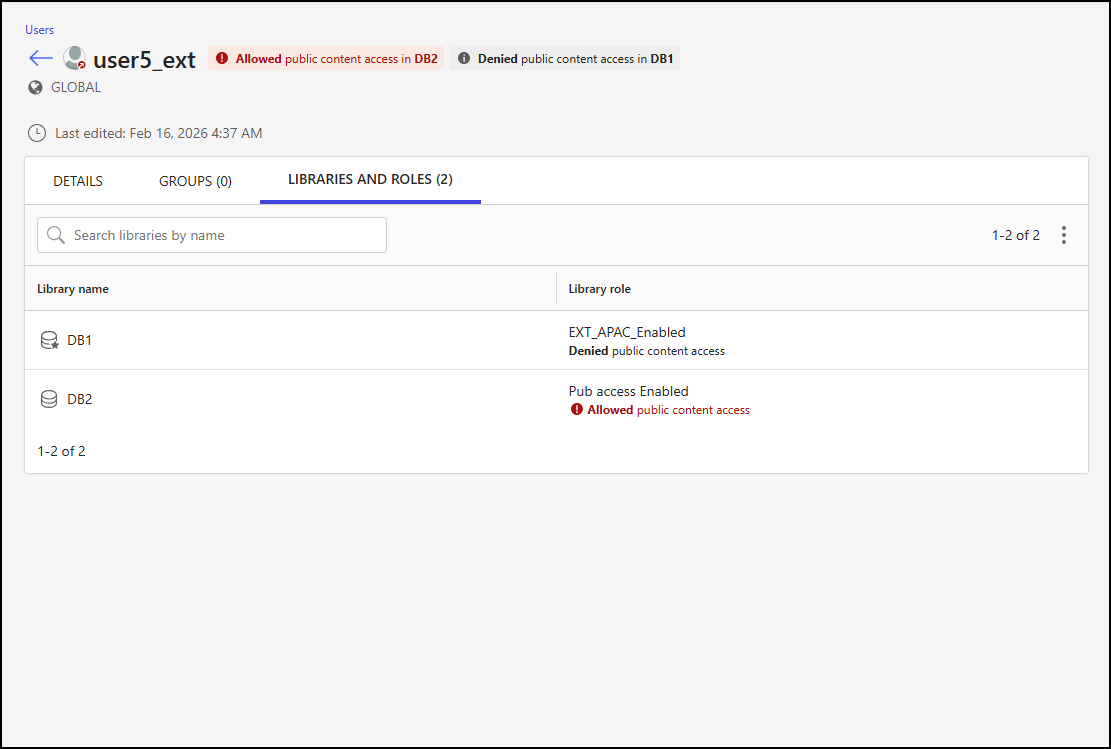
This tab has been added to display, in table format, the libraries to which the user is assigned. The table includes the following columns:
Library name: The name of the library. A star icon is shown on the library’s database symbol to identify the user’s preferred library.
Library role: The role assigned to the user for the that library. Additional messages may be shown in the Library role column when applicable:
Denied public content access
Displayed for both internal and external users
Shown in black for external users who are denied access to public content to reflect the default behavior
Shown in red for internal users who are denied access to public content to indicate a deviation from the default behavior
Allowed public content access
Displayed only for external users who have been granted access to public content
Shown in red to indicate a deviation from the default behavior
An example of the Libraries and Roles tab on the Users detail page is shown in the following figure.
Library-level management
To manage users at the library level in iManage Control Center, browse to Access > Users, select the Library-level Management option, and then choose a library.
Users page
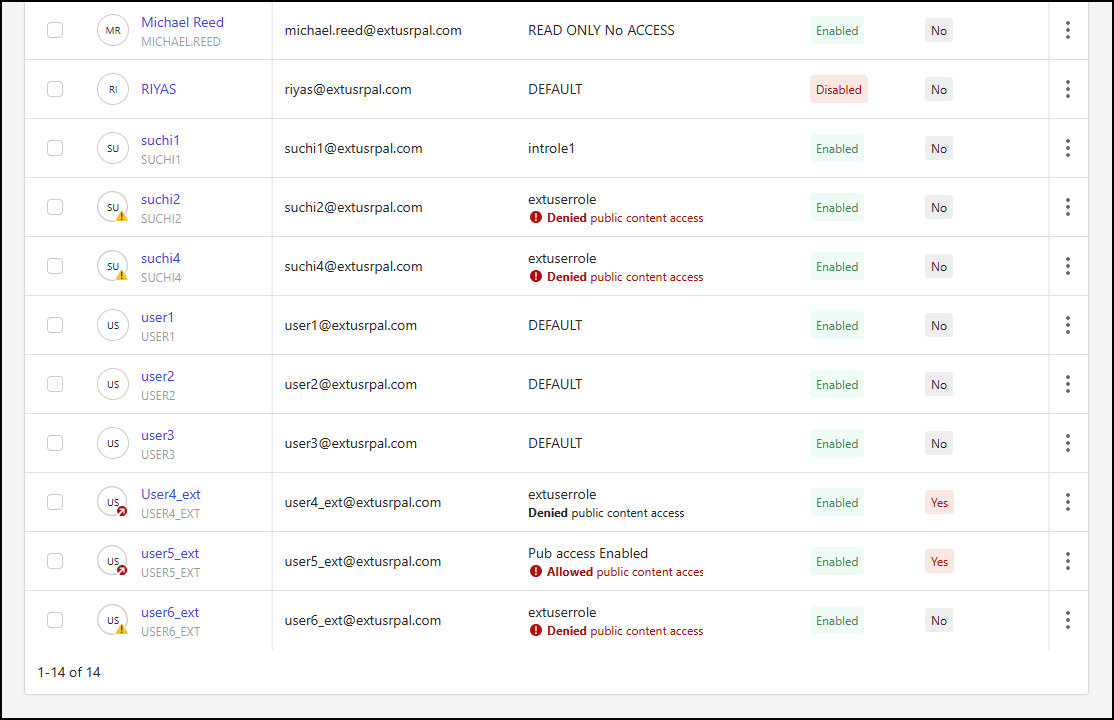
The following changes have been made to the Users page when managing library-level user settings:
The Preferred Library column has been removed from the users table.
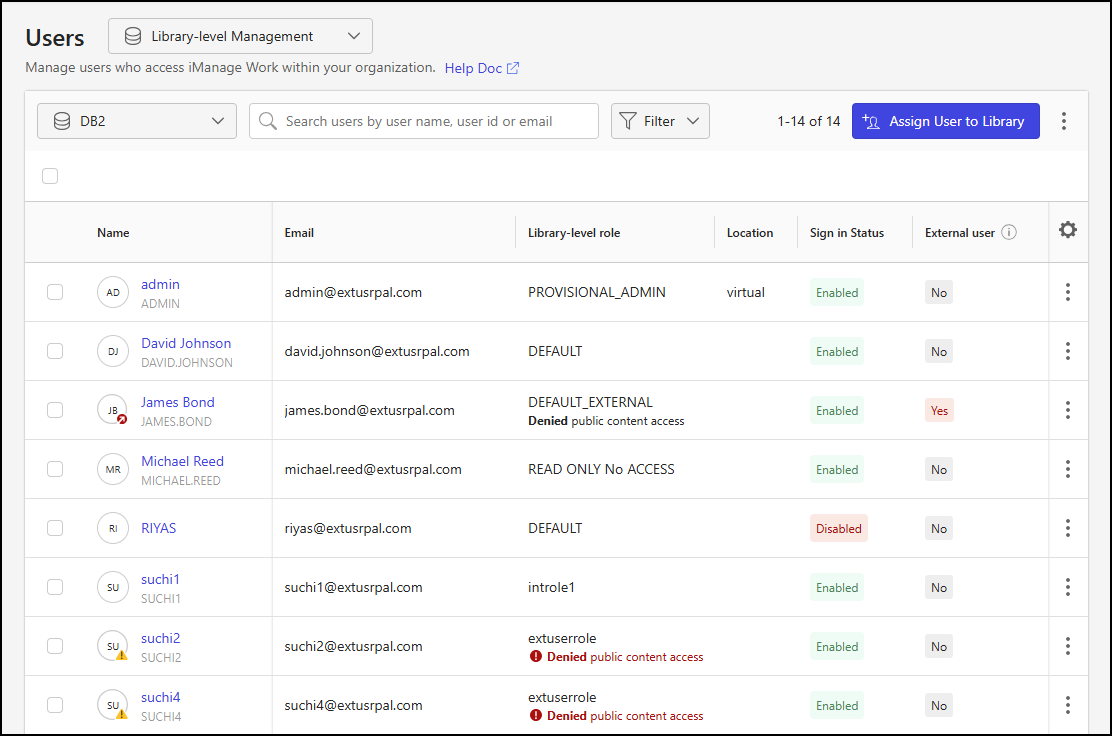
The External user column has been added to the users table. This column indicates whether the user is globally designated as an external user. This designation doesn't affect permissions or user access.
In the Name column, the user’s initials include icons to indicate:
A red arrow when the user is defined as external
A yellow warning symbol when the user is internal and denied access to public content
The Role column has been renamed Library-level role in the users table.
Additional messages may be shown in the Library-level role column when applicable:
Denied public content access
Displayed for both internal and external users
Shown in black for external users who are denied access to public content to reflect the default behavior
Shown in red for internal users who are denied access to public content to indicate a deviation from the default behavior
Allowed public content access
Displayed only for external users who have been granted access to public content
Shown in red to indicate a deviation from the default behavior
Examples of the changes made to the Users page are shown in the following figures.
Assign User to Library dialog
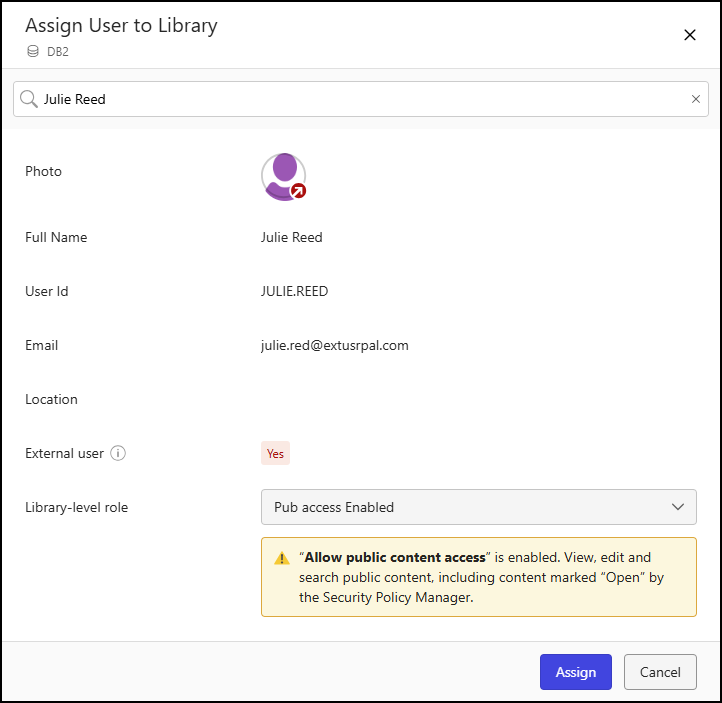
The following changes have been made to the Assign User to Library dialog; to open this dialog, select Assign User to Library on the Users page when managing library-level user settings:
The Preferred Library field has been removed.
The External user field has been added. This field indicates whether the user is globally designated as an external user. This designation doesn't affect permissions or user access.
The Role field has been renamed Library-level role.
An alert is shown below the Library-level role drop-down list when access to public content has been granted for the role.
A red arrow is displayed in the user’s photo if the user is defined as external.
An example of the Assign User to Library dialog is shown in the following figure.
Users detail page
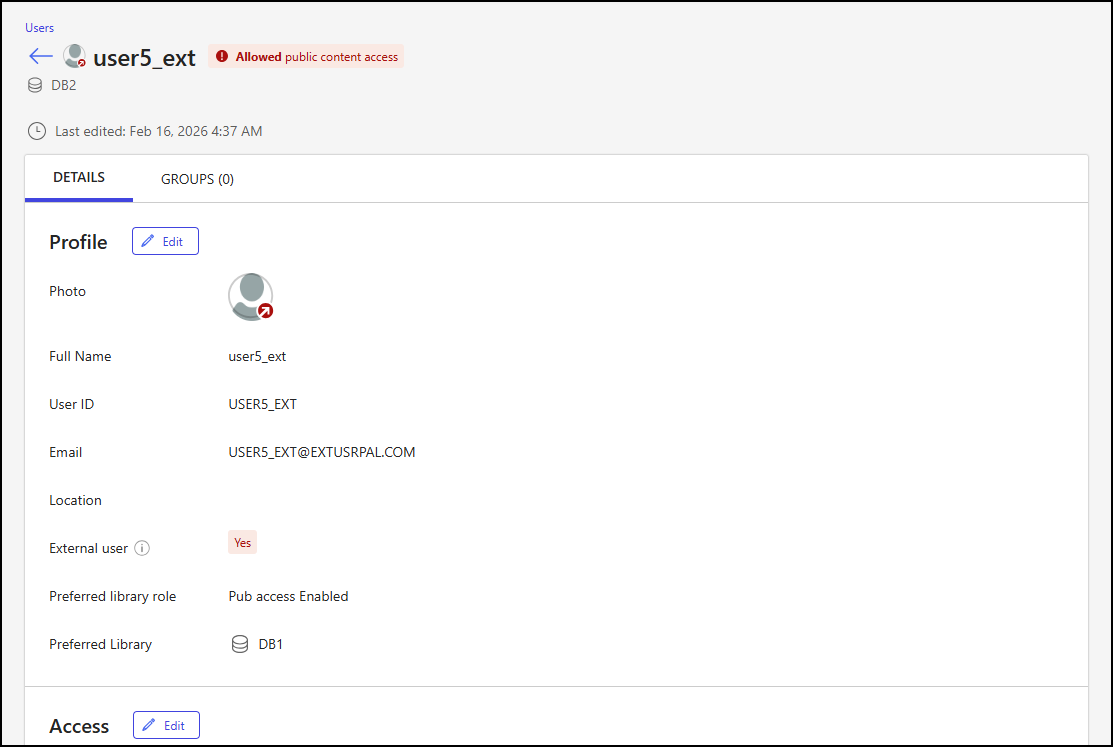
The following changes have been made to the Users detail page when managing library-level user settings; to access this page, select a user from the Users page:
Where the user’s name is displayed at the top of the page:
A red arrow is displayed in the user’s icon if the user is defined as external
An additional message is displayed next to the user’s name:
Denied public content access
Displayed for both internal and external users
Shown in black for external users who are denied access to public content to reflect the default behavior
Shown in red for internal users who are denied access to public content to indicate a deviation from the default behavior
Allowed public content access
Displayed for both internal and external users
Shown in black for internal users who are allowed access to public content to reflect the default behavior
Shown in red for external users who are allowed access to public content to indicate a deviation from the default behavior
An example of the Users detail page is shown in the following figure.
Users detail page - Details tab
The following changes have been made to the Details tab on the Users detail page when managing library-level user settings:
The External field has been renamed External user. This field indicates whether the user is globally designated as an external user. This designation doesn't affect permissions or user access.
The Role field has been renamed Preferred library role.
A red arrow is displayed in the user’s photo when the user is defined as external
Edit Profile dialog
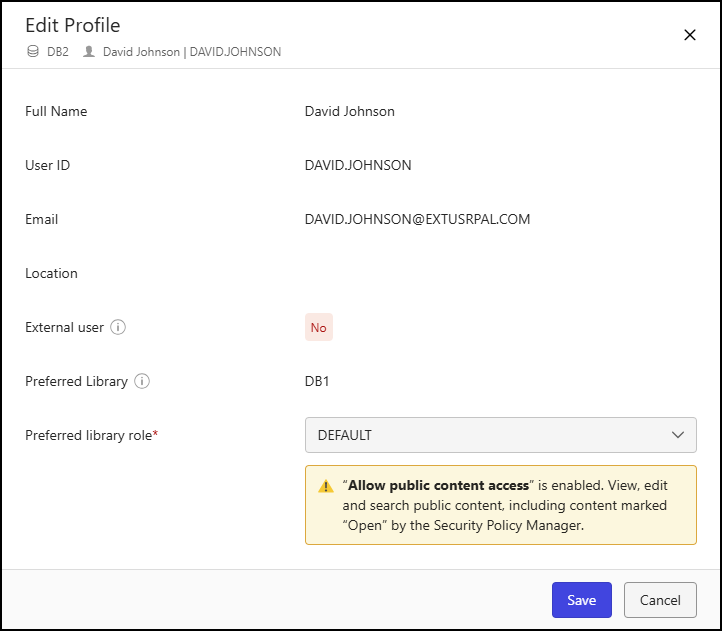
The following changes have been made to the Edit Profile dialog; to open this dialog, select Edit on the Details tab of the Users detail page when managing library-level user settings:
The Role field has been renamed Preferred library role.
An alert is shown below the Preferred library role drop-down list when access to public content has been granted.
An example of the Edit Profile dialog is shown in the following figure.
Users detail page - Groups tab
No changes were made to the Groups tab on the Users detail page when managing library-level user settings. However, updates have been made to the Add <UserName> to Groups and <GroupName> has <n> Members dialogs accessed from this tab.
Add <UserName> to Groups dialog
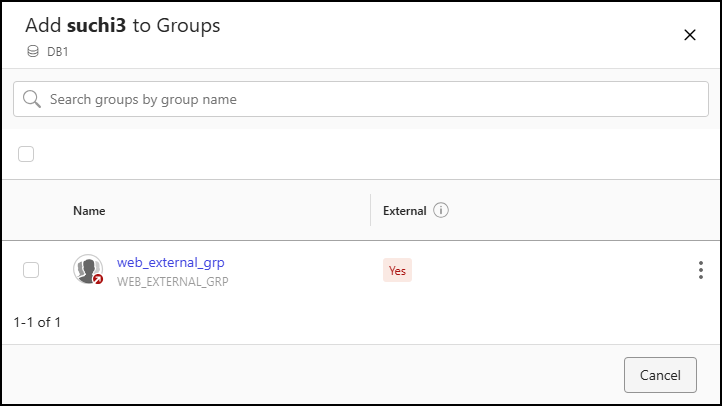
The following changes have been made to the Add <UserName> to Groups dialog; to open this dialog, select Add to Group on the Groups tab of the Users detail page when managing library-level user settings:
The External column has been added to the groups table. This column indicates if at least one member of the group is designated as an external user. This designation doesn't affect permissions.
<GroupName> has <n> Members dialog
The following changes have been made to the <GroupName> has <n> Members dialog; to open this dialog, select the group name on the Groups tab of the Users detail page when managing library-level user settings:
The External user column has been added to the users table. This column indicates whether the user is globally designated as an external user. This designation doesn't affect permissions or user access.