The Tabs & Nodes tab on the iManage Platform page lets you configure which navigation tabs and context bar nodes appear in iManage platform, and their display order.
The tab lets you configure the following:
NOTE: To perform operations on the iManage Platform page, you must be a member of the NRTADMIN group, or be assigned to a role with Tier 2 access to Control Center.
Configure Navigation Tabs
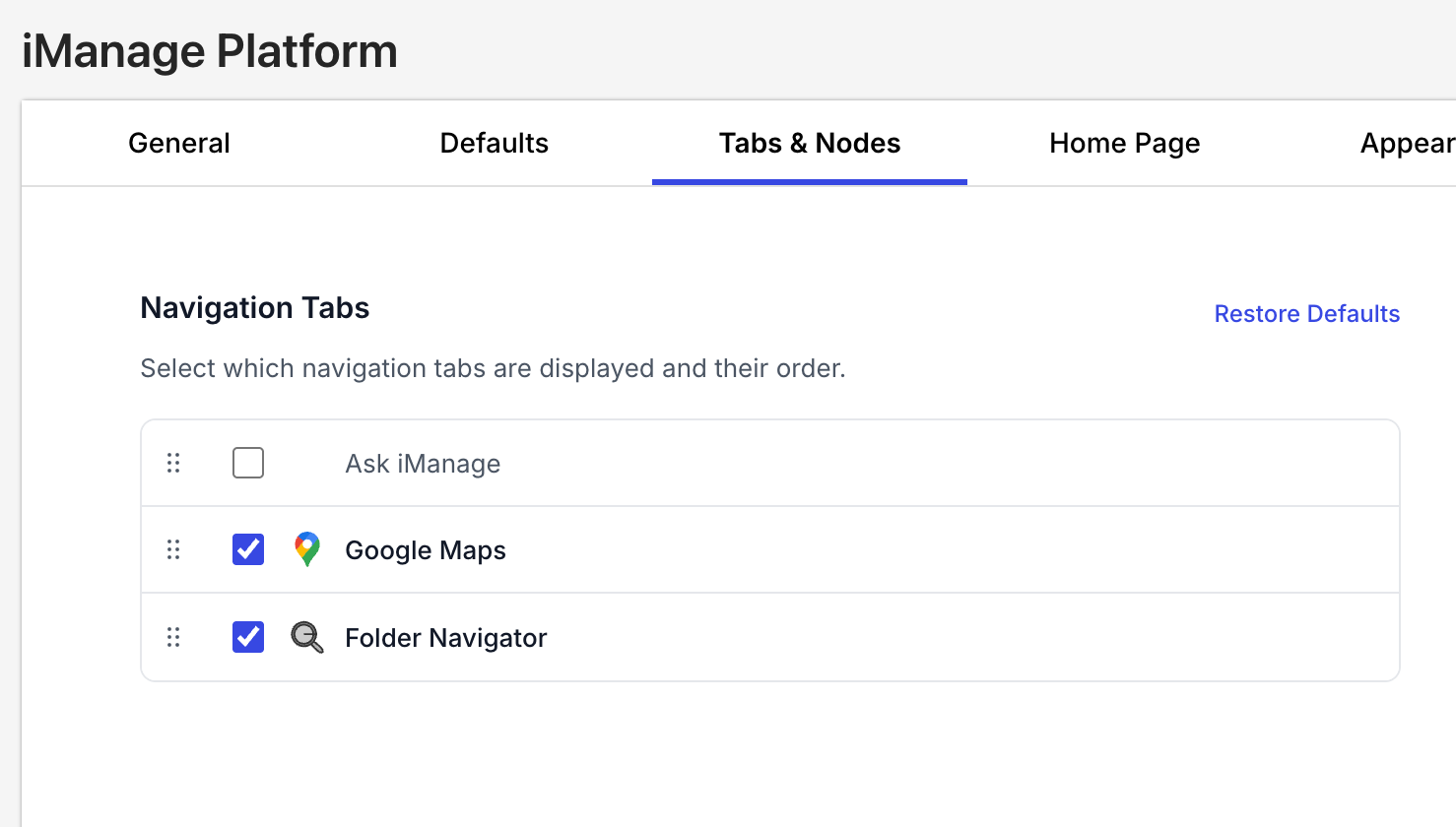
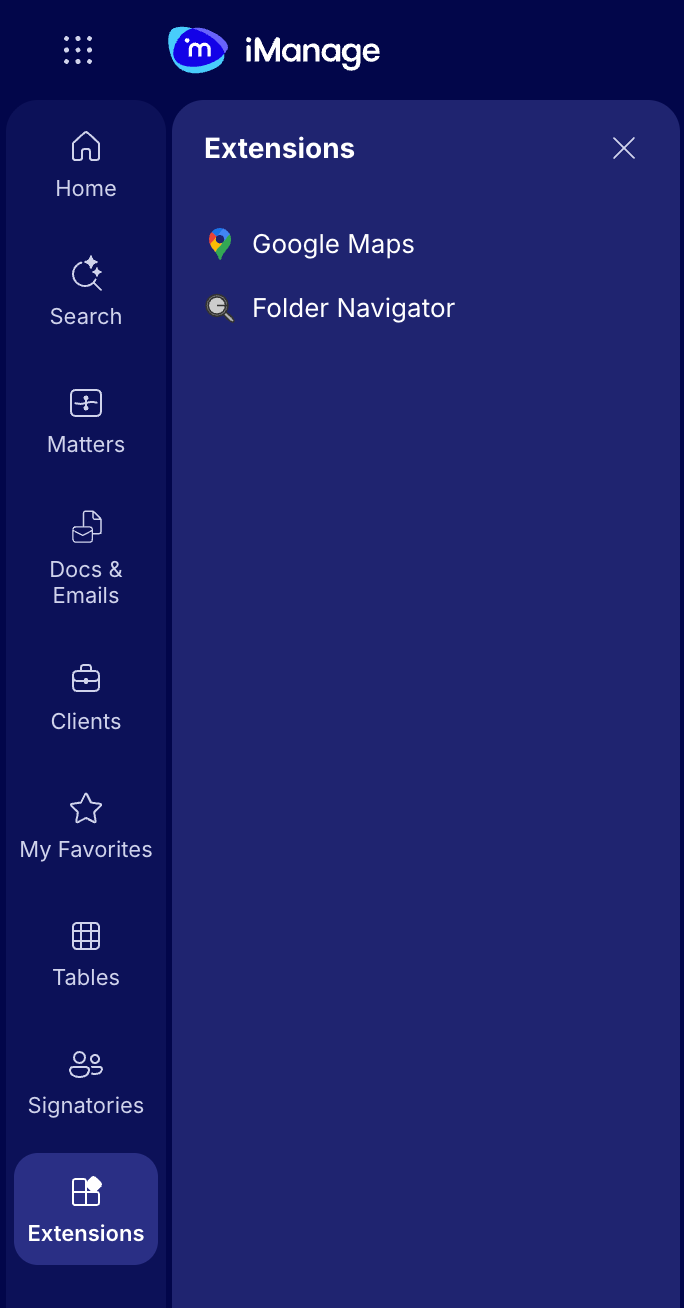
The Navigation Tabs section lets you configure which extension items appear under the Extensions section of the navigation panel in iManage platform, and set their order.
The following figure shows the Navigation Tabs configuration in Control Center.
To configure the navigation tabs:
Select the check box(es) next to an extension tab to display it in the navigation panel, or clear the check box(es) to hide it. The change is saved immediately.
Move a row (using the drag handle
 on the left) to reorder tabs.
(Optional) Select Restore Defaults to revert the Navigation Tabs configuration to its default state.
NOTES:
Built-in navigation tabs (such as Matters, Documents, and Clients) always appear and cannot be hidden or reordered from this page.
Only extension-provided tabs—for example, Folder Navigator and Google Maps—appear in this list and can be shown, hidden, or reordered.
The following figure shows how enabled items appear under the Extensions section in the iManage platform navigation panel.
Configure Context Bar Nodes
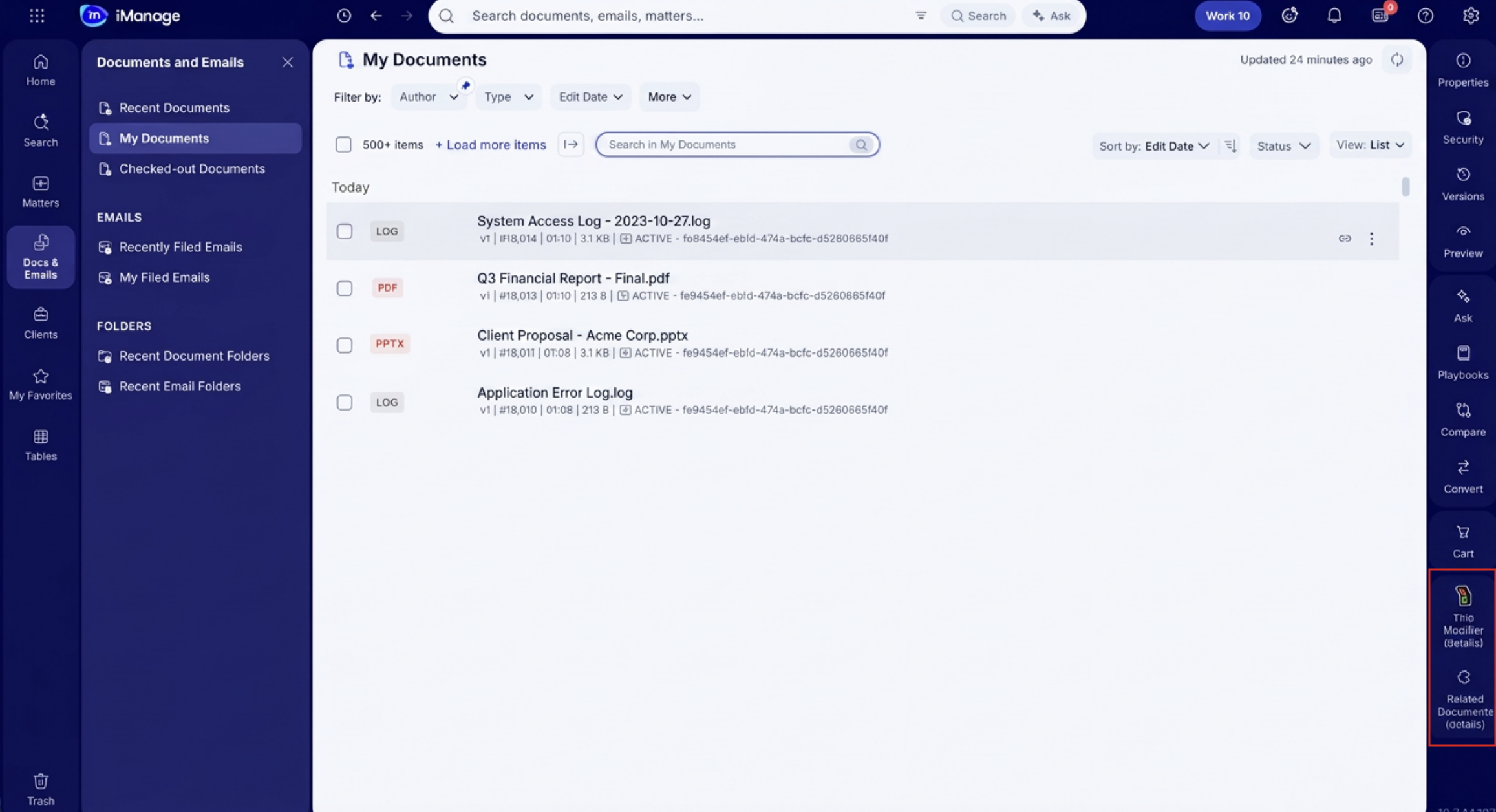
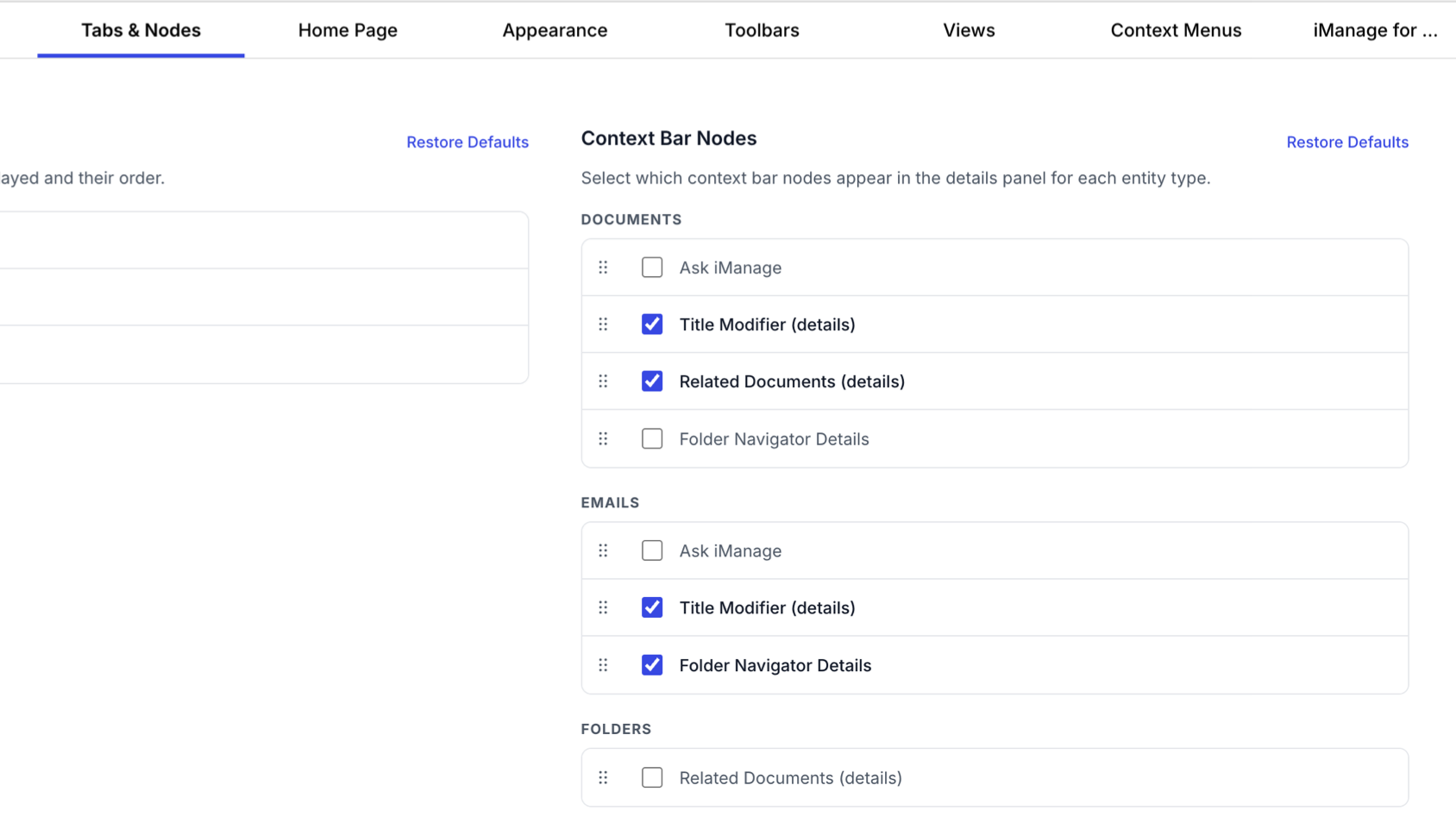
The Context Bar Nodes section lets you show, hide, and reorder the nodes (tabs) that appear in the details panel (context bar) when users select an object in iManage platform. You can configure these settings independently for Documents, Emails, Folders, and Matters.
The following figure shows the Context Bar Nodes configuration table in Control Center.
To configure context bar nodes:
Select the checkbox next to a node to display it in that object's context bar, or clear it to hide the node. The change is saved immediately.
Move a row to reorder nodes within an object type.
(Optional) Select Restore Defaults to revert the Context Bar Nodes configuration to their default state.
NOTE: Available nodes vary by object type:
Documents: Related Documents (details), Folder Navigator Details, and Title Modifier (details)
Emails: Folder Navigator Details and Title Modifier (details)
Folders: Related Documents (details) and Reprocess for Enrichment
Matters: Reprocess for Enrichment
The following figure shows how enabled nodes appear in the details panel context bar when an item is selected in iManage platform.