The File Plan pane gives you a high-level view of all the libraries, workspaces, folders, and records. Using File Plan, you can do the following:
View workspaces, folders, and records: Select the:
Library to view clients
Client to view workspaces.
Workspace to view folders
Folder to view sub-folders or records
NOTE:
Client name and client ID are both displayed in the header when Records Managers and Reviewers access the client.
Figure: Client name and ID in the header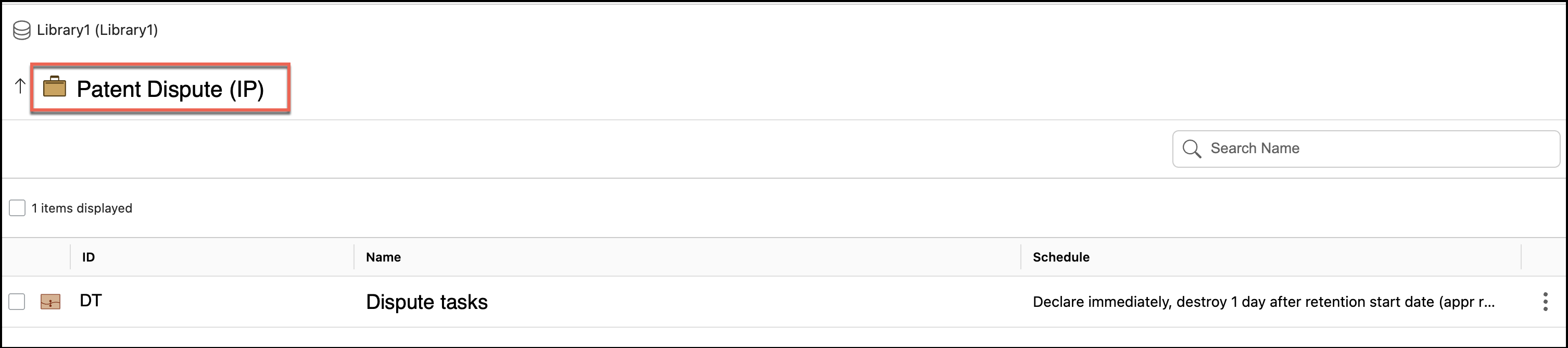
Workspace name and workspace ID are both displayed in the header when Records Managers and Reviewers access workspaces.
Figure: Workspace name and ID in the header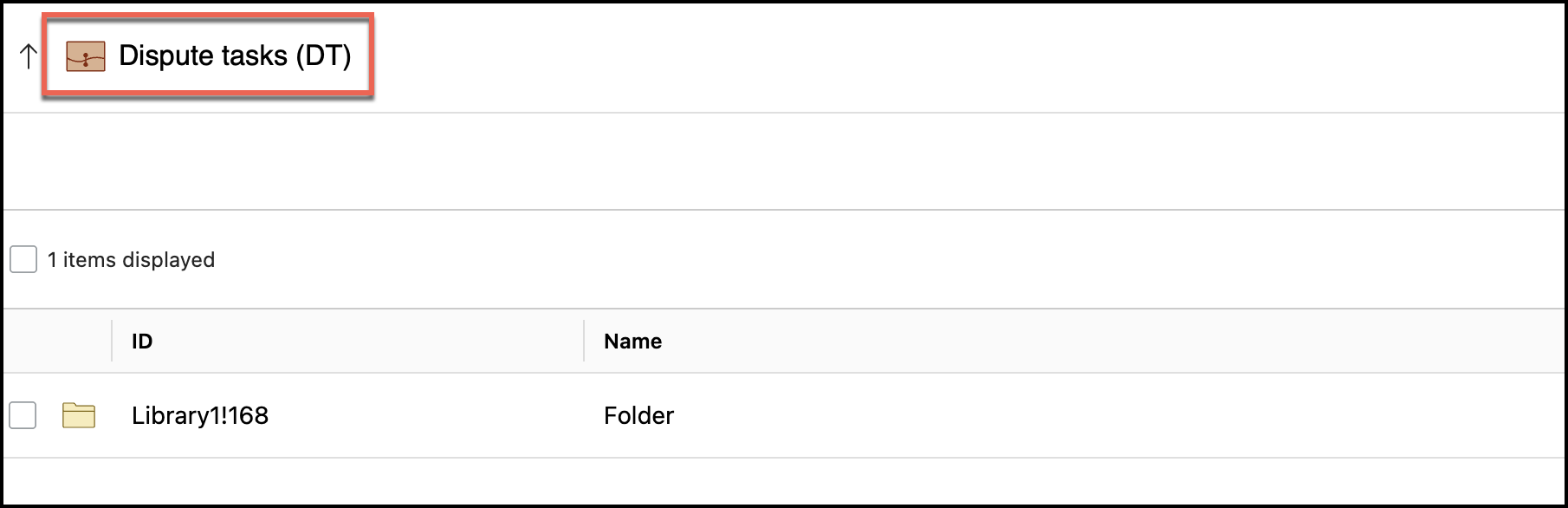
When Records Managers hover over a folder icon that contains files, the tooltip displays Folder Contains items.
Figure: Tooltip for folder containing items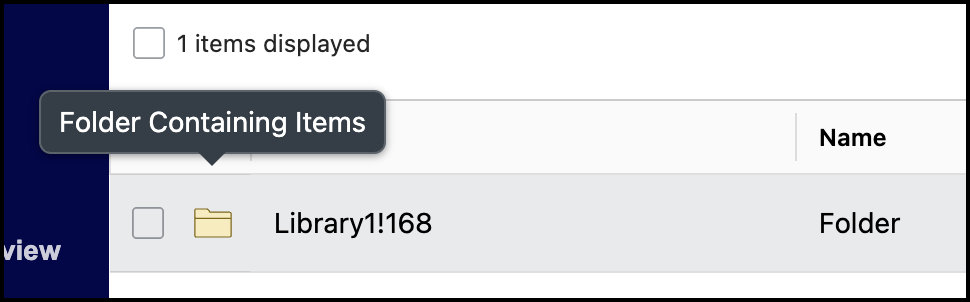
View timelines: View timelines for workspaces, folders, sub-folders, or records by selecting the
 kebab menu and then selecting Timeline next to the workspace, folder, sub-folder, or record. The Timeline dialog is displayed. For more information about timelines, refer to Viewing timeline entries.
View properties: View properties for workspaces, folders, sub-folders, or records by selecting the
kebab menu and then selecting Properties next to the workspace, folder, sub-folder, or record. Alternatively, select the workspace, folder, sub-folder, or record name. The Properties panel is displayed.
To close the Properties panel, select the name of the workspace, folder, sub-folder, or record for which you're viewing the properties. Alternatively, you can also select the kebab menu and then select Properties to close the Properties panel.Apply holds: Apply holds to workspaces, folders, or sub-folders by selecting the
kebab menu and then selecting Apply Hold next to the workspace, folder, or sub-folder. In the Apply Hold dialog that displays, select the holds you want to apply and then select Apply. The hold or holds are applied to the selected workspace, folder, sub-folder, or record.
You can also select multiple workspaces, folders, or sub-folders and apply holds to selected items in bulk.View holds: View holds that are applied to workspaces, folders, or sub-folders by selecting the
kebab menu and then selecting Properties. In the Properties panel that's displayed, select Holds to view all the holds that are applied for the selected workspace, folders, sub-folder, or record. Remove holds: Remove holds applied to workspaces, folders, or sub-folders, by selecting the
kebab menu and then selecting Properties. In the Properties panel that's displayed, select Holds to view all the holds that are applied for the selected workspace, folders, sub-folder, or record. Select  next to the hold you want to remove. Select Yes to confirm the deletion. The selected hold is removed from the workspace, folders, sub-folders, or record.
 Apply schedules: Apply schedules by selecting the
kebab menu and then selecting Apply to schedule next to the workspace, folder, or sub-folder. Select the schedule you want to apply. The schedule is applied to the selected workspace, folder, sub-folder, or record and is displayed in the Schedule column in File Plan.
You can also select multiple workspaces, folders, or sub-folders, and apply schedules to selected items in bulk.Remove from schedules: Remove a schedule by selecting the
kebab menu and then selecting Remove from schedule next to the workspace, folder, or sub-folder. The schedule is removed from the selected workspace, folder, or sub-folder.Search for records: Use the search option available in the File Plan to search for workspaces, folders, sub-folders, or records.