When you create or modify events, create or modify schedules, add schedules, add, or remove holds, or perform any action, all the operations are reflected in the timeline. You can:
View timelines from File Plan
On the list view, browse to the workspace, folder, sub-folder, or record.
Select the
 kebab menu and then select Timeline next to the workspace, folder, sub-folder, or record for which you want to view the timeline. The timelines are displayed and provide the changes made for the workspace, folder, sub-folder, or record.Figure: Timelines - File Plan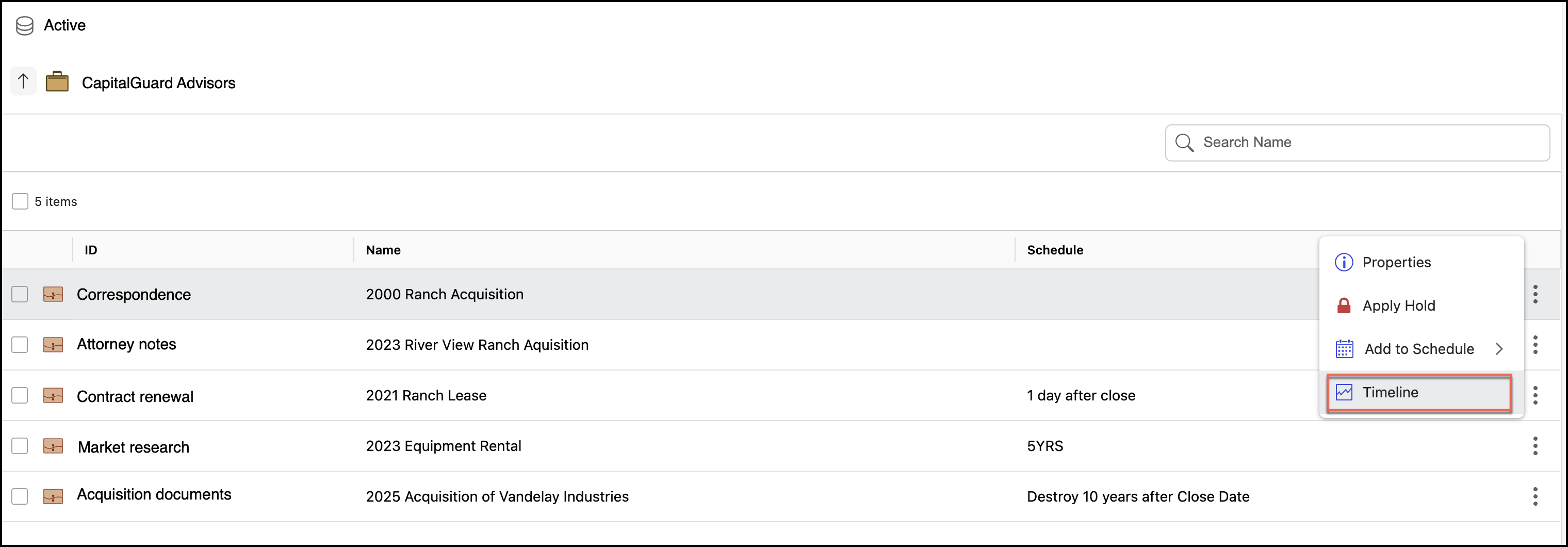
View timelines for destroyed records
On the list view, select Destroyed records.
Select
kebab menu and then select Timeline next to the destroyed record for which you want to view timelines. The timelines for the selected destroyed record are displayed and provide details of the changes made to the selected event. Figure: Timelines - Destroyed Records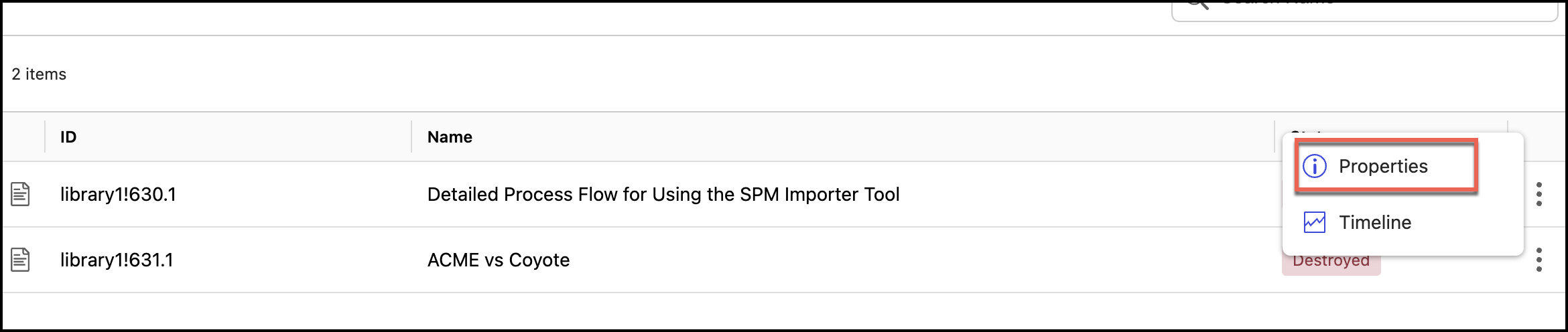
View timelines for events
In the list view, select Events.
Select the
kebab menu and then select Timeline next to the event for which you want to view timelines. The timelines for the selected event are displayed and provide details of the changes made to the selected event. Figure: Timelines - Events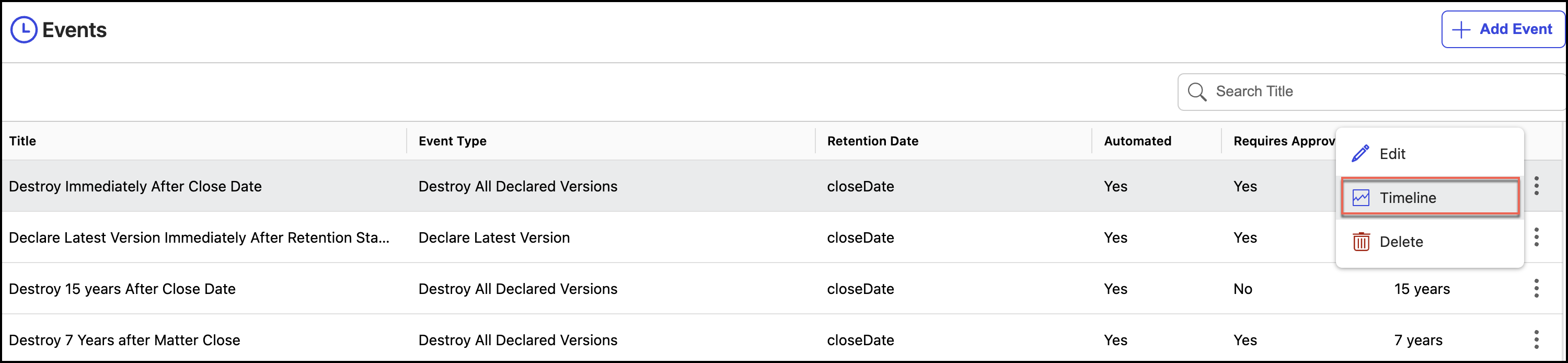
View timelines for schedules
On the list view, select Schedule.
Select
kebab menu and then select Timeline next to the event for which you want to view timelines. The timelines for the selected schedule are displayed and provide details of the changes made to the selected schedule. Figure: Timelines - Schedules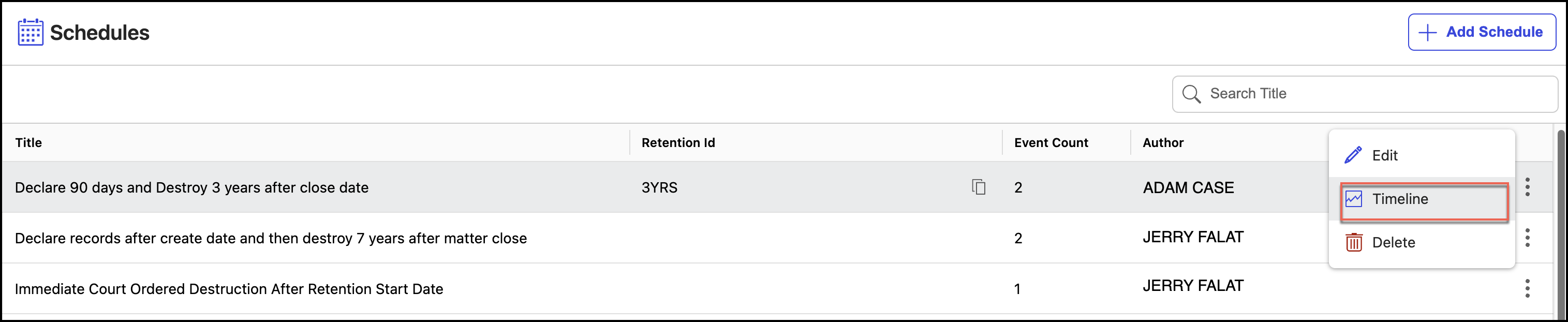
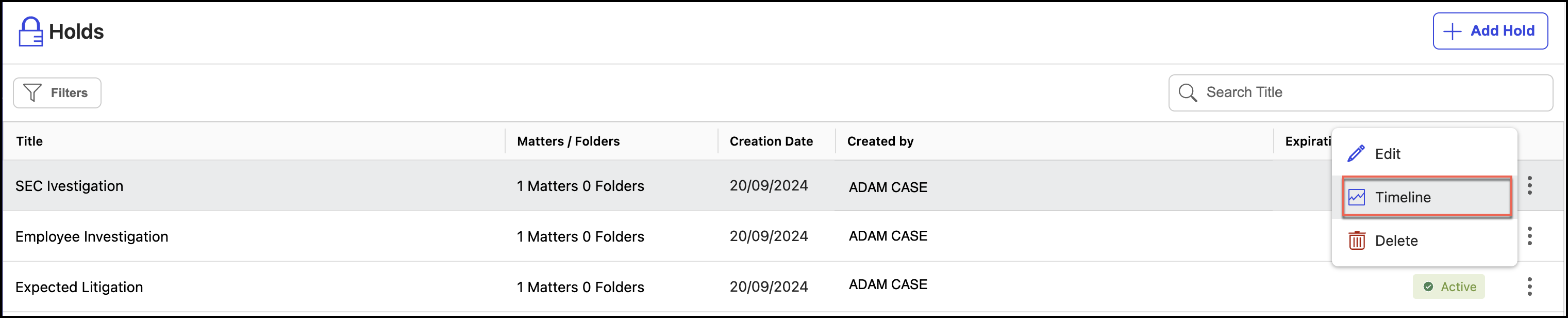
View timelines for holds
On the list view, select Holds, and then select the kebab menu and then select Timeline next to the hold for which you want to view the timeline. The timelines for the selected hold are displayed and provide details of the changes made to the selected hold.
Viewing timelines for Tasks
On the list view, select Tasks.
Select one of the following:
Triggered
Upcoming
Select the
kebab menu next to the task and select Timeline. The timelines for the selected task are displayed and provide details of the changes made to the selected task. Figure: Timelines - Tasks
View timelines for property metadata
On the list view, select Settings and then select Metadata Mapping.
Select one of the following:
Matter
Folder
Record
Select the
kebab menu next to the Work Property and then select Timeline. The timelines for the selected work property are displayed and provide details of the changes made to the selected work property. Figure: Timelines - Property metadata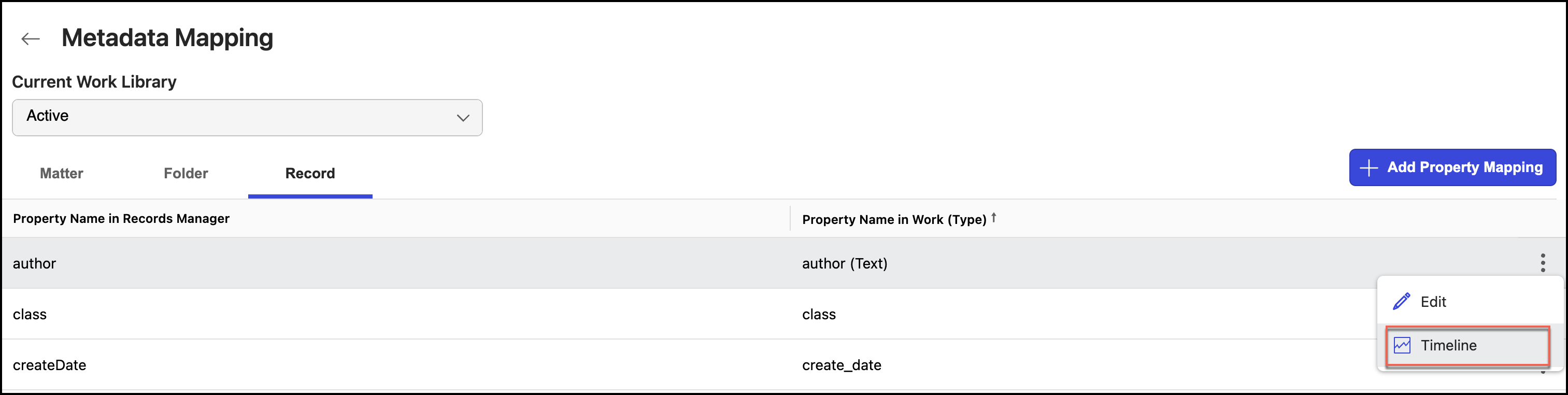
Understanding the Timeline panel
In the Timeline panel that is displayed, you can:
Select Download CSV to download the timeline to your device.
Search for a specific timeline using the Search option available in the Timeline panel.
Select Filters to view the filters panel. In the Date section, you can select one of the following.
All: To view all the changes made to the selected option. This is the default option.
Today: To view the changes made to the selected option on the same day.
Yesterday: To view the changes made to the selected option the previous day.
Last 7 days: To view the changes made to the selected option in the last 7 days.
Custom Range: To view the changes made to the selected option for the custom range. Select the Start Date and End Date from the date picker dialogs.
Figure: Timelines panel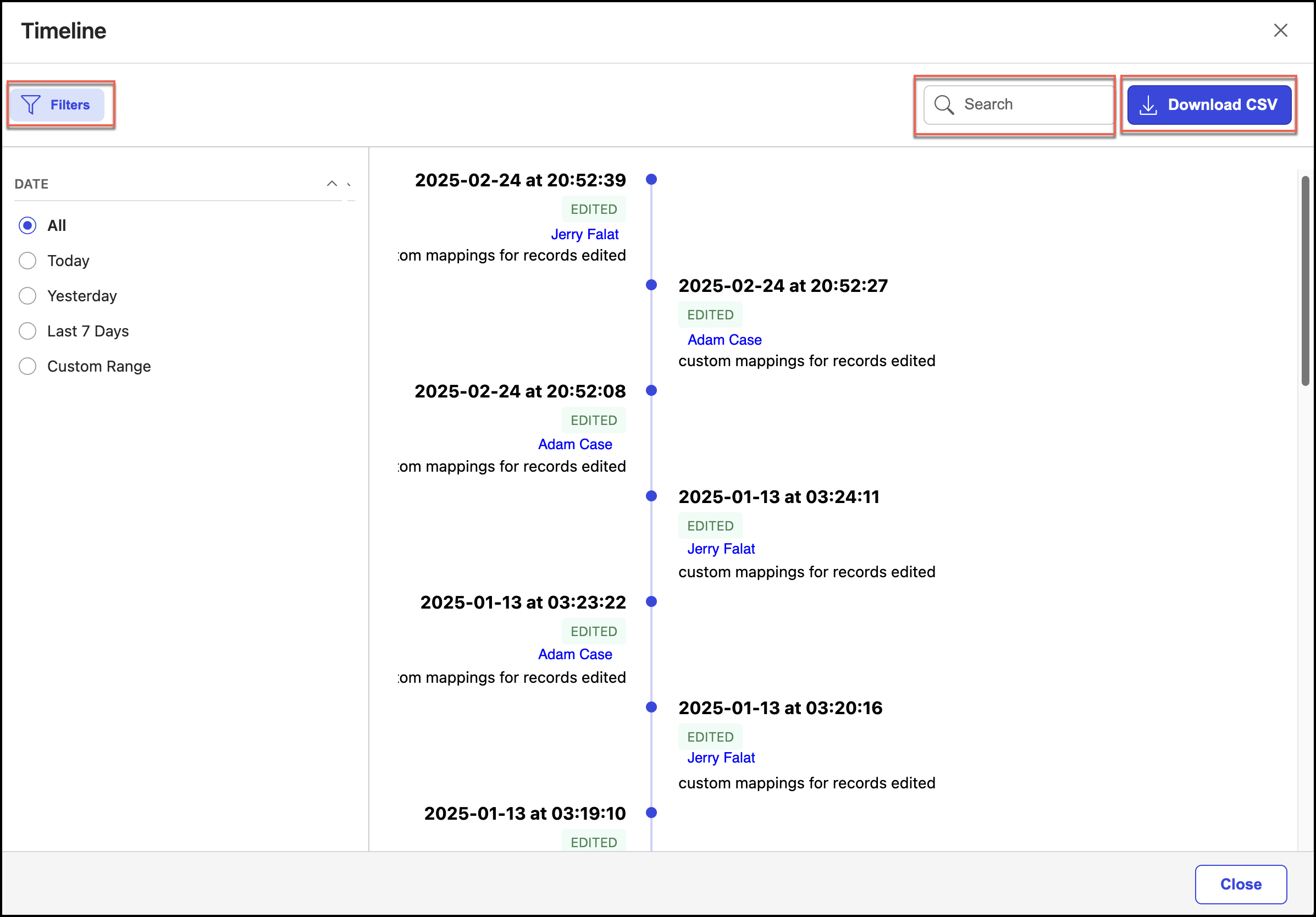
NOTE: If the filters panel is already visible, selecting Filters hides the filter panel.