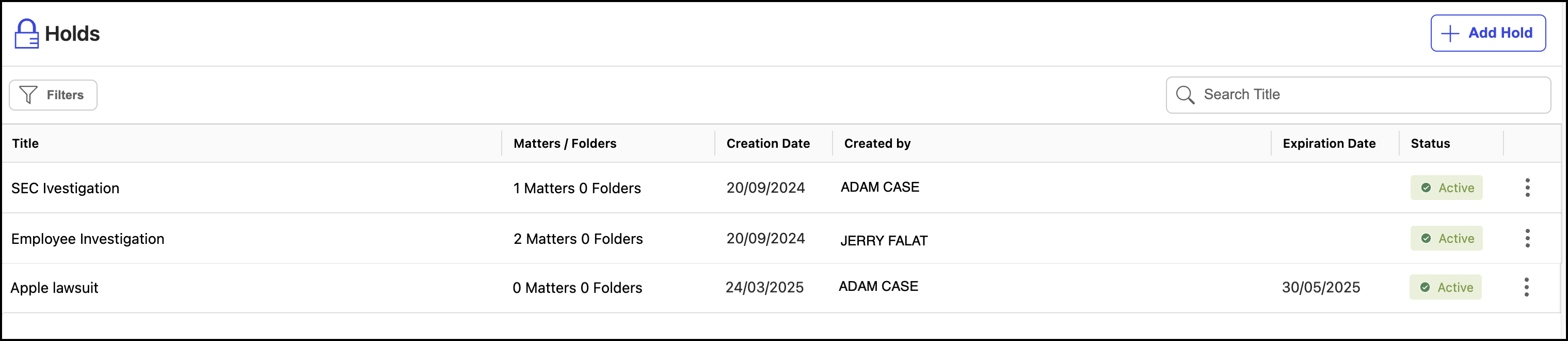
To create legal holds:
In the list view, select Holds.
Figure: Browsing to holds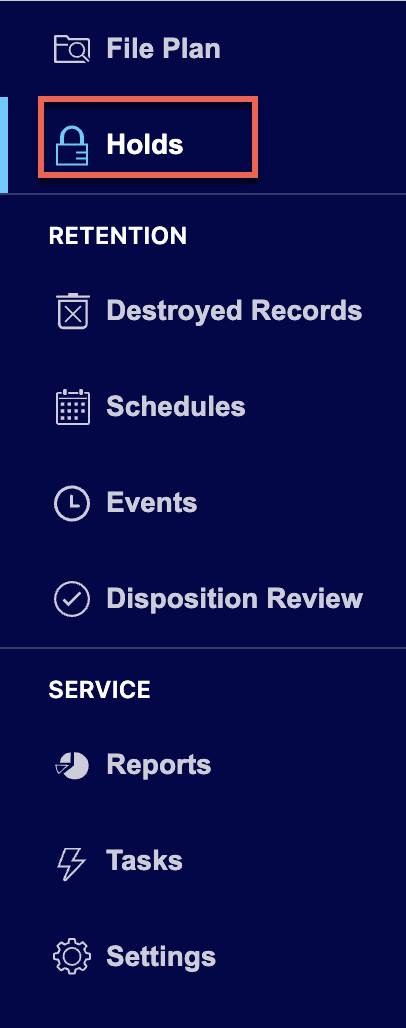
Select Add Hold.
Figure: Select Add Hold
In the Add Holds dialog, enter the hold name in the Title field.
(Optional) Enter a description in the Description field.
(Optional) Enter expiration date in the Expiry Date field. When you enter this value, the hold expires after the selected date. If the hold is applied to any retention schedule, the schedule is processed after the hold expires. If no date is defined, the hold never expires.
Figure: Create a hold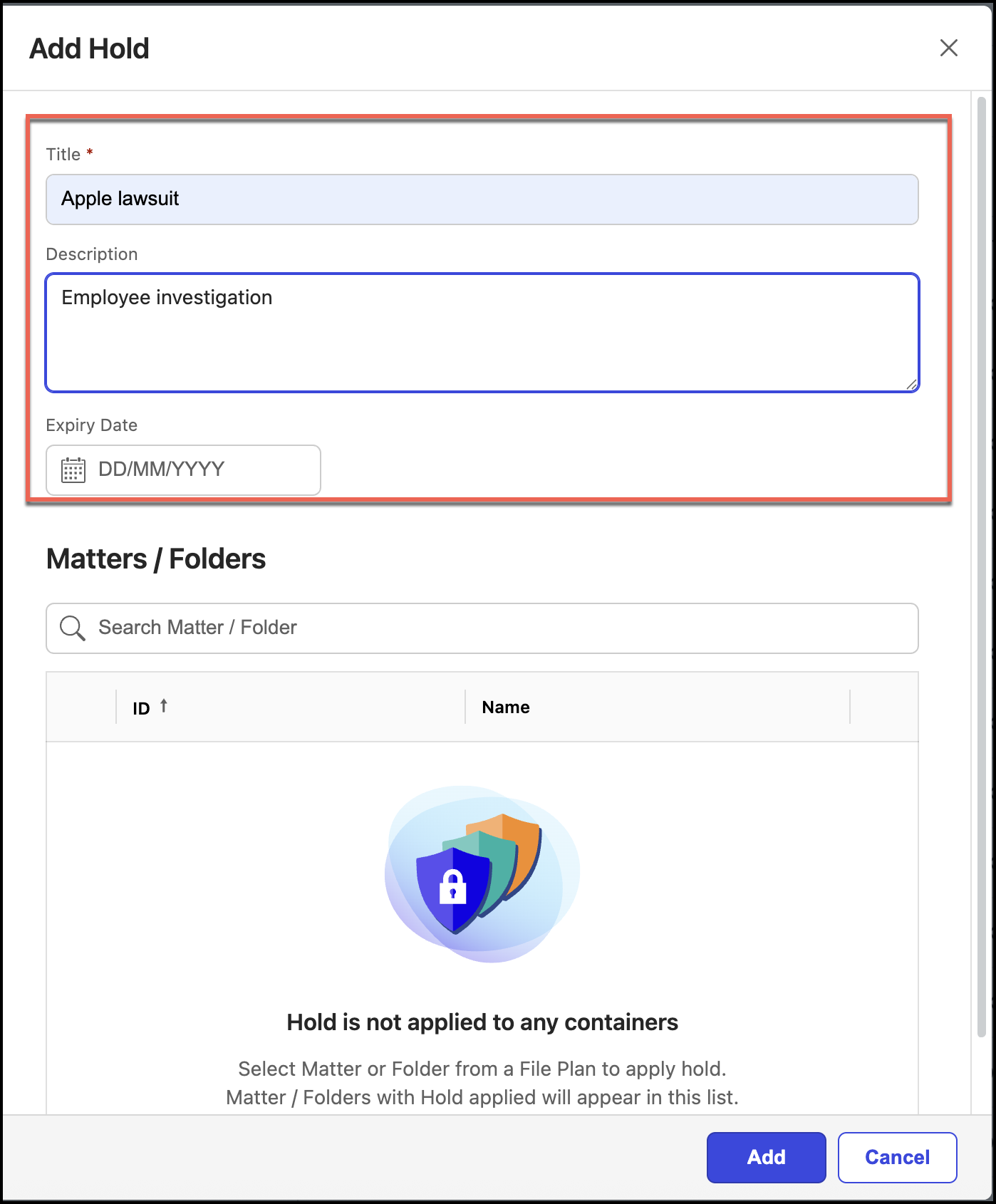
NOTE: You can't add workspaces or folders using Matters/Folder option. The search option provided in this field is used to search workspaces or folders that are already added to the hold.
Select Add. The hold is created and can be viewed on the Holds page.
Figure: Holds added to Hold page