To map an iManage Work property with a iManage Disposition Manager property (text, date, Retention ID, and approver).
IMPORTANT: Make sure the you that you've mapped a mandatory field from iManage Work property to iManage Disposition Manager property before you add retention schedules. For a full list of mandatory fields, refer to the note at the end of the page.
On the list view, browse to Settings > Metadata Mapping.
Figure: Select Metadata mapping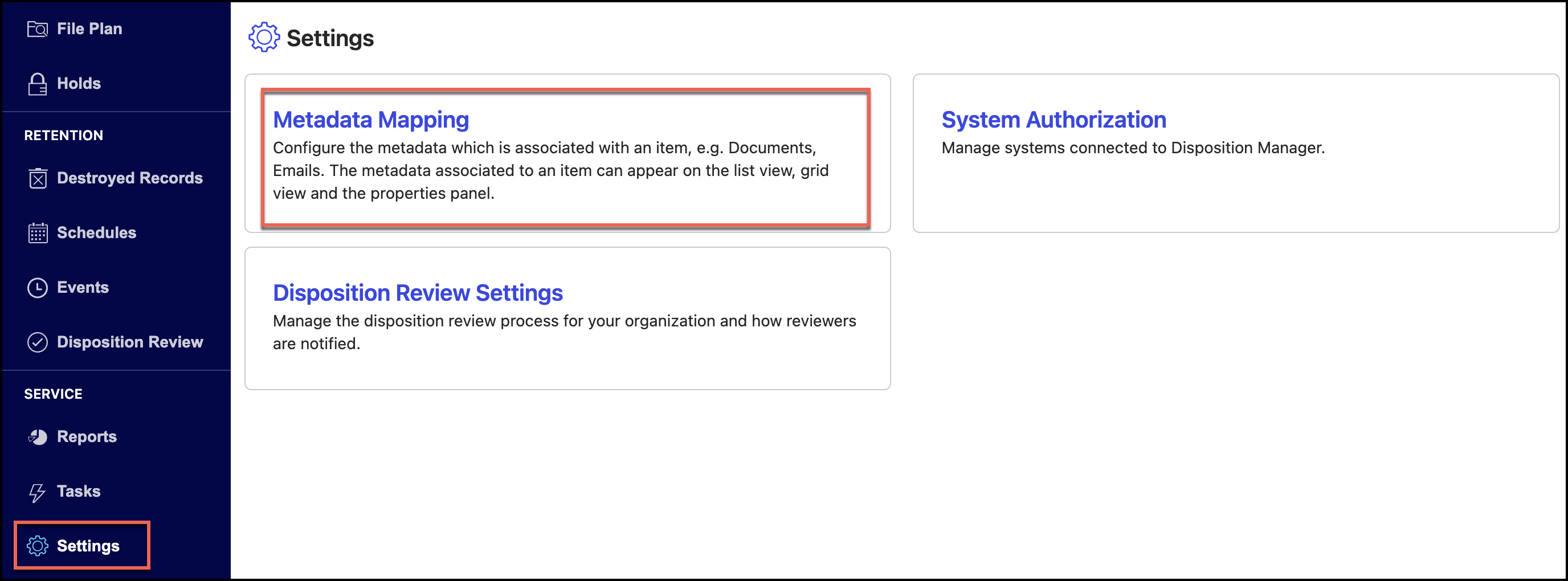
Select a library.
Figure: Select a library
Select one of the following tabs:
Matter
Folder
Record
Figure: Select the tab to which mapping has to be applied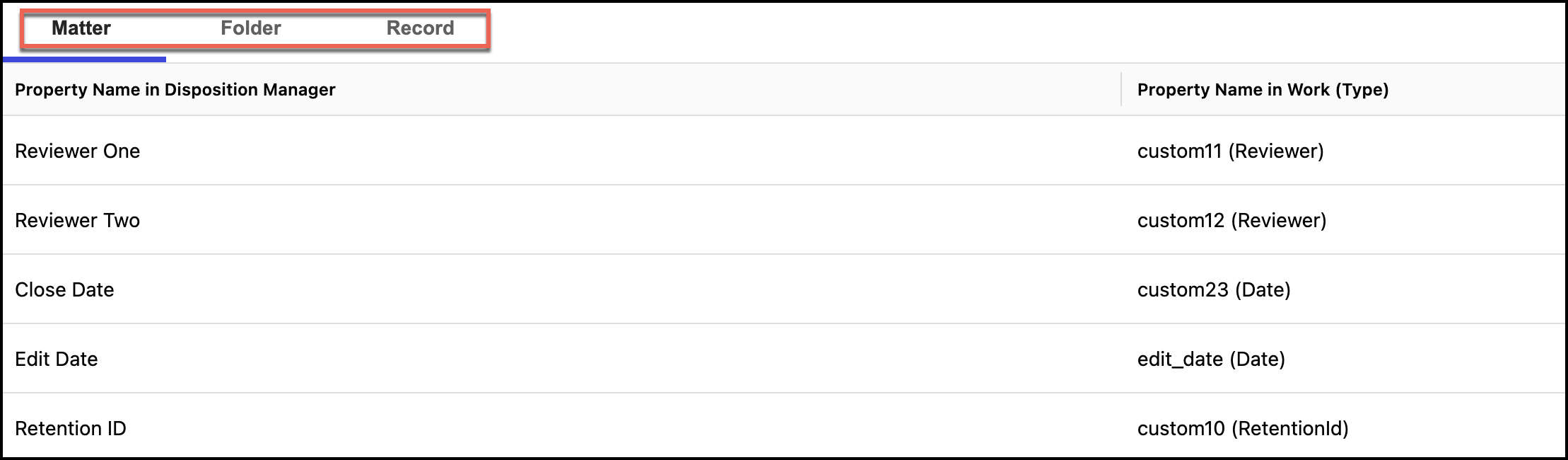
Select Add Property Mapping.
Figure: Select Add Property Mapping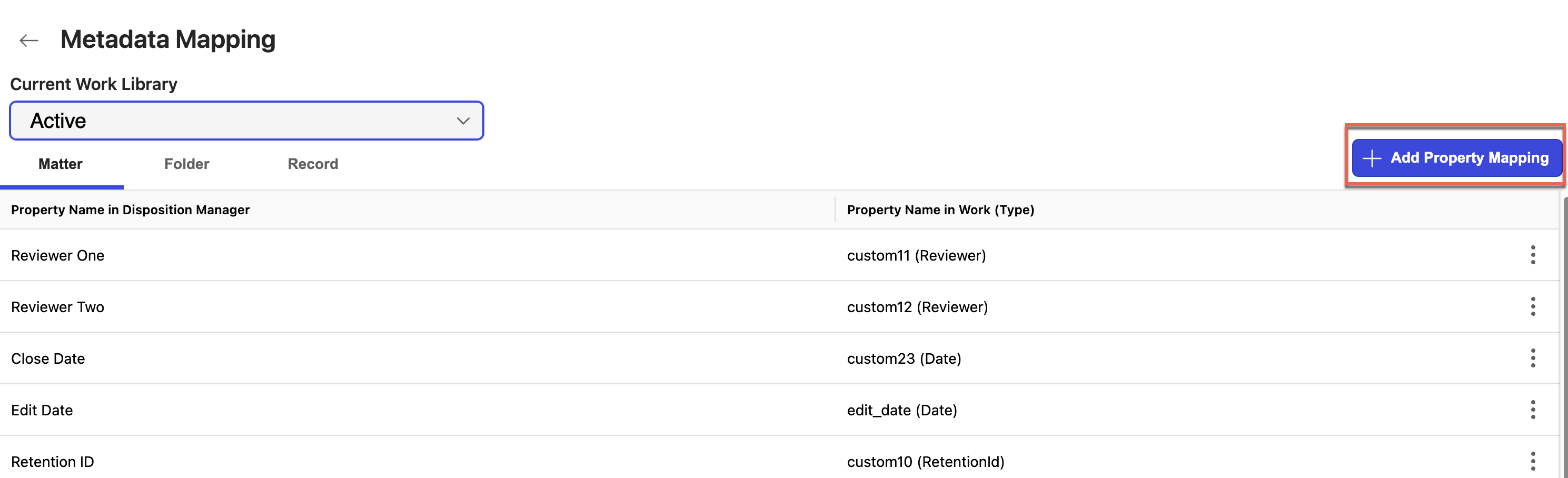
In the Add Property Mapping dialog, enter the property name in the Property Name in Records Manager field.
(Optional) Enter the description in the Property Description field.
Figure: Enter name and other details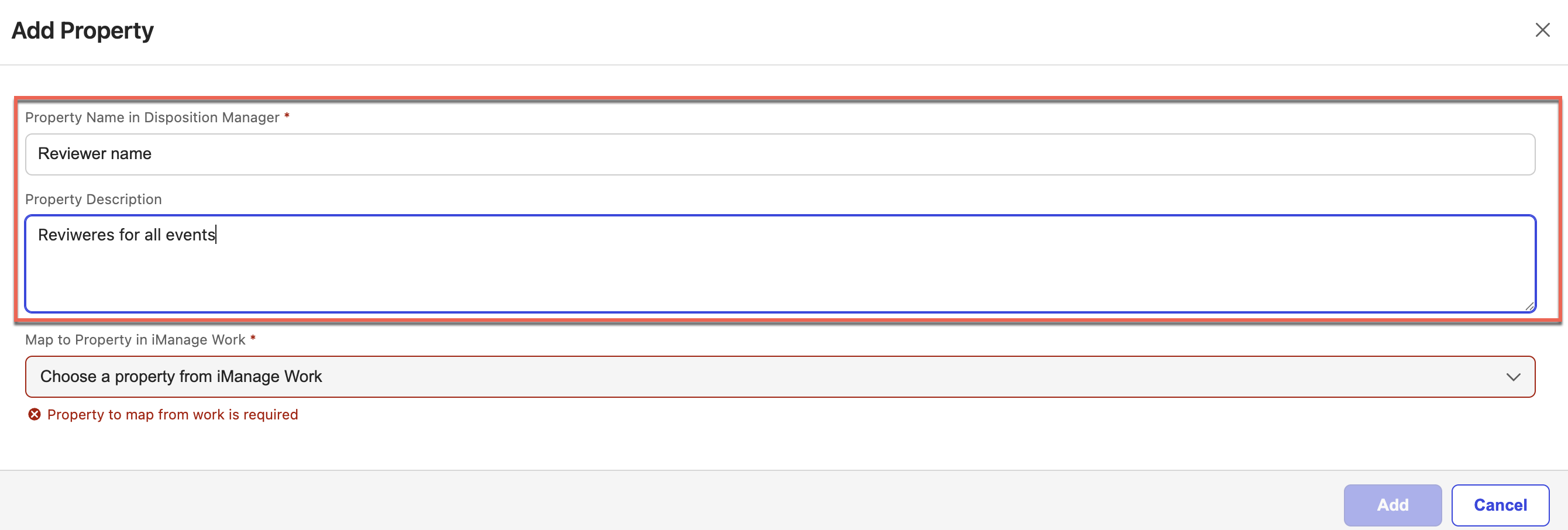
Select a property to map with iManage Work from Map to Property in iManage Work drop-down list.
Figure: Map property to iManage Work drop-down list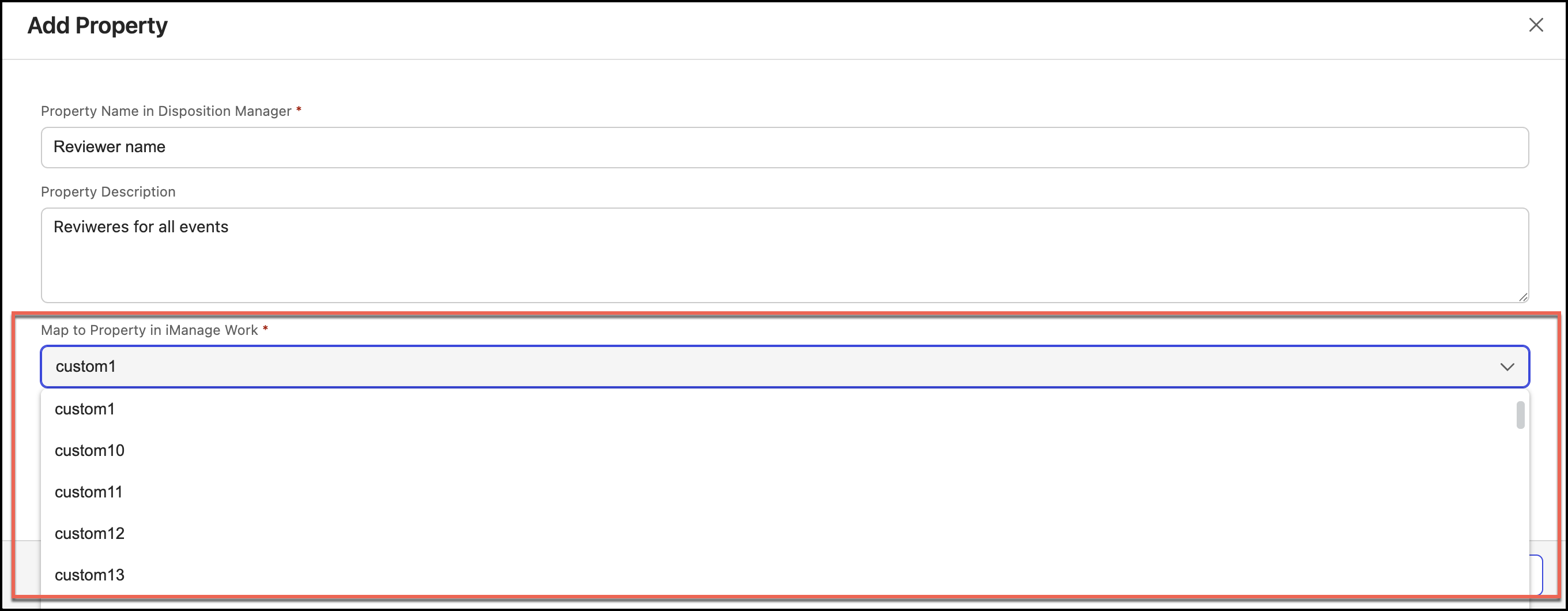
If displayed, select the property type from the Property Type field.
Figure: Map property type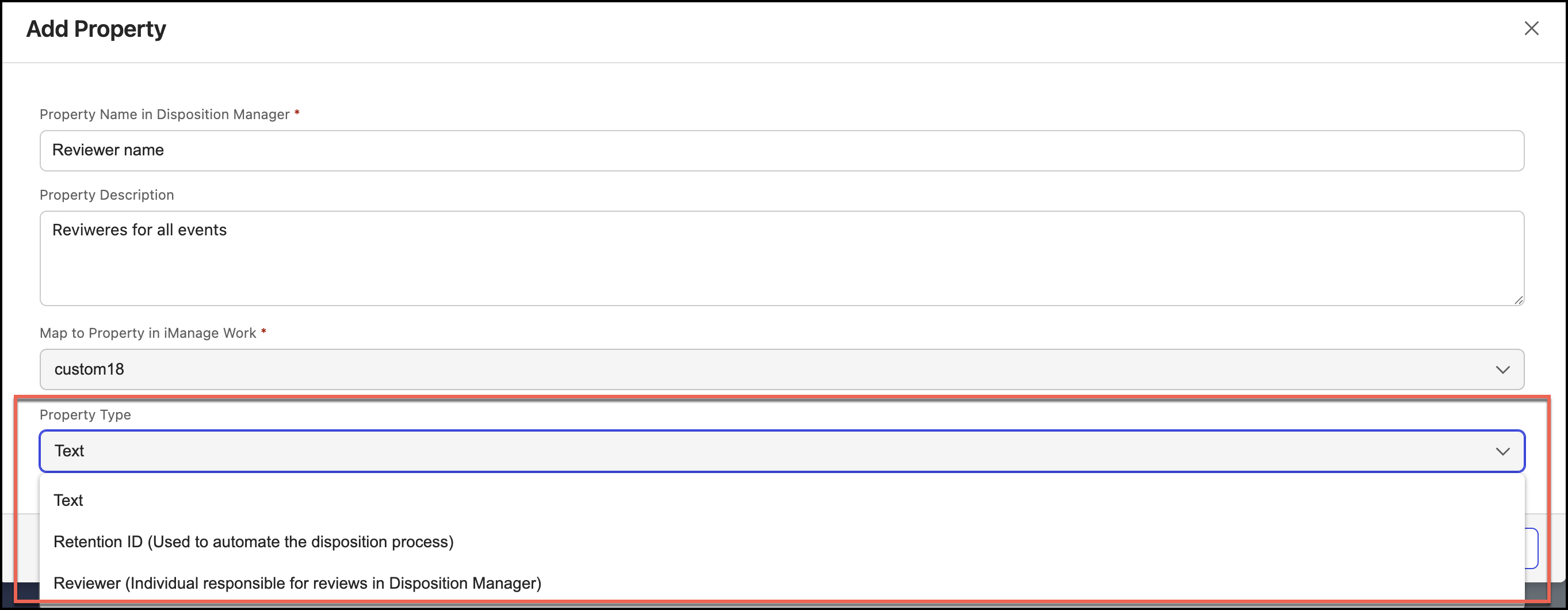
Select Add and the property is added.
NOTES:
For destroyed records, only properties that were originally mapped are retained.
You can map date-type properties only with other date-type properties.
IMPORTANT:
The following fields are needed for iManage Disposition Manager functionality and are used throughout the application. So, don't modify these fields after the initial metadata setup. Although these fields can be renamed during initial setup, doing so will display both the original and new names in the Properties panel.
Read only
ID
Required
name
owner
wstype
database
has_subfolders
custom1
custom2
The values are usually provided in the From fields, and these are the field names that are mapped from iManage Work to iManage Disposition Manager.