You can remove holds applied to a workspace, folder, or sub-folder:
From the Holds page
To remove a legal hold or legal holds from a workspace, folder, or sub-folder from the Holds page:
On the Holds page, select
 kebab menu next to an existing hold and then select Edit.
 In the Edit Hold dialog, in the Matters/Folders field, select the trash can
 icon next to the workspace, folder, or sub-folder.Figure: Deleting holds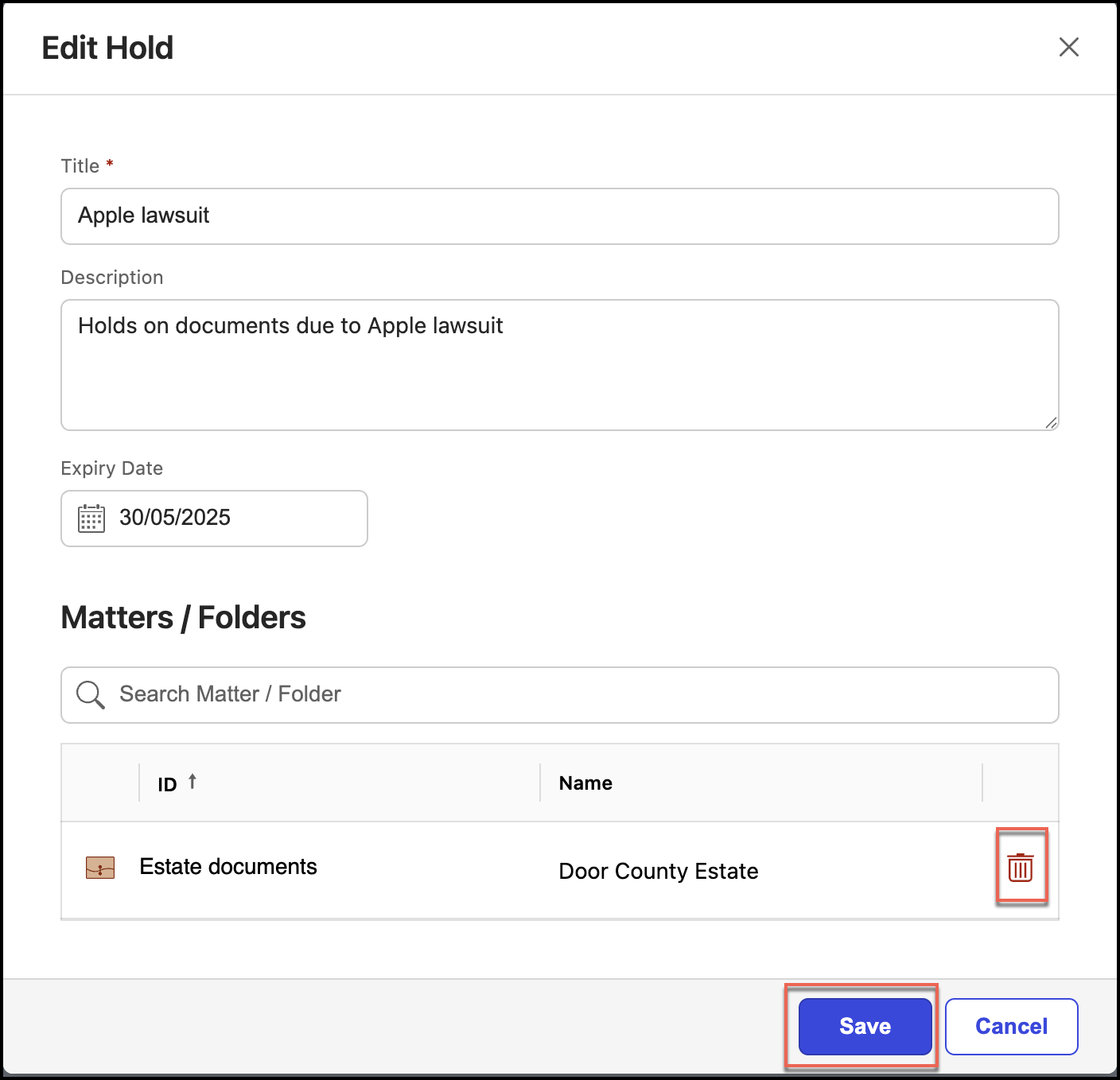
Select Save. The holds are removed from the selected workspaces, folders, or sub-folders.
From the File Plan page
To remove legal holds from a workspace, folder, or sub-folder from the File Plan page:
On the File Plan page, browse to the workspaces, folders, or sub-folders to which you want to remove a hold.
Select the workspace name, folder name, or sub-folder name displayed in the Name column to view the Properties panel.
Figure: Selecting Properties to view the panel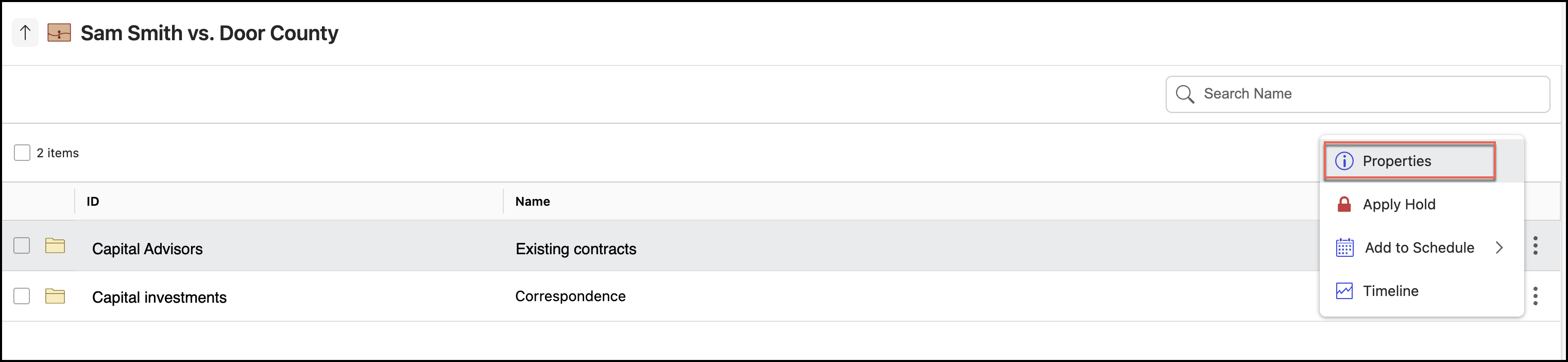
Select Holds to view the Holds panel.
Figure: Open Holds panel and delete hold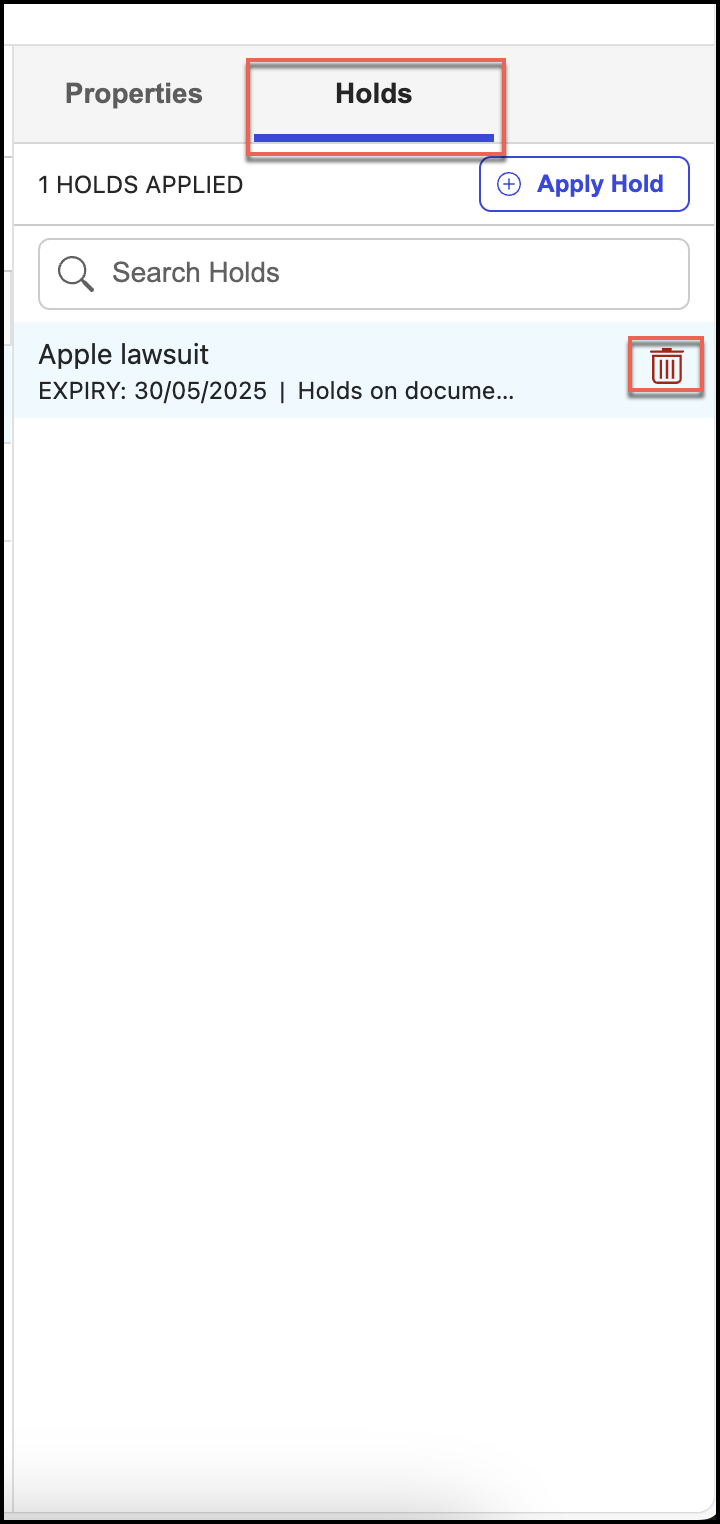
Select the trash can
icon next to the hold you want to remove. Select Yes to confirm the deletion.
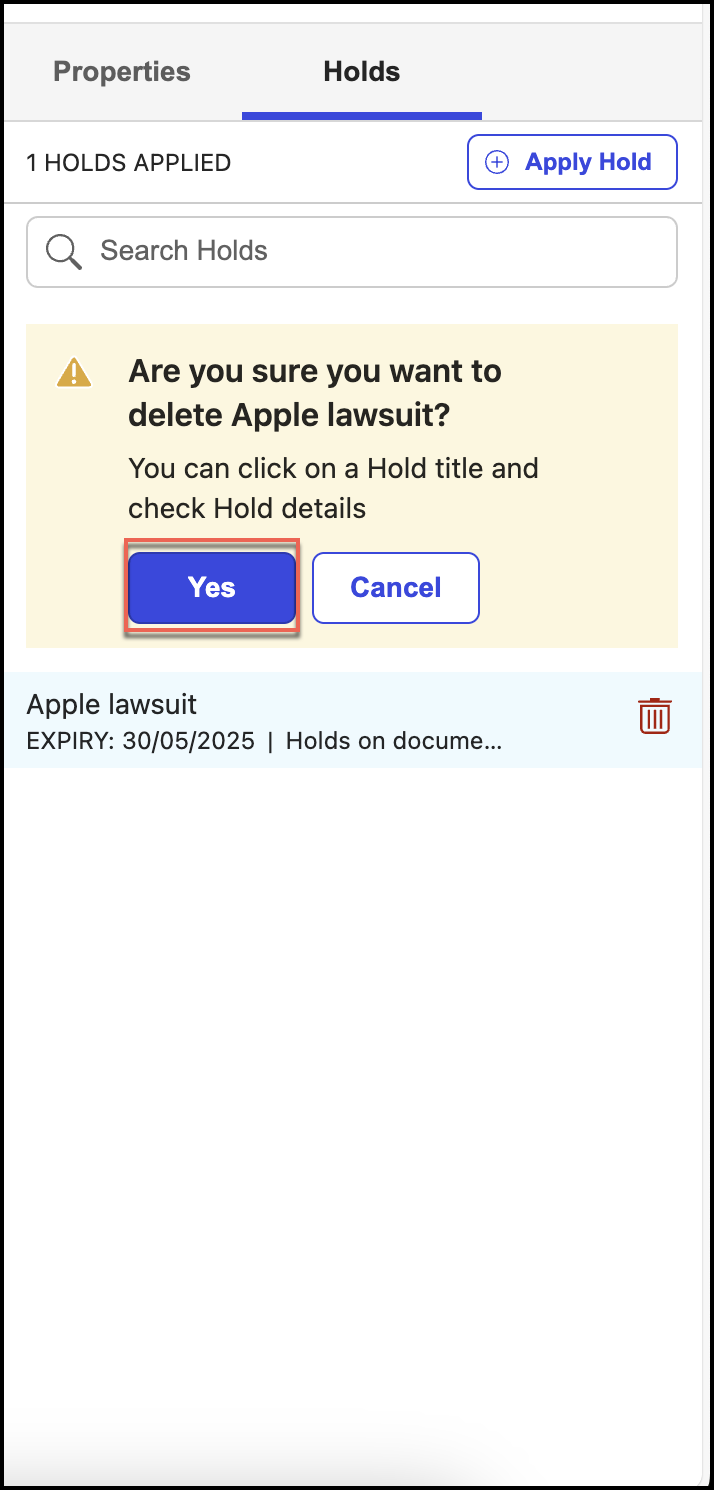
Repeat Steps 4–5 to remove another hold on the same workspace, folder, or sub-folder.