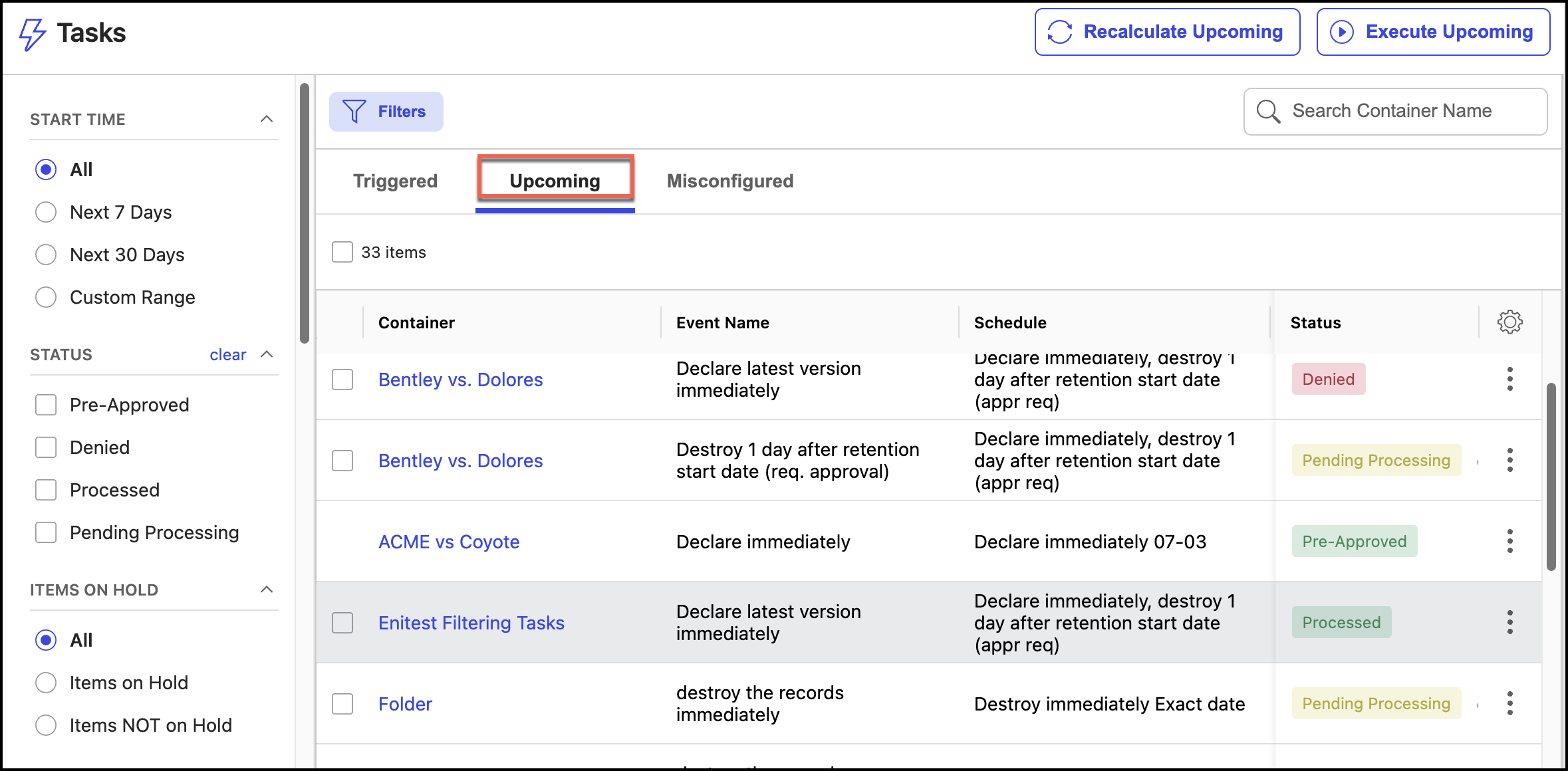
You can check for all upcoming tasks to be processed by selecting Tasks > Upcoming. All upcoming tasks are displayed.
You can recalculate upcoming tasks and process tasks. If a review is required, you can also review them.
After the tasks are processed, all the records are updated with the status as per the retention schedule applied.
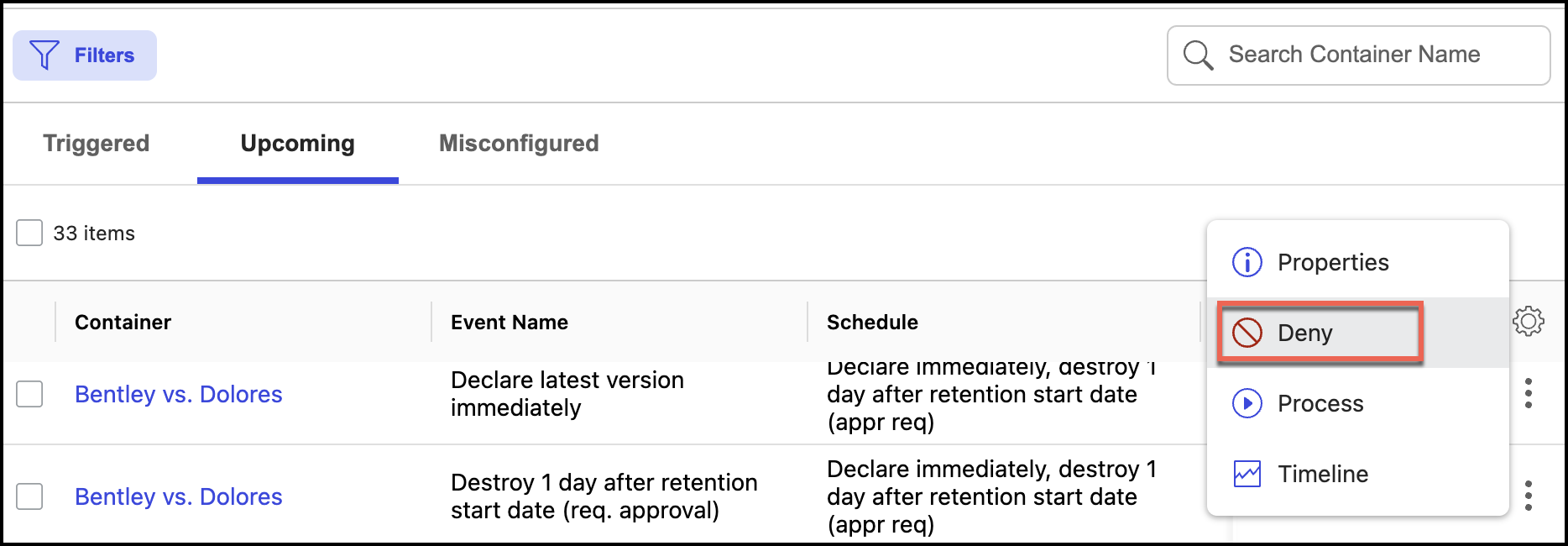
You can deny a upcoming task by selecting  kebab menu next to the task and then selecting Deny as shown in the following figure. The status then changes to Denied and the task isn't processed.
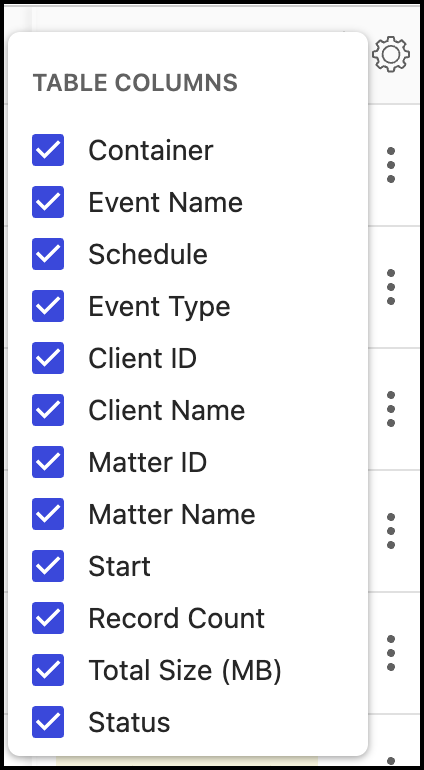
Select the icon to display Table Columns list. You can select or deselect the columns you want to display on the Upcoming Tasks page. The selected columns are displayed on the Upcoming Tasks page.
Additionally, select Filters to view or hide the filter panel. In the filter panel:
In the Start Time section, select the time range. This displays all upcoming tasks for the selected time range.
In the Status section, select the status. You can select multiple status. This displays all the upcoming tasks for the selected status.
In Items on hold section, select the items that are on hold. This displays all the upcoming tasks for the selected items on hold.
In the Libraries section, select the library. This displays all upcoming tasks applicable to the selected library.
In the Client section, select the client. This displays all upcoming tasks for the selected client.
In the Matter section, select workspaces. You can select more than one workspace at a given time. This displays all upcoming tasks for the selected workspace or workspaces.
In the Event Types section, select an event type. This displays all upcoming tasks for the selected event type.
In the Event Name section, select an event name. This displays all upcoming tasks for the selected event name.
In the Schedule section, select a schedule. This displays all upcoming tasks for the selected schedule.
All the filters selected are displayed next to the Filters button as shown in the following figure. You can either select to clear the particular filter or select Clear All to clear all filters selected.
