In the left pane, under Service, select Settings.
Figure: Select Settings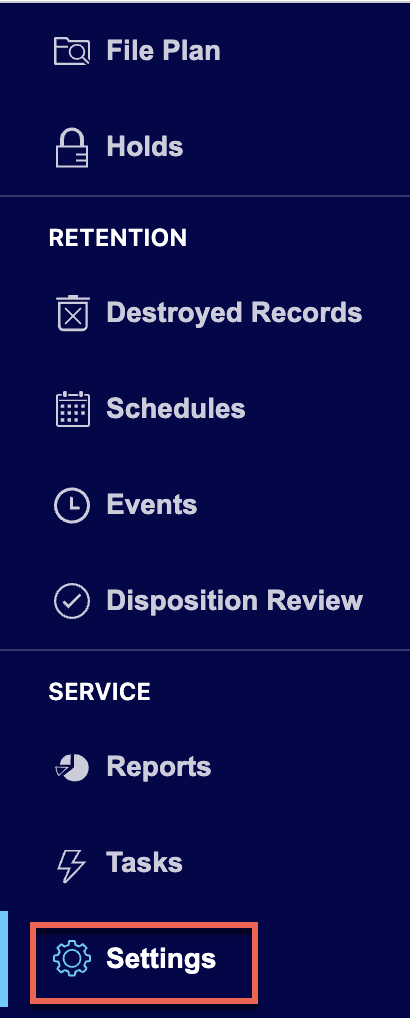
On the Settings page, select Disposition Review Settings.
Figure: Select Disposition Review Settings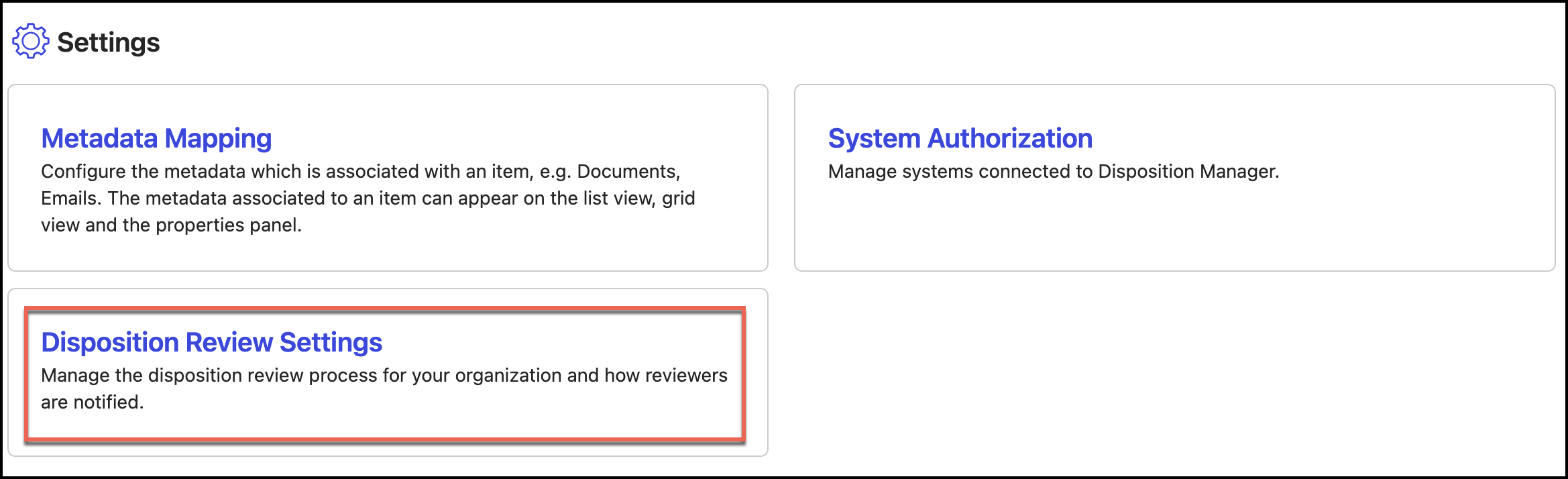
On the Disposition Review Settings page, under Review Mode, select one of the following:
Items are not destroyed until approval is received by an authorized reviewer
Item destruction is pre-approved unless denied by an authorized reviewer
NOTE: Changing this setting after initial configuration may disrupt active workflows. We recommend finalizing your choice during application setup and not changing it.
Select Update Settings and then select Yes, Save to update the review mode settings.
In the left view pane, under Retention, select Disposition Review.
Figure: Select Disposition Review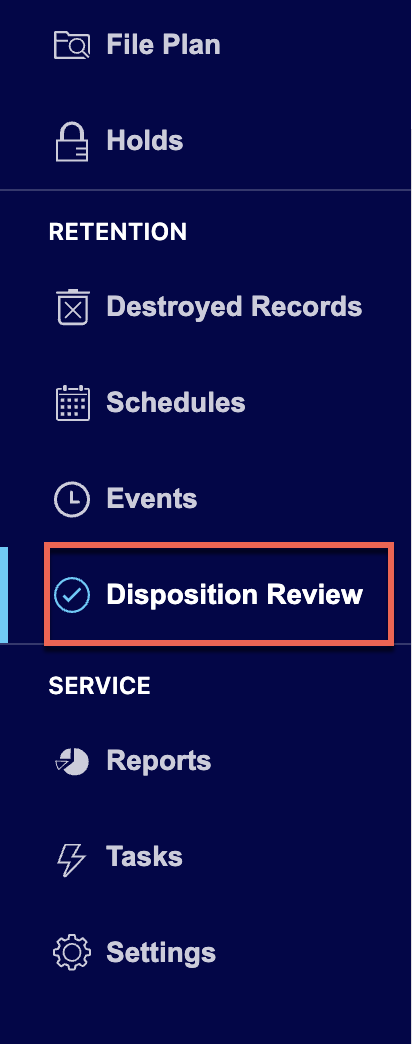
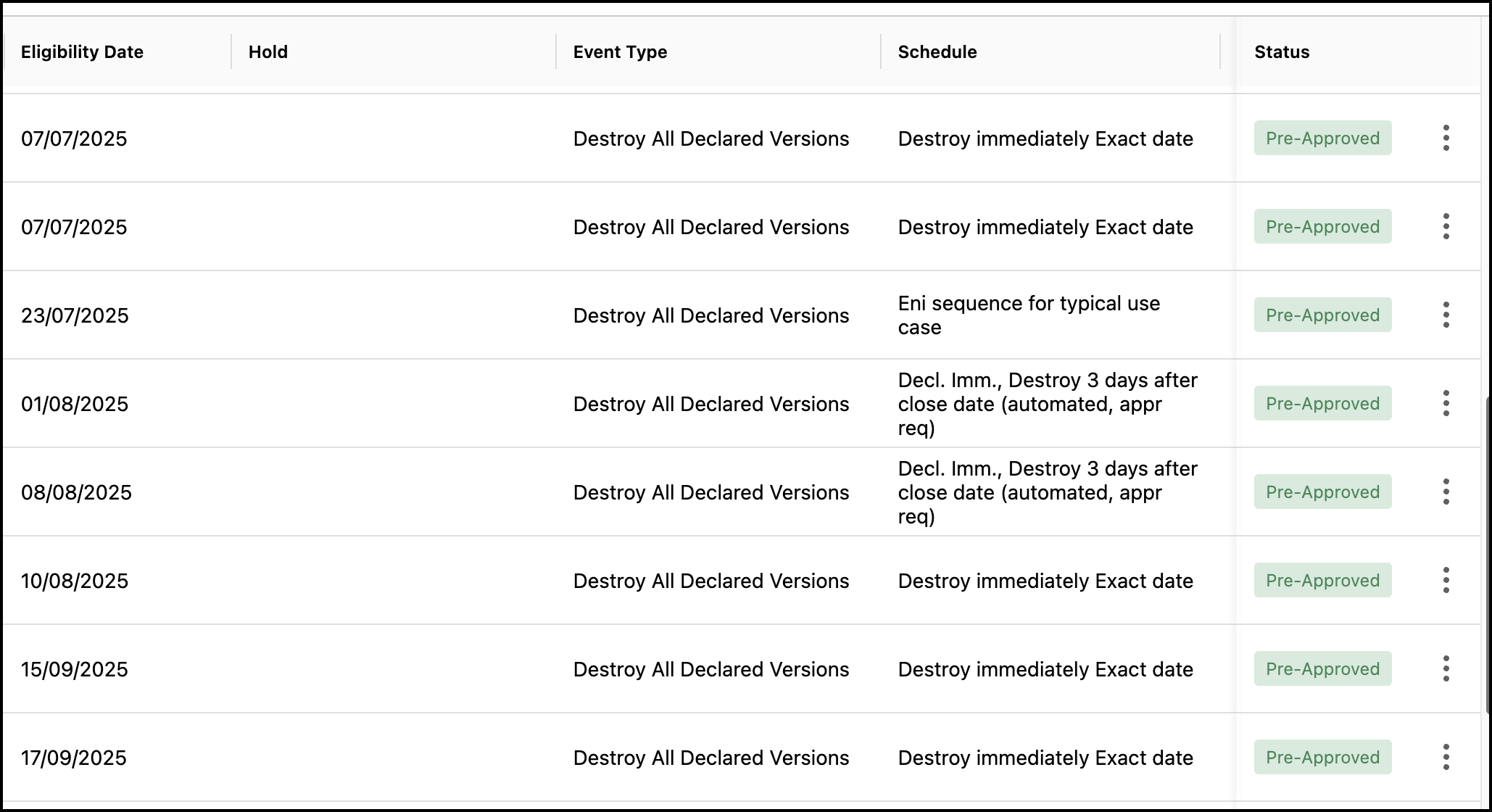
When the Items aren't destroyed until approval is received by an authorized reviewer option is selected, the status of the tasks for which review is required changes to Pending on the Disposition Review page as shown in the following figure. Authorized reviewers have to approve the tasks for the records to be destroyed. Records Managers can also approve the tasks, if needed.
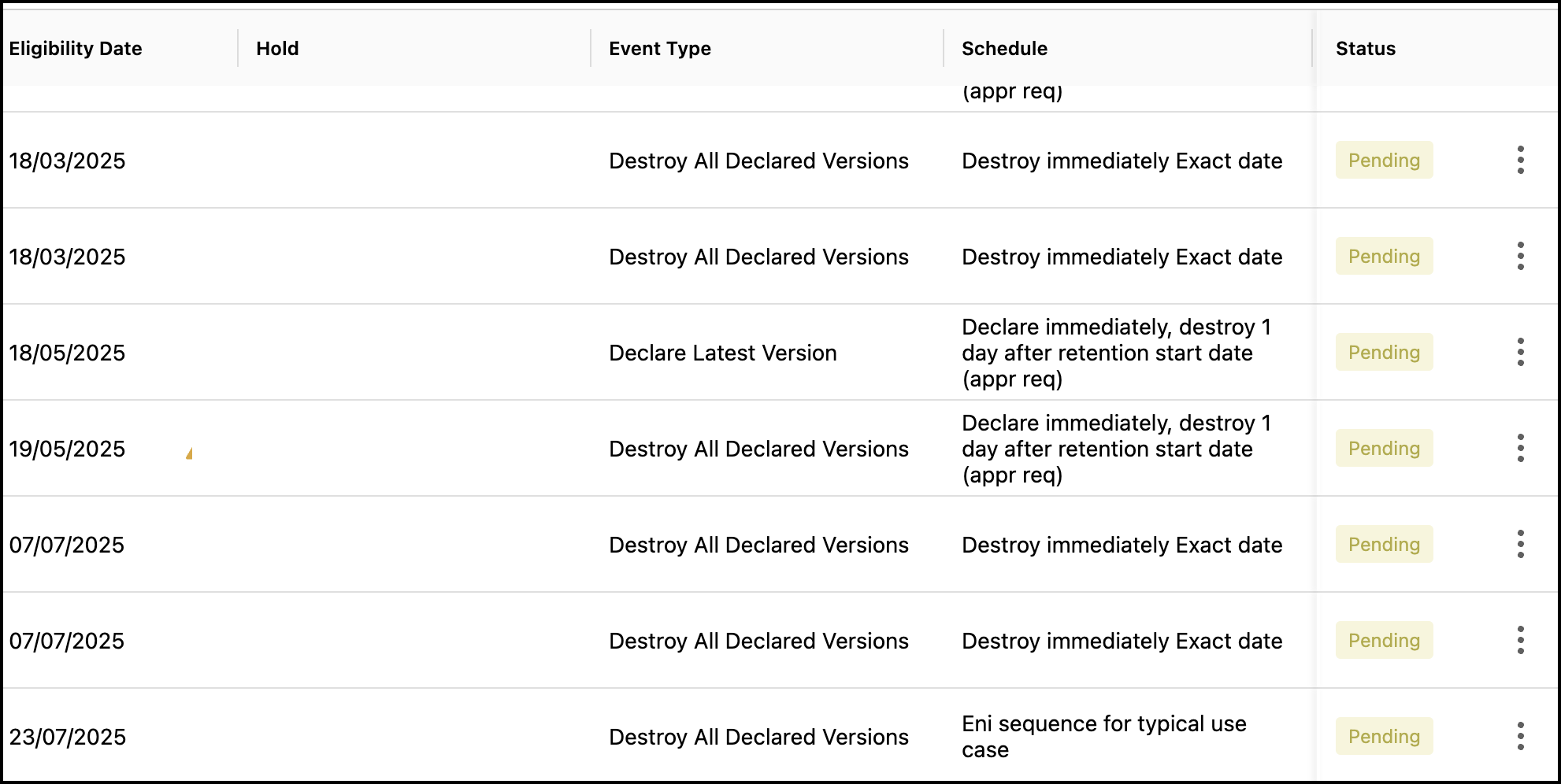
When Item destruction is pre-approved unless denied by an authorized reviewer is selected, the status of the tasks for which review is required and which are eligible for destruction changes to Pre-approved on the Disposition Review page as shown in the following figure. Authorized Disposition Reviewers and Records Managers can deny the tasks. If the tasks aren't denied, then the destruction task will be executed.