All the navigational elements listed here are configurable through the iManage Insight+ Administration page in iManage Control Center.
iManage Insight+ landing page
NOTE: This feature is organization specific. To request this feature, contact the iManage Insight+ administrator in your organization.
In this section, you can familiarize yourself with the various navigation elements on the iManage Insight+ landing page.
Your administrator can configure a landing page for the iManage Insight+ application, which will help you browse to particularly important content, or content organized around specific teams of practice groups. This browse interface is important for many knowledge lawyers like you, who either want to see the full extent of materials in a specified area, or who are looking for something specific.
The landing page works by displaying a browsable interface connected to a specific taxonomy field, such as Practice Group, Topic, and so on.
NOTE: Landing page is an optional feature and you may or may not see this page when you sign into iManage Insight+ application based on whether it's been configured for your organization or not.
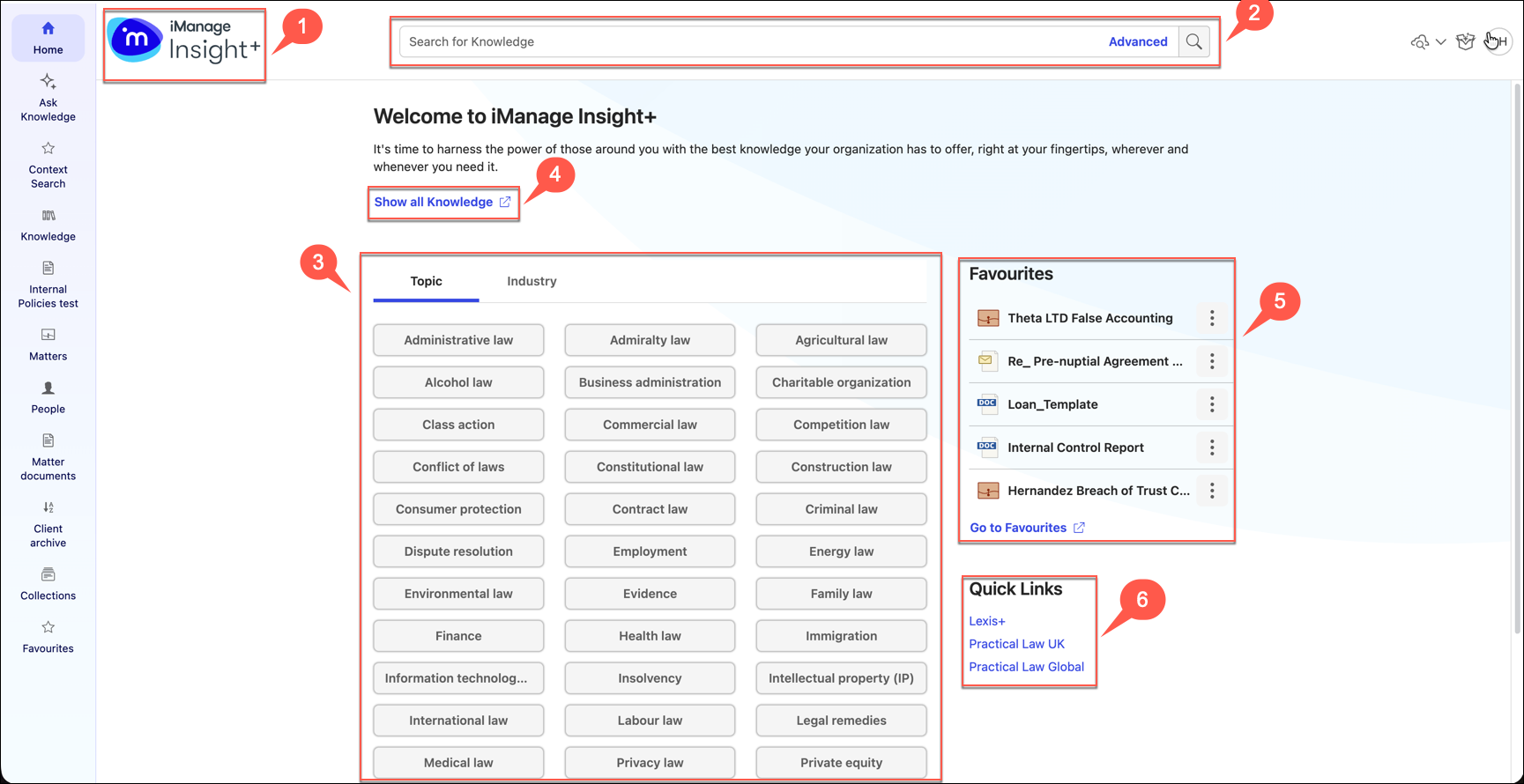
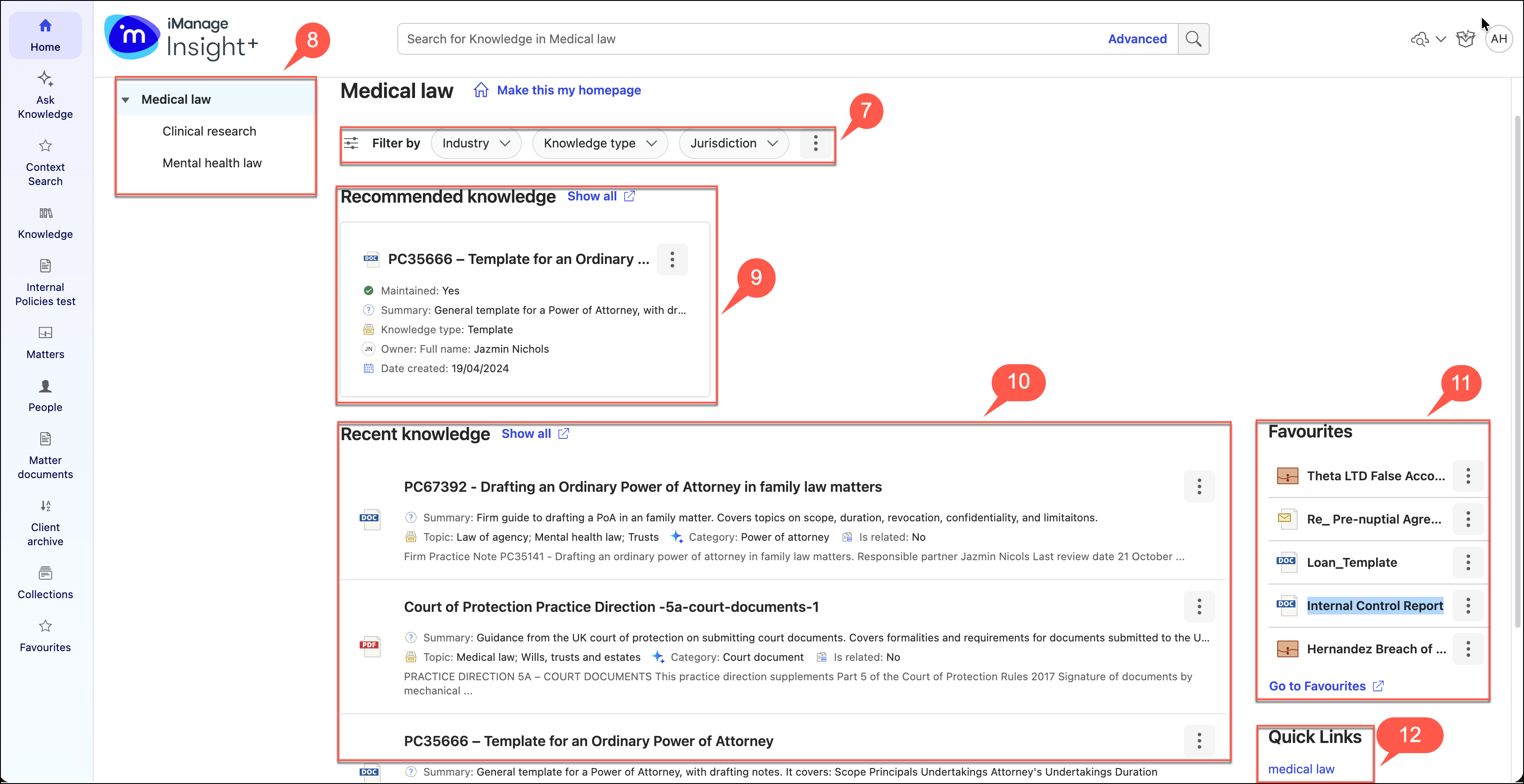
Table: iManage Insight+ landing page interface elements
No. | Element | Description |
|---|---|---|
1 | Product logo | The product logo in the upper-left corner of the page functions as the reset option. Selecting the logo clears the active search query, removes all filters selected, and resets the page to its default state. |
2 | Basic search field Advanced search field | The basic search field enables you to enter an exploratory search query. You can add multiple search phrases connected by Boolean or proximity operators as well as wildcards. The search is carried out in the search tab configured. |
The Advanced search field provides you with some preconfigured search parameters that help you build a search query that is more suited to your requirements. The search is carried out in the search tab configured. Figure: Advanced search fields 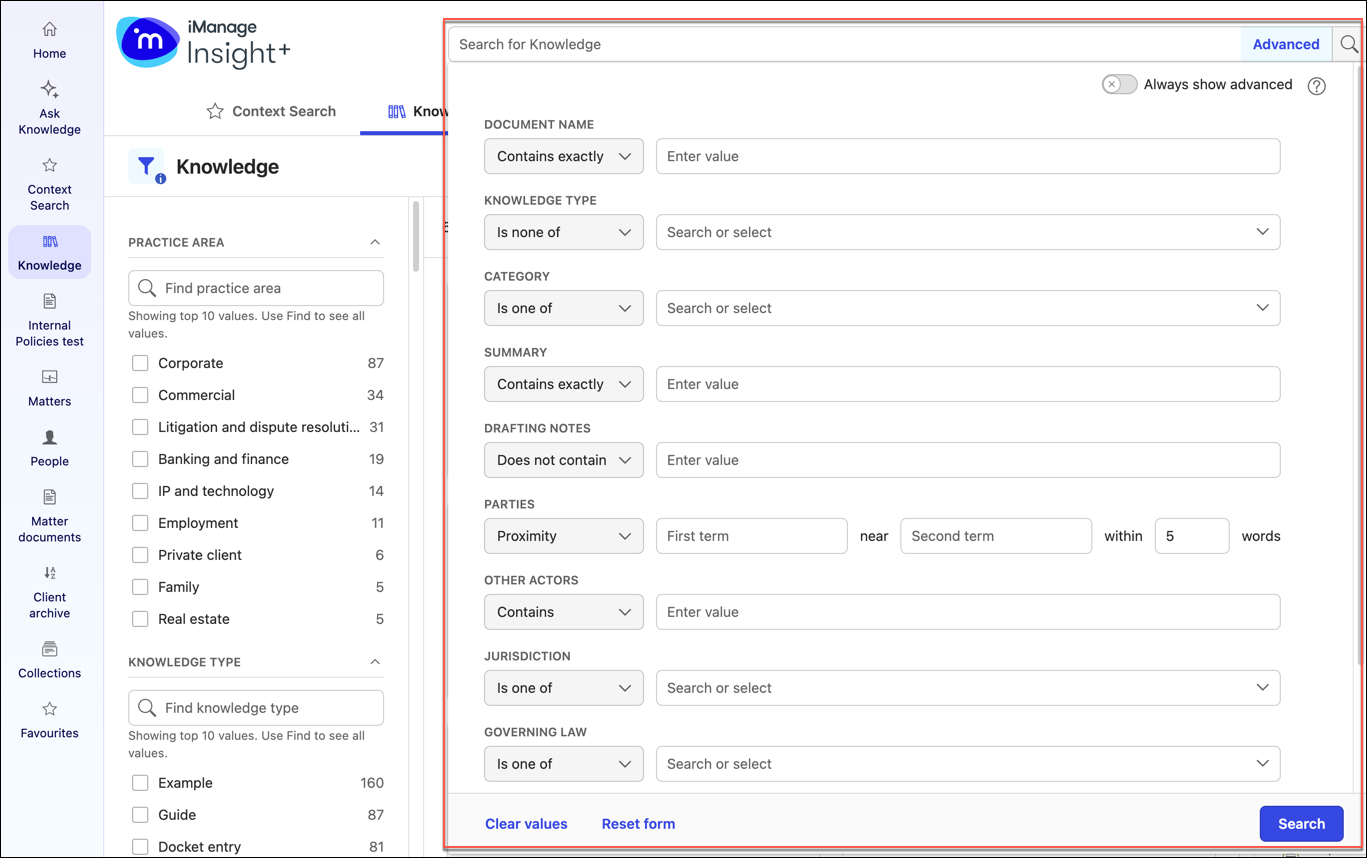 | ||
3 | Taxonomy | The dual taxonomies section (if configured by your administrator) displays all the properties that are relevant to the root taxonomy property and allows you to select any one of the listed properties to display documents that are related to that property. In this example, Legal topic is the root taxonomy and all the sub-category properties are displayed under it. Your administrator configures the root taxonomy property in the iManage Insight+ Administration interface. For more information on dual taxonomies, refer to Configuring dual taxonomies. |
4 | Show all <search tab> | Show all <search tab> displays the default search experience within which the search query will execute. In this example, documents will be searched within the Knowledge library. Your administrator configures the default search tab in the iManage Insight+ Administration interface. Selecting the link will browse you to the Knowledge tab in the iManage Insight+ search interface. |
5 | Favourites on Landing page | Displays all documents, folders, or links marked by you as favourite. |
6 | Quick Links | You can view a list of links to external websites here. This feature enables you to quickly reference any information that is available outside iManage Insight+. Your administrator configures the links in the iManage Insight+ Administration interface. |
7 | Filters | Displays filters as set by your administrator, or the additional filters selected by you. |
8 | Taxonomy property tree | Based on the search query or taxonomy selection, the taxonomy page tree is displayed in the left pane and as links under the taxonomy name. You can refine or revisit your selection by selecting from the tree or links. The displayed results will change based on your selection. |
9 | Recommended knowledge | The Recommended Knowledge pane displays documents that you'd normally search for. For example, if you normally look for documents that have the field “Promoted” set, then under Recommended knowledge, you'll view only documents that are set as “Promoted”. Your administrator configures the Recommended knowledge setting with a specific field in the iManage Insight+ Administration interface. |
10 | Recent knowledge | The recent knowledge pane displays the documents that you most recently referred to for the entered search query and/or taxonomy. Selecting Show all link will browse you to the iManage Insight+ search interface and displays all the documents that you referred to for the entered search query and/or taxonomy. |
11 | Favourites on Sub-landing page | Displays all documents, folders, or links marked by you as favourite. |
12 | Quick Links | Displays list of external websites that your administrator would have set up for the particular taxonomy. |
You can set a sub-landing page as your home page by bypassing your organizations landing page.

Selecting Make this my homepage sets the current sub-landing page as your home page and this selection is persisted across user sessions and browsers, but not across different devices. If you wish to default your home page to the organization's landing page, select Remove as my homepage.
When a sub-landing page is set as a home page, the color scheme of the landing page is applied to the sub-landing page to indicate that it’s selected as the landing page.
Filters on the sub-landing page
The filters on a sub-landing page help you sort your content accordingly so that you can find the knowledge needed on a particular page with ease without having to always select through a search page. These filters are applicable to recent and recommended knowledge.

NOTE:
The filters are displayed on the sub-landing pages only if they are turned on by your administrator.
iManage Insight+ search interface
In this section, you can familiarize yourself with the various navigation elements in the iManage Insight+ search interface.
If your administrator hasn’t configured a landing page for your iManage Insight+ application, then after you sign in, you'll be navigated to this page directly.
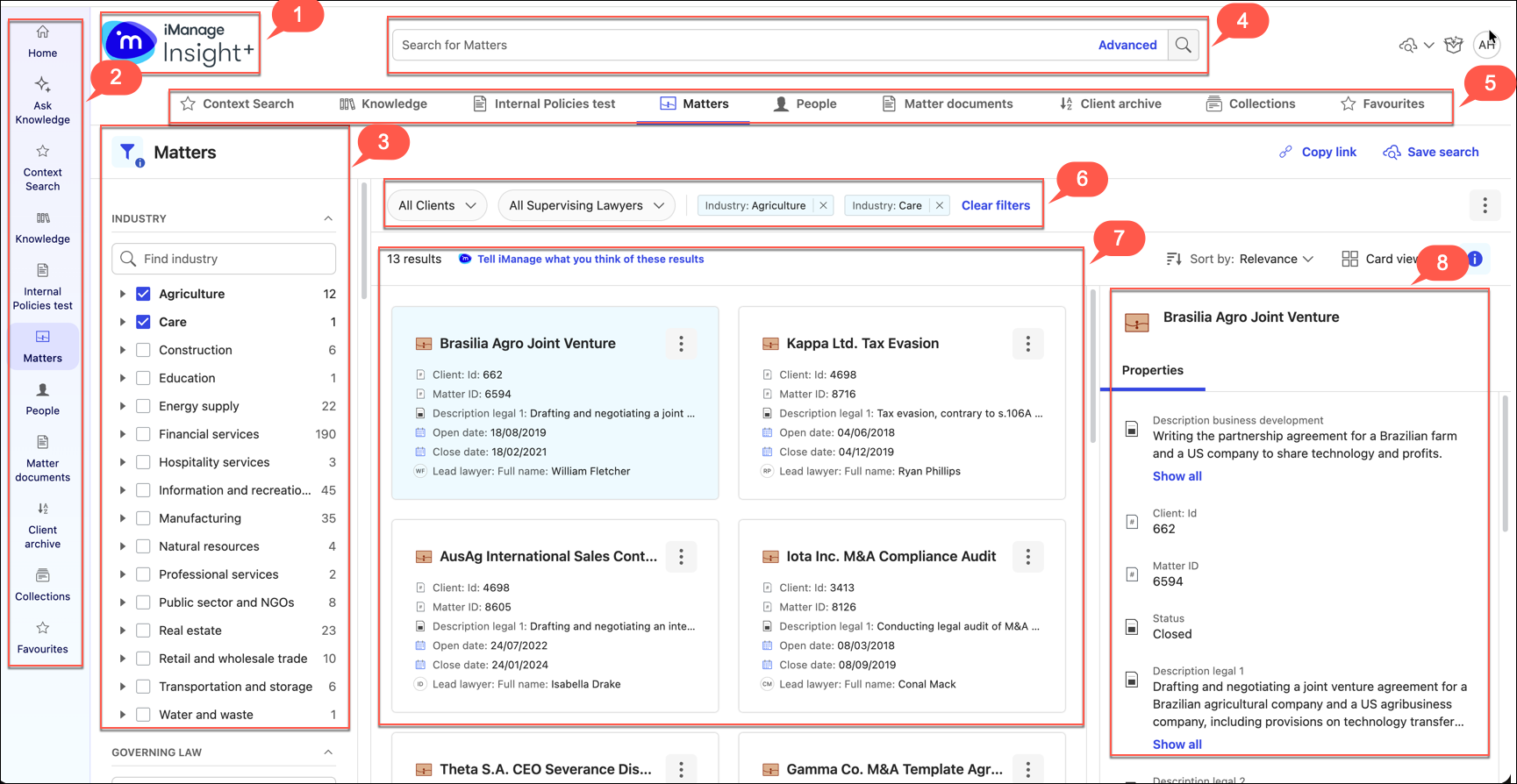
Table: iManage Insight+ search interface elements
No. | Element | Description |
|---|---|---|
1 | Product logo | The product logo in the upper-left corner of the page functions as the reset option. Selecting the logo clears the active search query, removes all filters selected, and resets the page to its default state. If the landing page is available for iManage Insight+, then selecting this logo will browse you to the landing page. Your administrator configures the landing page in the iManage Insight+ Administration interface. |
2 | Navigation bar | Displays all tabs configured by your administrator for ease of searching documents, emails, and knowledge documents. |
3 | Facets | Facets help narrow down your search results by applying filters based on document attributes. Facets can be used in any combination. Your administrator configures facets in the iManage Insight+ Administration interface. |
4 | Basic search field Advanced search field | The basic search field enables you to enter an exploratory search query. You can add multiple search phrases connected by Boolean or proximity operators as well as wildcards. |
The Advanced search field provides you with some preconfigured search parameters that help you build a search query that is more suited to your requirements. Figure: Advanced search fields | ||
5 | Tabs | Tabs help categorize content and act as filters to refine the search within content that falls into a category. For example, if a tab for emails is defined and you select that tab, then the application searches only for emails and ignores other document types. Your administrator configures these tabs in iManage Insight+ Administration interface. |
6 | Facet search pills | The facets that you select or search for, to refine the search results, are displayed above the search results section, as pills, for your reference. |
7 | Search results section | The search results section displays the list of documents matching the search query you entered. In addition to the document name for each document in the search results section, you can view certain preconfigured metadata and snippets of the documents where the search phrase is referenced. |
8 | Properties panel | The Properties panel provides you with another view of the metadata configured for a document. Additionally, you also have the option of navigating between the different versions of a document (if any) and accessing a quick preview of the document in the side pane. |