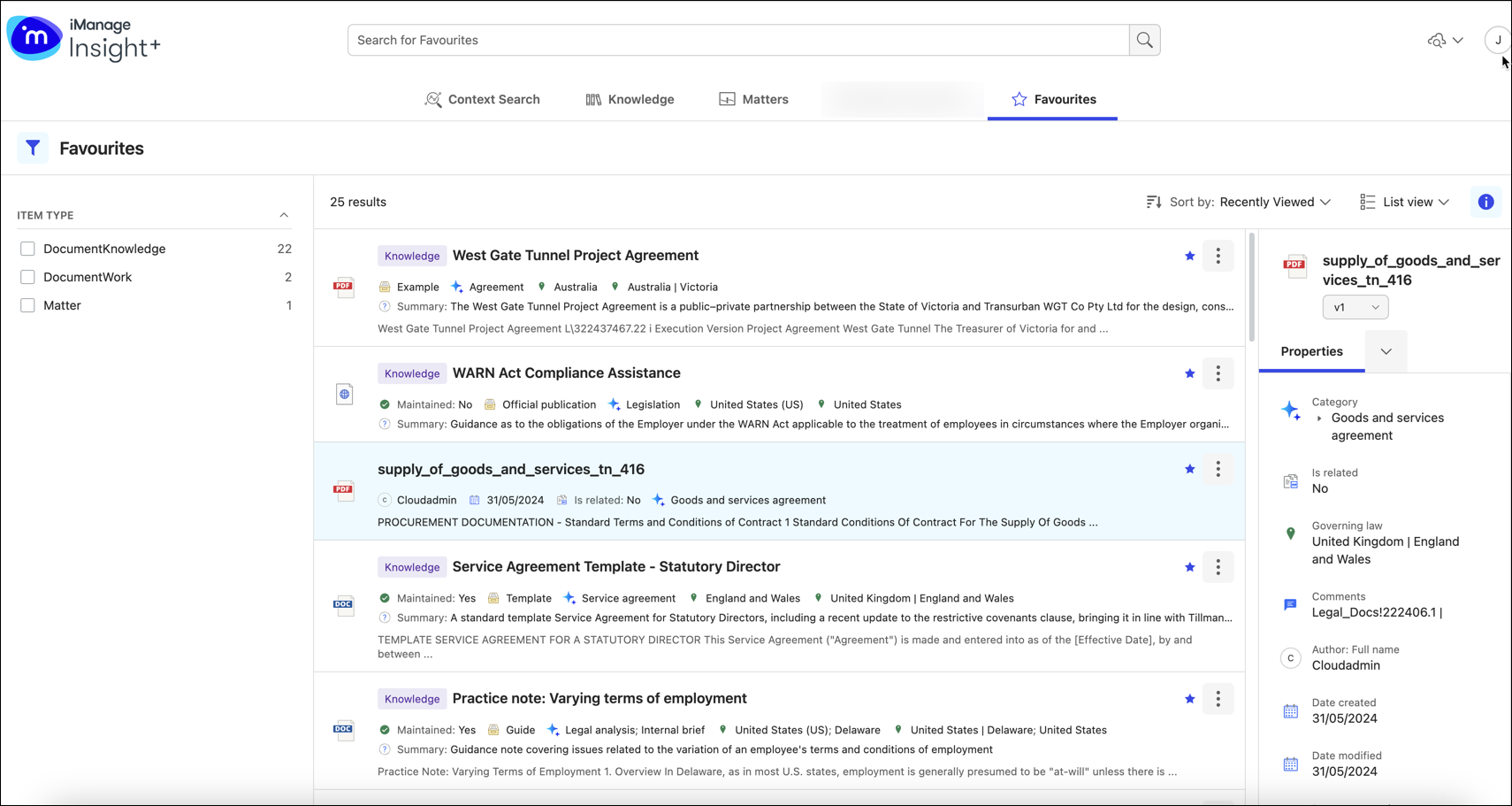
Easily locate your frequently used documents and matters in Insight+ by adding them to favorites. Any document or matter can be added to favorites, and when added they’re available on the Favorites tab.
NOTES:
The maximum number of items that can be added as favorites is 100.
Favoriting a document is at version level.
Documents added to favorites in iManage Work and documents added to favorites in iManage Insight+ aren't related.
To add an item to favorites:
On the Knowledge, Matters, or Documents tab:
Select your preferred document.
On the right-click menu or the kebab menu, select Add to Favorites.
Alternatively, select the star icon available on the card.Figure: Adding an item to Favorites in Insight+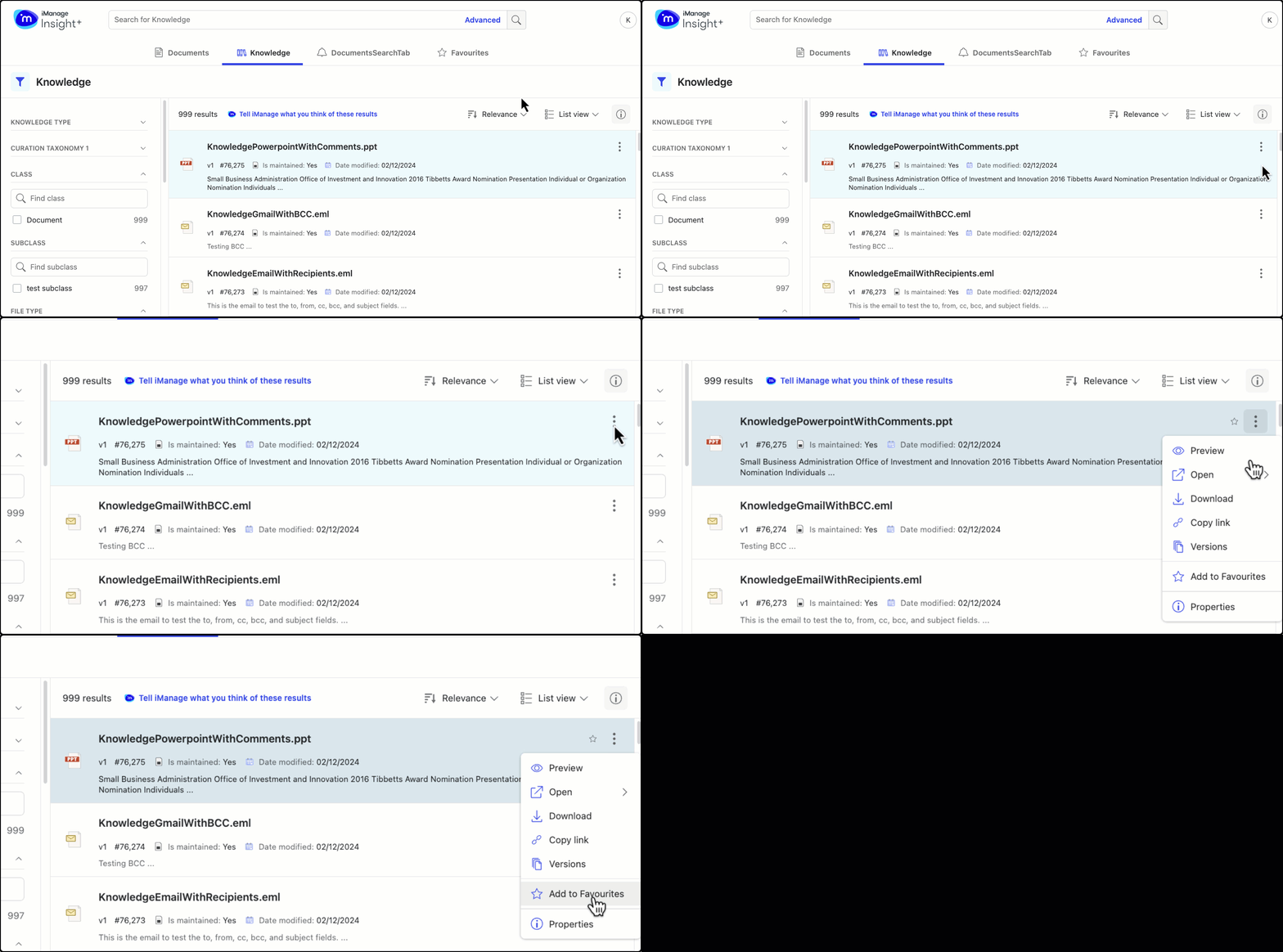
On the document Preview page:
Open your preferred document on the Preview page.
Select the
 icon present on top of the page. Alternatively, select More > Add to Favorites.Figure: Adding a document to Favorites from document Preview page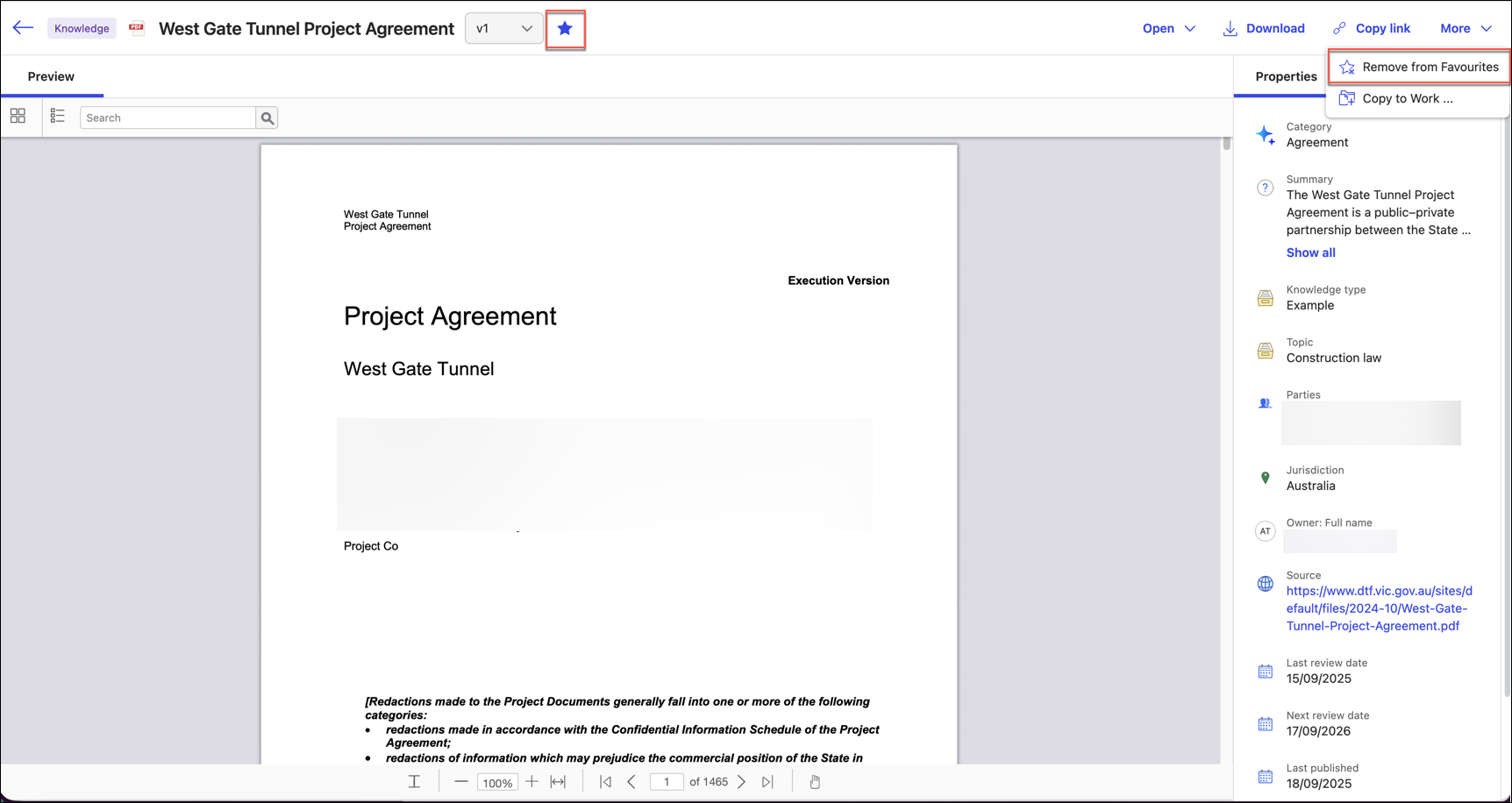
To unfavorite a document, select More > Remove from Favorites on the document Preview page.
After adding an item to Favorites, do the following to find the item:
Perform a simple search and then filter by the item-type facet.
Figure: Searching for Favorites in Insight+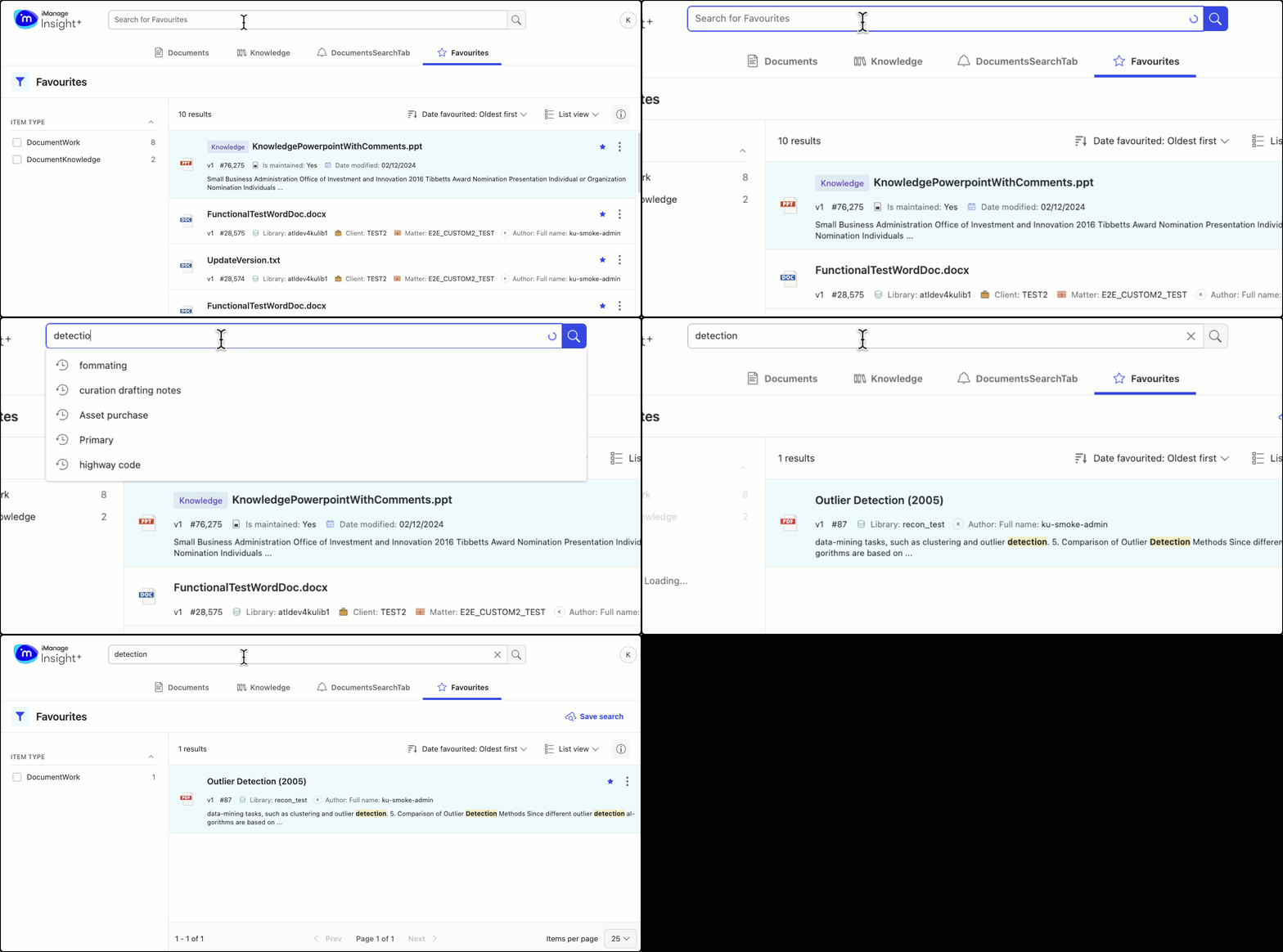 Figure: Using facets for Favorites in Insight+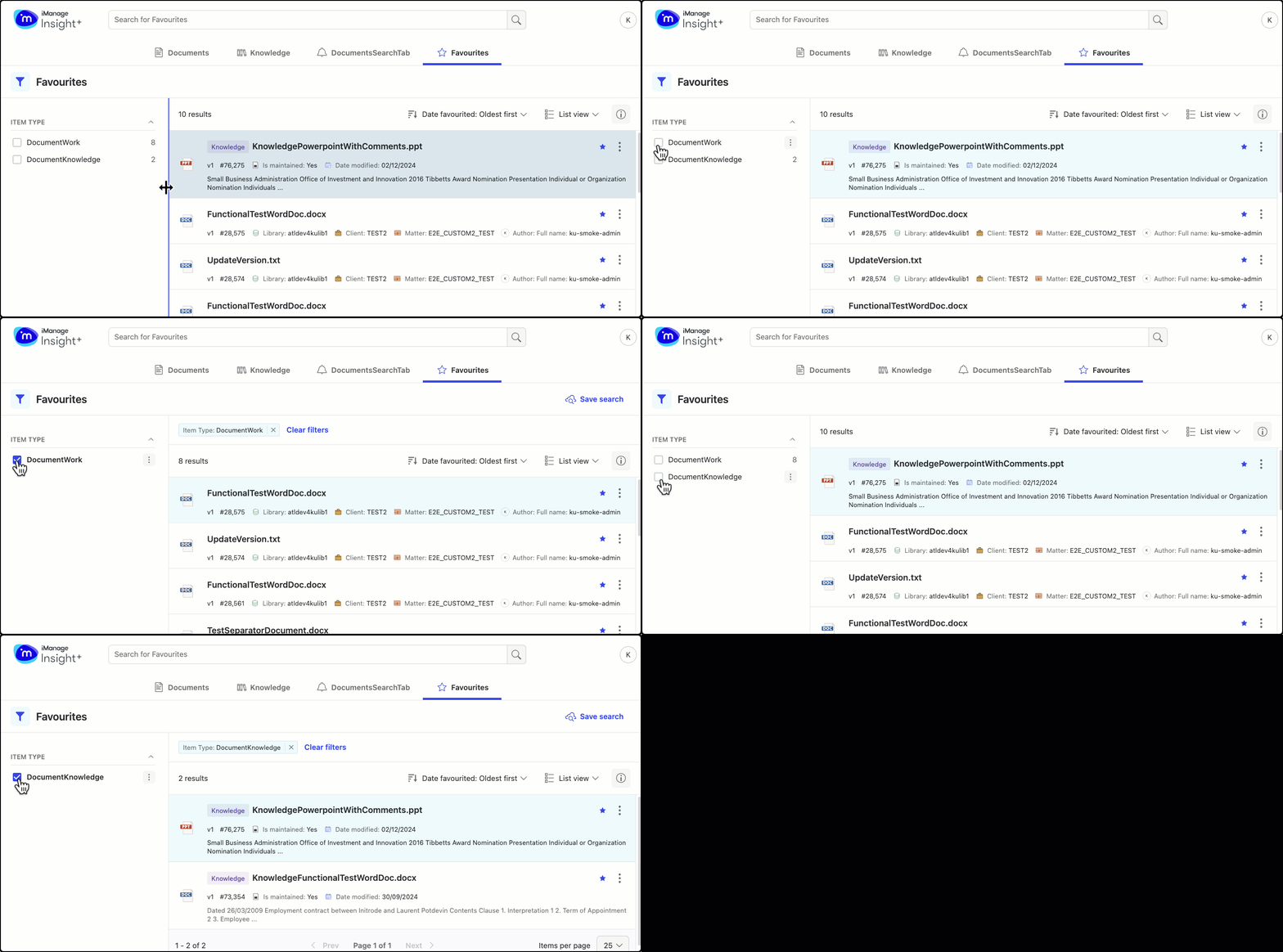
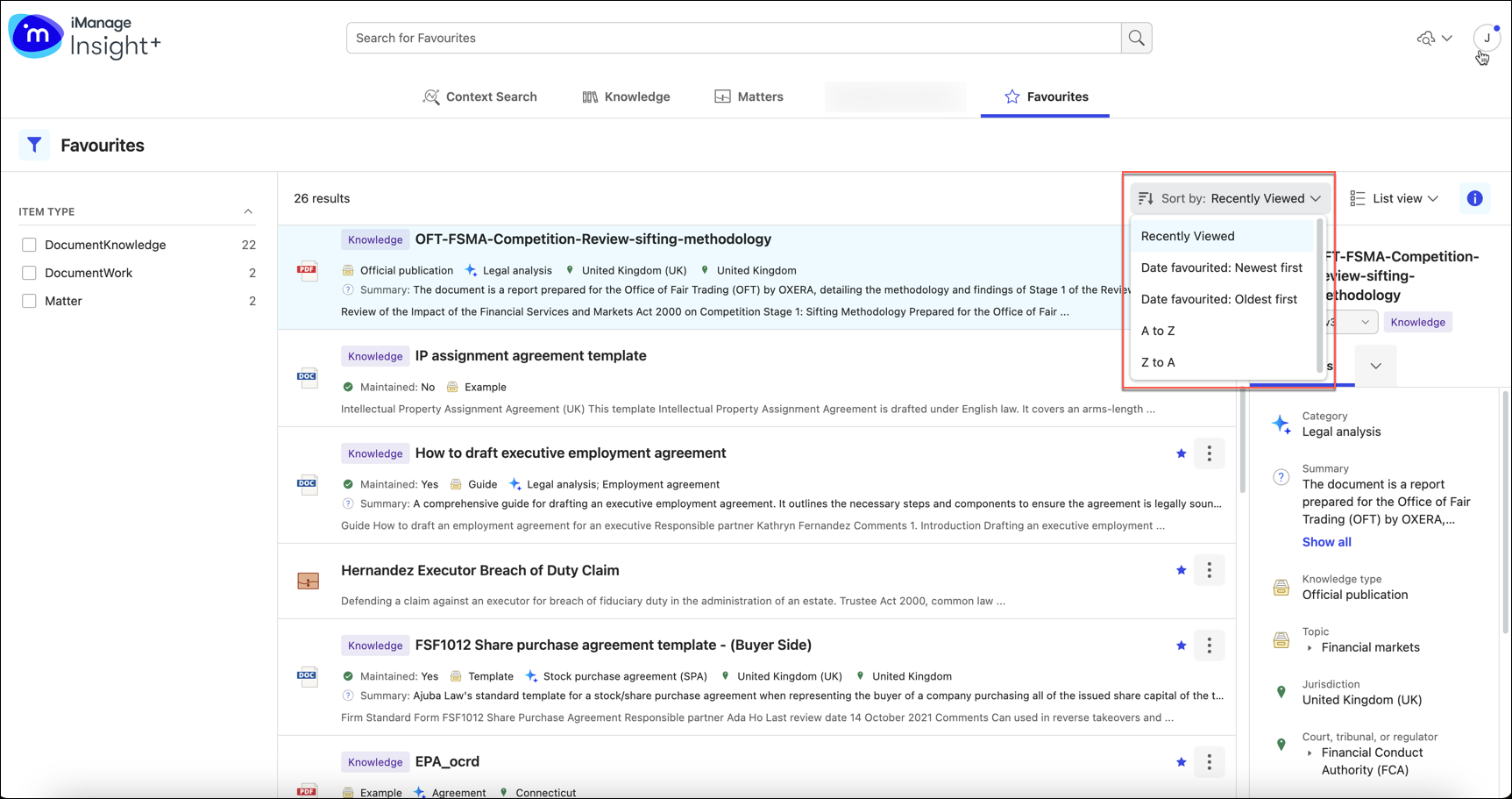
Sort favorites using any of the following sort-order options in the drop-down list:
Recently viewed: Displays favorite items viewed from anywhere, not just the Favorites tab.
Date favorited:
Newest first displays items that were recently added to favorites.
Oldest first displays items that were added to favorites some time back.
A to Z: Displays favorite items A to Z in alphabetical order.
Z to A: Displays favorite items Z to A in alphabetical order.
When you browse directly from one of the Search experiences, your favorites are displayed in the order of Date Favorited: Newest first by default.
NOTE: Sorting favorites by Recently viewed behavior:
When you favorite a new document from the Preview page, it won’t show as recently viewed.
When you view a document on the Preview page, already marked as favorite, it’ll be marked as recently viewed.