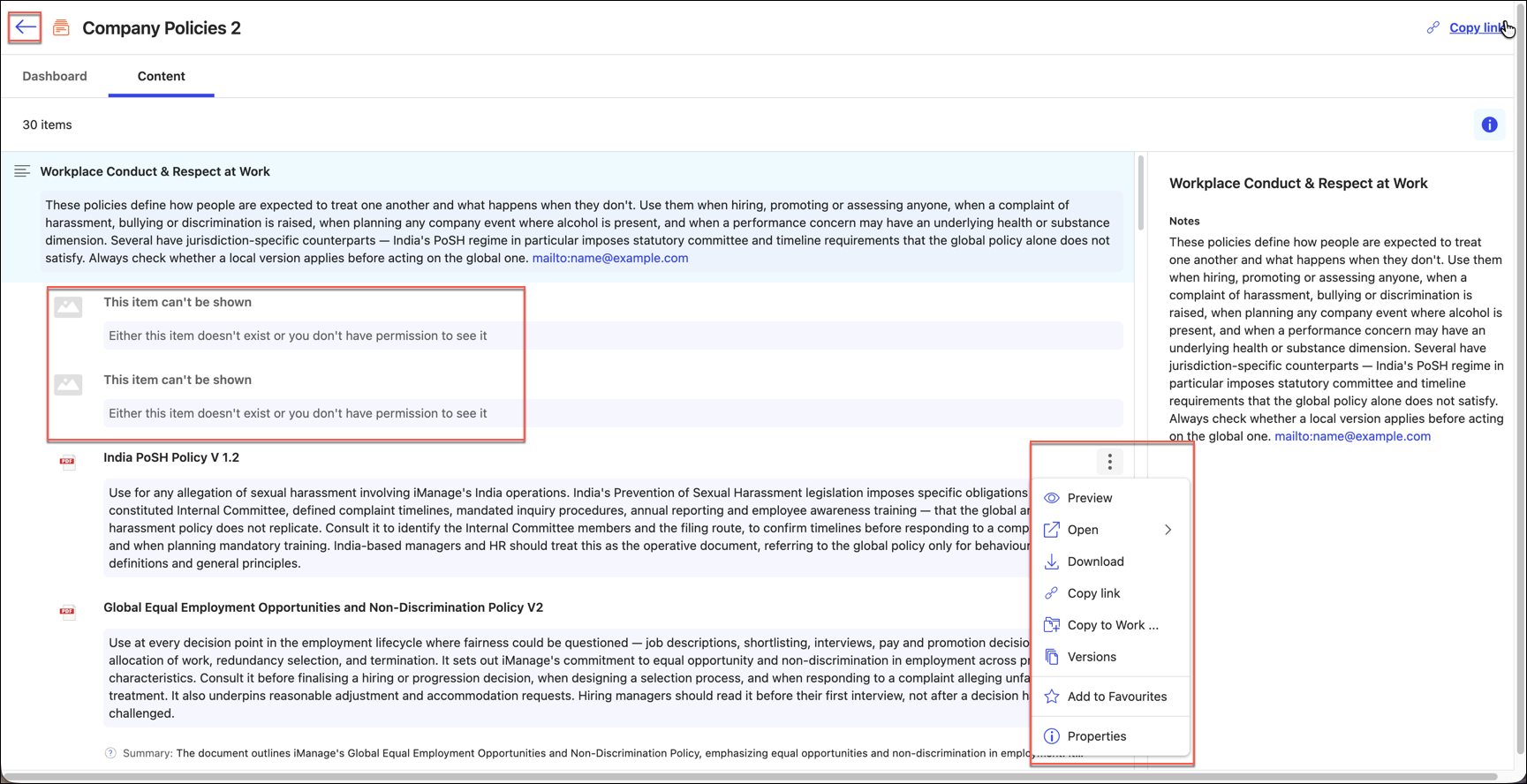
The Collections tab lets you search, filter, and view the Knowledge Collections published for your user profile. You can refine results using the available filters, save your preferred filters as defaults, and view the properties of a collection.
View the Collections
Select the Collections tab.
All Knowledge Collections created and published for your user profile get displayed. For more information on how User profiles and filters work, refer to Search using admin-set default filters.You can use the filters on the left hand side facet—for example, Practice Area, Jurisdiction, Global, and Create Date, to narrow down the collections displayed.
Select a Collection to view its Properties on the right hand side panel.
Select Copy link to copy a direct link to be shared, or Save search to save your search criteria for later use.
You can use the Items per page drop-down at the bottom of the results page to control the number of Knowledge Collections that are displayed per page. Select Prev or Next to move between pages if there are more results than what could fit on the current page.

Select the Search bar to search by keyword, or select Advanced for other search options.
For more information on how to search, refer to Searching content using the search interface and Understanding how document search works.
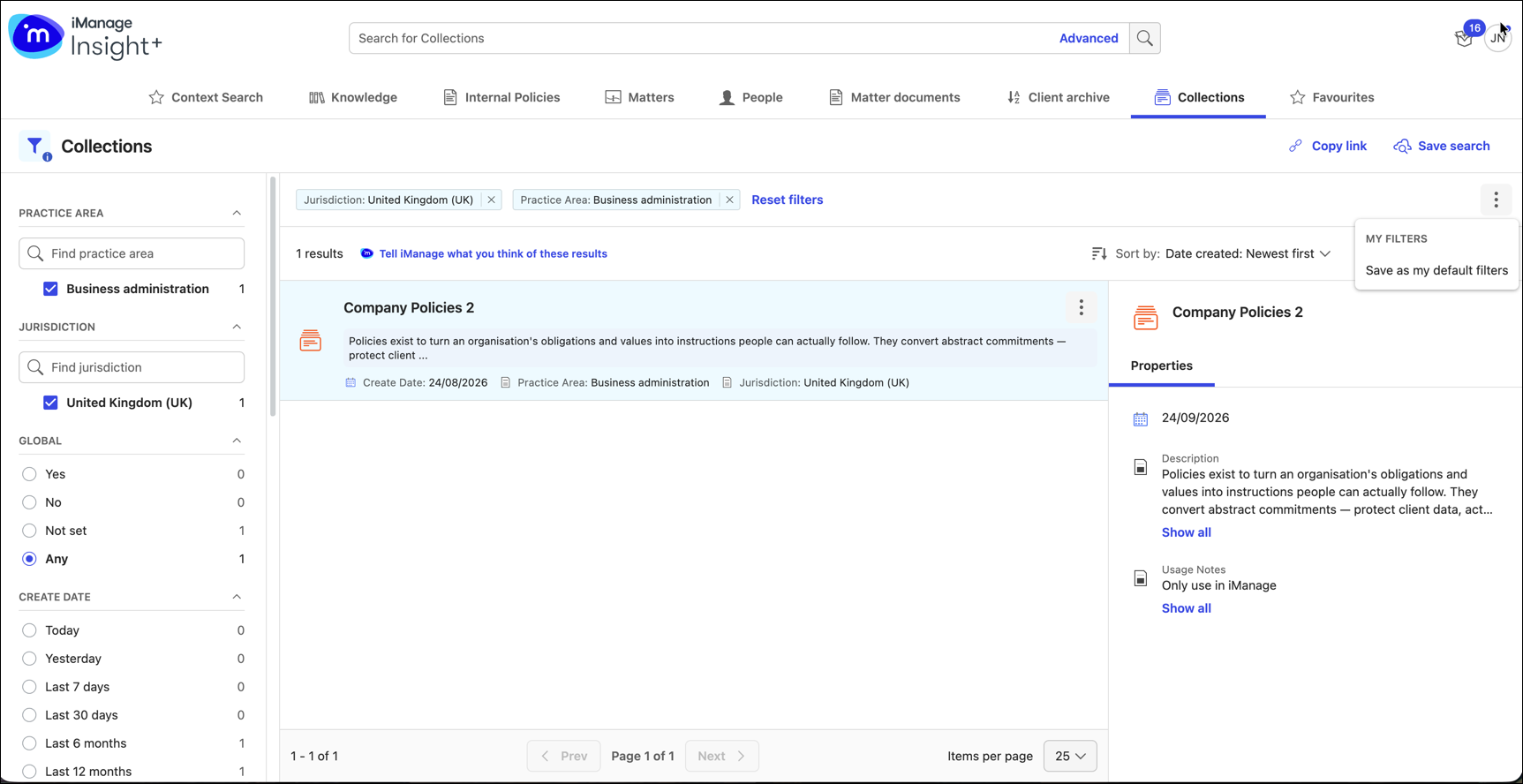
Collection option menu
Select the three dots  icon next to a collection or right-click the content menu to access the following options:
Collection dashboard: Displays the collection description (if set by the administrator), and properties.
Collection content: Takes you directly to the documents, quick links, groups created within the collection.
Copy link: Lets you copy a direct link to the collection.
Properties: Displays the collection description, date created, usage notes, and other metadata values.
Collection Dashboard and Content
Select a collection to open the Dashboard.
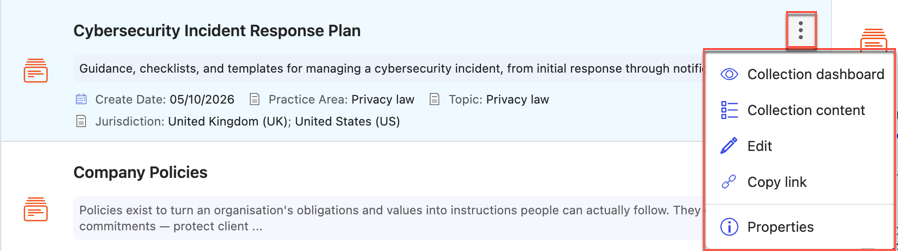
By default, the collection opens to the Dashboard tab. The dashboard provides the summary of the collection metadata values, descriptions, and usage notes.Select the Content tab to view the collection contents.
Displays all documents within the collection, along with their metadata, organized under groups (if any), and quick links.
All documents within a group are visible and accessible, unless a document is deleted or its access is restricted by the administrator for that user or user profile.
For such documents, the following message is displayed:
"This item can't be shown. Either this item doesn't exist or you don't have permission to see it"
For more information about how deleted or restricted documents work, refer to Knowledge Administrators and Restricted and secured documents.Select the three dot menu
icon next to a document to access the options displayed in the following table:
Tasks | Descriptions |
|---|---|
Preview | Open the document in the preview mode on the Preview page. |
Open |
|
Download | Save a copy of the selected version on your local device. |
Copy link | Copy the document URL and then share it with the concerned person through any of the communication tools. This is the link to the most recent version of the Knowledge document. |
Copy to Work | Copy and save only Knowledge documents to your preferred active library. |
Versions | Open the list of the document versions in the Versions panel. A document can have more than one version saved in the repository. iManage Insight+ provides you with the option to preview specific versions of a document using this option. |
Add to Collection | Add the document to the created Knowledge Collection. |
Add to Favorites | Mark the document as a favorite for quick access. |
Properties
| View document properties in the Properties panel. |
Select the back arrow to return to the Collections search results page.