Simple search lets you search iManage Insight+ for information without specific documents in mind and also locate specific documents when unsure about their details. The most relevant documents, based on your search terms, appear at the top of the results list.
For more details about how search works, refer to:
In the search interface, tabs are displayed and each tab is associated with a content library. When a tab is selected, your search query runs to display the relevant documents available in the associated library:
Documents: The most extensive search tab; it displays searches for all documents in the active library, including Knowledge documents (see below). Knowledge results in the Documents tab are identified by a Knowledge label in front of the document name. This label indicates that the document is a published Knowledge document. Note that this label isn't displayed for results in the Knowledge tab, because they're all Knowledge documents.
Knowledge: Displays searches only for published documents from the Knowledge library, which contains a subset of documents present in the active library. Curation is a process carried out in iManage Work at cloudimanage.com wherein certain documents are collated and marked as representative or best practice. Copies of all such documents are moved to the Knowledge Library, curated, and published. For more details, refer to iManage Insight+ Curation Help. General users will see only published documents in the Knowledge tab results list, but Knowledge Managers or Admins may see documents that are in a pre-published stage, according to their permissions.
Matters: You can search for matters or projects using a simple search by entering the name, description, or ID, rather than a document search as in Everything or Knowledge tabs. For more information, refer to Understanding how matter search works.

How to run a simple search
Enter your query in the search bar.
Figure: Search field
As you enter a search query, the system provides possible suggestions—as well as your recent searches—which you may then select to complete your query quickly.
Figure: Recent searches and phrase suggestions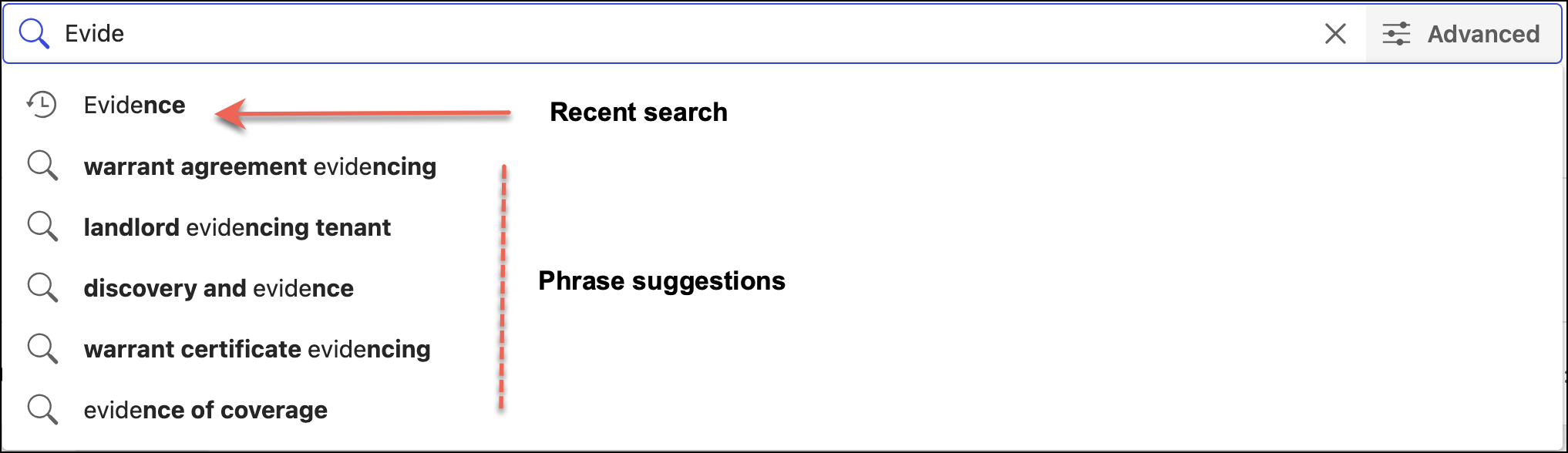
 indicates that the term/phrase was recently used as a search query.
 next to a suggested term/phrase indicates that the term/phrase is a suggestion that the system gives for the query you're entering in the search field.
The
 icon available on the search bar, lets you access handy tips and explanations of common search operators.Figure: Help icon on search bar
Select a suggested phrase or move to it using the arrow keys, and then press Enter/Return on your keyboard. The suggested term is automatically searched for you. If you see a suggested phrase, you know that phrase exists somewhere in the iManage content you have access to.
Figure: Search results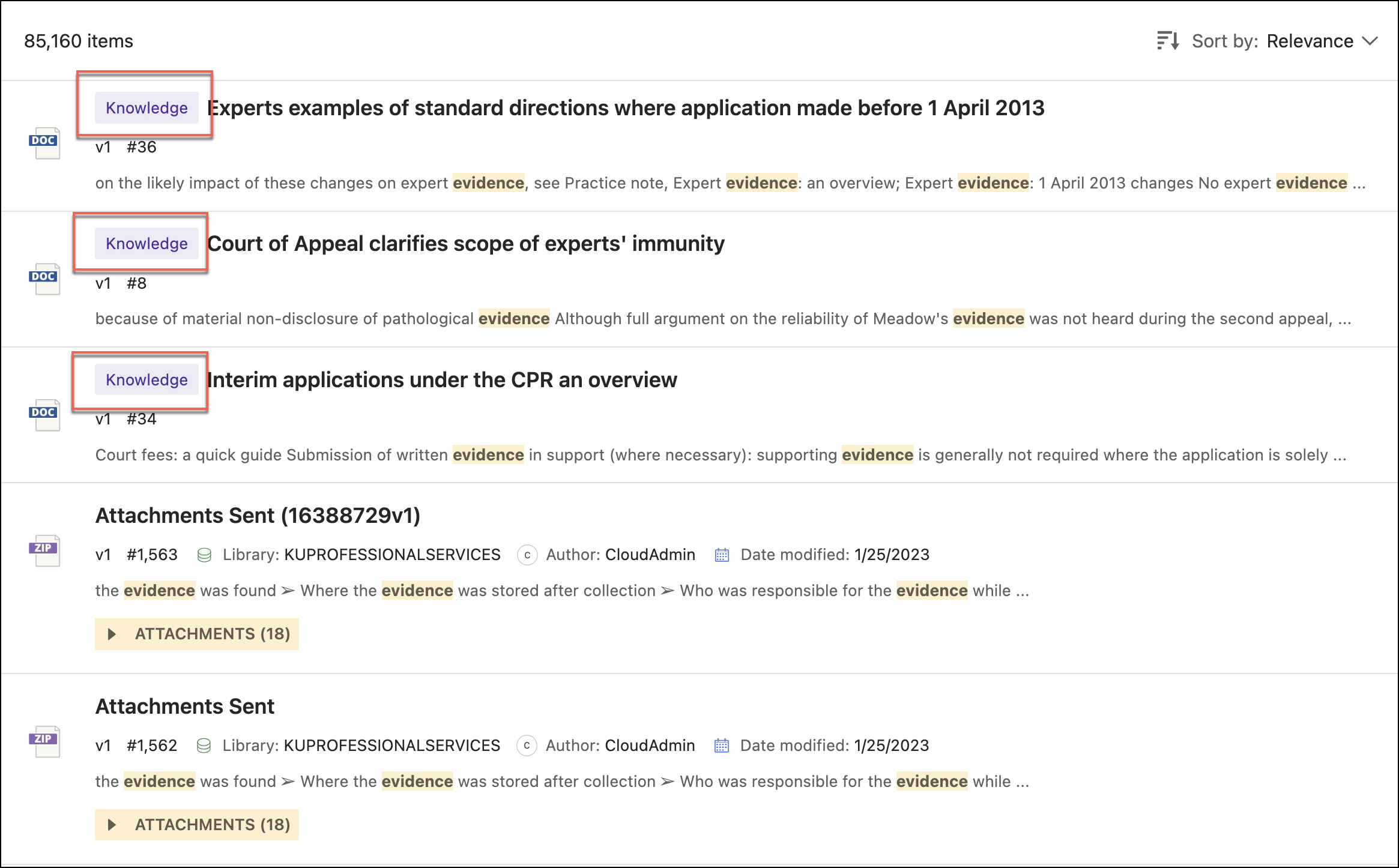
You can deselect your search terms from the simple search bar using the X. The results of that search will still be displayed.
You can then either run a new search, or select on the simple search
 icon to run a blank search, which will return you to the list of all available documents.
If you apply filters to the results without starting a new search (refer to Filtering search results), your original search term will automatically reappear in the search bar. This helps make clear which results are being filtered
If you want to add Advanced search options, you can switch to the Advanced search form to add further criteria. You can then run your search either by selecting the simple search icon, or the Advanced search button.
NOTE:
A document may have multiple versions. The highest version of the document that matches the query is displayed in the search results. This may not be the latest version of the document.
For example, if a document has 4 versions, but the latest (version 4) doesn't match the query while versions 1, 2, and 3 do match, then the search results display version 3 of the document because it's the highest matching.
In the Knowledge tab, given the above example:
If version 4 is the curated and published version of the document, no results will be returned. This is because:
Version 4 doesn't match the query, and
Versions 1, 2 and 3 match the query but aren't published Knowledge documents.
If multiple versions of a document are published as Knowledge documents, the latest version will be the latest published version. Previously published versions may still be returned as results if the latest one doesn’t match the query terms.
You can perform actions related to the search result tile using either the kebab menu or the right-click context menu.
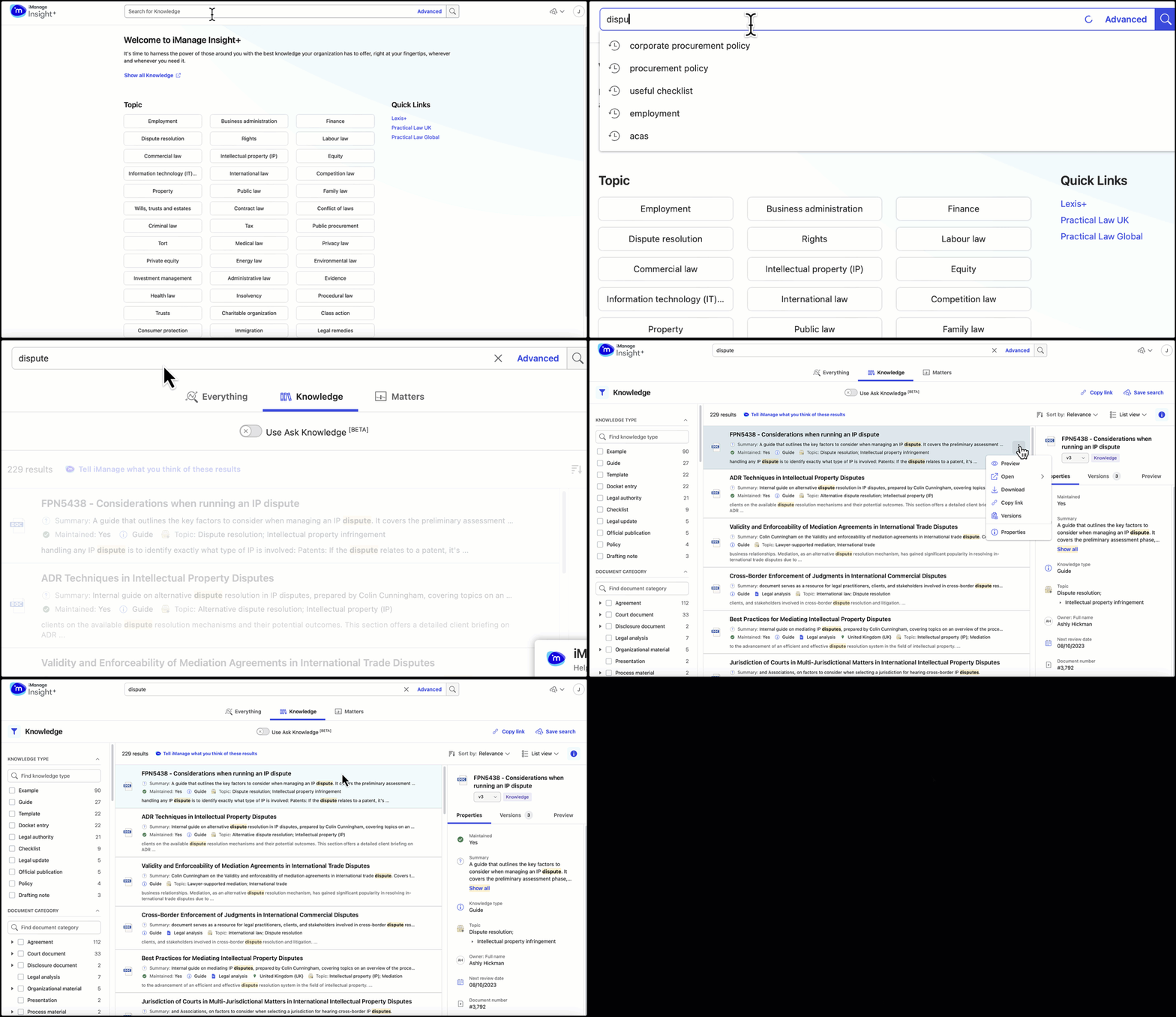
Table: Tasks from a search result tile
Tasks | Description |
|---|---|
Preview | Select the [ |
Open | Select the [
|
Download | Select the [ |
Copy link | Select the [ |
Copy to Work | The Copy to Work option lets you copy and save only Knowledge documents to your preferred active library. |
Versions | Select the [ 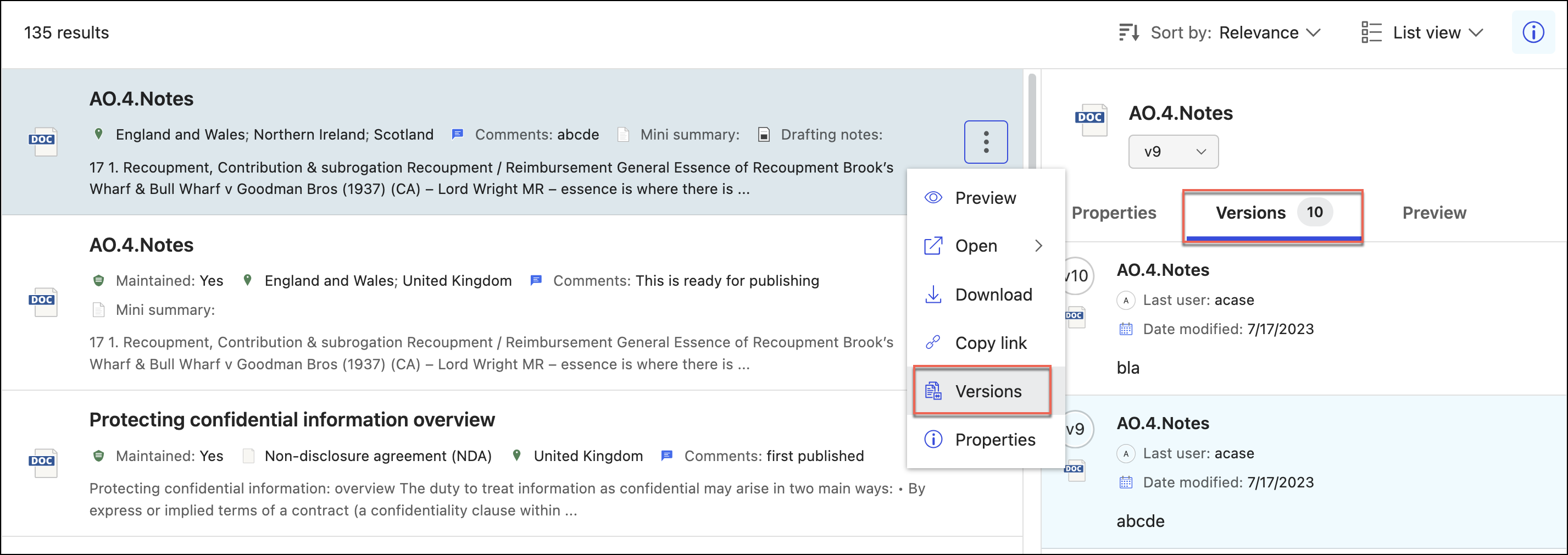 |
Properties | Select the [ 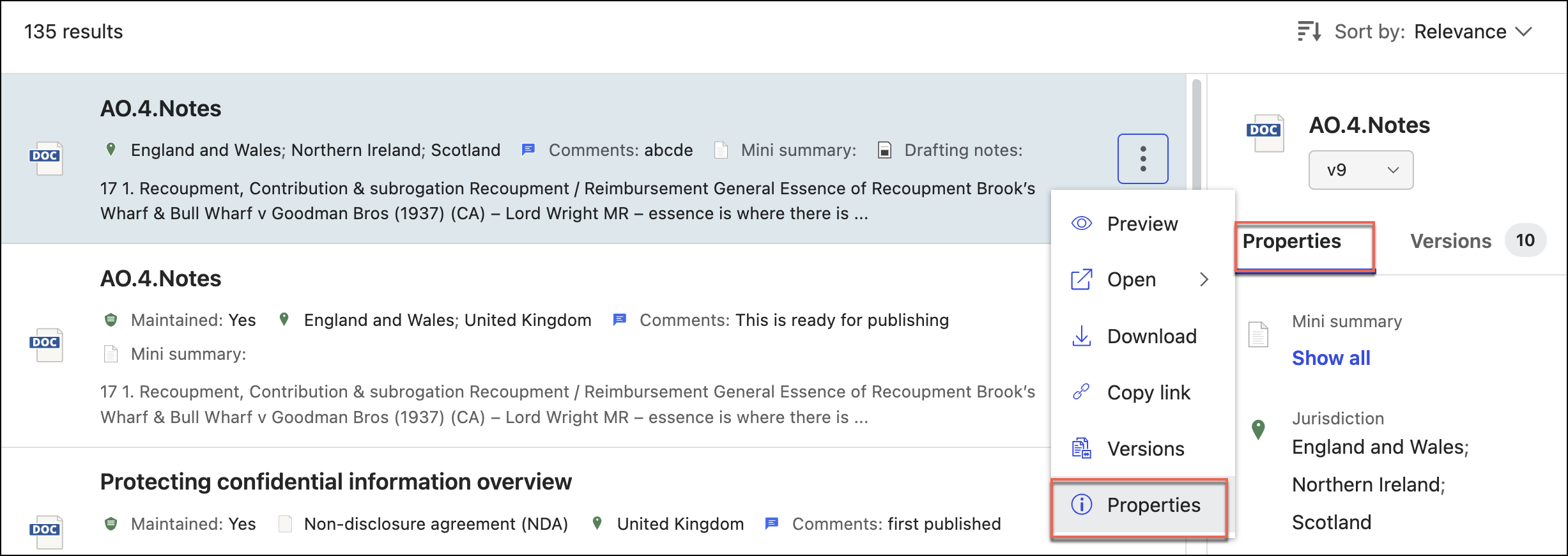 |

How to run a matter search
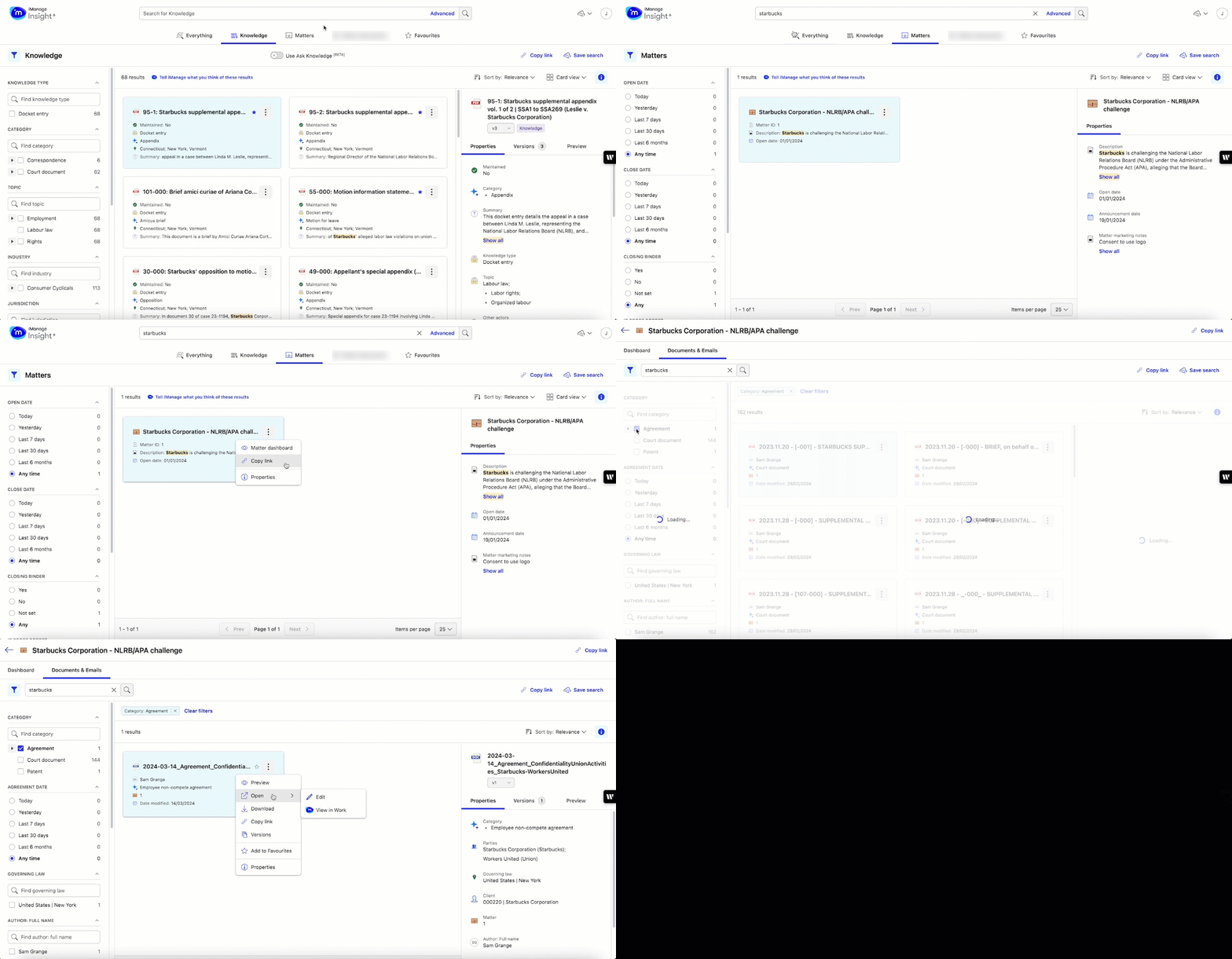
To use Matter Search in iManage Insight+:
Select the Matters tab.
Enter your query in the Search bar or select a recent search. You can search for Matter by name, ID, or description.
Select Enter/return key, or select the search
 icon.
icon.
For more information about filtering search results, and using Advanced search, refer to Searching content using the search interface and Using advanced search.Select a matter by selecting on the tile in the results list to display the right-hand Properties panel, which will show the key matter metadata. Select the Matter name link to access the Matter Dashboard. Refer to Step 5.
For the selected matter, right-click or select the kebab menu to perform the following actions.
Task | Sub-task | Description |
|---|---|---|
Matter dashboard |
| Select to get an overview of the key information for the selected matter. |
| Dashboard tab | Displays key information about the matter, such as Description, Dates, Contacts, and other details selected by your organization's Insight+ Administrator. |
| Documents & Emails tab | View or search for all documents and emails related to that matter. Right-click or select the kebab menu to access the following actions:
|
Copy link |
| Select to copy the selected matter URL and share it with others. |
Properties |
| Select to view the metadata properties of the selected matter. |