Administrator default filters focus your search and browse experiences by filtering out the noise of content that administrators consider not generally relevant to you. For example, if you're an employment lawyer based in London, maybe you'd like to filter out knowledge from other regions, such as the USA because, by default, it doesn't apply to your day-to-day work. This new feature enables your administrators to set these defaults for you, and/ or you can change them or choose your own defaults that best suit your needs.
Default Filter Types
Admin default filters: These are pre-configured filters set by your organization's administrators, applicable to your user profile.
Personal user default filters: These are filters that you as a user select and save as your own personal default settings, tailored to your individual preferences.
Administrator default filters
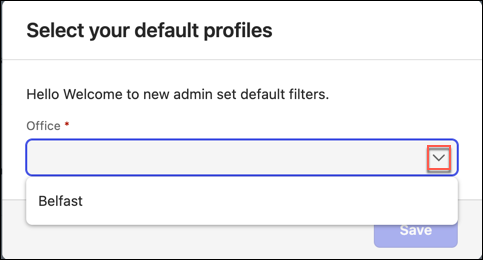
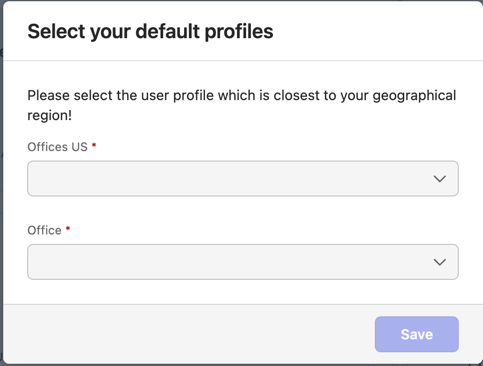
As an Insight+ user, you’ll be able to take advantage of pre-configured default filters and filter values if they have been set by the administrators of your organization. On your first sign-in after the administrators have configured the profiles and filters, you’ll be asked to select a user profile from the drop-down list for your search experiences, and sometimes you might also be asked to select a second user profile for your landing page experience, depending on what your administrator has configured. If your administrators have chosen not to configure default filters for your organization, you won't be asked to select a profile.
NOTES:
The selection of your profile(s) is required and you won't be able to move on until you have selected your user profile(s).
If you're unsure what to select, you should select the profile that is most relevant to you. You can change your profile later, as well as the default filters that are applied.
Personal default filters
Whether the administrator has chosen to configure default filters for your organization, as an individual, you can choose the defaults that suit your needs.
You can do this in two different ways:
If your administrator has configured default filters for you, you can alter these by adding and/ or deleting filters, and then saving as your personal default view. You can edit, and re-save these at any time.
If your administrator has chosen not to configure Admin default filters, you can apply filters using the left-hand filter panel, and select Save as my default filter. You can edit, and re-save these at any time.
Figure: Option to save as personal default filter on search page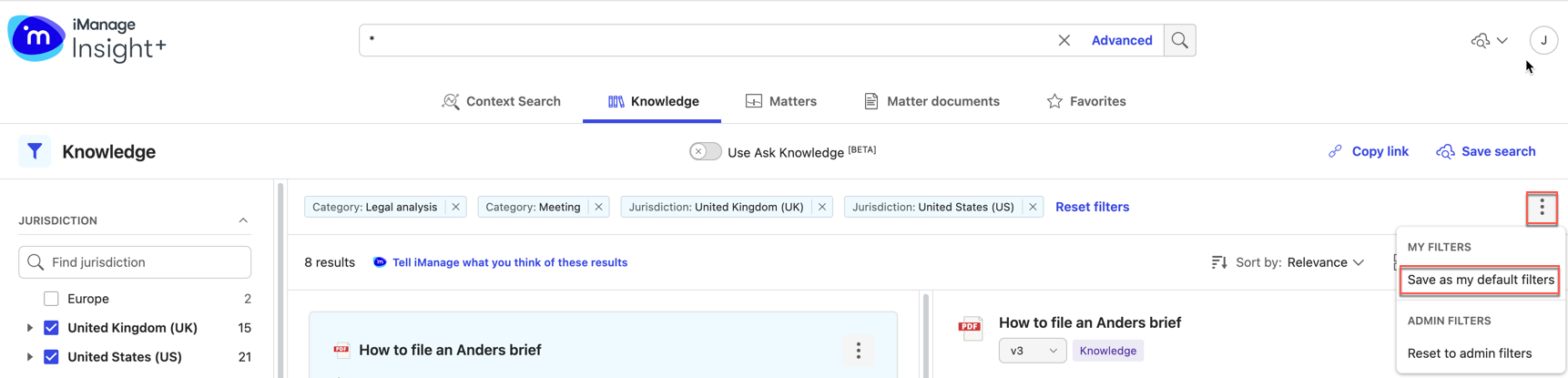
Key points to remember
Here are a few important points for your reference, before you get started with using default filters:
After they’re set, default filters will persist across sessions, meaning that each time you sign in, your view will default to apply the default filters.
Admin Default filters are set and applied on a search experience by search experience basis. This means that different defaults can be applied and be set for each search experience as well as the Landing pages. This is because different filters are available in different search experiences.
When you use the Copy link option to share a page with search results with someone else, the default filters (both Admin default filters and your saved personal default filters) that are applicable to that particular search experience will also be applied to the person you're sharing the link with.
You can change your user profile selection at any time by accessing your settings and selecting your preferred profile from the drop-down.
Figure: Settings dialog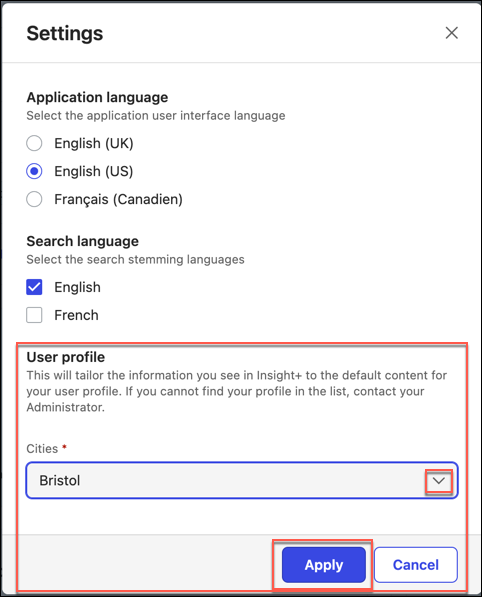
You can reset your filters to whatever your saved defaults are at any time by selecting Reset filters in the center panel filter bar. If you have changed your user profile in the settings, you'll need to select Reset filters to see the new default setting.
Figure: Rest filters option
You can choose to apply any Admin default filters at any time by selecting Reset to admin filters from the filter menu.
Figure: Reset to admin filters option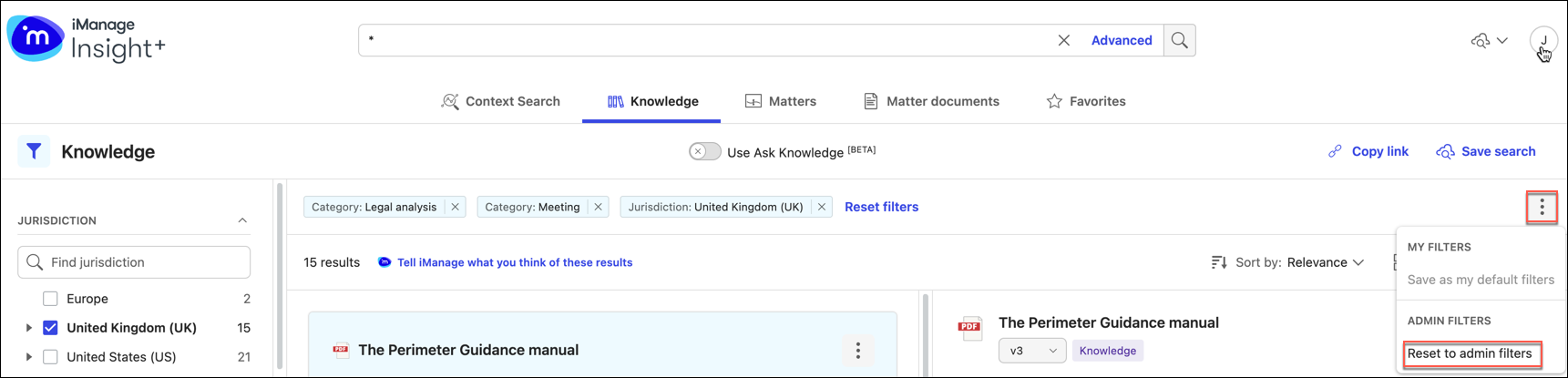
Whenever your administrator updates the default filters or filter values for your user profile, you’ll see a notification message. For this, two scenarios apply:
Users have personal default filters saved: The following notification message displays. You have the option to either select the new Admin defaults in the filter bar context menu or continue using the personal filter settings as set by yourself.
Figure: Notification message about updated admin default filters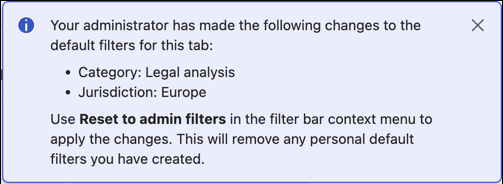
Users don’t have personal default filters saved: The following notification message displays.
Figure: Notification message about updated default filters when personal default filters aren't saved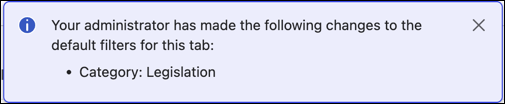
Whenever your administrator removes the default filters or filter values for your user profile, you’ll see a notification message. There are two scenarios:
Users don’t have personal default filters saved: You can select Clear filters to remove the Admin default filters or choose to save them as your personal default filters.
Figure: Admin default filters removed by administrator
Users have personal default filters saved: The following notification message displays.
“Your administrator has made the following changes to the default filters for this tab: All filters removed.”
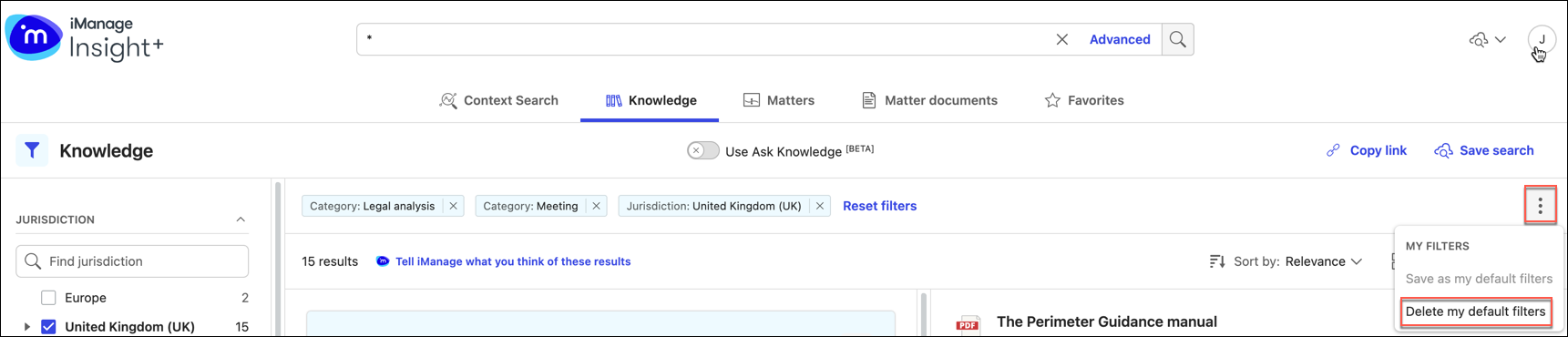
At any given time, you can only have one set of personal default filters saved. If you update your previously saved personal default filters and try to save them, the new settings will override your existing personal defaults.
Figure: Saving a new set of personal default filters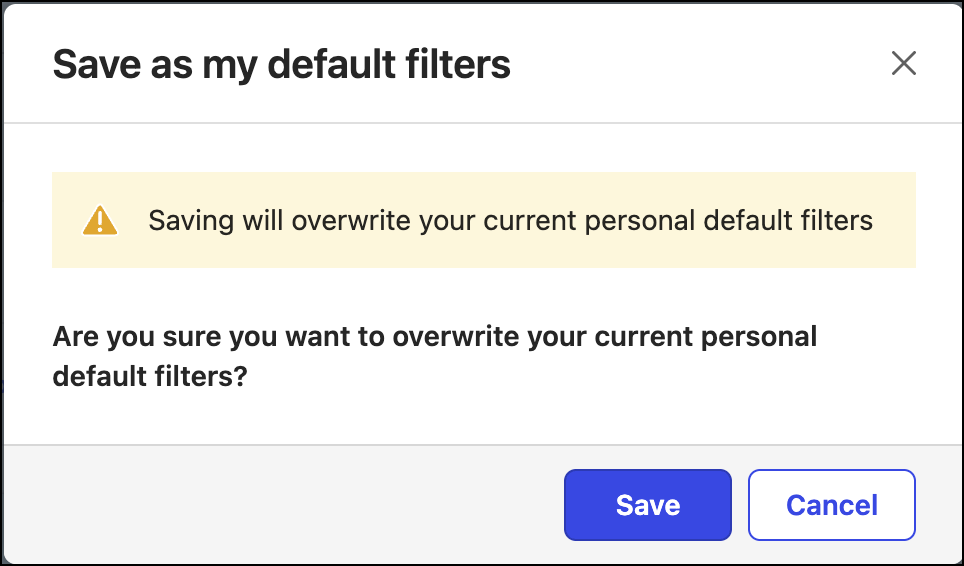
If the Admin deletes your user profile, when you next sign in, you'll be asked to select a new user profile from the drop-down menu. Default filters applicable to that profile will then be applied.
Figure: Dialog to select your default profile