As an Insight+ user, you benefit from pre-configured default filters and filter values set by your organization's administrators. These filters will only be visible if your organization’s administrator has configured user profiles with default filters.
Selecting user profile on first sign-in
When you first sign in to Insight+ application, you'll be prompted to select a user profile for search experiences, and possibly a second profile for your landing page, depending on your organization's administrators configuration.
NOTE: If no default filters are set, you won't be prompted to choose a profile.
In the Select your default profiles dialog, select your user profile from the drop-down list.
Select Save.
After you select your default user profile, all Admin set default filters for that profile will be applied to the search experience or sub-landing page you're in.Figure: Initial sign-in dialog to select user profile when both Search experience and Landing pages have different user profiles created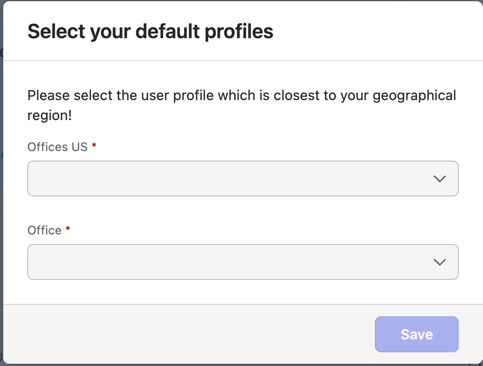
Making changes to your default filters
You can add or remove default filters and values either temporarily for a particular search, or permanently by saving the changes to your default filters.
To make temporary changes, select  icon by the filter value in the filter bar to remove a filter, or add additional filter values using the left-hand panel or Advanced search form. When you have finished your search, select Reset filters and it'll return you to your default filter view.
For more information on how to add or remove filters, refer to add or remove filter(s)
NOTE: Whether your administrators have set default filters, you can set and save your own selection of default filters. This lets you customize your default search and browse view based on your needs.
If you'd like to save the changes that you have made to your default filters:
In the center panel, next to the applied filters, select the context menu  icon and then select Save as my default filters.
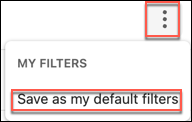
You can use the same action to save any selected filters as your defaults, regardless of whether any admin defaults have been applied for you. Once set, these defaults will apply to the search experience in which you have set them.
Delete personal user default filters
In addition to saving personal default filters, you also have the flexibility to delete personal default filters and create new ones.
NOTE: The option to delete your personal default filters is displayed only if you have previously saved personal default filters and there are no administrator default filters applicable to your user profile.
To delete personal default filter settings:
Select the icon and then select Delete my default filters.
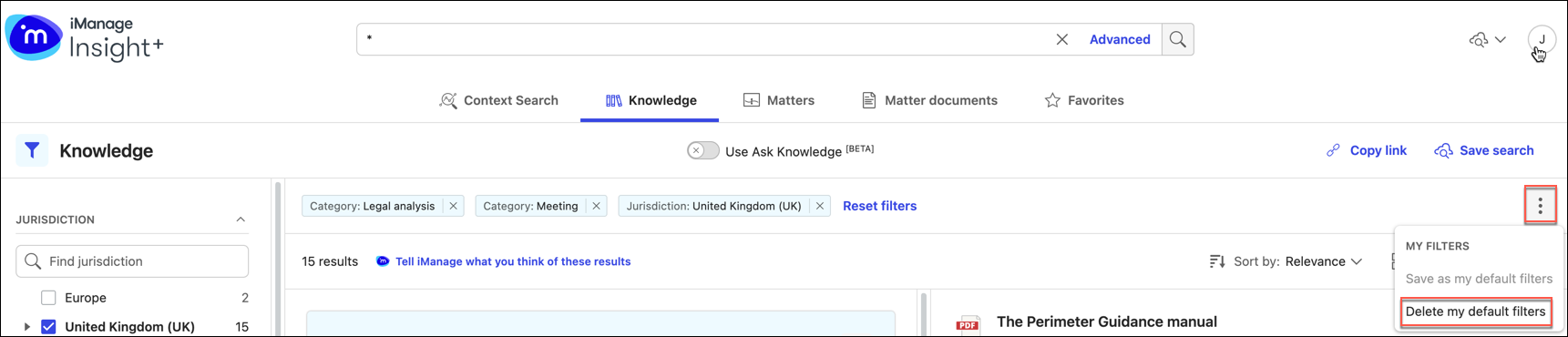
Once you've deleted your personal default filters, you can set new preferred filters and save them as your personal default. This lets you easily update your default settings to your needs.
Clear search vs reset filters option
When multiple filters are applied, the search criteria become too specific, and no search results get displayed.
In such scenarios, you can select from either of the following two options to refine your search:
Option 1
Select Clear search.
This will remove all applied filters, and provides a fresh start to add filters of your preference.
Option 2
Select Reset filters.
When you select Reset filters, the application prioritizes and reverts to saved personal default filters, if available. If only Admin default filters are set, it'll apply those.
NOTE: The saved personal default filters always take precedence over admin default filters.Figure: Clear search and Reset filters option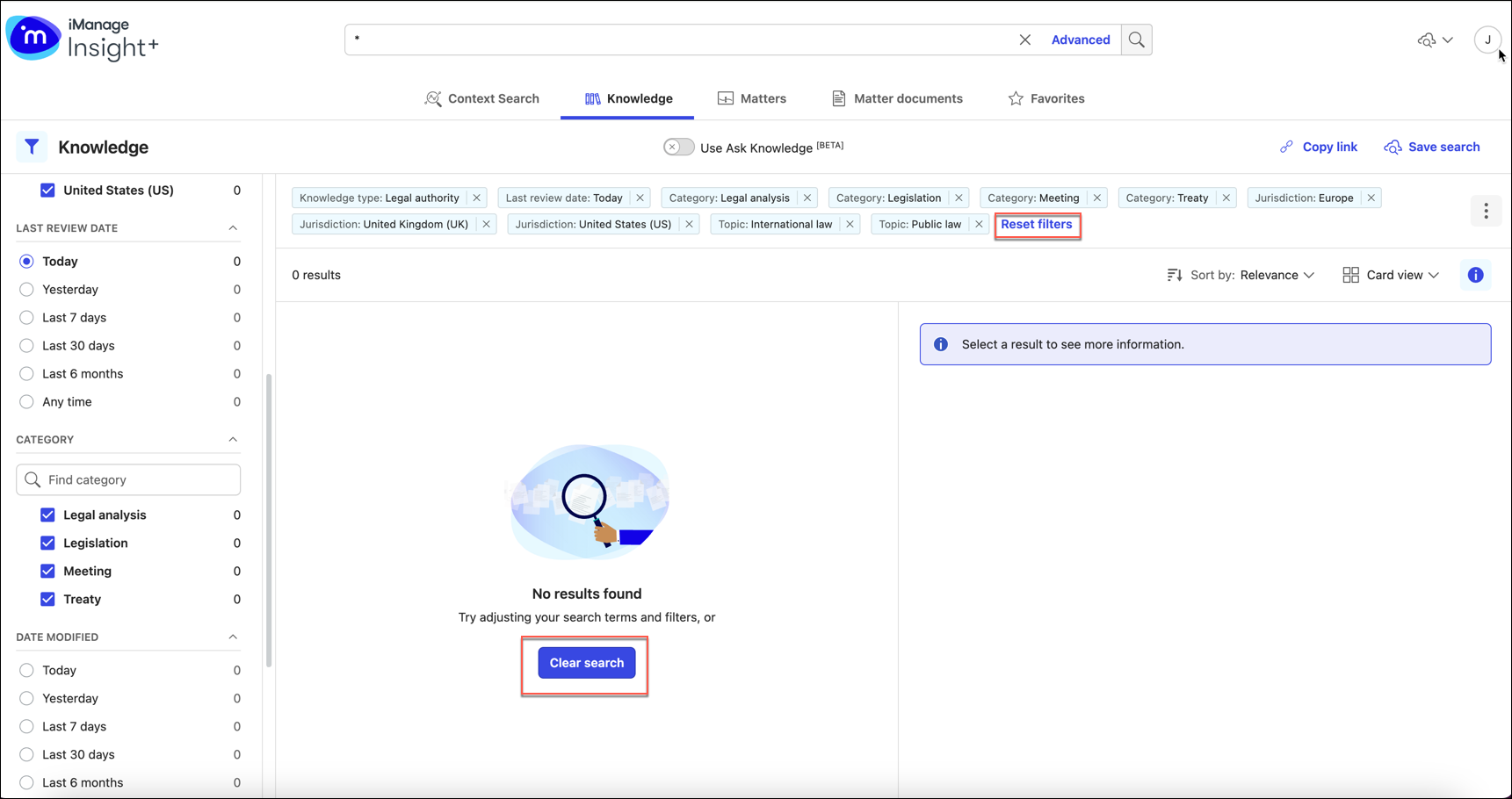
Reset to admin default filters
After saving your personal default filters, the option Reset to admin filters gets enabled only if your administrator has set Admin default filters.
NOTE: Resetting to admin default filters will remove all custom default settings, if you have saved any.
Select the icon and then select Reset to admin filters.
NOTE:
When both admin default filters and saved personal default filters are available, selecting Reset filters option will apply your personal default filters.
If no personal default filters are saved, selecting Reset filters option will revert to admin default filters.
If you want to revert to Admin default filters, you must select Reset to admin filters.
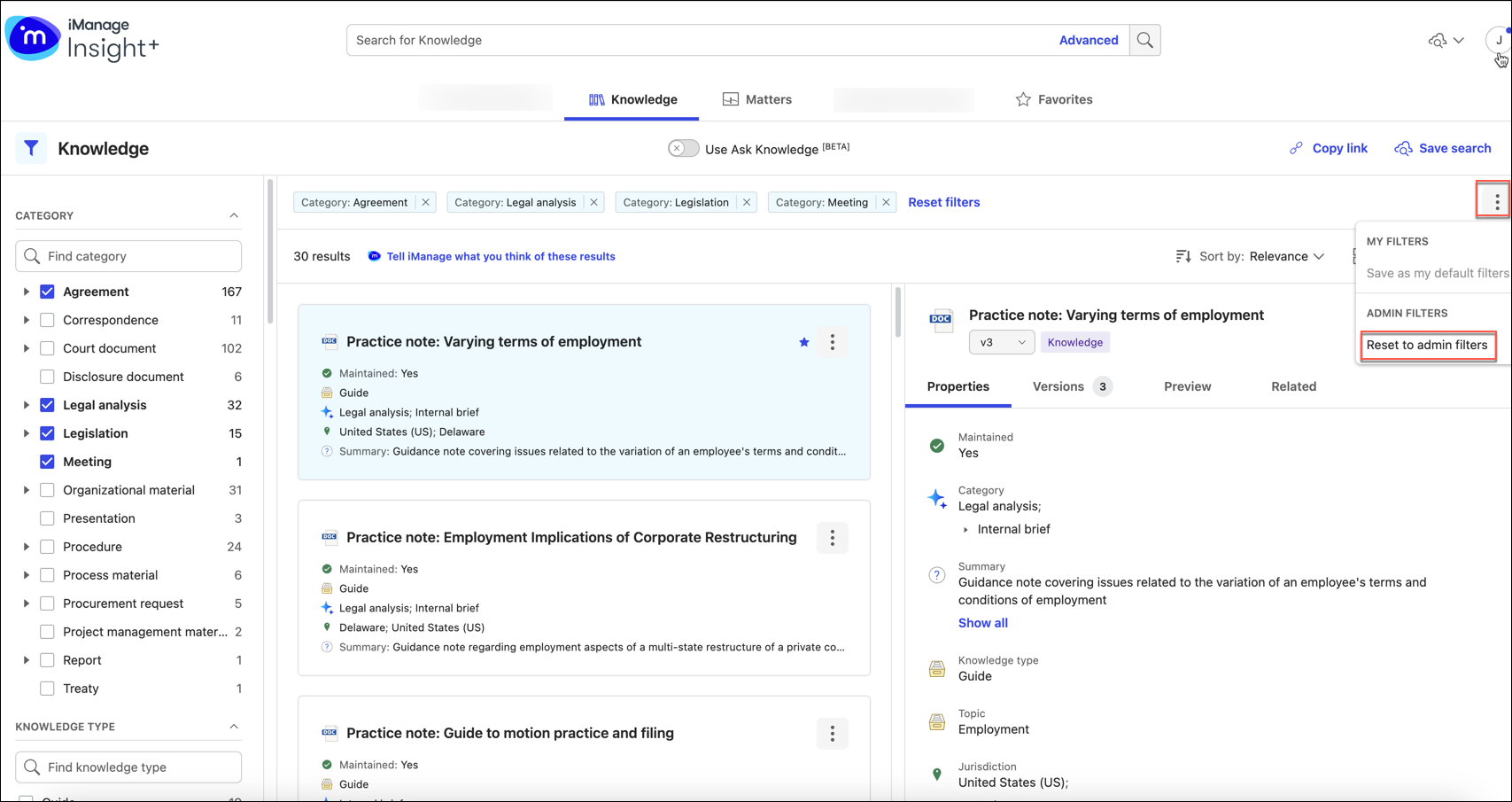
Default filters updated by the administrator
When you have your personal default filters saved, and the administrator updates the default filter settings for your user profile, then a notification is displayed showing that the administrator has updated the default filters.
Select the
 icon to remove the notification.
To apply the updates, select the icon and then select Reset to admin filters.
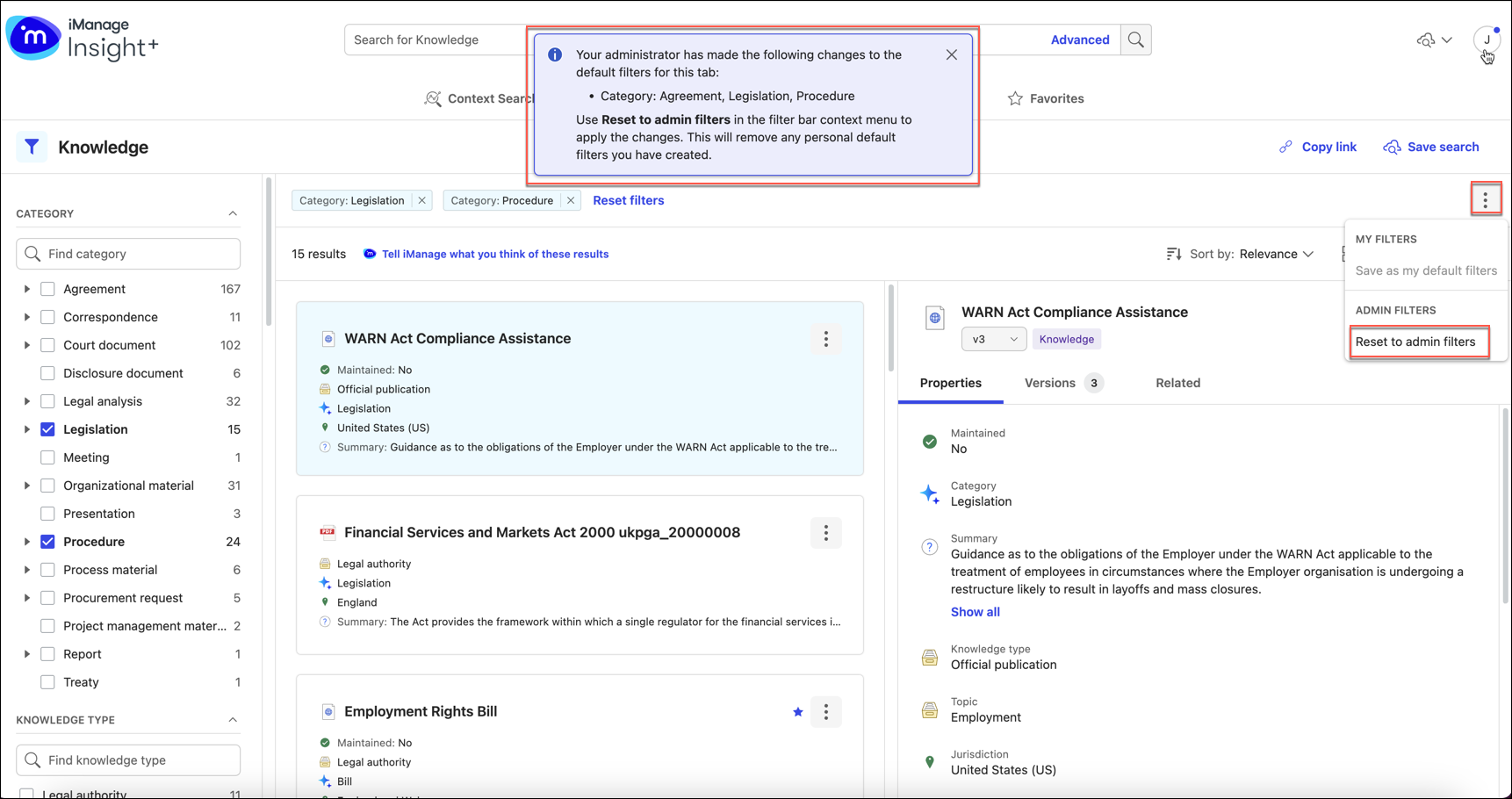
You can also choose not to apply the Admin default filters updates and continue with your saved personal filter settings.
When you don't have any personal default filters saved, a notification like the one in the following figure is displayed.
Figure: Notification for updated admin default filters when no personal default filters are saved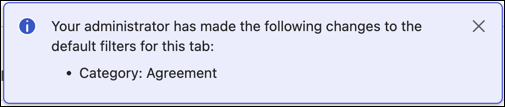
To apply the updated admin default filters, select Reset filters.
Default filters removed by the administrator
When the administrator deletes the default filter settings for your user profile, and there are no personal default filters saved, a notification is displayed showing that the administrator has changed the default filters.

Select the icon to remove the notification, and then select Clear filters, to remove all Admin set filters.
Alternatively, if you want to retain the Admin default filters, you can select the icon and then select Save as my default filters.
Changing your user profile
You can switch between different user profiles to access different default filter settings configured by the administrator for all search locators and landing pages.
To change to another user profile:
Select your user profile and then select Settings.
In the Settings dialog, under User profile section, select the drop-down menu to select and update your default user profile.
Figure: Settings dialog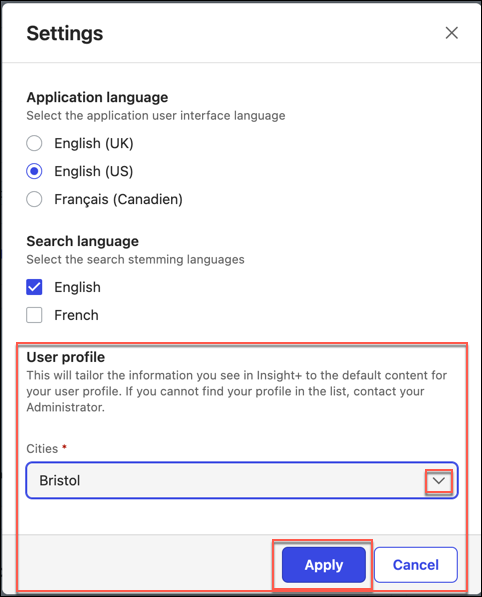
Select Apply.
In the center panel, select Reset filters to apply the default Admin filter settings for the selected user profile.
NOTE:
Your personal user default filters remain unchanged even after you switch user profiles.
You must select Reset filters to apply the new admin set profile settings.
User profile deleted by administrator
If your associated user profile is deleted by the administrator, the following notification message is displayed along with an option to select a new default profile.
“The user profile you have previously selected was removed. Please select a new profile.”
To select a new user profile:
In the Select your default profiles dialog, select the drop-down list, and then select your user profile.
Select Save.
Select Reset filters to apply the admin default filters for the selected user profile.
Figure: Selecting new user profile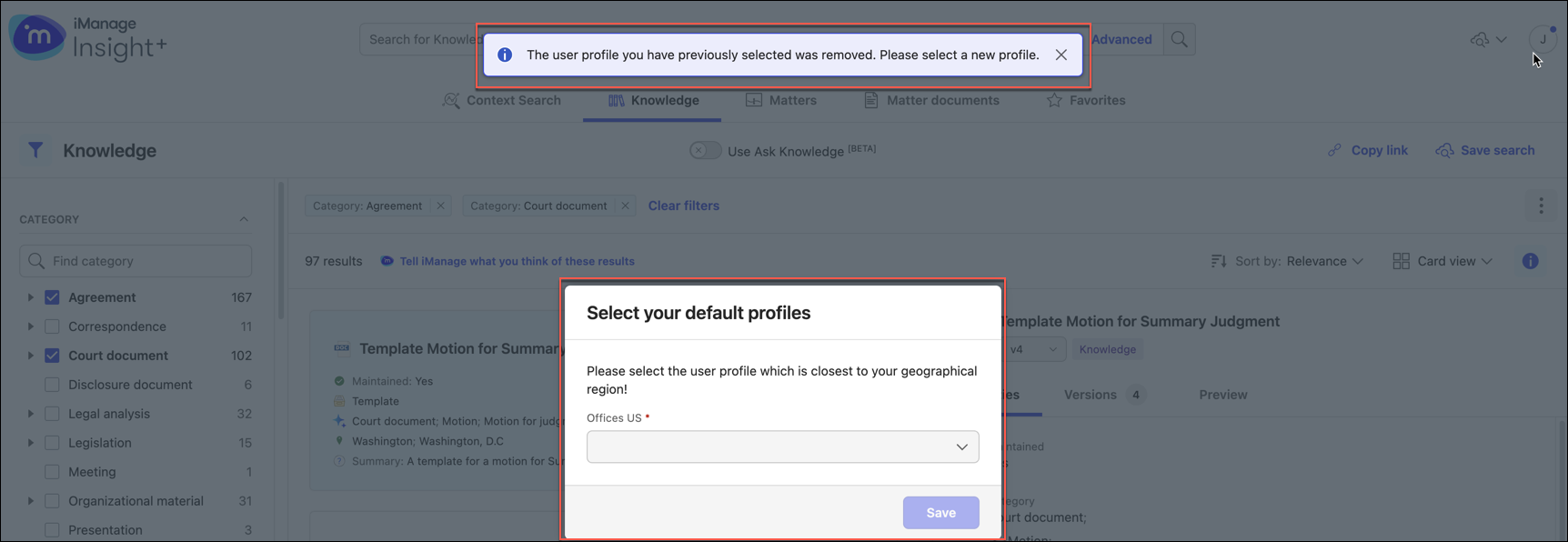
NOTES:
After you select your default user profile, all Admin set default filters for that profile will be applied for the search experience you're in.
Your saved personal default filters remain unchanged until you select Reset filters.