Using your company credentials, sign in to your Power Automate account.
In the left pane, select My flows. From the top, select Import > Import Package (Legacy).
Figure: Importing a package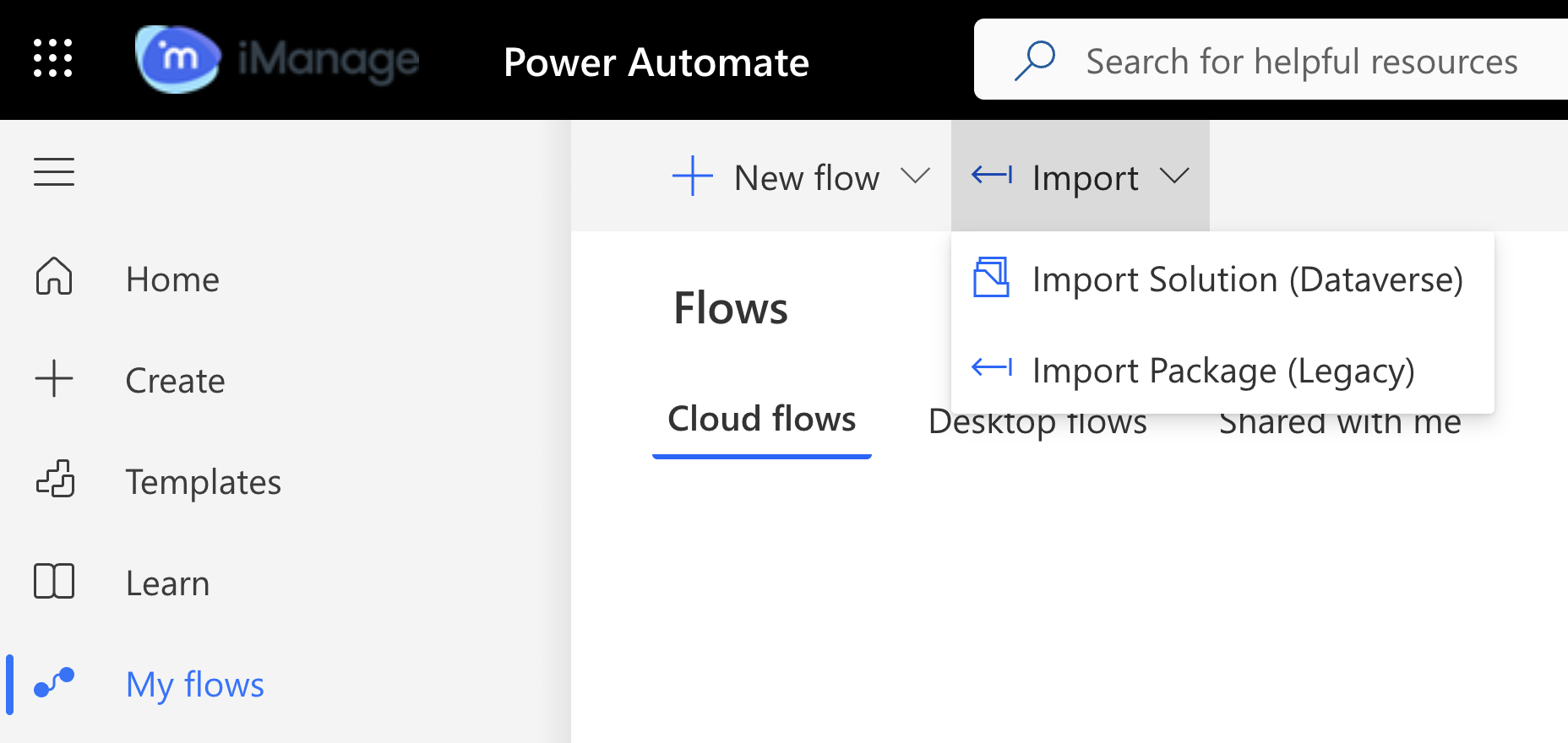
Select Upload and then select the .zip template file from your file explorer. You'll be directed to the next page where you must review the package contents.
Figure: Reviewing package contents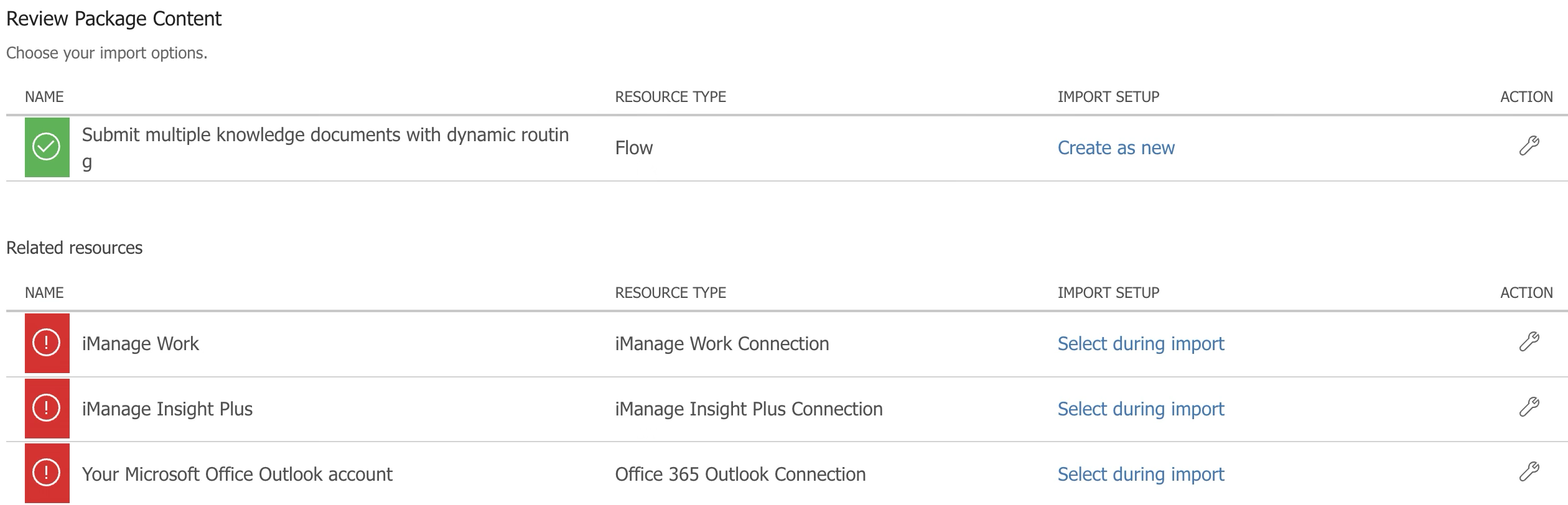
To complete uploading the templates, choose Select during import to establish a connection for each resource type that has a warning indication beside them. The Import setup dialog appears.
Select Create new in the import setup dialog. You'll be directed to the Connections page.
Select New connection. You must have the following resource type connections established because you’re importing the Submit workflow template:
iManage Work Connection: Search for the iManage Work connector and then select Create. You'll be directed to your Insight Plus connector sign-in page. Enter your company credentials and select Import.
iManage Insight Plus Connection: Search for the iManage Insight Plus connector and then select Create. You'll be directed to your cloudimanage.com sign-in page. Enter your company credentials and select Import.
Office 365 Outlook Connection: Search for the Office 365 Outlook connector and then select Create. Enter your Microsoft account credentials. The connector is added and displayed on the Connections page.
The connectors are added and displayed on the Connections page.
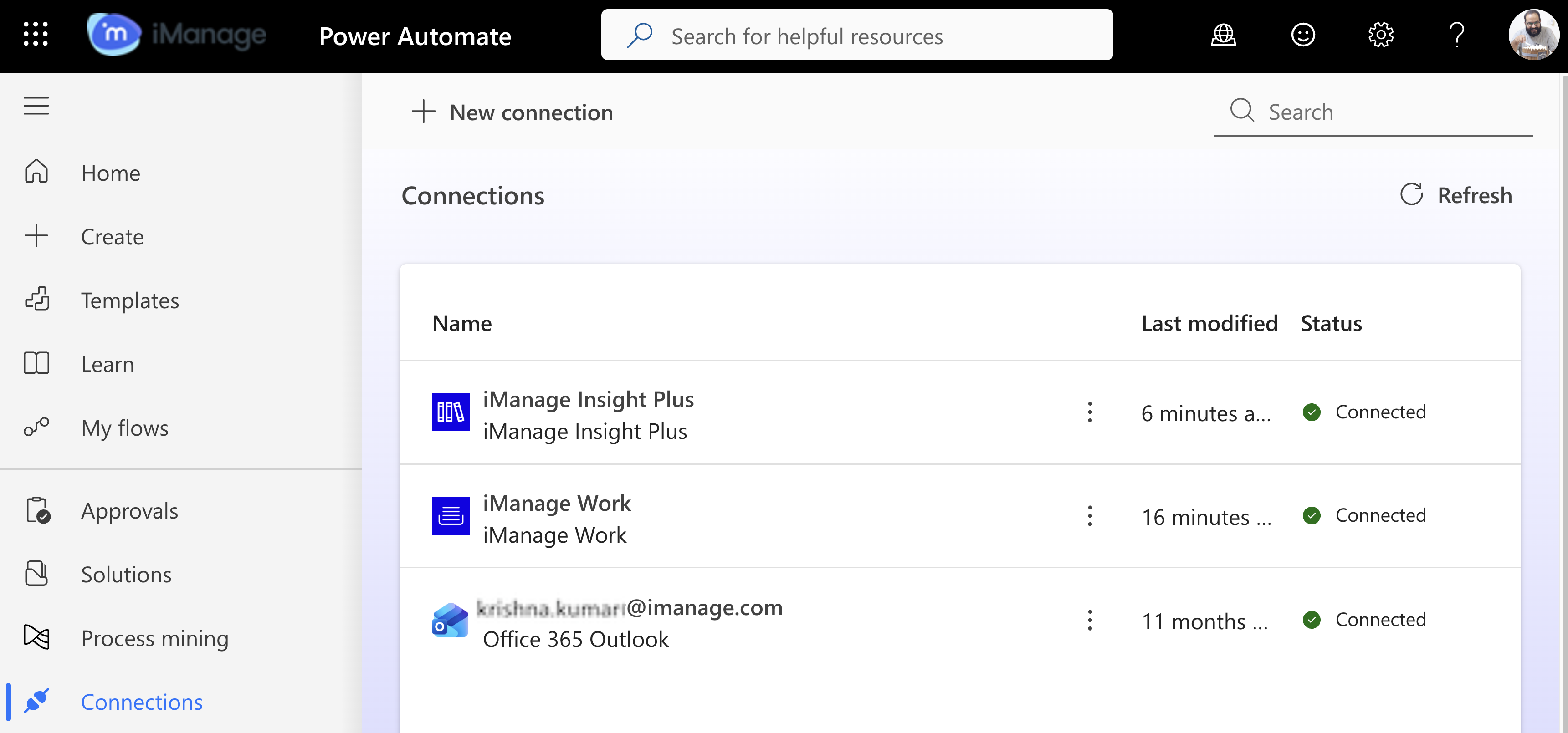
After importing the workflow, browse to My flows in the left pane, you’ll see the flow listed below Cloud flows. If the flow isn't turned on, select More commands and then select Turn on.
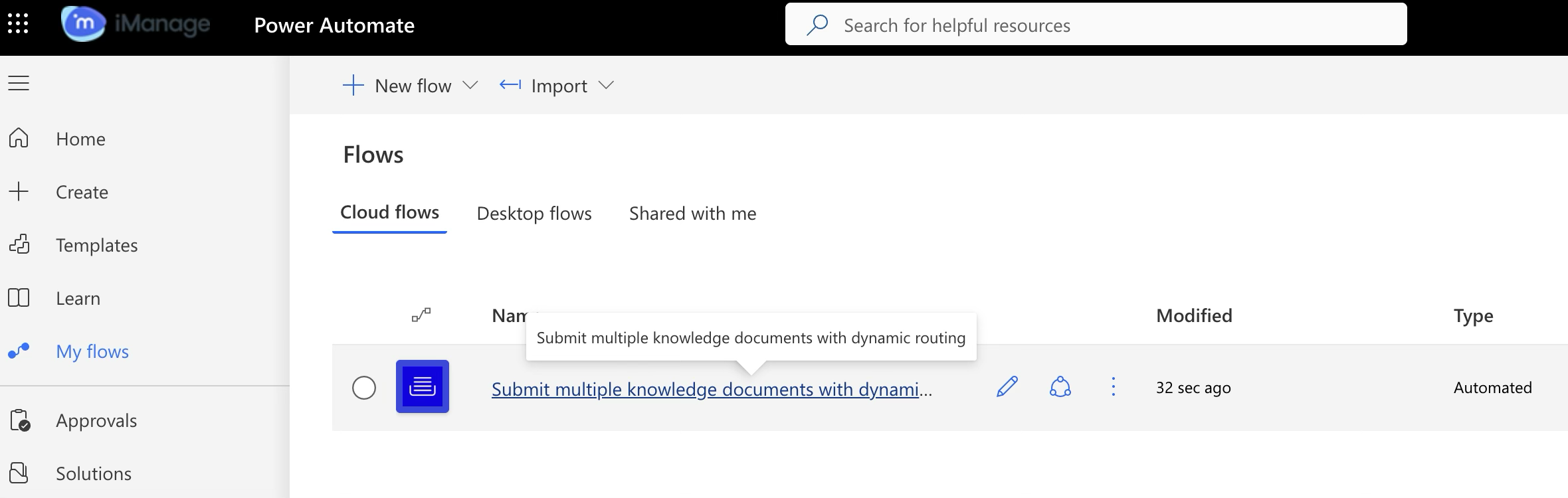
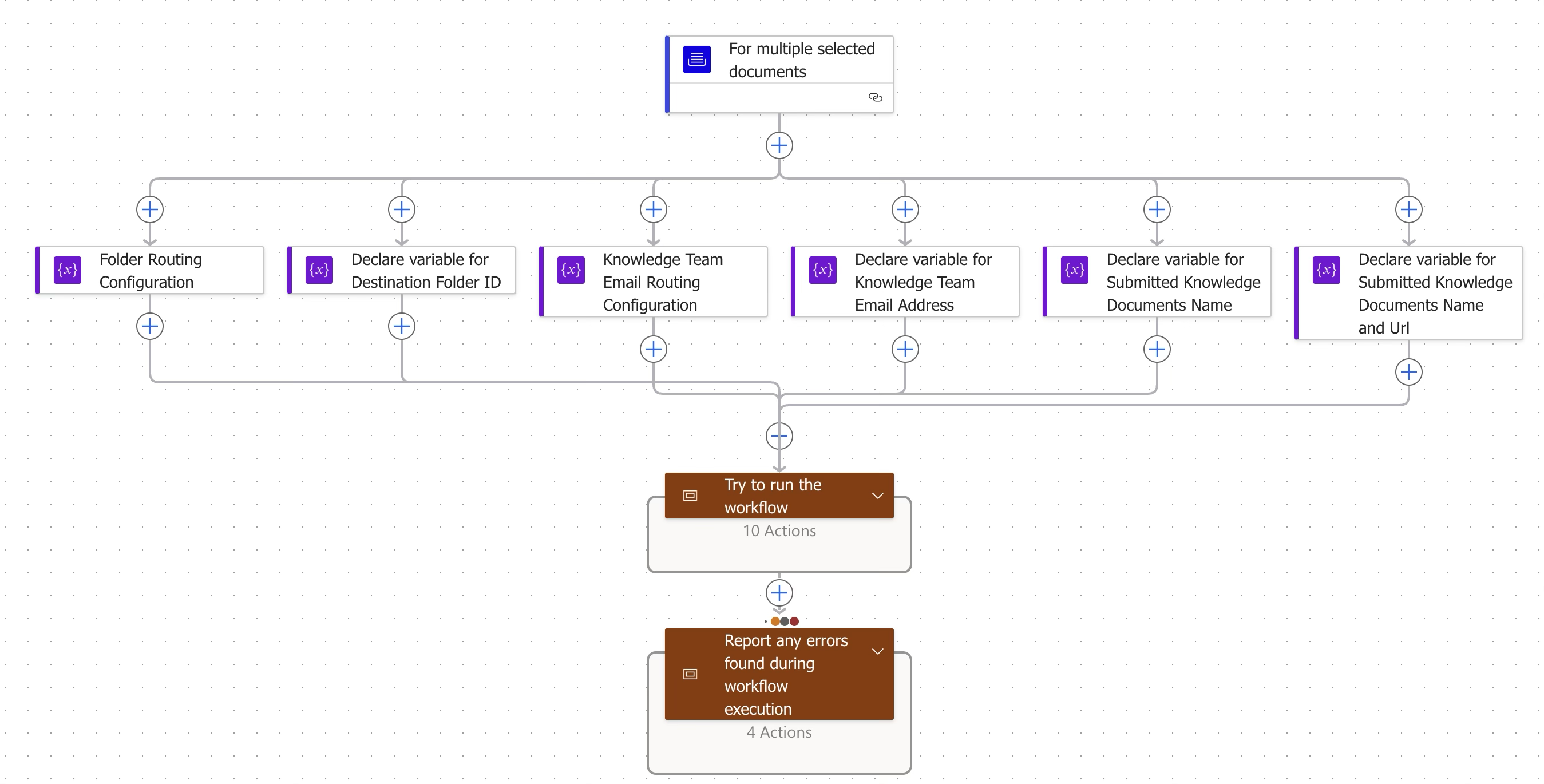
Select the Edit :Edit-icon: icon to view the workflow.