Good to know:
iManage Control Center is a centralized control system that provides management and administration services to iManage system administrators over all core functionality within the various iManage products.
iManage Control Center offers the ability to tier administrators, making sure users receive only as much administration permissions as they need. This tier-based administration reduces risk while delegating tasks to the appropriate support staff.
To understand more about iManage Control Center and its functionality, refer to our iManage Control Center Help documentation.
NOTE:
To proceed with the stages described below, you must be an iManage Control Center user with a Global Management role that has App Management permissions. For more information, refer to Global privilege descriptions.
Stage 1: Adding the iManage Insight Plus for Power Automate application in iManage Control Center
This application is required to create workflows in Power Automate.
Sign in to iManage Control Center. In the left navigation pane, select Settings > Applications.
Select Add Application.
From the available list of applications in the Add Application dialog, select iManage Insight Plus for Power Automate and then select Authentication.
On the Authentication screen:
Set the Allow Refresh Token switch to Yes.
(Optional) Set the Refresh Token Expiry and Access Token Expiry intervals as required. By default, the Refresh Token Expiry is set to refresh after 365 days and the access token is set to expire after 30 minutes of inactivity.
Figure: Allow refresh token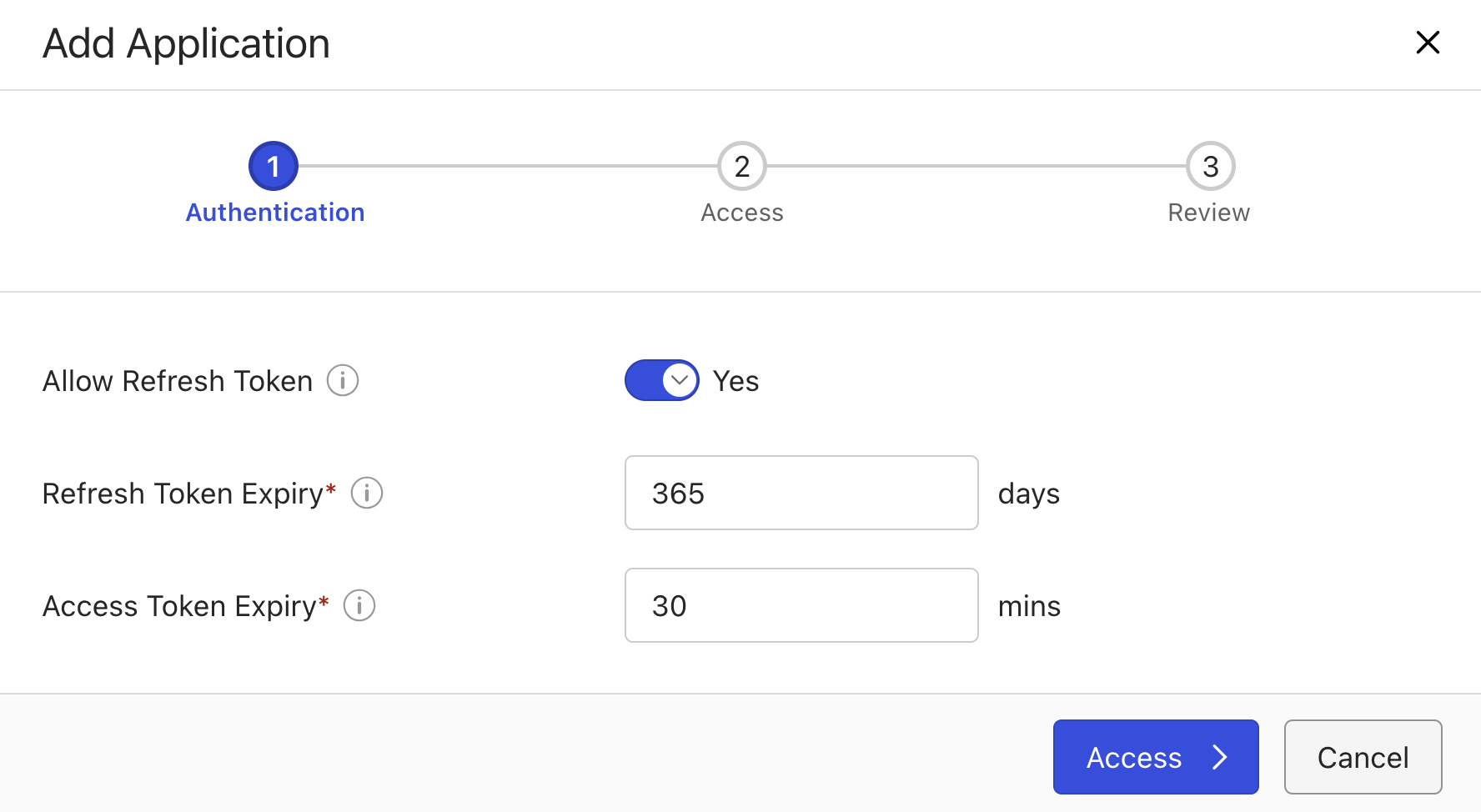
Select Access. Select from one of the two options:
Allow access to All Users: This is the default.
Custom: If you select this option, search for the users you want to give access to and select them.
Select Review and then select Finish. A success message appears informing you that the application is added.
Refresh the iManage Control Center page. The added application is listed on the Applications page in iManage Control Center.
Stage 2: Adding the iManage Insight+ Curation Web Extension in iManage Control Center
This extension is required to use Insight+ Curation within iManage Work Web for submitting, curating, and managing your knowledge assets.
Sign in to iManage Control Center. In the left navigation pane, select Settings > Applications.
Select Add Application.
From the available list of applications in the Add Application dialog, select iManage Insight+ Curation Web Extension and then select Authentication.
Select Access > Review and then select Finish. A success message appears informing you that the application is added.
Refresh the iManage Control Center page. The added application is listed on the Applications page in iManage Control Center.
Stage 3: Adding the iManage Insight+ Curation Control Center Extension in iManage Control Center
This extension is required to configure the iManage Insight+ Curation solution based on an organization’s needs.
Sign in to iManage Control Center. In the left navigation pane, select Settings > Applications.
Select Add Application.
From the available list of applications in the Add Application dialog, choose iManage Insight+ Curation Control Center Extension and then select Authentication.
Select Access > Review, and then select Finish. A success message appears informing you that the application is added.
Refresh the iManage Control Center page. The added extension is listed under Extensions in iManage Control Center.
Figure: iManage Insight+ Curation Control Center Extension in iManage Control Center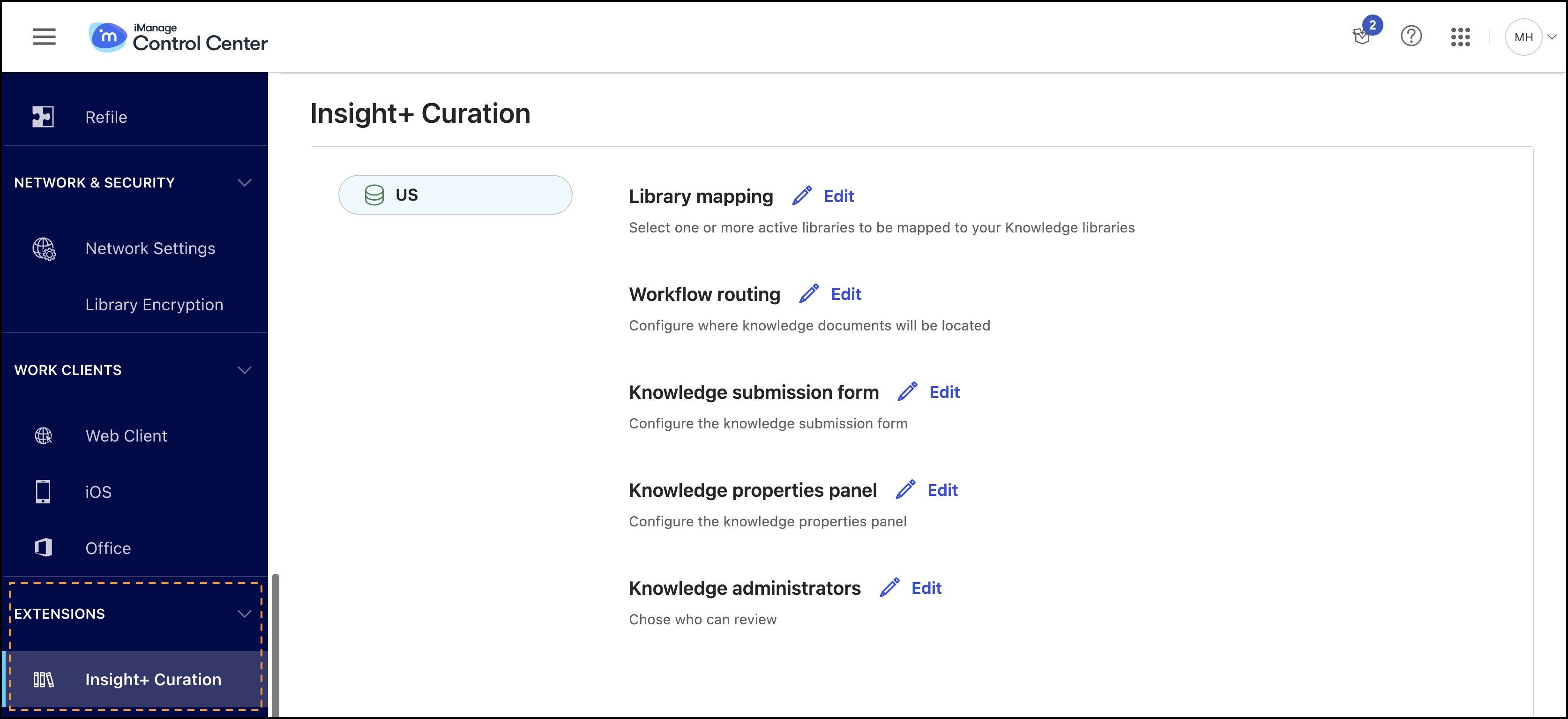
Stage 4: Adding the iManage Work Connector for Power Automate in iManage Control Center
Sign in to iManage Control Center. In the left navigation pane, select Settings > Applications.
Select Add Application.
From the available list of applications in the Add Application dialog, choose iManage Work Connector for Power Automate and then select Authentication.
On the Add Application page, the Authentication step displays the following options:
Set the Allow Refresh Token switch to Yes.
(Optional) Set the Refresh Token Expiry interval, as required. Note that the Refresh Token Expiry option appears only after the Refresh Token Expiry switch is set to Yes.
(Optional) Set the Access Token Expiry interval, as required.
By default, the refresh token is set to refresh after 365 days and the access token is set to expire after 30 minutes of inactivity.
Select Access. Select from one of the two options:
Allow access to All Users (This is the default setting.)
Custom. If you select this option, search for the users you want to provide access to and select them.
Select Access > Review, and then select Finish. A success message appears informing you that the application is added.
Refresh the iManage Control Center page.
The added application is listed on the Applications page in iManage Control Center.