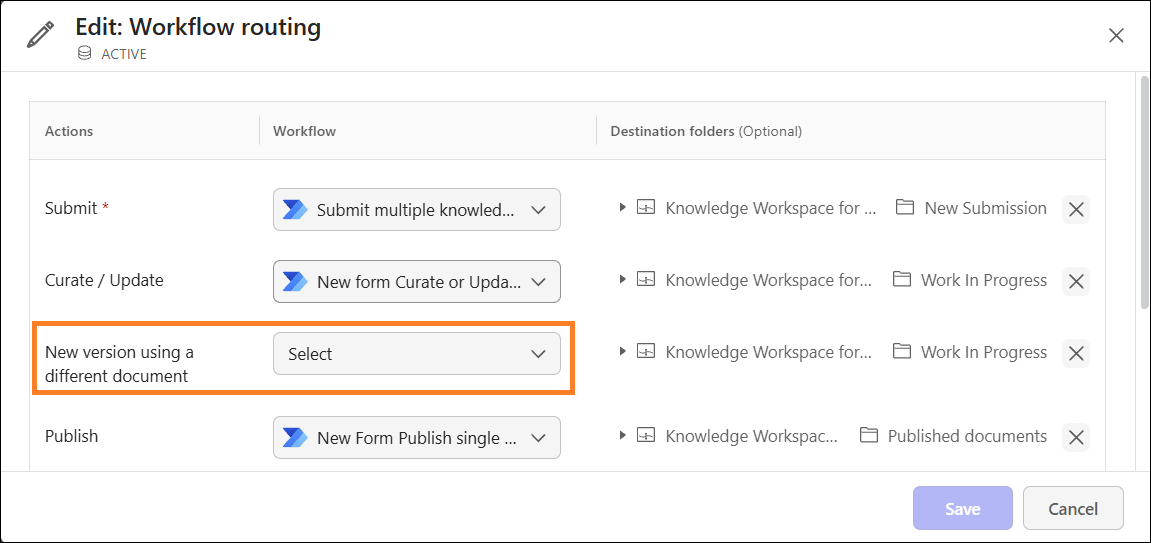
Workflow routing helps administrators configure where the knowledge documents would be stored for access later in iManage Work Web. Workflow routing is a three-stage activity that must be configured by administrators.
Figure: Configuring Workflow routing
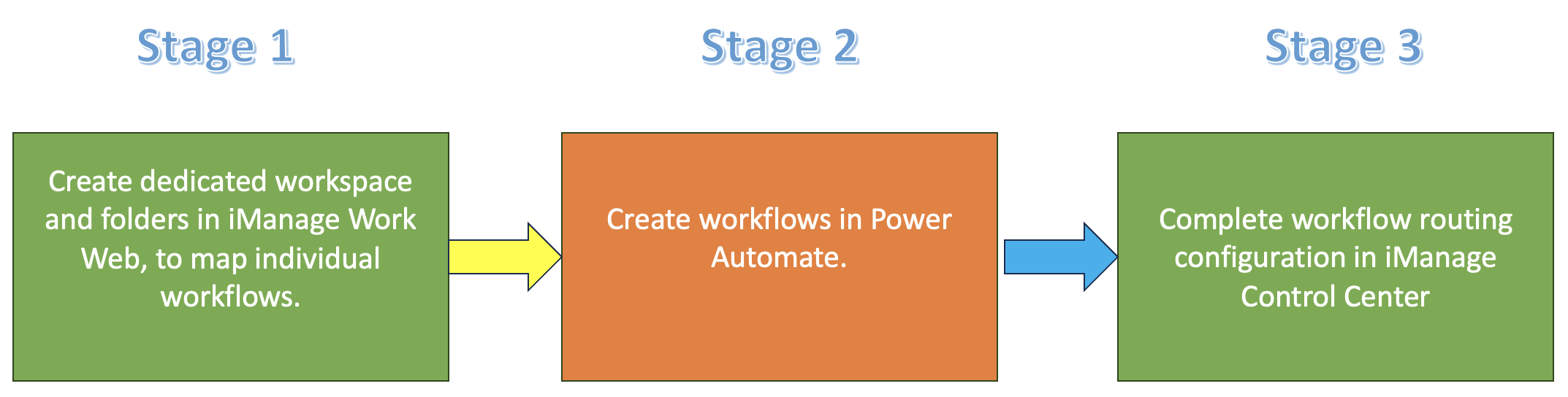
Good to know:
Stage 1 related information: Creating workspaces and folders
Stage 2 related information:
Stage 3 related information: Configuring the workflow routing in iManage Control Center
Configuring the workflow routing in iManage Control Center
Sign in to iManage Control Center.
In the left navigation pane, select Extensions and then select Insight+ Curation.
Select the knowledge library where you wish to use Insight+ Curation.
Select Edit next to Workflow routing. The Edit: Workflow routing dialog opens with the following actions:
Submit
Curate/Update
New version using a different document
Publish
Unpublish
Retire
Reject
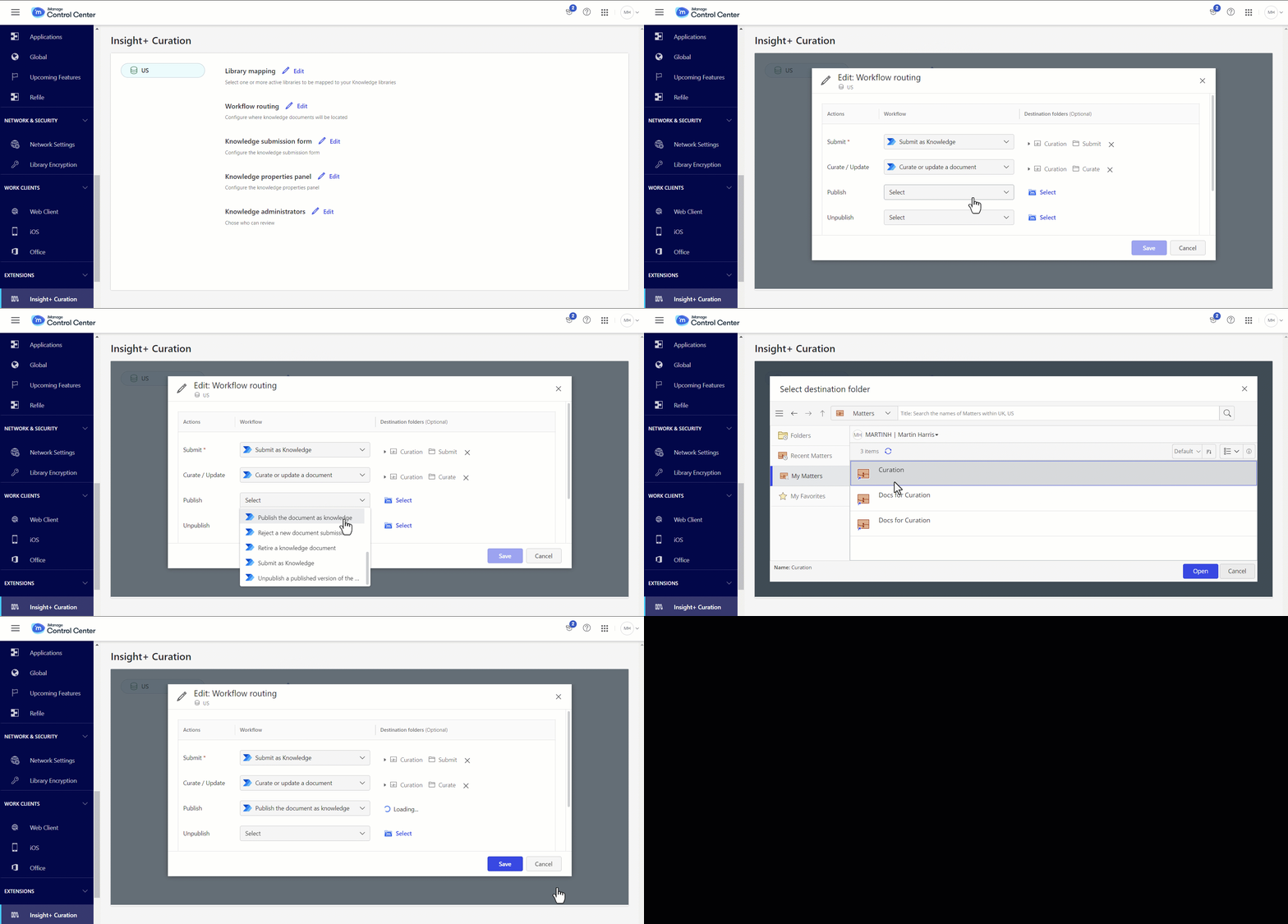
Select a Power Automate workflow. For more information on workflows, refer to Configuring the workflow in Microsoft Power Automate.
Choose Select to browse to the destination folder and select it.
Select Save.
Figure: Mapping the workflow and destination folder for Publish action
Creating a new version using a different document
When a knowledge document is in the Published state, you can replace its content by uploading a new file from your local computer. This creates a new draft version while keeping the currently published version available to users in iManage Insight+.
To make this feature available in the Knowledge Properties panel for Knowledge Administrators, you must:
Enable the New version using a different document workflow in your Power Automate account.
Link the enabled template to the New version using a different document action as explained above in the Configuring the workflow routing in iManage Control Center section.