After you have created an LDAP connection (and an optional custom LDAP map), you can import users from the LDAP server to a master realm or trustee container.
If you've created multiple trustee containers within the realm, repeat the following steps for each trustee container that you want to sync with an LDAP server.
NOTES:
To import LDAP users, you must have a master realm.
When a user is synchronized into IRM from LDAP, they can sign in only through this external authentication. Direct sign-in using an IRM-stored password is blocked.
To establish an LDAP connection:
In Library Manager, sign in to the library to which you'd like to import users.
Under the Trustees node, expand the Realms node completely.
Select the master realm or trustee container. This is where users will be imported.
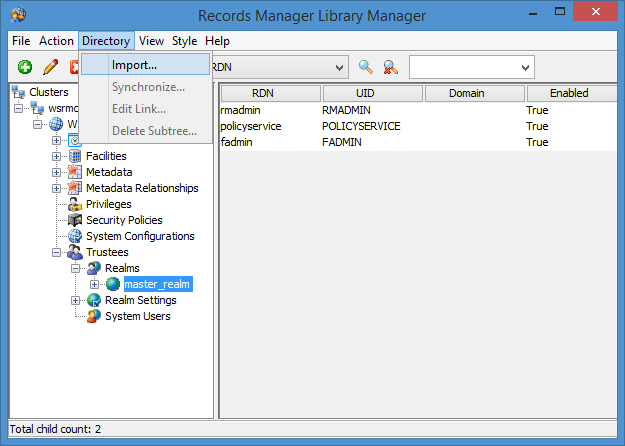
From the Directory menu, select Import.
In the Import LDAP Subtree dialog, enter values for the following fields.
Connection: Select an available connection.
Map: Select an available map. The default map and any maps you created are displayed.
Path: Select the browse (...) button to select an LDAP subtree.
If the LDAP credentials for the selected connection are stored with Local User type storage, you're prompted to enter the Windows account information for that user as follows:
User
Domain
Password
Group Filter: Select the browse (...) button to filter based on an LDAP group.
NOTE: To use the group filter, select a group within the selected path. LDAP synchronization will fail if you select an LDAP subtree for the path and then select a group that's outside that same subtree.
Configure the password type for newly imported users. For Options:
To give all newly added users an unknowable password, select Random Password (default). A new password can then be manually set for any users who'll access IRM using the Edit Trustee Account tab.
TIP: We recommend this option. The other options represent legacy support.The other options presented shouldn't be used for new connections, and are in place for legacy support only. These are:
Same as UID
Empty Password
Custom Password
Force Password Change
NOTE: For new connections/imports, we recommend the Random Password option only.
To import users to the master realm or trustee container, select OK.
The Importing and Synchronizing dialog opens.When synchronization is complete, select Done.
Library Manager now displays the LDAP link (with an L icon) under the master realm or trustee container.