You can edit or delete the access settings on a document Share Link.
Editing Access Settings
Hover over a document and select
 > Share Link. (Optional) Right-click the document and select Share Link, or open the document and select> Share Link.
The Share Link screen is displayed.Select LINK SECURITY to access and edit the following options:
Expiration Date: Set an expiration date for the Share Link from the available calendar.
Trackable: Select this check box to track the email address of the recipient(s) who downloaded the document using the Share Link.
Clear the check box if you don't want to track these details.Restricted (email list): Select this check box to restrict the document downloads to only the recipient(s) whose email address is specified in the Enter email(s) field.
Enter email(s): Enter email address of any additional recipient(s) that you want to circulate the Share Link with.
<x mark icon>: Delete any of the specified recipient(s).
Select Apply.
NOTE:
You cannot delete all the recipients from the Enter email(s) field with the Restricted (email list) feature enabled.
Disabling the Share Link and Revoking Access
Hover over a document and select
> Share Link. (Optional) Right-click the document and select Share Link, or open the document and select> Share Link.
The Share Link screen is displayed.Select REMOVE LINK.
The Remove Shared Document Link is displayed, as shown in the following figure:Figure: Removed Share Document Link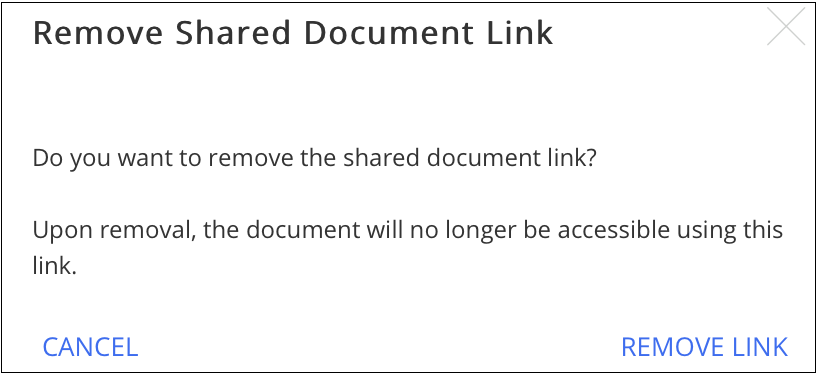
Select REMOVE LINK.
NOTE:
When you try to access a disabled Share Link, a Not Found message is displayed.