If you're a user with whom an external company (with an iManage Share account) has shared a folder, that folder and the associated company is displayed in the tree view on the left navigation bar in the iManage Share user interface.
Even when no active shares exist, the shared folders and their associated companies remain in the Tree View, which can be confusing and also contributes to visual clutter.
You can remove yourself from shared folders with or without active share.
NOTES:
After removing yourself from a shared folder, you're also removed from the folder security.
Removing yourself from a shared folder is permanent. If done by mistake, ask the owner to re-share it.
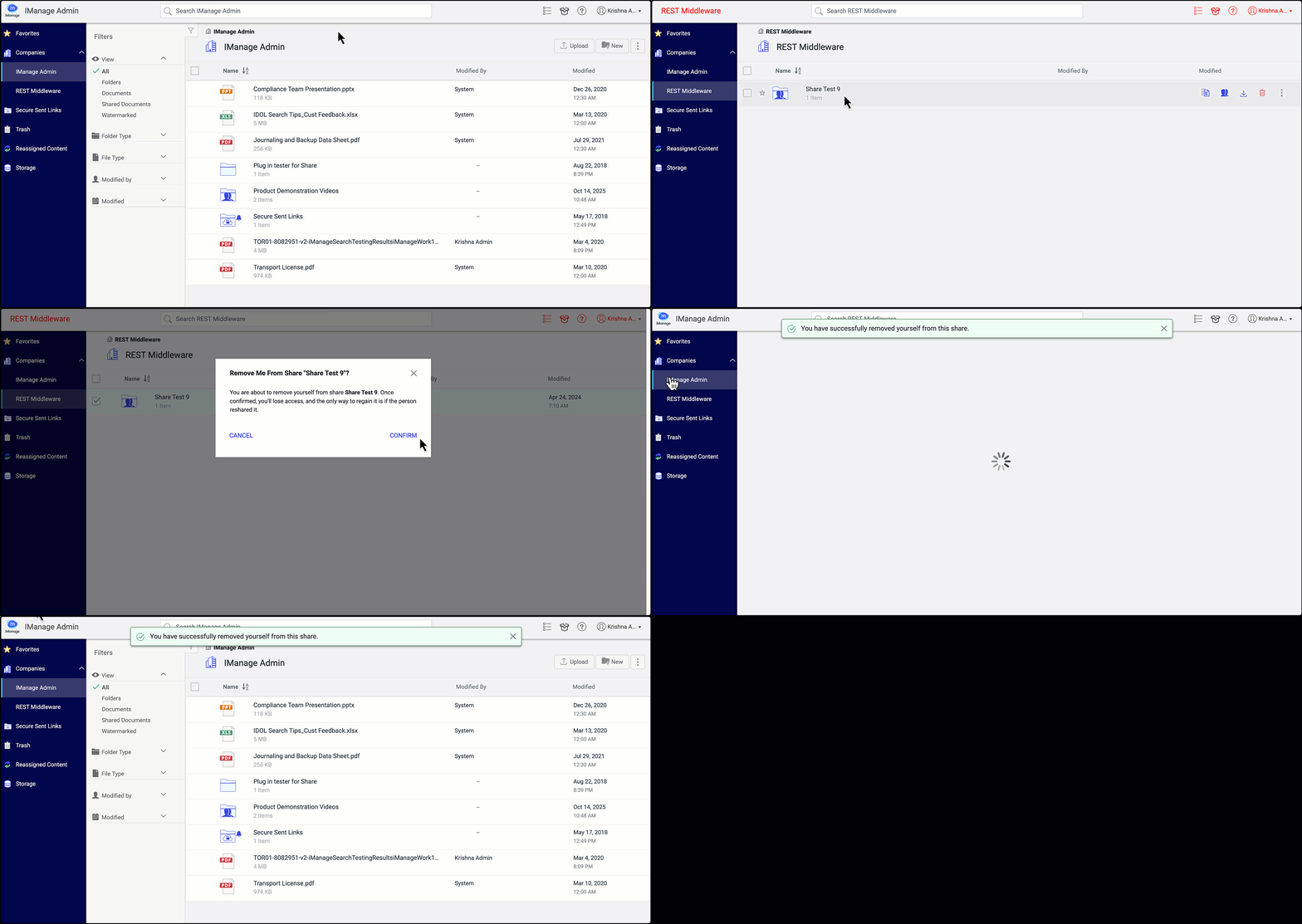
Right-click the shared folder in the company view.
Select Remove me from Share > Confirm. A success toast message is displayed. After the shared folder is removed. The associated company is also removed after the browser refreshes.
Figure: Removing yourself from a shared folder