Hover over the desired folder and select the
 icon. (Optional) Right-click the folder and select Share, or open the folder and select
  Share at the top.
The Share screen is displayed, which enables you to add users and user groups to the folder share, assign their respective user access, and add an optional message, as shown in the following figure:Figure: Share screen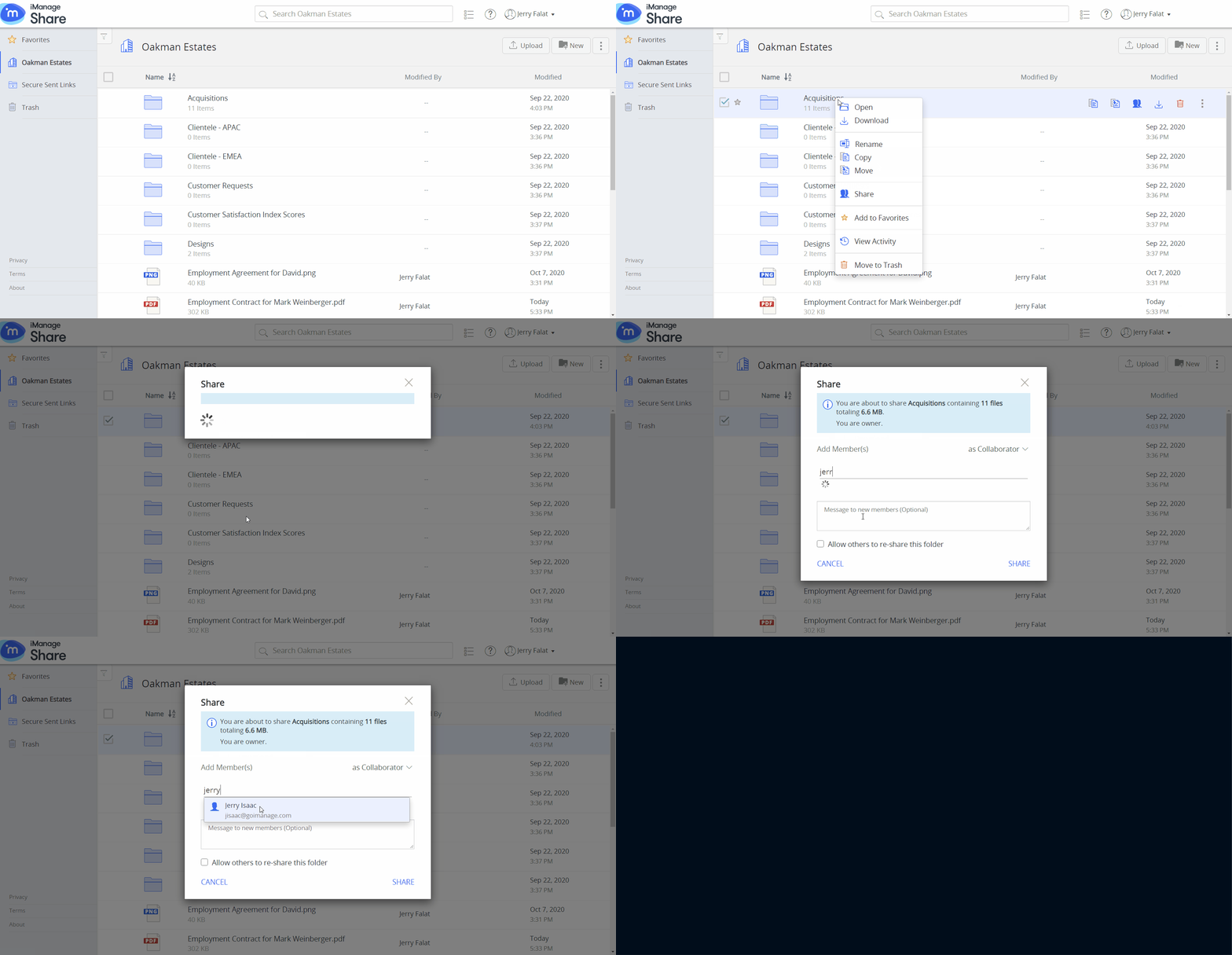
Enter a valid user name or user group with which you want to share the folder in the Add Member(s) field.
Users and user groups that matches the search from your company library are displayed as you type.Select the desired user or user group to add it to the New Member(s) field.
The
 icon is displayed next to the New Member(s) or New User Group(s) you have added.
From the New Member(s) drop-down menu, select the desired access level such as Co-Owner, Collaborator, or Guest.
For more information on the access level privileges, see User Access Levels.Select the Allow Others to re-share this folder check box to enable the user(s) with share access to add more members to the Shared folder.
User(s) can add more members with an equivalent or lesser access level than their own. For more information, see Enabling the Users to Re-share a Folder.
(Optional) Add a message that is included in the notification email that the new user(s) will receive.Select Apply to share the folder.
A confirmation message is displayed and the folder is shared with the selected iManage Share user(s) or user group(s), with the assigned user access levels.
NOTE:
User(s) with Guest access to the Shared folder cannot view the Share.
NOTE:
To add users from another iManage Share library, provide the full email address of the user.
TIP:
 : Is displayed for user(s) who is part of your library.
 : Is displayed for external user(s).
: Is displayed for user group(s).
NOTE:
If you try to share the folder with its Owner, an alert is displayed.
NOTE:
When an invite is sent to a user group, users who are part of that group do not receive the invite notification.
For more information on how the share access is applied to the sub-folders, see Share Access Inheritance.