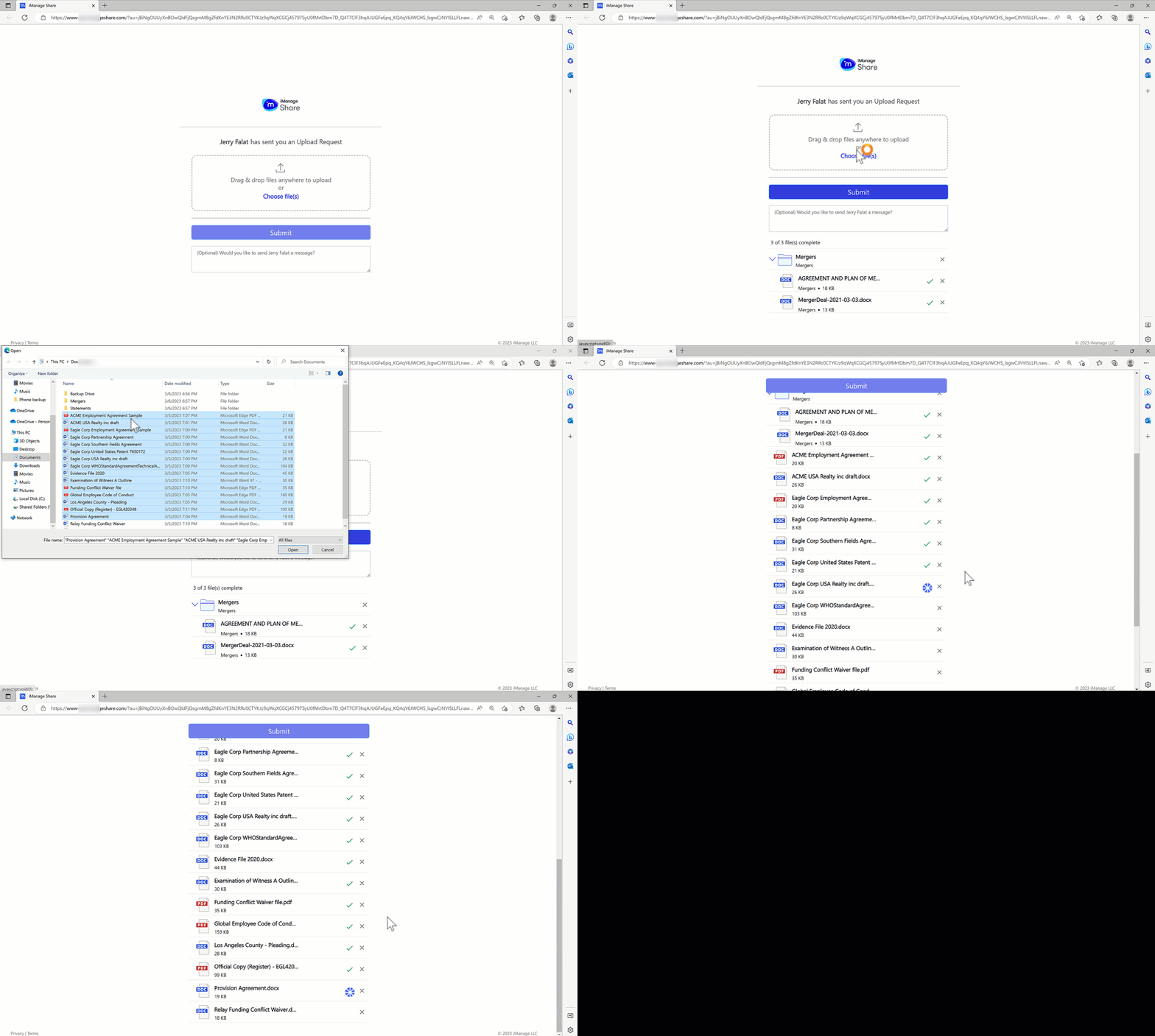
Send upload request enables you to send upload requests to both users within your organization and external users. Send Upload Request enables the recipients to upload unlimited numbers of files and folders.
NOTE:
You can use the Send Upload Request feature only if the administrator has enabled it.
Recipients can use the upload request link once. To upload files and folders again, recepients must request another email from the sender.
Hover over the desired folder and select
 >
>  Send Upload Request. (Optional) right-click the folder and select Send Upload Request, or open the folder and select > Send Upload Request.
The Send Upload Request screen is displayed with email address and optional message fields.Insert the desired email address and select Send at the bottom.
The recipient receives an email titled Upload Request from (company name), and must select Complete Upload Request to upload the file(s) into your folder.
You and the recipient will be notified by email when all files are uploaded successfully.