Add widgets during initial setup
The first time you open the iManage platform, a welcome screen opens and guides you through selecting widgets for your home page.
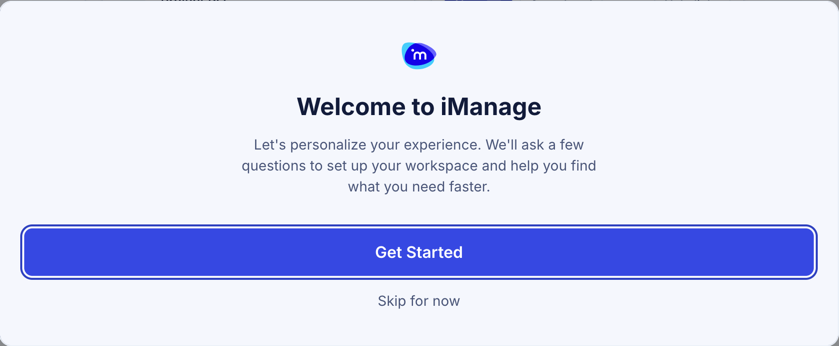
On the Welcome to iManage page, select Get Started.
On the Customize your homepage screen, select each widget card you want to add. Selected cards are outlined.
Select Next, then complete the initial setup to open your home page with the widgets you selected.
NOTE: You can skip the initial setup entirely. You can change your widget selections at any time, so you don't need to add every widget during setup.
Add widgets later
To customize your home page as needed:
On your home page, select Customize homepage in the top-right corner.
Select Add widget, and then select a widget from the list. Empty slots are displayed as dashed outlines where you can place the widget.
NOTE: If a widget was already added previously, it isn’t displayed in the available widget list.
Drag the widget by the handle at its top center to arrange your home page.
Select X in the upper right corner of the widget to remove it from your home page.
Drag a corner or side of the widget to resize it.
Select Done to save your layout.