To duplicate an existing Playbook,
On the left navigation bar, select Playbooks
 to display the Playbooks dialog and view the existing Playbooks.
 In the Playbook dialog, hover over the Playbook that you want to edit and select the more options
 icon next to it and select Duplicate.Figure: Duplicating a Playbook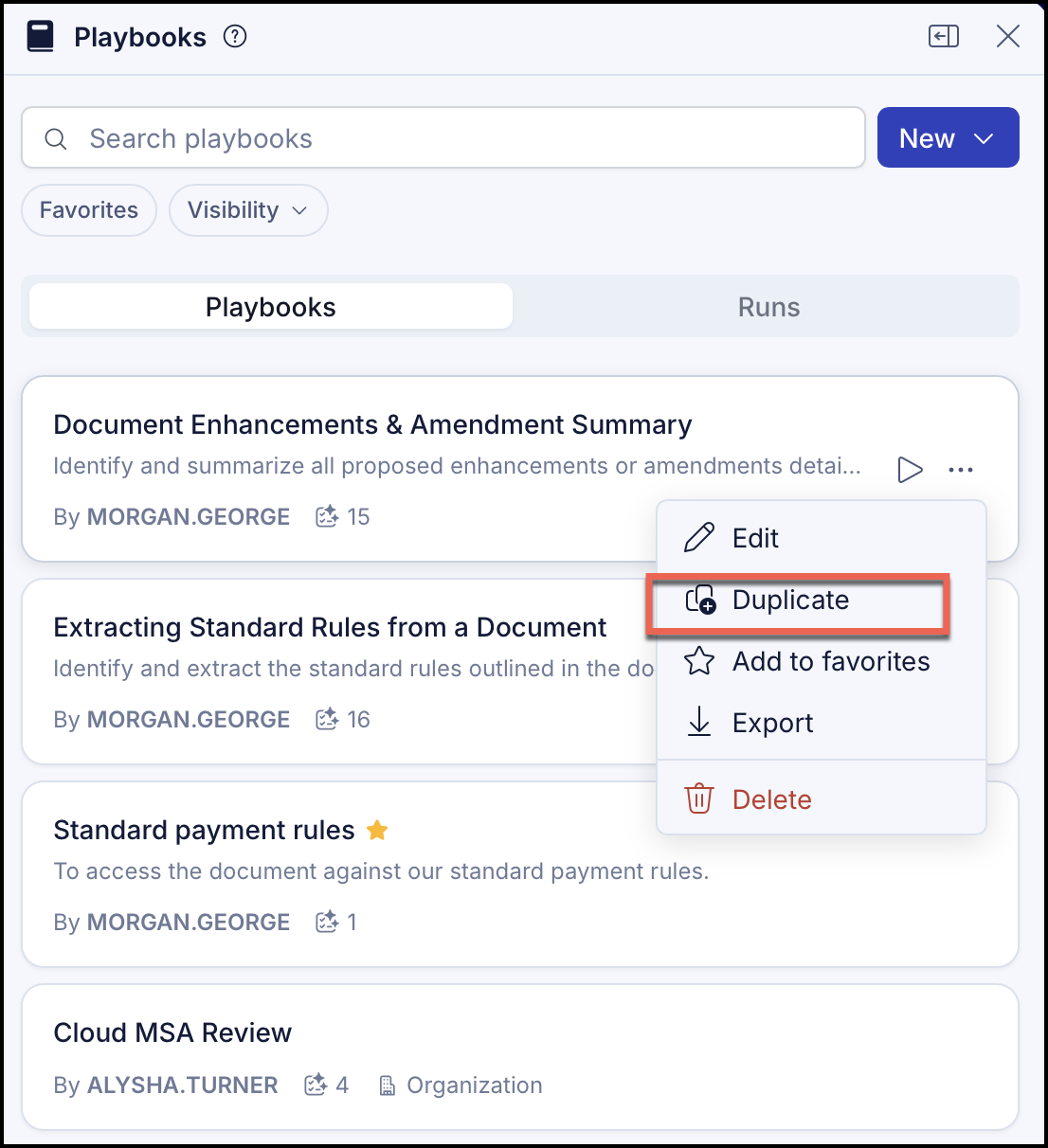
Make necessary changes to Name, Description, or Visibility fields. All changes are automatically saved.
To edit an existing rule, hover over the rule and select Edit rule. In the Edit rule dialog that opens, make the necessary changes to the Rule name, Definition, or Requirement fields. All changes are automatically saved.
To edit an existing position, over the position and select Edit position. Make the necessary changes to the existing position. All changes are automatically saved.
To delete an existing position, over the position and select Remove position. The position is removed.
To add an new position, select Add position.
In Clause, enter the clause.
Enter notes in Notes, if any.
Enter the comment to be inserted in Microsoft Word document.
Select Add to add the position. The position is now saved.
(Optional) Select Add position to add another position.
To delete an existing rule, select Remove rule. The rule is removed and changes are automatically saved.
To add a new rule to existing playbook, select Add rule.
In Rule name, add a short name for the rule.
In Definition, enter the description of the rule. Alternatively, you can provide the description and improve it by using Generate from current option option.
If you're using AI to generate the description, select Accept to Reject to accept or reject the rule.In Requirement drop-down, select if the rule is Required, Preferred, or Optional.
Select Add position to open the Add standard position pane and do the following:
In Clause, enter the clause. For example, The customer must pay within 30 days of our invoice.
Enter notes in Notes, if any.
Enter the comment to be inserted in Microsoft Word document.
Select Add to add the position. The position is now saved.
(Optional) Select Add position to add another position.
All changes made are automatically saved and the Playbook is created. It can be accessed from the Playbooks panel.