When you open a workspace or folder, you can search the items it contains by using the search box below the main search bar. By default, this box searches item titles. To search the content of the items, add or select the keyword: prefix before your search term.
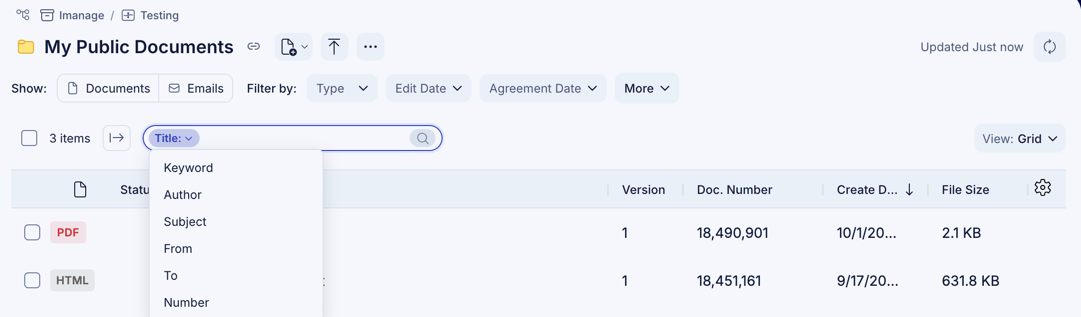
To search for items within a workspace or folder:
Open the workspace, and then open the folder you want to search, if applicable.
On the Browse tab, in the Search in box, enter or select keyword: followed by your search term—for example, keyword:budget. A space after the colon is optional.
Press Enter. The items that match your search term are displayed, including items in subfolders of the workspace.
NOTE: To search across all workspaces and libraries, use the unified search box at the top of the application. For more information, refer to Search for items using regular search.
Supported search prefixes
The following table lists the prefixes supported in the Search in box.
Table: Search prefixes
Prefix | Searches |
|---|---|
Title: | Item titles |
Keyword: | Item content |
Author: | Item author |
Subject: | Email subject lines |
From: | Email senders |
Fr: | Email senders (shorthand for From:) |
To: | Email recipients |
Number | Document numbers |