Full screen view hides the navigation and action areas around the content pane. The list, document preview, or page you’re working with then fills the browser window.
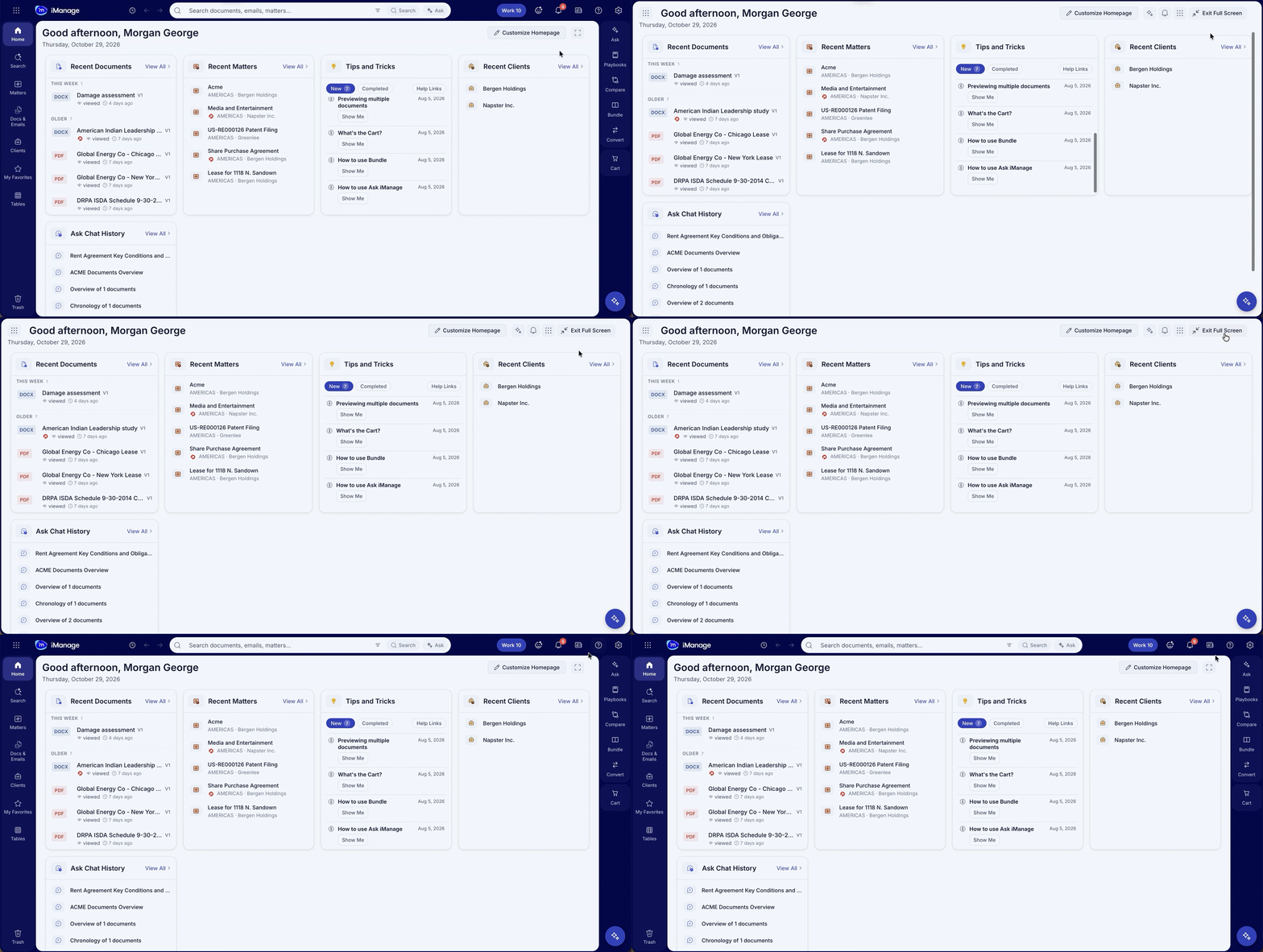
NOTE: Full screen view is a Public Preview feature. Public Preview features are off by default. To use this feature, turn it on in User Settings, as described below. For more information, see Preview features.
To turn on full screen view in public preview
Select the Settings icon (gear) at the upper right of the page.
Select Advanced.
Select Public Preview.
Turn on Full Screen View.
Why use full screen view
On every page, the global header, left navigation rail, tree panel, and right action rail take up part of the window. When you review long lists of documents, compare columns of metadata, or read a document in the preview panel, that space is often more useful for the content itself. Full screen view gives you that space, and you can still reach navigation and actions.
Full screen view is especially useful if you:
Work on a laptop or a smaller screen.
Review large result sets, such as search results or the contents of a busy workspace.
Read or review documents in the expanded preview panel.
Where full screen view is available
The Full screen button is in the header of the following pages:
Home
Workspace, folder, and search folder lists
Recent, Favorites, Matters, and Clients
Search results
Experts, Knowledge, and Context Search
Tables, in both the overview and the detail view
The expanded preview panel
Pages that don’t have the button always use the standard layout.
What changes in full screen view
When full screen view is on, the global header, the left navigation rail and tree panel, and the right action rail are hidden. The page header then shows the following controls, so that you can still move around and take action:
Navigation menu, at the start of the header. It contains the left navigation rail items, Trash, and Show in Tree on pages that offer it. Items that have a tree open it in a panel from the left. Show in Tree opens that panel with the current item selected.
Ask and Notifications.
More options, which contains the actions currently available in the right action rail.
When you turn off full screen view, the layout returns to exactly how you left it. This includes whether the Matters panel was open, its width, and which tree nodes were expanded.
Full screen view stays on as you move between pages and when you refresh the page. It resets when you sign in again or open an instance in a new tab, window, or browser.
To turn full screen view on or off
Before you start, make sure full screen view is turned on in public preview. For more information, see “To turn on full screen view in public preview.”
On any page that supports it, select Full screen in the page header.
To return to the standard layout, select Exit Full Screen or press Esc.
Esc doesn’t turn off full screen view while the key is in use for something else. For example, this happens while you’re entering text in a field, while a menu or dialog is open, or while rows are selected. Close or clear that item first, then press Esc again.