Configuration > Settings > General lets you configure system-wide defaults for time zone, date ranges, score settings, robot behavior, and Google Analytics Solutions Tracking.
In this section:
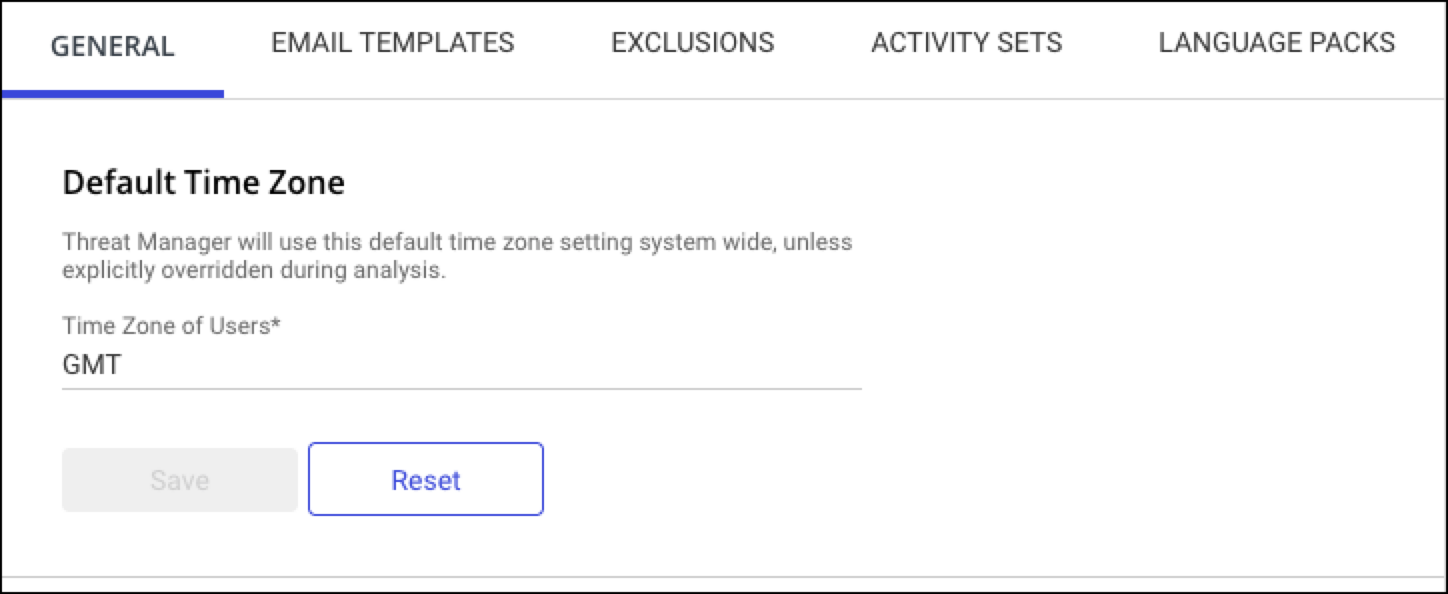
Default Time Zone
The Default Time Zone setting controls the time zone used for Detect and Protect alerts, Behavior Analytics rules and analysis, and Matter Activity rules. Alerts generated in the corresponding reports use the time zone specified here.
The Default Time Zone field displays only time zones that are in 1-hour increments from UTC. The time zone also controls the day boundary for threshold computation and alert generation. For example, if the time zone is set to America/New_York (Eastern Standard Time, EST), the day boundary is defined as the 24-hour interval starting at UTC−5 hours.
NOTE: You can override this setting when creating a rule or when performing Analysis.
Task: Set the Default Time Zone
In Configuration > Settings > General, select the text field under Default Time Zone. A drop-down list of time zones appears.
Start typing the name of a continent or geographic region. A pick-list appears after the first several letters. Select the time zone for your region, for example, “America/New_York”.
Select Save. The default time zone is set.
To revert to UTC, select Reset.
(On-premises) Task: Configure sub-hourly time resolution
Use this procedure if activity is captured at locations where time zones are offset from UTC in intervals smaller than one hour (for example, UTC+6:15 or UTC-5:30).
NOTES:
This setting applies only to new data ingested after the change. To apply it to older data, delete the library and re-ingest.
This setting is independent of the ingestion frequency setting. It chunks activity data into the relevant resolution intervals regardless of ingestion frequency. Refer to (On-premises) Advanced configuration.
Adjustments to sub-hourly resolution may increase storage footprint by 20-50%.
Connect to the appliance and navigate to the folder where you extracted the deployment package, (typically
/home/tmadmin).Open docker-compose_v10.yaml. Under the
analytics-dataimporter:section, and under itsenvironment:subsection, add the following (adjust the duration value to match your offset — for example, 15 for a 15-minute offset):
DATAIMPORTER_WORKETL_LOADER_ENTITYRESOLUTION_UNIT=MINUTESDATAIMPORTER_WORKETL_LOADER_ENTITYRESOLUTION_DURATION=15Default Date Ranges
Default Date Ranges define the periods used for threshold computation, rule and analysis periods, roles history, and more. These values can be adjusted as required for a given rule or report.
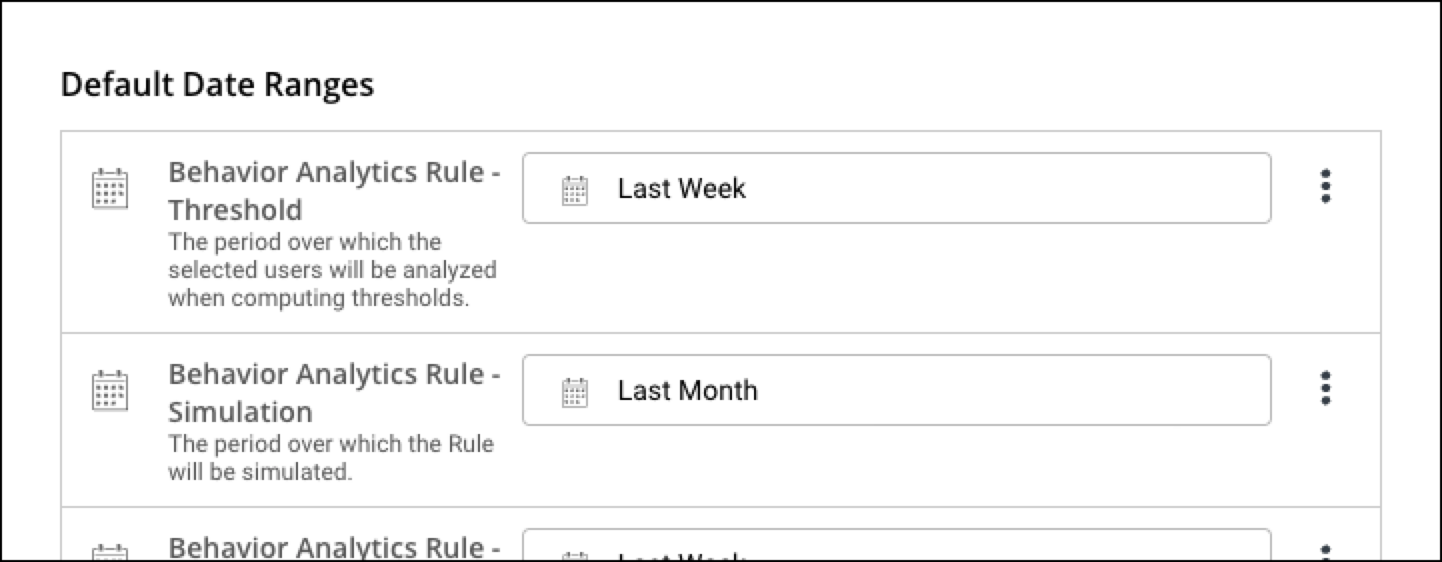
TABLE: Default date range properties
Property | Description | Default value |
|---|---|---|
Behavior Analytics Rule - Threshold | The period over which the selected users are analyzed when computing thresholds. | Last Month |
Behavior Analytics Rule - Simulation | The period over which the Rule is simulated. | Last Month |
Behavior Analytics Rule - Run Once | The period to be used when running a Behavior Analytics Rule one time only using past data. | Last Week |
Behavior Analytics Reports | The period to be used when displaying Behavior Analytics Reports. | Last Month |
Behavior Analytics Alerts - Alert List | The period to be used when displaying the Behavior Analytics Alert List. | Last Month |
Alert List Detail | The period of activity to be shown when displaying the detail of a Behavior Analytics Alert | 10 Days before / 10 Days after |
Detect and Protect Rules - Alert List | The period used when displaying the Detect and Protect Alert List | Last Month |
Matter Activity Rule - Run Once | The period to be used when running a Matter Activity Rule one time only using past data. | Last Month |
Matter Activity Reports | The period to be used when displaying Matter Activity Reports. | Last Month |
Compliance | The period over which Compliance (Adoption) is run. | Last Month |
Outliers | The period over which Outliers is run. | Last Week |
Analyze - Threshold | The period over which selected users are analyzed when computing thresholds. | Last Month |
Analyze | The period over which Analyze is run. | Last Week |
Statistics | The period over which Statistics is run. | Last Month |
Roles History | The period over which Roles History is run. This is displayed as the default filter on the Roles> [Selected Role] > History page. | Last Month |
Robot Training inputs | The period to be used when displaying the robot training inputs. | Last Year |
Task: Change a Default Date Range
For all Default Date Ranges except Alert List Detail:
Select
 , or anywhere on the date selector, on the right side of the row for the Default Date Range that you want to modify.
Select a pre-defined dynamic date range (Last Week, Last Month, Last 3 Months, Last 6 Months, or Last Year), or use the calendar to set custom threshold start and end dates in the From and To text boxes. Select Apply.
TIP: For Behavior Analytics Rule—Threshold, we recommend that you set a default date range of Last 3 Months.
For Alert List Detail: Enter a value, or use the arrows to modify, the Days before and Days after, as required.
The Default Date Range is updated and a success message is displayed at the top of the screen.
Task: Reset a Default Date Range
Select
 on the right of the row for the Default Date Range you want to reset.
Select Reset.
The selected Default Date Range is reset to its original default value and a success message is displayed at the top of the screen.
NOTE: Default values vary per Default Date Range.
Score Settings
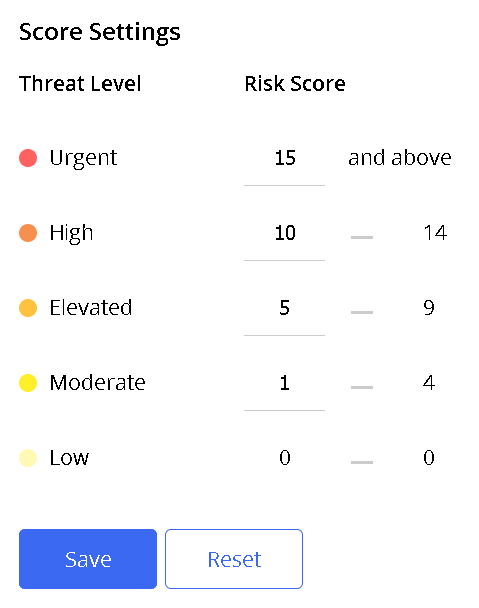
Score Settings map Risk Scores to Threat Level severity for user activity. For information on how scores are computed, refer to Understanding thresholds and risk scores in iManage Threat Manager Help.
Recommended settings
Use the recommended settings in the following figure to map the Risk Score to the Threat Level:
Task: Adjust score settings
Enter the new value in the respective Risk Score field.
Select Save.
To reset the values to system defaults, select Reset.
Robot Settings
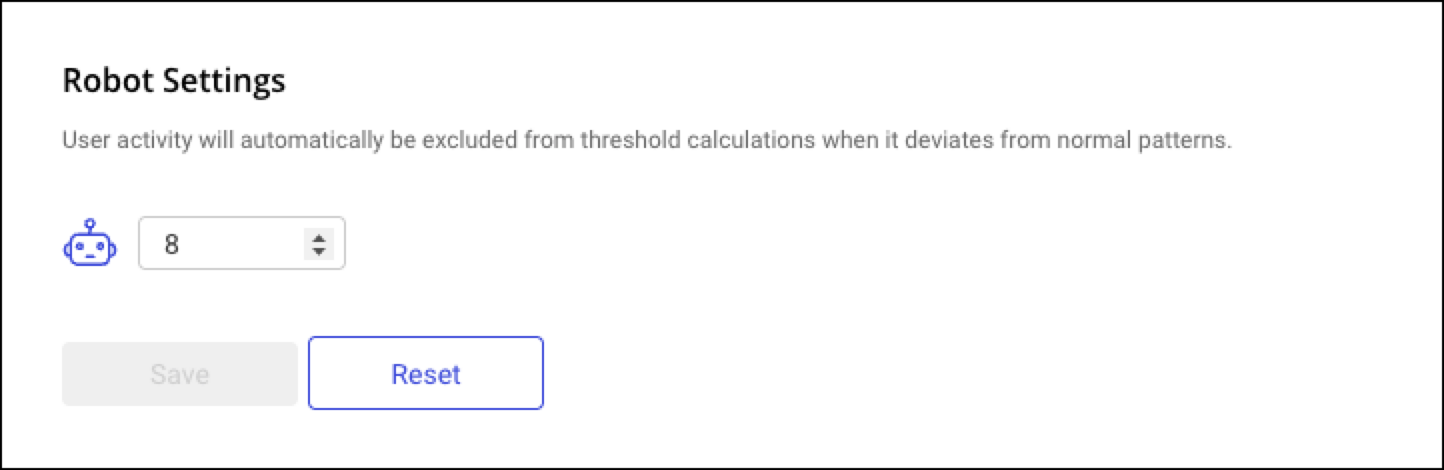
Robot Settings define the deviation from normal patterns required for activity to be excluded from threshold calculations by the iManage Threat Manager robot.
NOTE: We recommend leaving this setting at the default value of 8.
Google Analytics Solutions Tracking
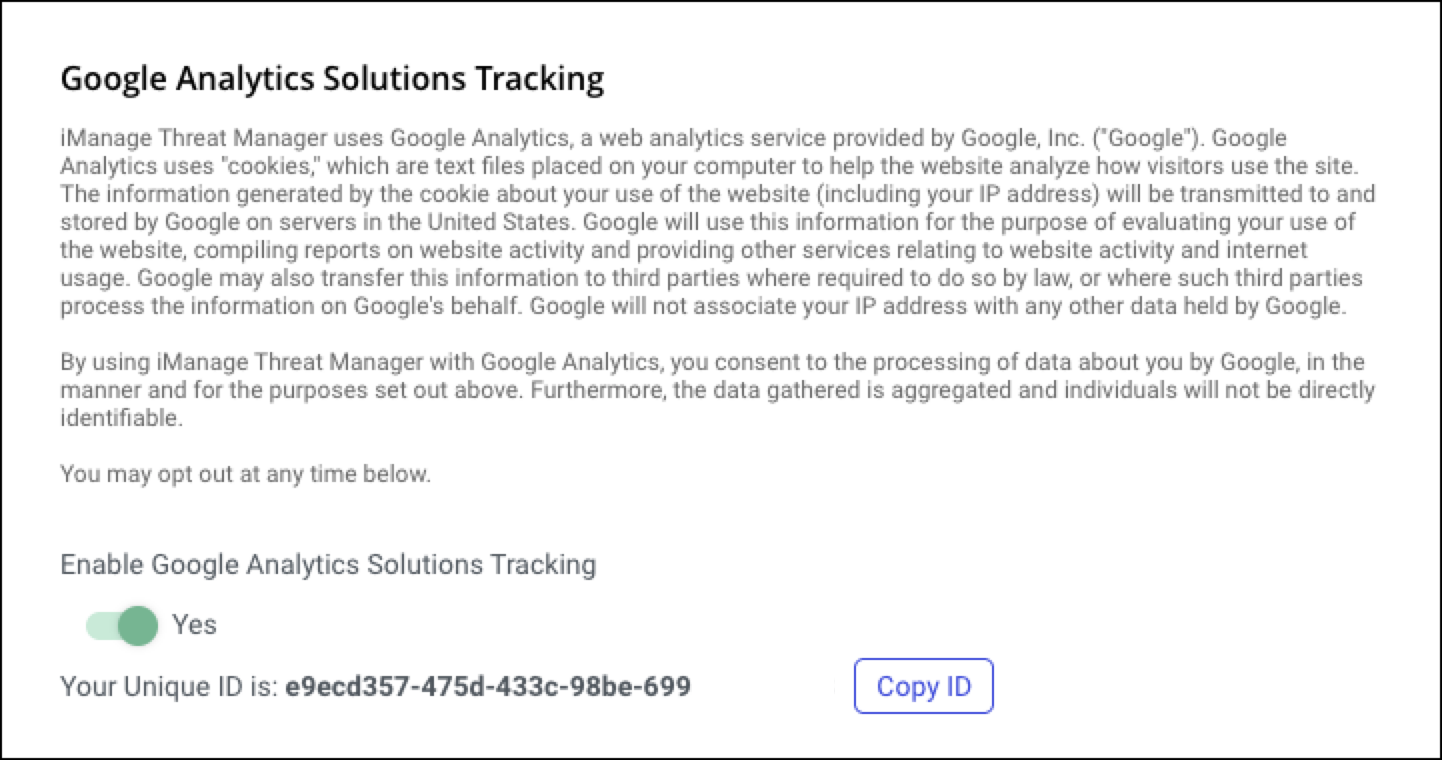
Google Analytics Solutions Tracking provides insights into product use, browser types, and similar usage patterns. No privileged data is collected or stored by this feature. It is enabled by default.
A report containing such information for your firm can be made available upon request. Send a copy of your Unique ID (generated when Google Analytics Solutions Tracking is enabled) to [email protected].
Additional information about the analytics service and the data it generates is displayed above the setting.
Task: Enable Google Analytics Solutions Tracking
In Configuration > Settings > General, set the Enable Analytics Tracking slider to Yes. Your Unique ID is displayed.