Necessary Graph API permissions
The iManage Work for Outlook app needs access to the Microsoft Graph protected resource. Microsoft Graph primarily uses API permissions for security and control, specifying exactly what data an application may access and what actions it may perform within Microsoft 365 services.
API permissions allow you to define exactly which resources the application can interact with, such as users, groups, and mailboxes, and what operations it can perform, such as reading user profiles, sending emails, and modifying files. This ensures that applications don't have excessive or unnecessary access. By limiting an application's access to only the necessary data, API permissions help minimize the risk of unauthorized data exposure or manipulation.
The iManage Work for Outlook app needs access to the mailboxes of the users whose emails it files, and it must be able to read and write to these mailboxes. For example, during the filing process, the application needs to read a user's emails and update their filing status.
Permissions must be granted in the following categories for the iManage Work for Outlook app to function properly.
Application
User
Minimum permissions required
The following are the required permissions:
User > User.Read.All: Read all users' full profiles
Used to get all mailbox aliases
Optional permissions
The following are optional permissions:
Application > Application.Read.All: Read all applications
Used to allow an admin in Control Center to check whether the application has the minimum Graph permissions to a specified mailbox
NOTE: The above list is subject to change as new features and functionality are added to the product.
Follow these steps to grant these Microsoft Graph API permissions to the iManage Work for Outlook app.
On the iManage Work for Outlook app page, select Manage > API permissions in the left menu.
On the API permissions page, if there are any permissions, as shown in the following figure, select the three dots icon in the row, and select Remove permissions.
At the top of the Configured permissions table, select + Add a permission.
In the Request API permissions dialog, select the Microsoft APIs tab, and then select Microsoft Graph.
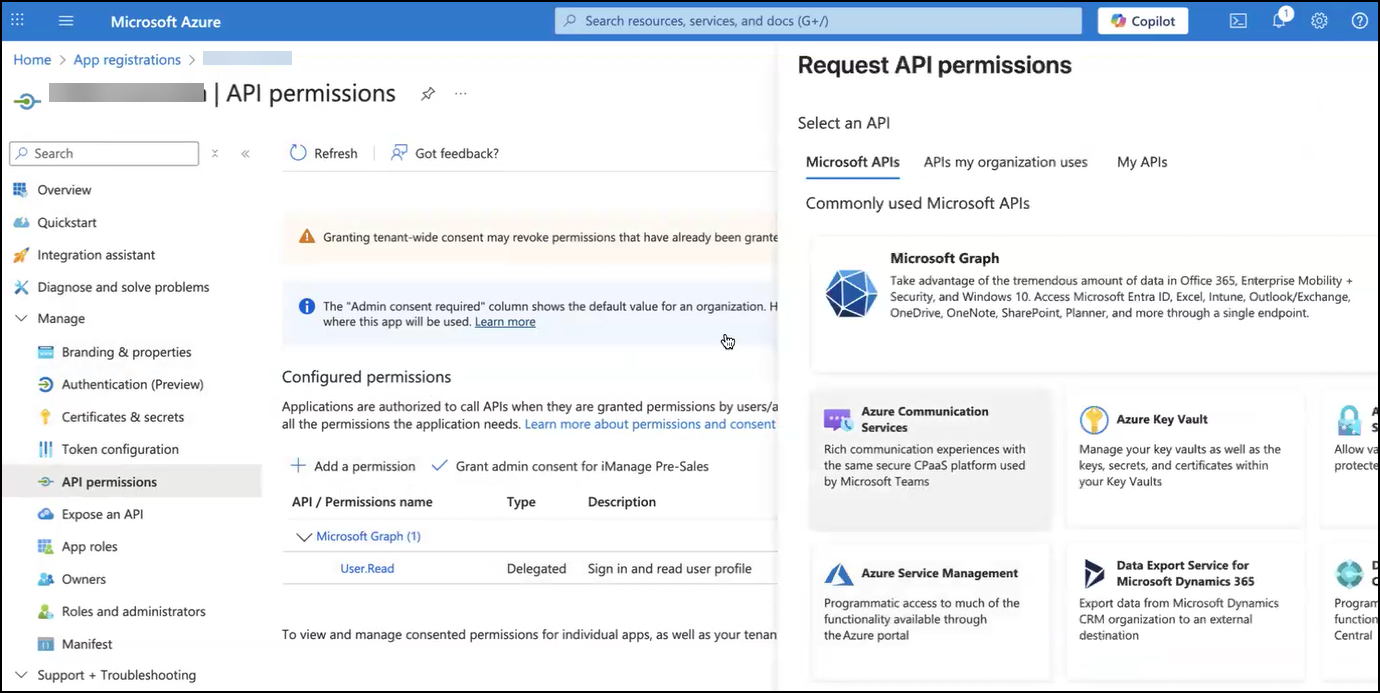
At the What type of permissions does your application require? prompt, select Application permissions.
Using the Select permissions search field, locate and expand the following Microsoft Graph applications listed below one by one, and select the permissions as shown:
User > User.Read.All: Read all users' full profiles
(Optional) Application > Application.Read.All: Read all applications
Select Add permissions.
Select Grant admin consent for <YourTenant>.
In the Grant admin consent confirmation dialog, select Yes.
NOTE: It'll take a few minutes for the permissions to synchronize and be available in the iManage Control Center.