You can save email attachments directly from Outlook to iManage Work using iManage Work for Outlook. You can save all attachments to an email at one location in iManage Work as new documents, or choose to individually save each attachment as a new document or as a version of an existing document.
TIP: To save you time, the Smart Attachments feature automatically detects attachments that are revisions of iManage documents already stored in iManage Work. When you save a smart attachment as a new version of an iManage document, the profile of the iManage document is preselected so you don’t have to search for it. For more information about the Smart Attachments feature, refer to Smart Attachments.
Select the email with attachment(s) you want to file, and then select iManage Work on the Outlook ribbon to display the iManage Work task pane.
Select the Save attachments tab.
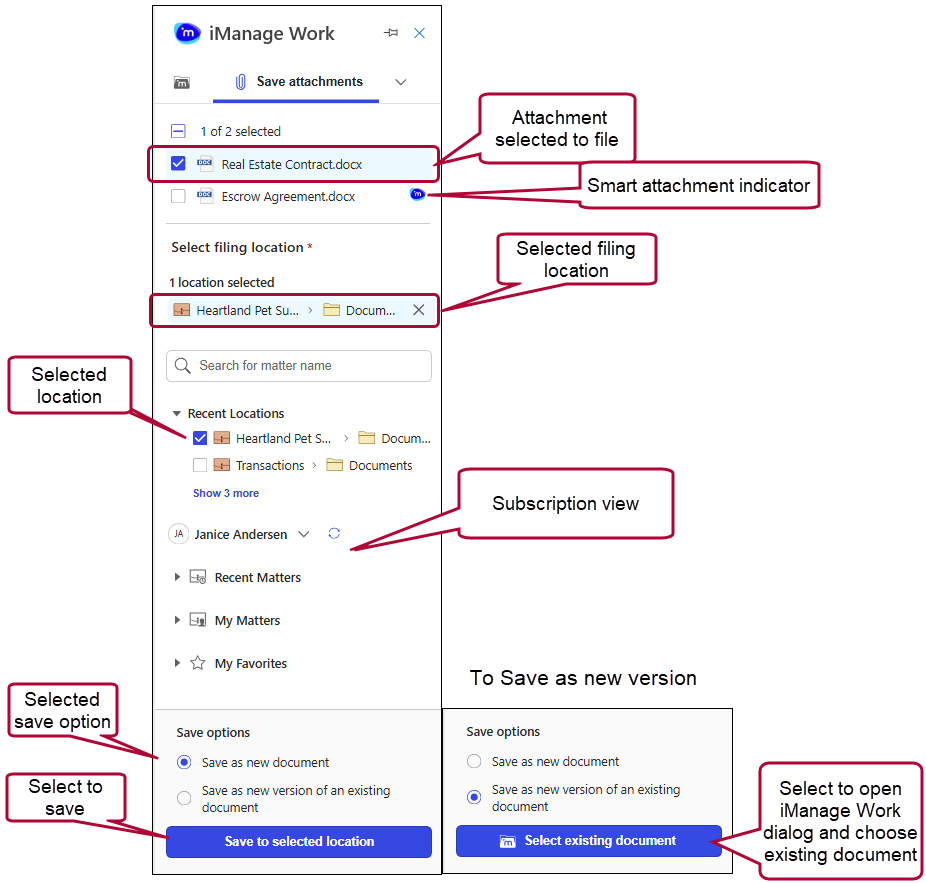
NOTE: The iManage Work task pane is the same view that’s displayed in your iManage Work. The labels may differ from those we refer to here, as they're configured specific to your organization.
Locate the iManage folder and select the location. If you have one attachment, locate the folder in the task pane to file the attachment, or use the search field to search for and select the location.
If the email contains multiple attachments, they are displayed at the top of the task pane. This allows you to select which attachments to save to iManage Work, and to save attachments to different folders in iManage Work.Figure: Attachments listed at the top of the task pane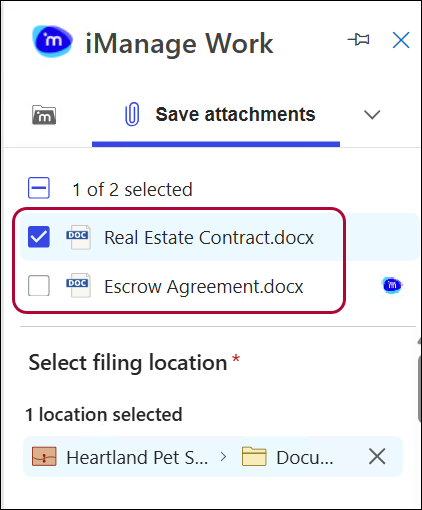
Note: The  icon next to the attachment listed in the Save attachments tab in the task pane shows the document is a Smart Attachment, which automatically detects that the document is a revision of a document already saved in iManage Work.
Select one of the Save options:
Select Save as new document. A success message displays at the top of the iManage Work task pane.
Select Save as new version of an existing document, then click Select existing document to open the iManage Work dialog:
For smart attachments: In the Properties view of the dialog for the document that displays, verify the properties and select Save. A success message displays at the top of the iManage Work task pane.
For all other attachments: In the iManage Work dialog, locate the document for which you want to associate your attachment as a new version, and click Select. Verify the properties in the Properties view and select Save. A success message displays at the top of the iManage Work task pane.
NOTE: When you save a Smart Attachment as a new version of an existing document, iManage Work automatically files it for you in that location upon save.