The first time you open the iManage Work task pane in Microsoft Outlook after signing in, you must sign in to both your Microsoft and iManage Work accounts. Your administrator has enabled auto-enrollment to activate your mailbox in iManage Work for Outlook on first sign-in. When you open the iManage Work for Outlook app for the first time, it initiates mailbox enrollment and activation, prompting you to Sign in to Microsoft and Sign in to iManage.
On the Home tab in Microsoft Outlook, near the top right of the ribbon, or on the left sidebar, select the
 icon to open the iManage Work task pane.

NOTES:
If you’re accessing Outlook through a browser (OWA), you must grant access to iManage Work storage for the add-in to work properly. For details, refer to Consent to access storage.
If you aren’t accessing Outlook through a browser, follow the instructions in the message, or contact your administrator.
In the iManage Work task pane, select Sign in to Microsoft, and follow the prompts to enter your user name and password.
If configured by your administrator, you may also be prompted with a Permissions requested dialog.
Figure: Accept permissions request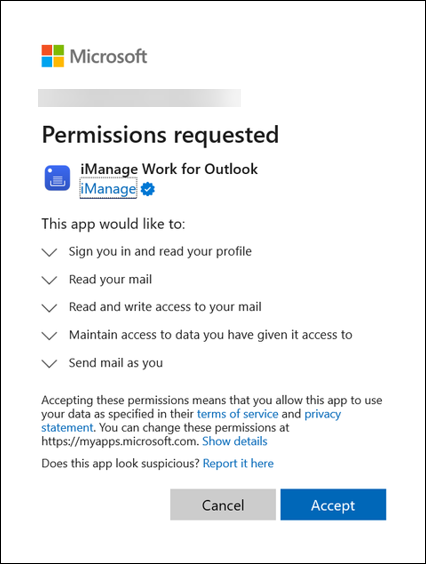
Select Accept to continue.
To open the Sign-in to iManage window, select Sign in to iManage and select Allow in the dialog.
In the Sign-in window, enter your email, optionally check Remember email, then select Continue.
Enter your password and select Sign in.
The iManage Work task pane opens to the Email filing tab, with your designated iManage Work filing locations displayed.Figure: iManage Work initial task pane in Microsoft Outlook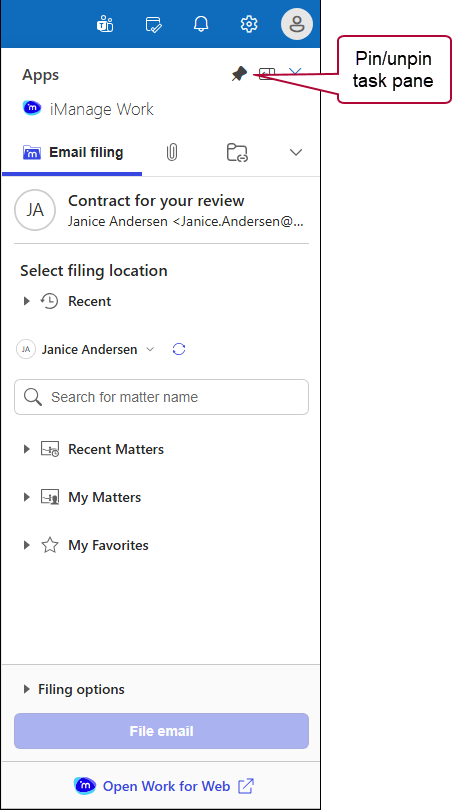
TIP: For easy access to the iManage Work task pane in Outlook, you can pin it so it remains visible even when you switch views or restart Outlook.
To pin the iManage Work task pane, select the
 icon located on the right side of the task pane header.
To unpin the task pane, select the
 icon.
icon.