Your Microsoft Teams app search settings are based on your iManage Work settings. To change the preferred search settings to Title or Keyword search for documents / Subject or Keyword search for emails/ Title or Keyword for Docs & Emails, browse to the iManage tab within Microsoft Teams and set the search type.
Figure: Setting the default search in iManage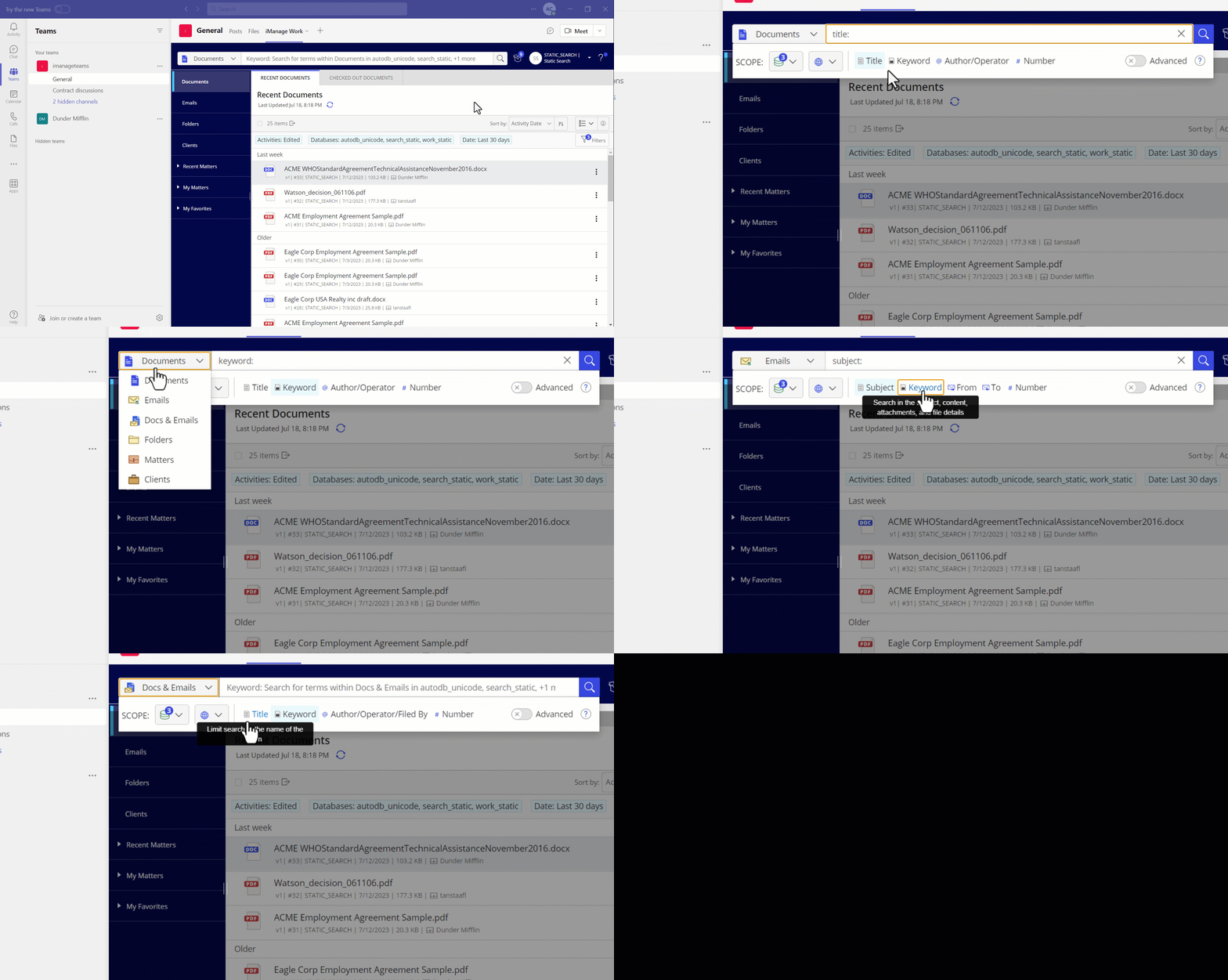
iManage always searches in the libraries you may have selected and saved in iManage Work Web or through the settings command in Teams. If you've never made any library selections, iManage defaults to searching in all of your libraries.
Figure: Setting the library for search in iManage Work Web
NOTE:
Any configuration changes made in the iManage Work user interface may take up to an hour to reflect in the Microsoft Teams app.
To configure your active libraries from within Microsoft Teams, use the Settings bot command available in the iManage app.

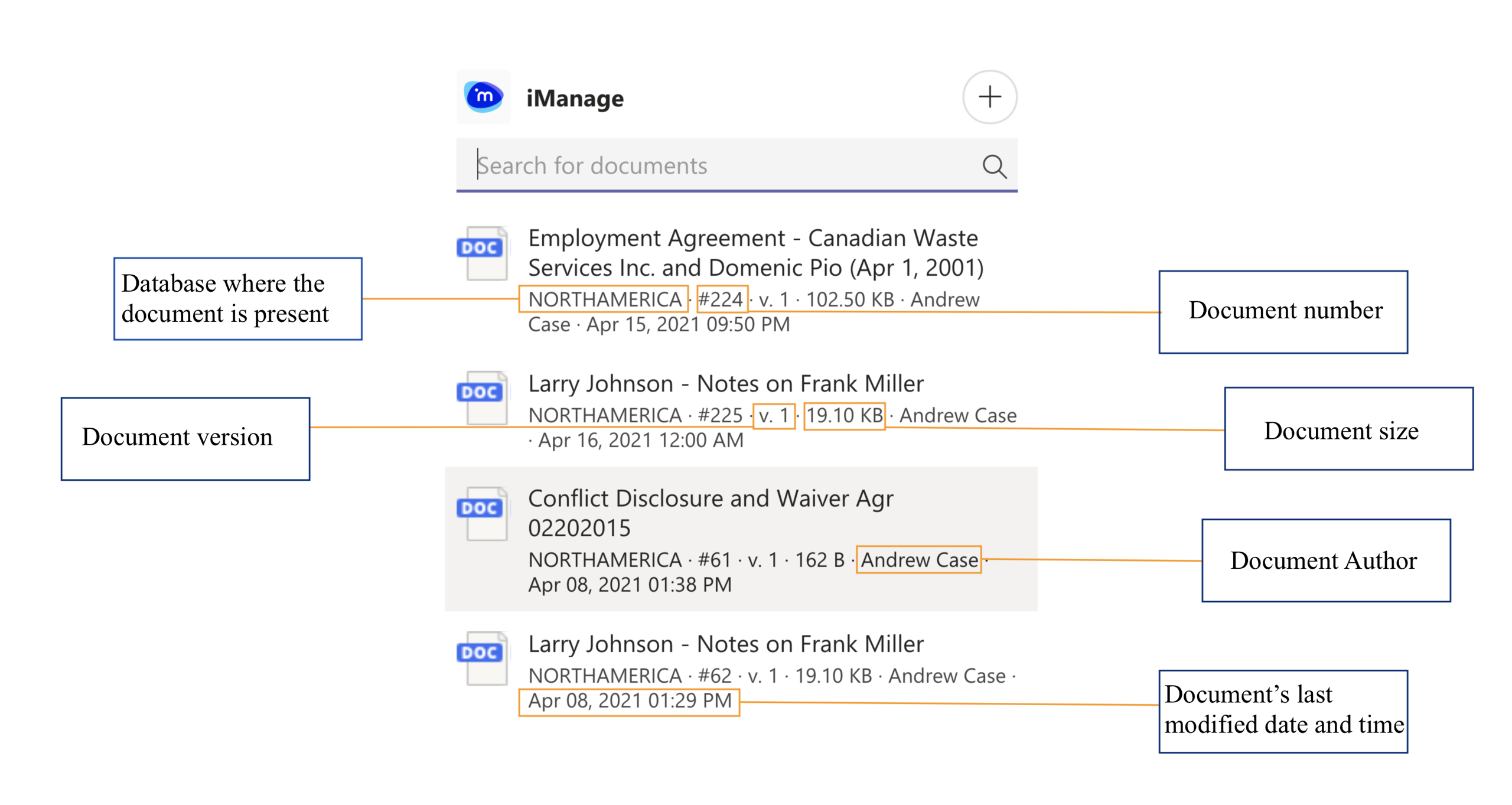
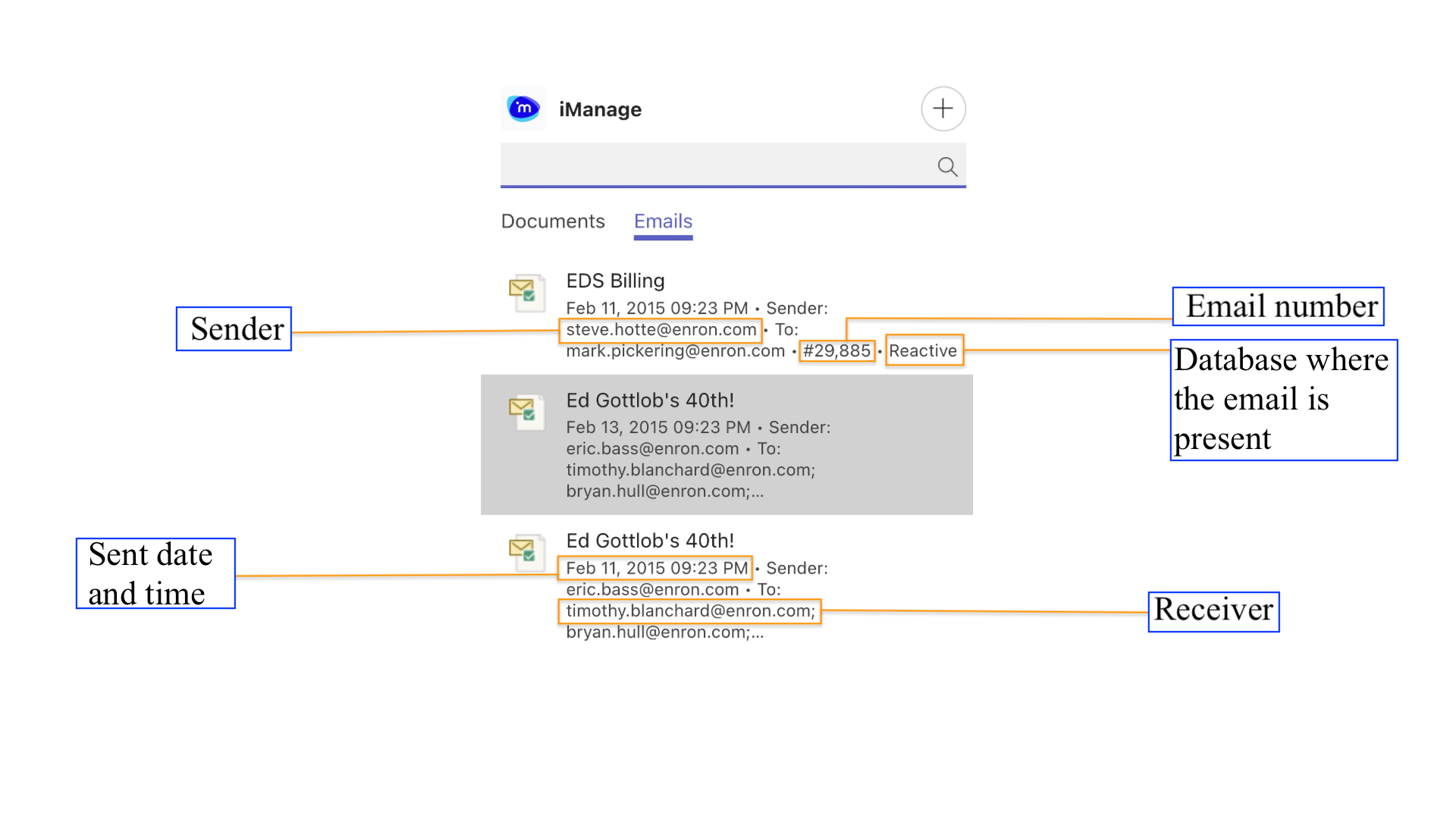
The search results display the following metadata: