Browse to your preferred chat or channel.
Select the iManage  icon on the chat toolbar.
In the messaging extension window, select the Plus  icon and then choose Select from iManage Work to open the iManage File Open/Save As dialog.
Select the preferred item and then use the Copy  option in an adaptive card to share it with other users or use the Send option to share the card in the chat or channel.
Based on the item shared in a chat or channel, further actions that you can perform are explained in the table below.
Table: User actions when attaching an item as a card
Item | Options | Further steps to be performed | Figure |
|---|
Document | | Previewing a document using an unfurled link: In a chat or a channel, browse to the adaptive card that contains the document metadata. Select Preview. A document preview window opens. To open the document in the iManage Work app within Microsoft Teams and perform further actions, select View in iManage.
OR To return to the chat, select Back.
| 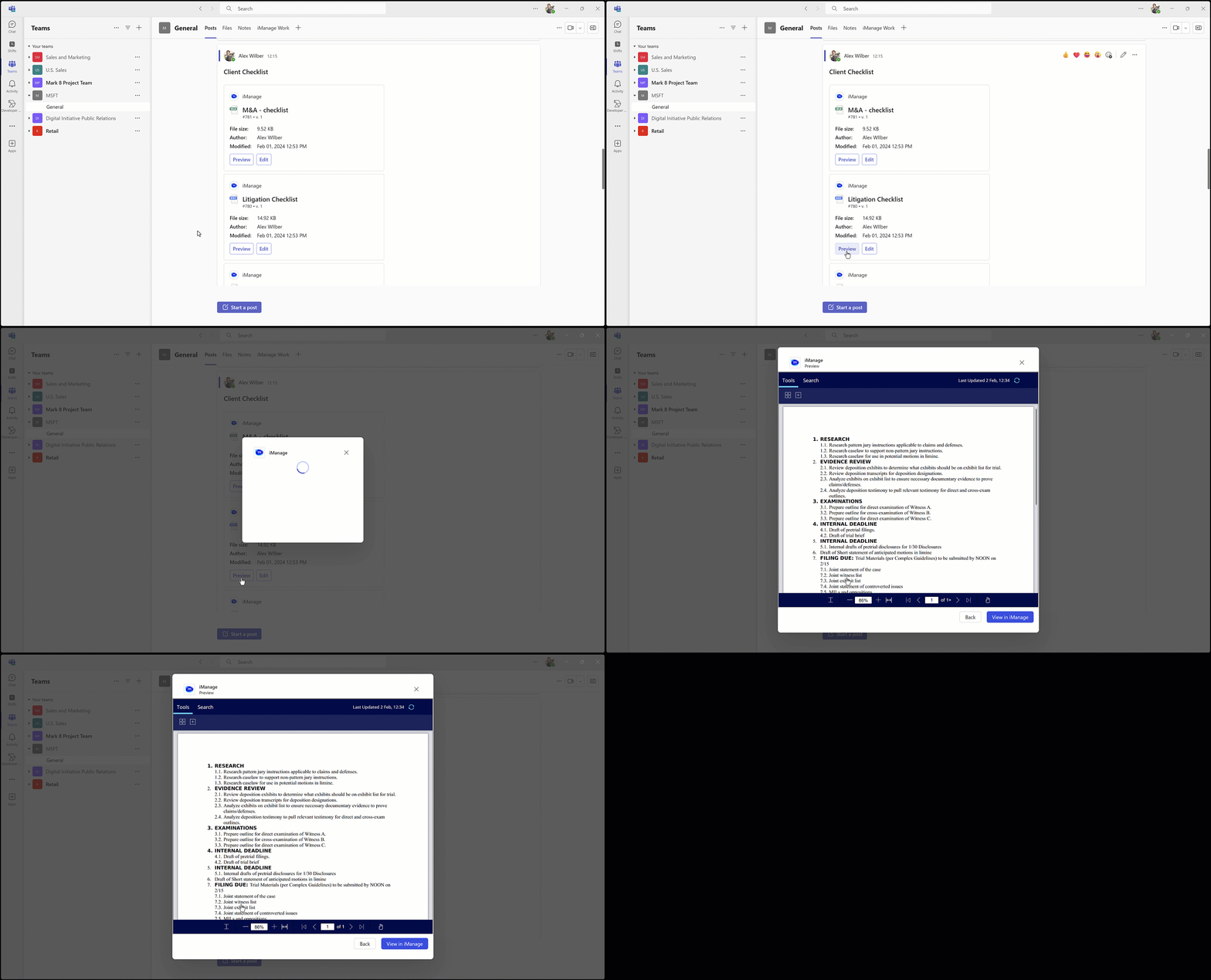 |
Opening a document using an unfurled link: In a chat or a channel, browse to the adaptive card that contains the document metadata. Select Edit. Depending on your access levels, the document opens in edit mode in the native application on the local device using iManage integration. If iManage integration isn't available, you have an option to view the document in the iManage Work app within Teams using
|
Email |
| Previewing an email using an unfurled link: In a chat or a channel, browse to the adaptive card that contains the email metadata. Select Preview. An email preview window opens. To open the email in the iManage Work app within Microsoft Teams and perform further actions, select View in iManage.
OR To return to the chat, Select Back.
NOTEFor an email containing attachments, you can preview each attachment in the preview window. |  |
Opening an email using an unfurled link: In a chat or a channel, browse to the adaptive card that contains the email metadata. Select Open. The email opens in the native application on the local device.
|
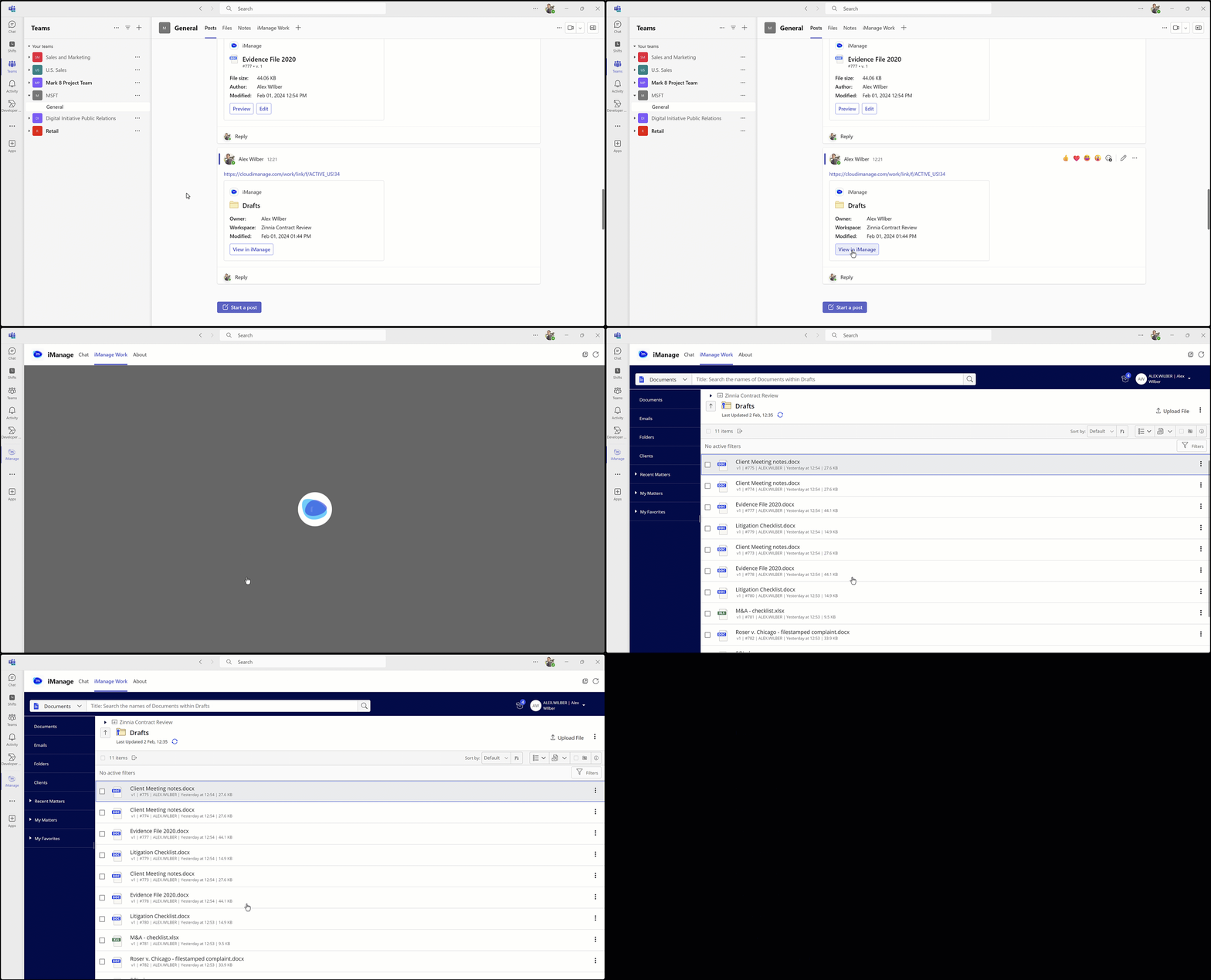
Folder | View in iManage | Viewing a folder in iManage Work using an unfurled link: In a chat or a channel, browse to the adaptive card that contains the folder metadata. Select View in iManage. The folder and its contents open in the iManage Work tab.
|  |
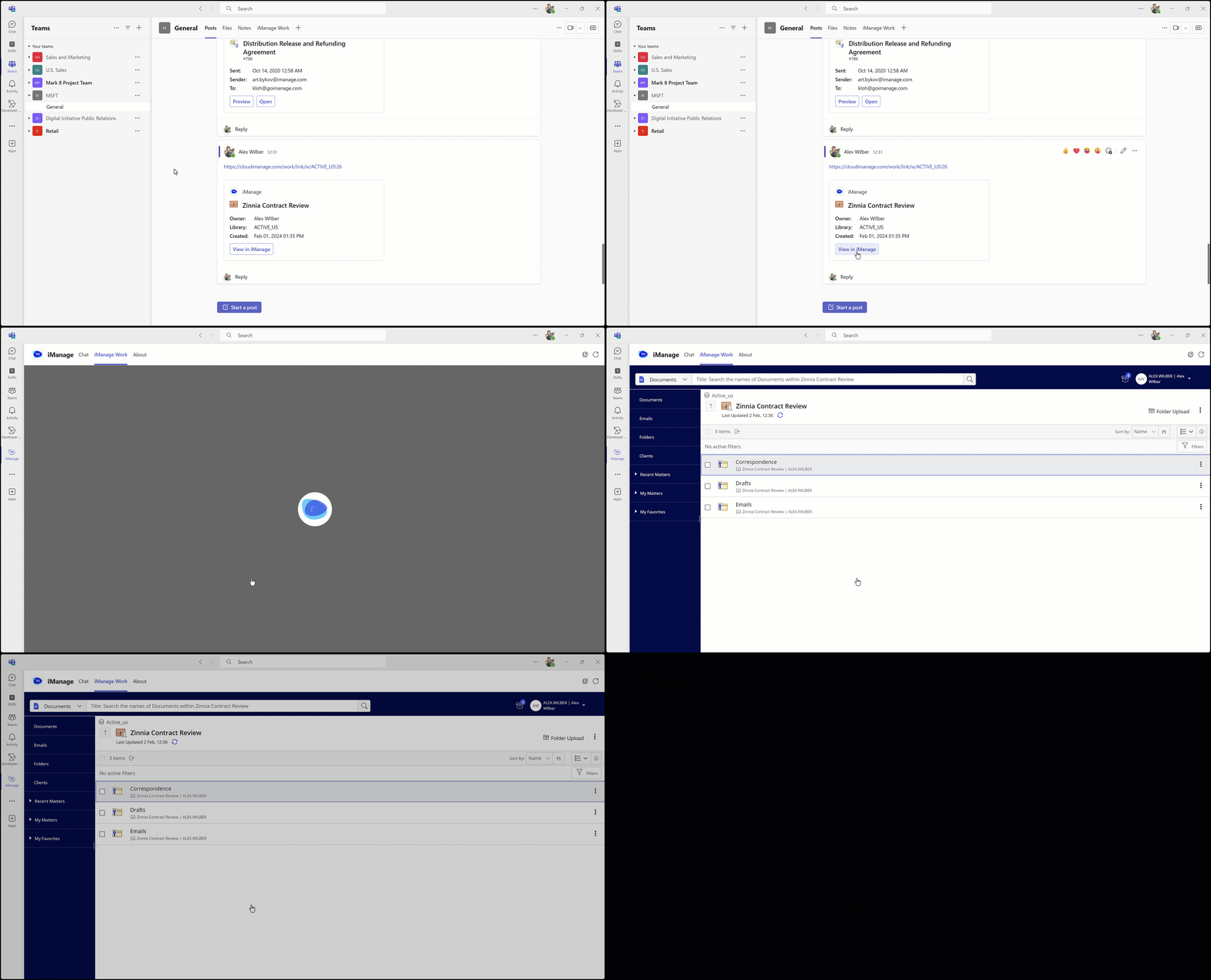
Workspace | View in iManage | Viewing a workspace in iManage Work using an unfurled link: In a chat or a channel, browse to the adaptive card that contains the workspace metadata. Select View in iManage. The workspace and its contents open in the iManage Work tab.
|  |
