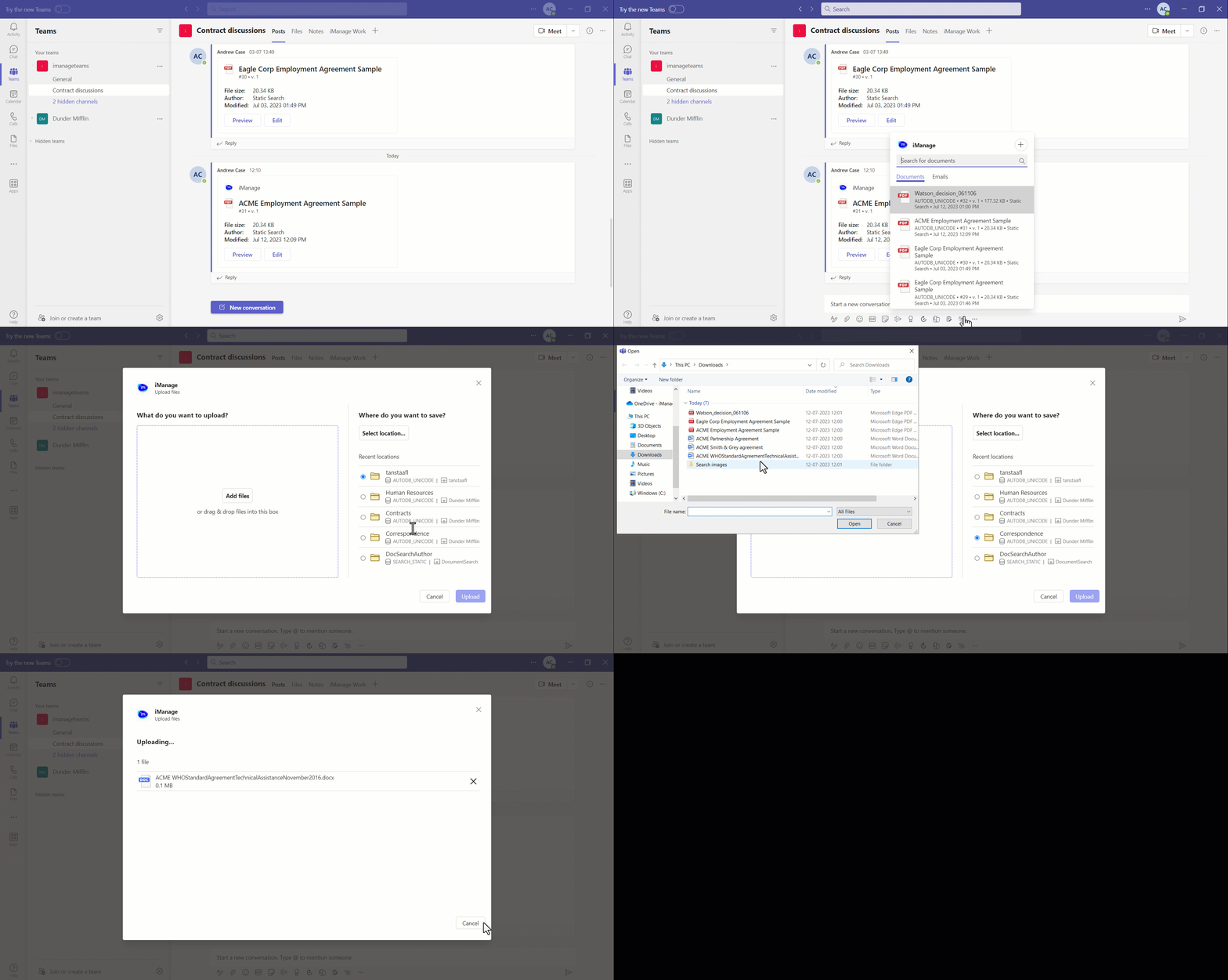
Browse to your preferred chat or channel.
Select iManage
 icon on the chat toolbar.
 In the messaging extension window, select the Plus
 icon and then select Upload files to iManage to open the Upload files dialog.
To set the preferred location for saving files in iManage Work, select one of the locations listed below Recent Locations or choose Select Location.
Select Add or drag the files for upload.
Select Upload.
If a single file is uploaded, then you can share the link to the file by selecting Share to chat.
If multiple files are uploaded, then you can share the link to the destination where the files were uploaded, by selecting Share to chat.
Figure: Uploading files from Teams messaging extension window