You can add shortcuts to other users' My Matters that you’ve subscribed to from your My Matters page.
Browse to your My Matters page.
Select New Shortcut. The Create Shortcut dialog appears.
From the available list, select a desired user's name. The list of Matters you have subscribed to for that user appears.
Select the desired matter for which you wish to create a shortcut.
Select Create Shortcut.
You can also add a matter shortcut from the Add to My Matters dialog The Add to My Matters dialog displays the subscribed users list so you can add a Matter shortcut to your own My Matters or a subscribed user's My Matters.
Browse to your preferred matter in Recent Matters or My Matters.
Select Add to My Matters from the right-click menu or kebab menu.
In the Add to My Matters dialog:
Select the user to whose My Matters you’ve subscribed to. If you don't have sufficient permissions to a subscribed user’s My Matters, a warning message is displayed when in the Add to My Matters dialog.
Figure: Insufficient permissions to a subscribed user’s My Matters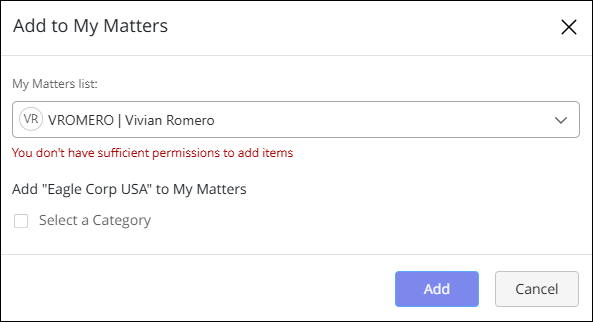
Select the Select a Category check box to see the list of available categories for the selected user. Select New Category if you wish to create the matter shortcut under a new category.
Select Add.
Figure: Adding matter shortcut to subscribed user’s My Matters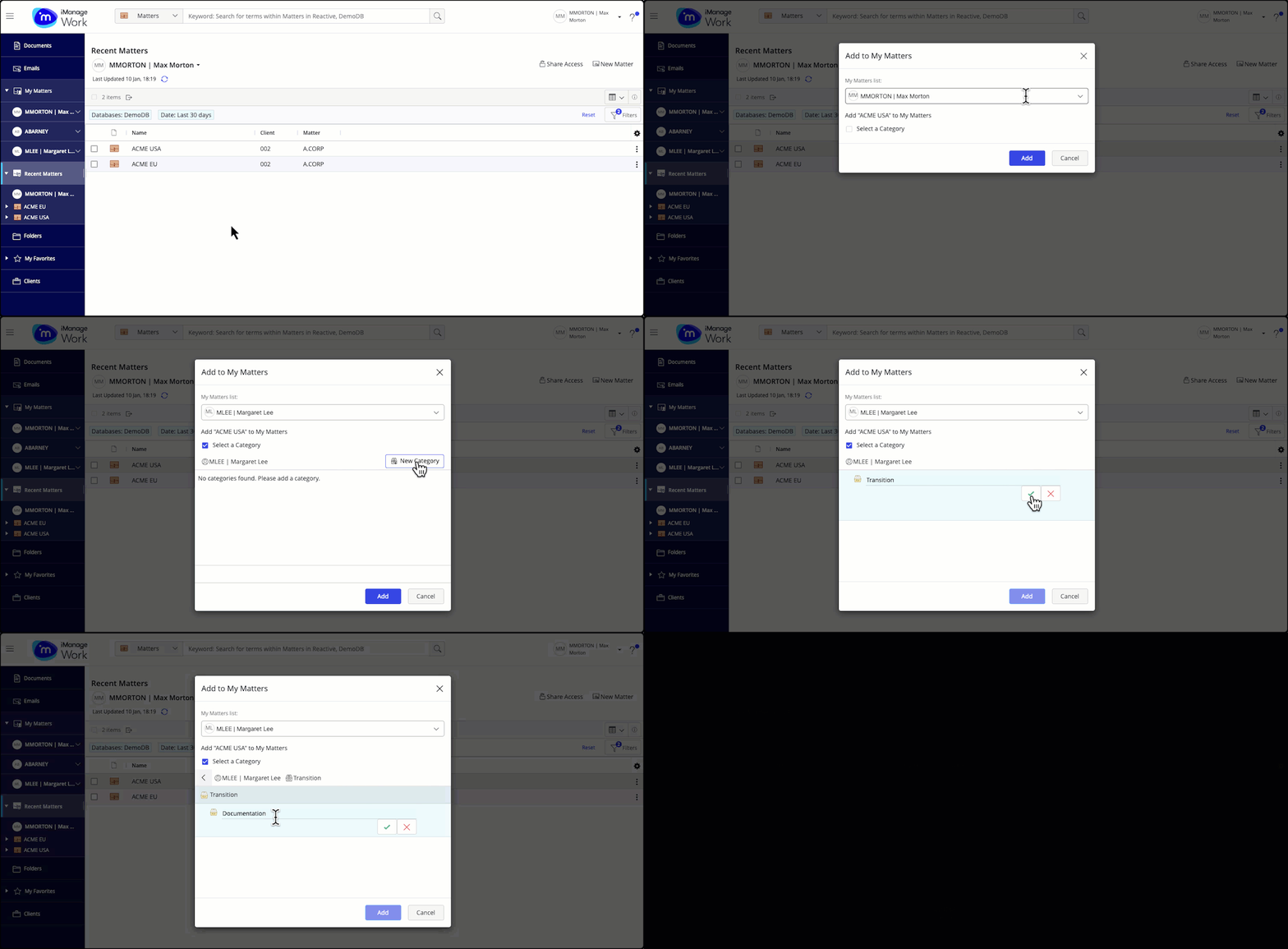
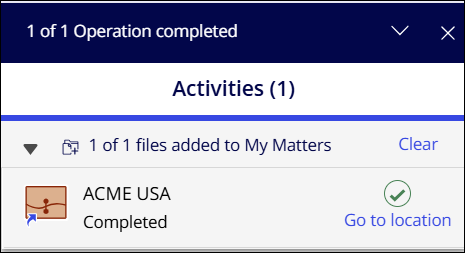
In the progress dialog, select Go to location to view the newly added matter shortcut.
Figure: Progress dialog