You can create a new document version for a document or its version(s) that already exists in iManage Work.
Select a document from the center panel.
Select Copy and then select Copy as new version from the context menu or kebab menu. The Copy as new version dialog opens. If required, you can edit the metadata and security for the new document version being created, otherwise you can continue using the available metadata.
Figure: Copy as new version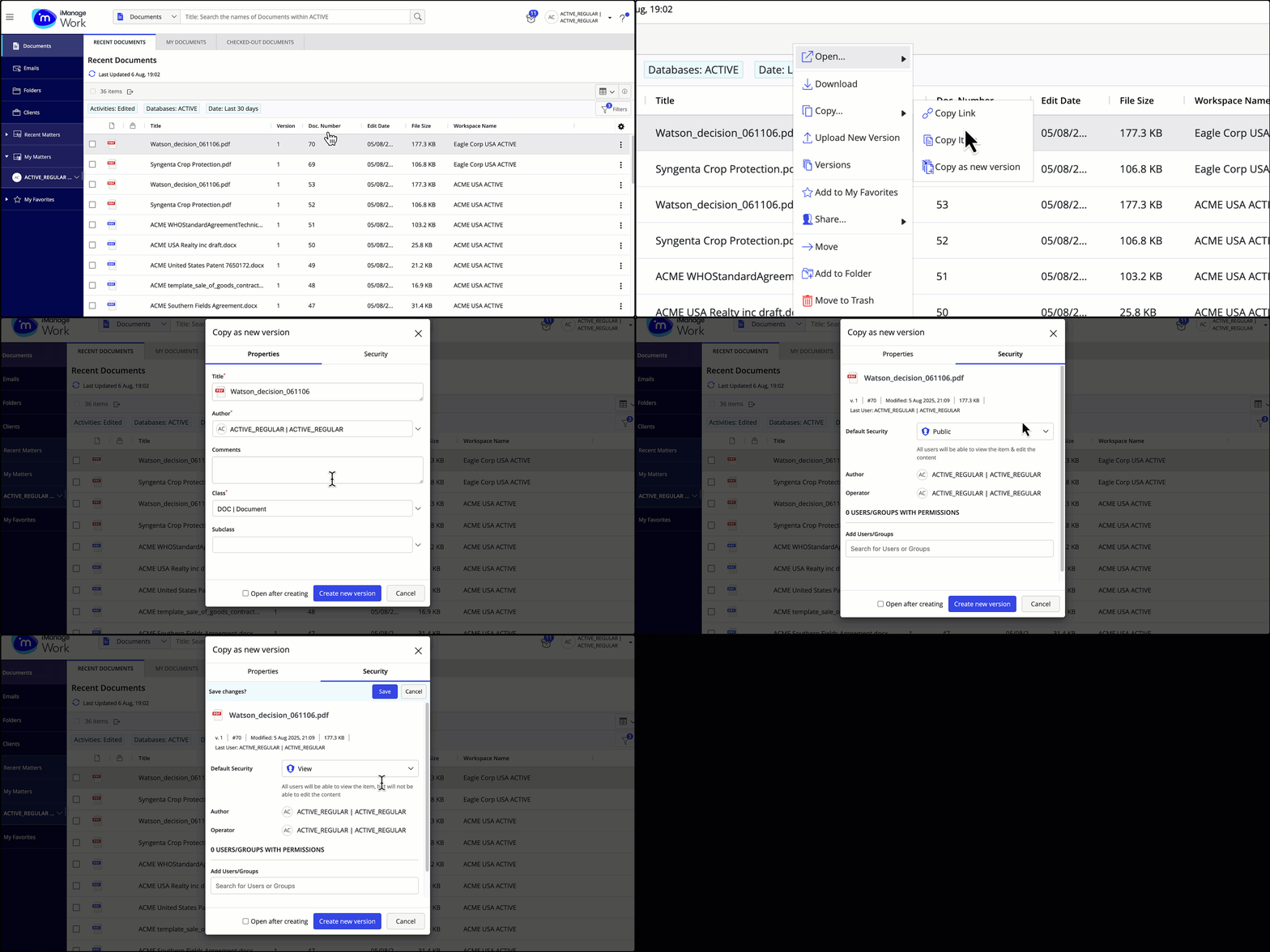
You can now either choose to continue with just copying a new version of the document or copying the new version and have it opened immediately after creation.
To copy a new version, select Create new version. A progress dialog appears. Select See properties in the progress dialog to view the properties of the newly created document version.
Figure: Copying a document only as a new version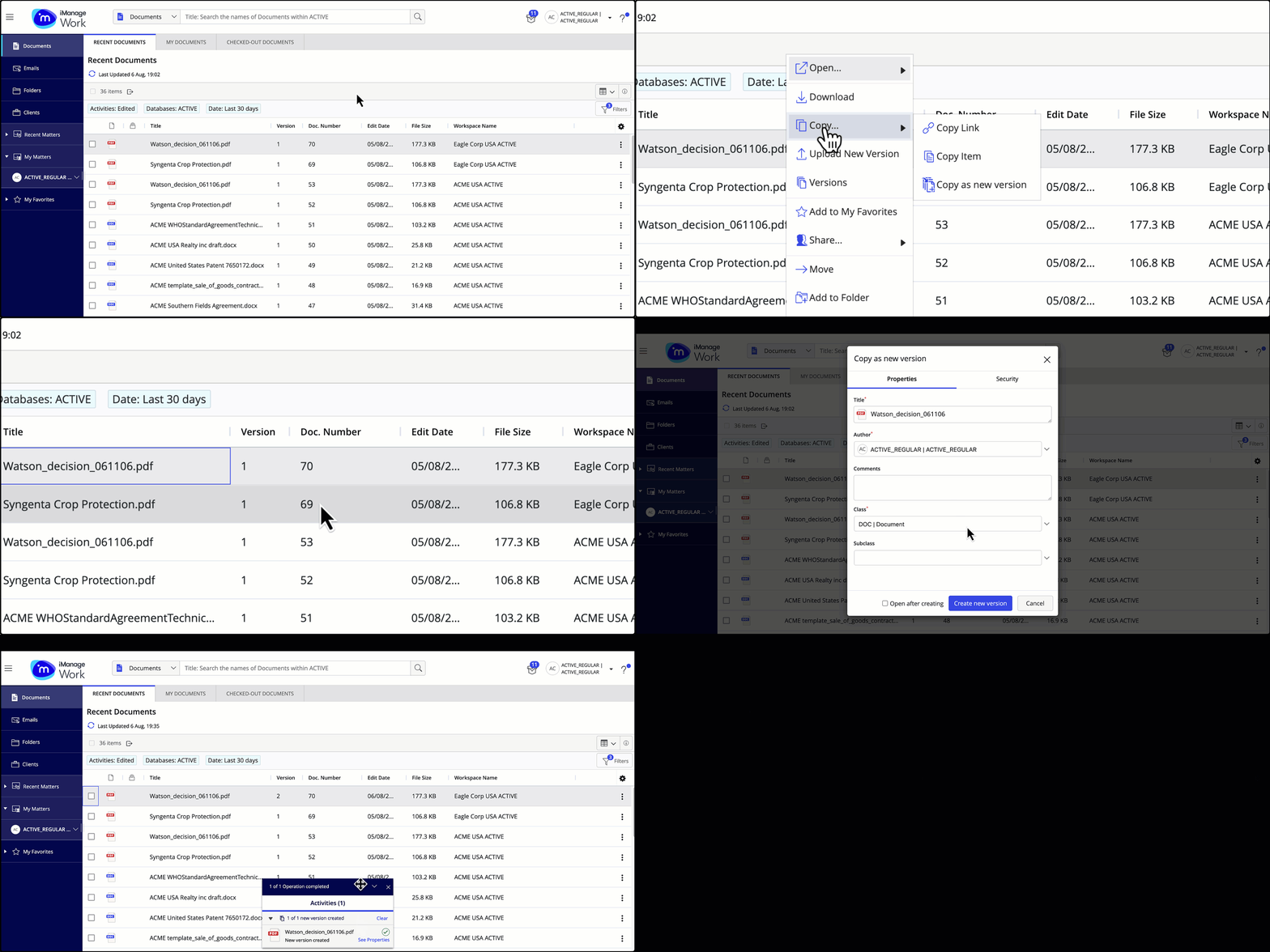
To copy a new version and open the document after creating the new version, select the Open after creating check box and then select Create version & open. The document opens.
Figure: Copying document as a new version and opening it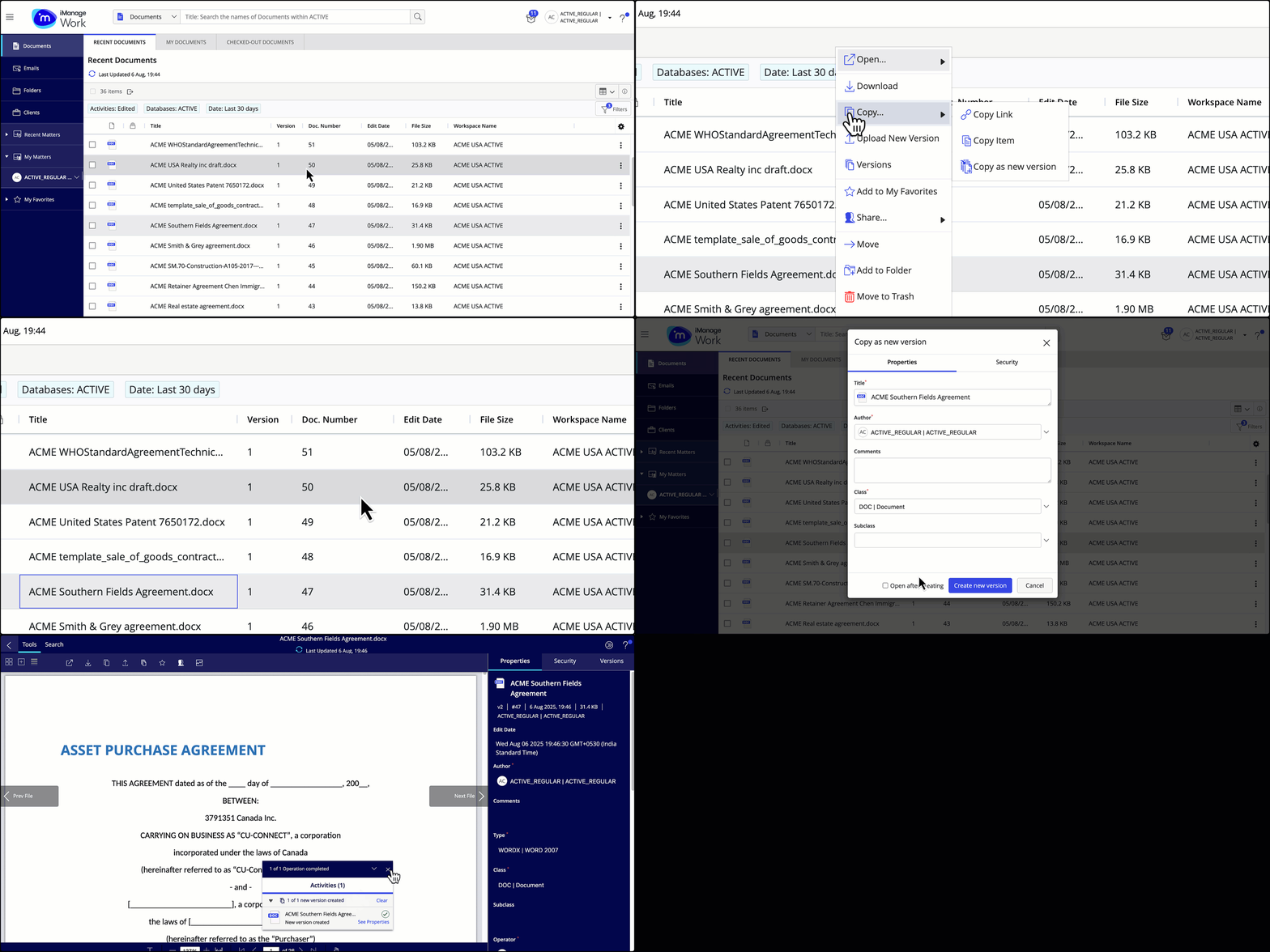
The open action follows your Title click settings for the File open or Microsoft 365 file open option as configured under User Settings in iManage Work. For more information, refer to Configuring title and row double-click actions.
NOTE:
If a newer version of the document is available when you select Copy as new version from the list or grid view, you're prompted to use the newer version if you have access to it and the document isn’t checked out or locked.