Select the document you wish to copy and drag it from the center panel.
Hover over the tree nodes to expand the containers within.
When you locate the destination folder where you wish to copy the document(s) press the Ctrl key (or the Option key for Mac users) and then drop.
Figure: Copying a document from center panel to tree using drag-and-drop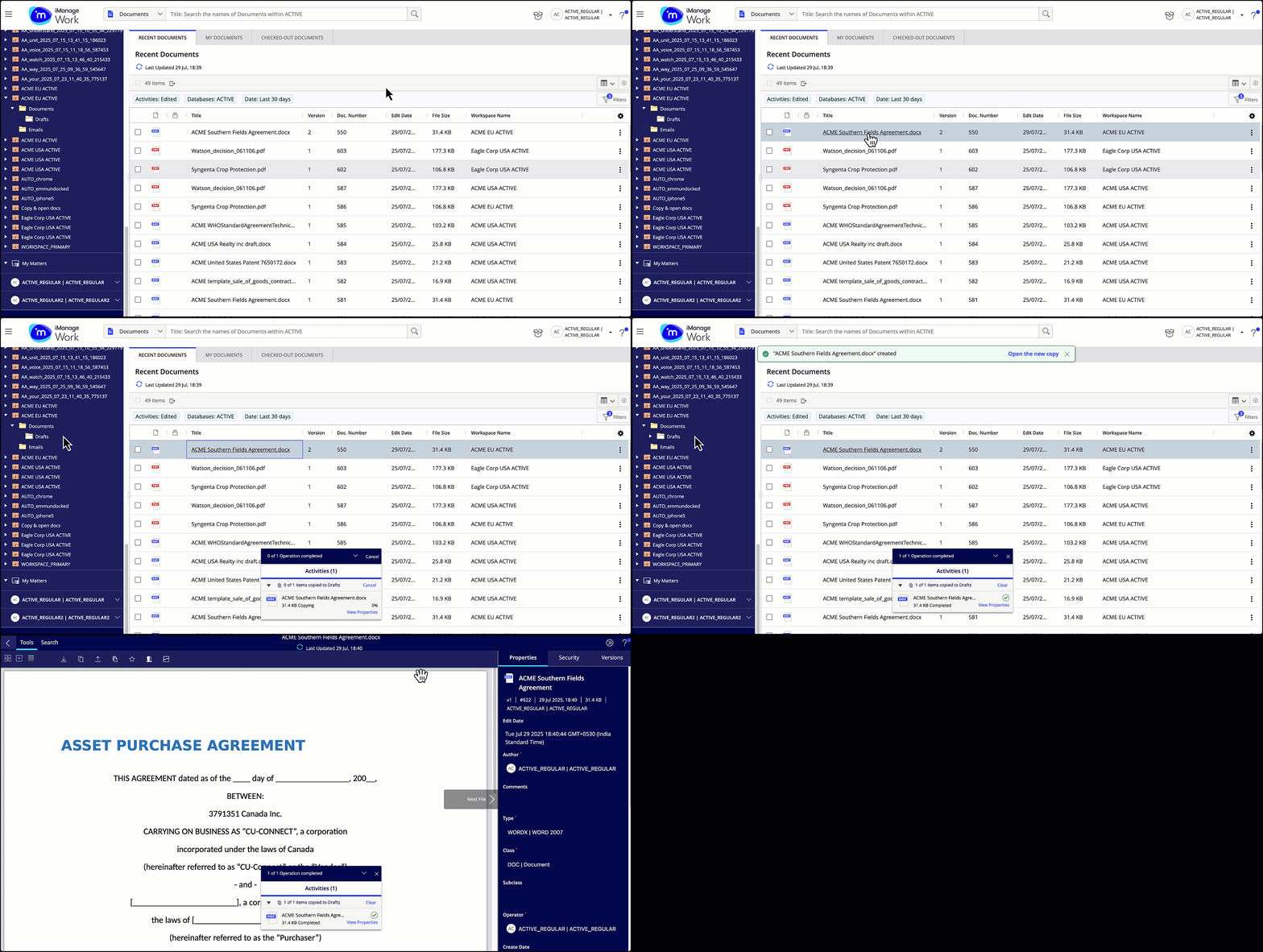
Based on the number of documents that you’re copying, your options to proceed are as explained in the table below:
Table: Copying single versus multiple documents
Copying a single document | Copying multiple documents |
|---|---|
|
|
NOTE:
The Copy operation fails if you don’t have enough permissions to the target folder (read/write or full access).
Copying documents to Search Folders isn't supported.
If users don't press the Ctrl key (or the Option key for Mac users) while dropping the document to the target folder, the document is moved instead of being copied.
Depending on the browsers and operating system that you use, the behavior and the key used for this feature may vary as explained in the following table:
Table: Copy using dragging across browsers
Operating system | Browser | Move operation | Copy operation |
|---|---|---|---|
macOS | Safari | Drag to the location | Dragging with the Option key pressed. |
Other browsers | Drag to the location | Dragging with the Option key pressed. | |
Windows | All browsers | Drag to the location | Dragging with the Ctrl key pressed. |
Windows virtual machine on Mac | All browsers | Drag to the location | Dragging with the Ctrl key pressed. |